
ProtoArc EM01
ProtoArc EM01 Wireless Bluetooth Trackball Mouse User Manual
Model: EM01 | Brand: ProtoArc
1. Introduction
Thank you for choosing the ProtoArc EM01 Wireless Bluetooth Trackball Mouse. This manual provides detailed instructions on how to set up, operate, and maintain your new trackball mouse. Designed for ergonomic comfort and multi-device connectivity, the EM01 enhances your productivity with its precise thumb control and adjustable features.
Package Contents:
- An Ergonomic Trackball Mouse
- A Type C Charging Cable
- A USB Receiver
- A User Manual

Image: Contents of the ProtoArc EM01 package, including the mouse, USB-C charging cable, USB receiver, and user manual.
2. Product Features
- Ergonomic Thumb Mouse: Utilizes a smooth and precise rollerball for cursor movement, reducing wrist and arm fatigue.
- Adjustable Angle Design: Features a unique hinge allowing angle customization from 0 to 20 degrees for natural hand positioning.
- 4 RGB Lighting Modes: Offers Rainbow Streaming, Rainbow Breathing, Neon, and Color Mixing Breathing light effects. RGB backlight can be turned off to conserve battery.
- Rechargeable & Adjustable DPI: Built-in 900mAh lithium battery provides approximately 1 month of use with lights off per full charge. 5 DPI levels (200/400/800/1200/1600 DPI) for customizable cursor sensitivity.
- Bluetooth & 2.4G Wireless Connection: Supports triple connection modes, allowing control of up to three devices simultaneously (Android, tablet, Mac, Windows PC/Laptop/Desktop).

Image: Top-down view of the ProtoArc EM01 Wireless Bluetooth Trackball Mouse, highlighting its ergonomic design and trackball.

Image: Illustration demonstrating the adjustable angle feature of the ProtoArc EM01 mouse, showing 0-degree and 20-degree tilt options for improved ergonomics.
3. Setup Guide
Charging the Mouse:
Before first use, fully charge the mouse using the provided Type-C charging cable. Connect the cable to the mouse's charging port and a USB power source. The LED indicator will show charging status.
Connecting to Devices:
The EM01 trackball mouse supports three connection modes: 2.4G Wireless and two Bluetooth channels (BT1, BT2).
- 2.4G Wireless Connection:
- Locate the USB receiver stored in the mouse's battery compartment.
- Plug the USB receiver into an available USB port on your computer.
- Switch the mouse to 2.4G mode using the mode switch button (indicated by '1' on the mouse). The mouse should connect automatically.
- Bluetooth Connection (BT1 / BT2):
- Switch the mouse to either BT1 or BT2 mode using the mode switch button (indicated by '2' or '3' on the mouse).
- Press and hold the mode switch button for 3-5 seconds until the corresponding indicator light flashes rapidly, indicating pairing mode.
- On your device (PC, iPad, Mac, Android tablet), go to Bluetooth settings and search for "ProtoArc EM01".
- Select the mouse to pair. Once connected, the indicator light will stop flashing.
You can switch between connected devices by pressing the mode switch button briefly.

Image: The ProtoArc EM01 mouse shown connected to a laptop, a tablet, and a smartphone, illustrating its multi-device connectivity feature.
4. Operating Instructions
Thumb Trackball Control:
The trackball is operated by your thumb. Roll the trackball to move the cursor on the screen. This design minimizes arm and wrist movement, promoting ergonomic comfort.

Image: A close-up of the ProtoArc EM01 mouse, emphasizing the thumb-operated trackball and the concept of not needing to move your hands.
DPI Adjustment:
The mouse features 5 adjustable DPI levels (200/400/800/1200/1600 DPI). Press the DPI button (usually located near the scroll wheel) to cycle through the sensitivity settings. Choose a DPI that suits your preference for cursor speed and precision.

Image: Diagram illustrating the 5 adjustable DPI levels (200, 400, 800, 1200, 1600) and the location of the DPI adjustment button on the ProtoArc EM01 mouse.
RGB Lighting Modes:
The mouse offers 4 RGB lighting effects. Press the dedicated light button to cycle through: Rainbow Streaming Light (Default), Rainbow Breathing Light, Neon, and Color Mixing Breathing Light. To turn off the RGB backlight and save battery, long-press the light button.
Forward and Backward Buttons:
Utilize the dedicated forward and backward buttons, typically located near the trackball, for quick navigation in web browsers and file explorers. Note: These buttons may not be fully compatible with macOS.
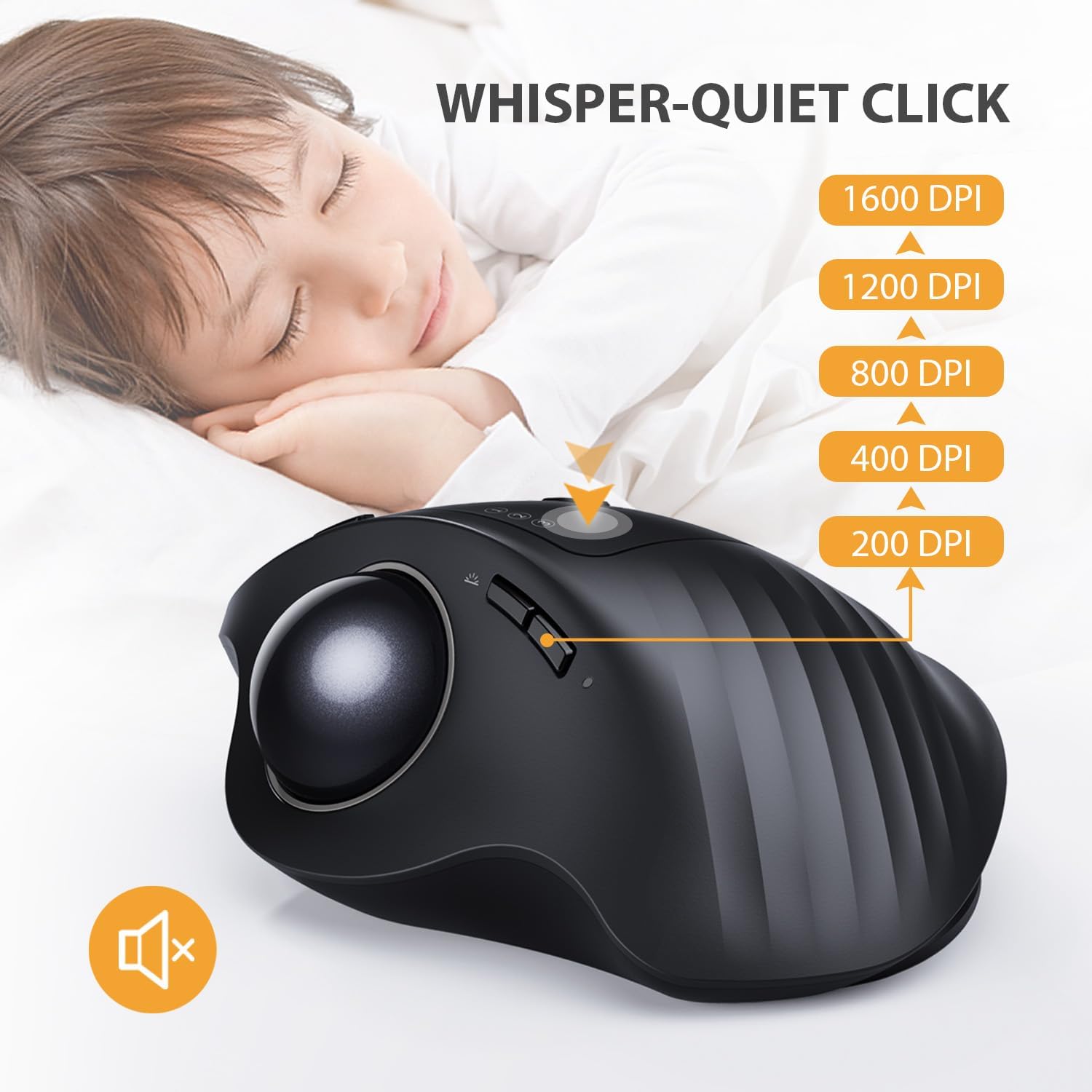
Image: A view of the ProtoArc EM01 mouse highlighting the forward and backward navigation buttons, useful for web browsing.
5. Maintenance
Cleaning the Trackball:
Over time, dust and debris can accumulate around the trackball, affecting its smoothness. To clean:
- Gently push the trackball out from the opening on the underside of the mouse.
- Use a soft, lint-free cloth to wipe the trackball clean.
- Use a cotton swab or compressed air to clean the inside cavity where the trackball sits, paying attention to the three small support points.
- Reinsert the trackball into its socket until it clicks into place.
Battery Care:
To prolong battery life, turn off the mouse when not in use for extended periods. The mouse will enter an auto-sleep mode after a few minutes of inactivity to save power; click any button to wake it up.
6. Troubleshooting
- Mouse not responding:
- Ensure the mouse is charged. Connect it to a power source using the Type-C cable.
- Verify the connection mode (2.4G, BT1, BT2) matches your device and is correctly paired.
- For 2.4G, ensure the USB receiver is securely plugged in. Try a different USB port.
- For Bluetooth, ensure Bluetooth is enabled on your device and try re-pairing.
- Cursor movement is erratic or sticky:
- Clean the trackball and its internal cavity as described in the Maintenance section. Dust or debris is a common cause.
- Ensure the trackball is properly seated in its socket.
- RGB lights not working or stuck:
- Briefly press the light button to cycle through modes.
- Long-press the light button to ensure it hasn't been turned off.
- Check battery level; low battery might affect RGB performance.
- Backward/Forward buttons not working on Mac:
- As noted, these buttons may have limited compatibility with macOS. Consider using third-party software for remapping if essential.
Video: An official product video showcasing the ProtoArc EM01 RGB Wireless Trackball Mouse and its features.
7. Specifications
| Feature | Detail |
|---|---|
| Product Dimensions | 3.54 x 2.76 x 0.04 inches |
| Item Weight | 9.2 ounces |
| Model Number | EM01 |
| Batteries | 1 Lithium Ion battery required (built-in 900mAh) |
| Connectivity Technology | 2.4G Wireless, Bluetooth (BT1, BT2) |
| Special Features | Wireless, Ergonomic Design, Rechargeable, Adjustable Angle, LED Lights |
| Movement Detection | Trackball |
| DPI Levels | 200/400/800/1200/1600 DPI |
| Color | Black |
| First Available Date | January 25, 2022 |
8. Warranty and Support
ProtoArc products come with a standard manufacturer's warranty. For specific warranty details, please refer to the warranty card included in your product packaging or visit the official ProtoArc website. For technical support, troubleshooting assistance, or any inquiries, please contact ProtoArc customer service through their official channels.
You can also find additional support and FAQs on the ProtoArc Store on Amazon.
Ask a question about this manual
Ask about setup, troubleshooting, compatibility, parts, safety, or missing instructions. Manuals+ will review the question and use this page’s manual context to help answer it.