
Introduction
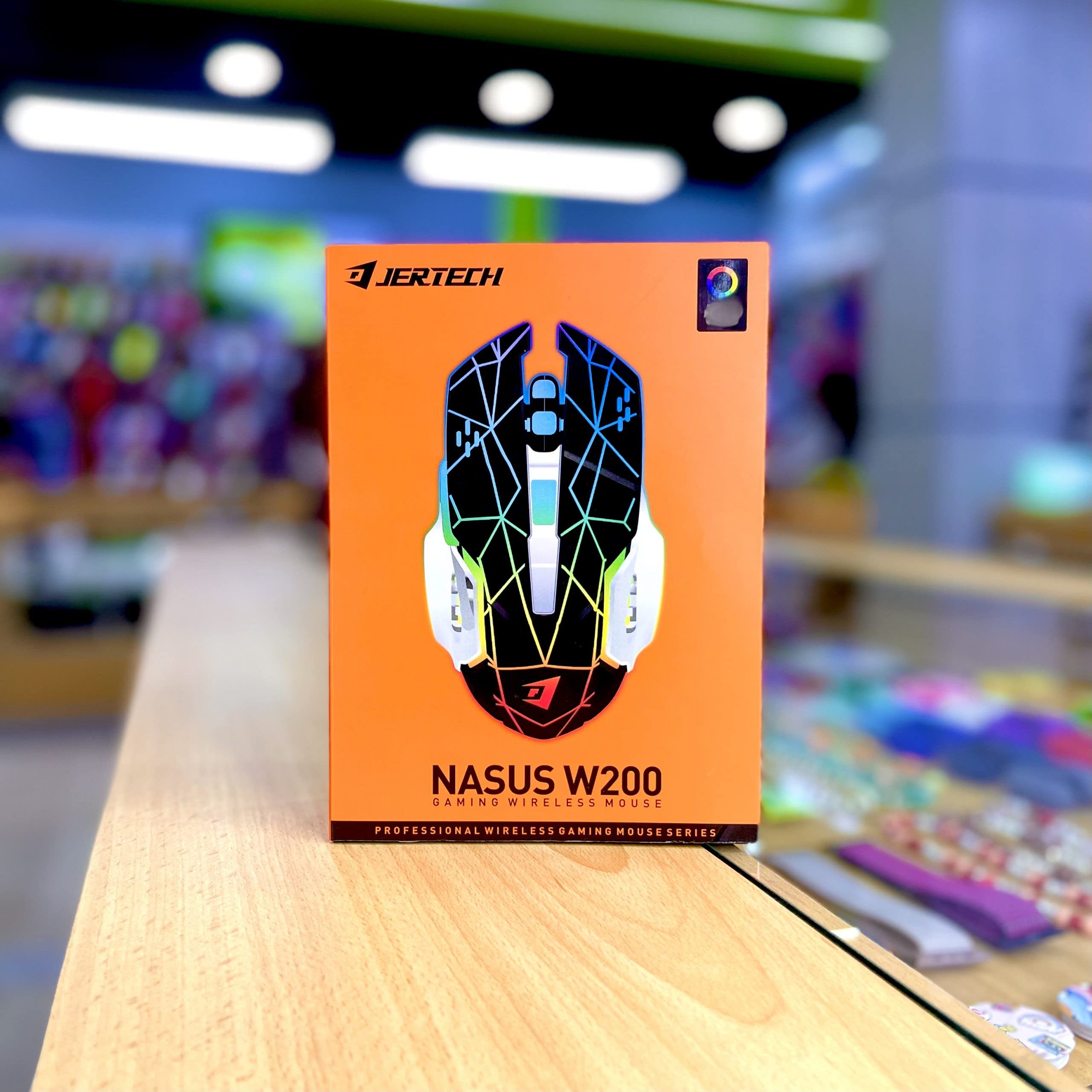
Thank you for choosing the NASUS W200 Wireless Gaming Mouse. This manual provides essential information for setting up, operating, and maintaining your new device. Please read it carefully to ensure optimal performance and longevity of your mouse.
Package Contents
- NASUS W200 Wireless Gaming Mouse
- USB 2.4 GHz Receiver
- Charging Cable (if applicable, not specified but common for rechargeable wireless mice)
- User Manual
Setup
1. Charging the Mouse
Before first use, it is recommended to fully charge the mouse. Connect the charging cable to the mouse's charging port and the other end to a USB power source (e.g., computer USB port, USB wall adapter). The LED indicator will show charging status.
2. Connecting the USB Receiver
- Locate the USB 2.4 GHz receiver, typically stored in a compartment on the underside of the mouse.
- Plug the USB receiver into an available USB port on your computer.
- Turn on the mouse using the power switch located on its underside.
- Your computer should automatically detect and install the necessary drivers. This may take a few moments.
The mouse is now ready for use.
Operating Instructions
Basic Functions
- Left Click: Standard selection and activation.
- Right Click: Accesses context menus.
- Scroll Wheel: Scrolls documents and web pages vertically. Can also be clicked for middle-click functionality.
DPI Adjustment
The NASUS W200 mouse features a 2400 DPI sensor, allowing for adjustable sensitivity. There is typically a dedicated DPI button (often located behind the scroll wheel) that cycles through different DPI settings. Press this button to change the cursor speed to suit your preference for gaming or general use.

Additional Buttons
The mouse is equipped with 6 buttons. In addition to the standard left, right, and scroll wheel click, there are typically two side buttons and a DPI adjustment button. These additional buttons can often be programmed for specific functions in games or applications using your operating system's mouse settings or third-party software (if available).
Silent Clicks
The NASUS W200 features silent click technology, reducing click noise for a quieter user experience, especially beneficial in shared environments or during late-night use.
Maintenance
Cleaning
- To clean the mouse, disconnect it from your computer.
- Use a soft, lint-free cloth slightly dampened with water or a mild cleaning solution.
- Avoid using harsh chemicals, abrasives, or spraying liquids directly onto the mouse.
- Regularly clean the optical sensor area on the underside to ensure accurate tracking.
Battery Care
- The mouse has a built-in 400 mAh rechargeable battery.
- Avoid fully discharging the battery frequently to prolong its lifespan.
- If the mouse will not be used for an extended period, charge it to about 50% and store it in a cool, dry place.
Troubleshooting
Mouse Not Responding
- Ensure the mouse is turned on.
- Check if the USB receiver is securely plugged into a working USB port. Try a different USB port.
- Verify the mouse battery is charged. Connect the charging cable and allow it to charge for a while.
- Move the mouse closer to the USB receiver to ensure it's within the 10-meter wireless range.
- Restart your computer.
Erratic Cursor Movement
- Clean the optical sensor on the underside of the mouse.
- Ensure you are using the mouse on a suitable surface. Avoid highly reflective or transparent surfaces. A mouse pad is recommended.
- Check for any strong electromagnetic interference nearby.
DPI Not Changing
- Ensure you are pressing the correct DPI adjustment button.
- If the issue persists, try restarting the mouse and your computer.
Specifications
| Feature | Detail |
|---|---|
| Brand | Generic |
| Model | W200 |
| Sensor Technology | Optical Tracking |
| Wireless Connectivity | 2.4 GHz USB Wireless |
| Wireless Range | 10 meters (33 feet) |
| Number of Buttons | 6 |
| DPI Resolution | 2400 DPI |
| Battery Capacity | 400 mAh |
| Tracking Speed | 150 Inches Per Second (IPS) |
| Click Type | Silent Clicks |
| System Requirements | Windows XP/Vista/7/10, Mac OS |
| Power Source | Battery Powered |
| Color | Multi-color |
| Finish Type | Matte |
Warranty & Support
Warranty Information
This NASUS W200 Wireless Gaming Mouse comes with a 1-year manufacturer warranty from the date of purchase. This warranty covers manufacturing defects. It does not cover damage caused by misuse, accidents, unauthorized modifications, or normal wear and tear.
Customer Support
For technical assistance, warranty claims, or further inquiries, please contact your retailer or the manufacturer's customer service. Refer to your purchase documentation for specific contact details.


