
MSI RX 6500 XT MECH 2X 4G OC
MSI Gaming AMD Radeon RX 6500 XT MECH 2X 4G OC Graphics Card User Manual
Model: RX 6500 XT MECH 2X 4G OC
Introduction
This manual provides detailed instructions for the installation, operation, maintenance, and troubleshooting of your MSI Gaming AMD Radeon RX 6500 XT MECH 2X 4G OC Graphics Card. The Radeon RX 6500 XT series, powered by RDNA architecture, is designed for exceptional performance and high-fidelity gaming, offering features like new compute units, improved visual effects, and multi-level cache hierarchy for responsive gaming. It supports Radeon Image Sharpening, FidelityFX, AMD Radeon FreeSync technology, and Radeon Anti-Lag for an immersive experience.
What's in the Box
Upon opening your product packaging, please ensure all the following items are present:
- MSI Gaming AMD Radeon RX 6500 XT MECH 2X 4G OC Graphics Card
- Quick Start Guide
- Driver CD/USB (may vary by region)
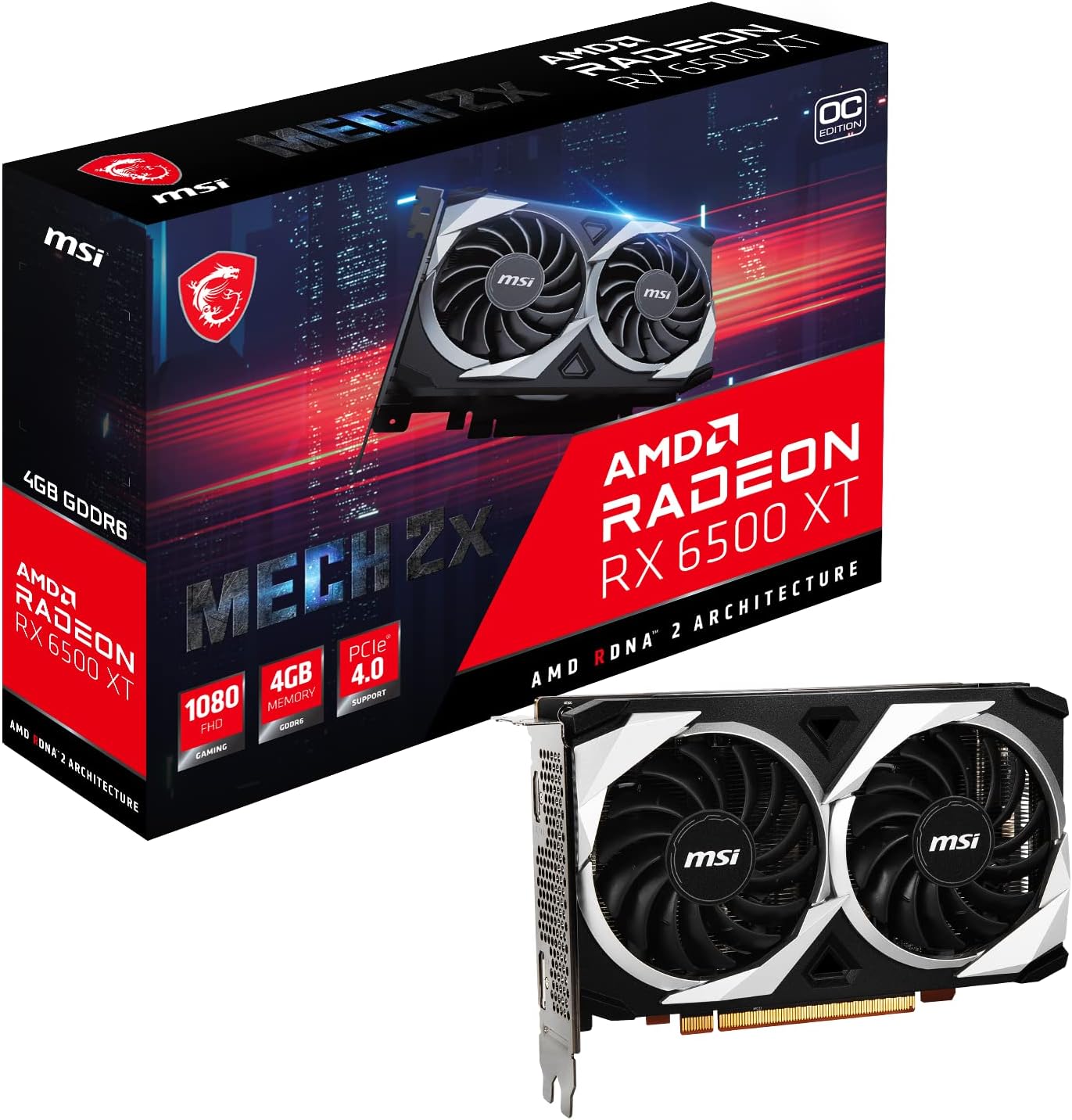
Image: The MSI Radeon RX 6500 XT Graphics Card shown alongside its retail packaging.
Specifications
| Feature | Detail |
|---|---|
| Chipset | AMD Radeon RX 6500 XT |
| Video Memory | 4GB GDDR6 |
| Memory Interface | 64-bit |
| Output Ports | DisplayPort x 1 (v1.4a) / HDMI 2.1 x 1 |
| Digital Maximum Resolution | 7680 x 4320 |
| Product Dimensions | 6.8 x 1.7 x 4.4 inches |
| Item Weight | 15.9 ounces |
| Manufacturer | MSI |
| Model Number | 4719072929985 |

Image: Front view of the graphics card, highlighting the dual Torx fans for efficient cooling.
Setup
1. Pre-Installation Checks
- Ensure your power supply unit (PSU) has sufficient wattage and a 6-pin PCIe power connector available.
- Verify your motherboard has an available PCIe 4.0 x16 slot. Note that this card may occupy more than two slots due to its cooling solution.
- Power off your computer and disconnect it from the power outlet.
2. Physical Installation
- Open your computer case.
- Locate an empty PCIe x16 slot on your motherboard.
- Remove the necessary expansion slot covers from your case.
- Carefully align the graphics card with the PCIe slot and press down firmly until it is securely seated.
- Secure the graphics card to the case using the retaining screw(s).
- Connect the 6-pin PCIe power connector from your PSU to the graphics card.
- Close your computer case.

Image: An angled view of the graphics card, illustrating its form factor for installation.
3. Connecting Display Cables
- Connect your monitor(s) to the graphics card's DisplayPort or HDMI output ports.
- Reconnect your computer to the power outlet and power it on.

Image: Detail of the graphics card's output ports, showing one HDMI and one DisplayPort connector.
4. Driver Installation
- Once Windows loads, install the graphics drivers from the included CD/USB or download the latest drivers directly from the official MSI or AMD website.
- Follow the on-screen instructions to complete the driver installation. A restart may be required.
Operating Your Graphics Card
After successful installation, your graphics card is ready for use. For optimal performance and customization, utilize the following software:
AMD Radeon Software
The AMD Radeon Software provides a comprehensive suite of tools for managing your graphics card. This includes:
- Gaming Optimization: Adjust settings for individual games to achieve the best balance of performance and visual quality.
- Display Settings: Configure resolution, refresh rate, and enable features like AMD FreeSync for tear-free gaming.
- Performance Monitoring: Track GPU usage, temperature, and clock speeds in real-time.
- Radeon Anti-Lag: Reduce input lag for competitive gaming.
- FidelityFX: Enhance visual fidelity in supported games.
MSI Center
MSI Center is a unified software platform that allows you to monitor, optimize, and customize your MSI products. Key features include:
- System Monitoring: View real-time performance data for your CPU, GPU, disk, and memory.
- User Scenarios: Select preset performance profiles (e.g., Extreme Performance, Balanced, Silent, Super Battery) or create custom profiles.
- General Settings: Access various system settings in one place.
- Live Update: Keep your system drivers and utilities up to date.
- Feature Sets: Install or uninstall additional MSI exclusive features like Noise Cancellation, Smart Image Finder, and Duet Display.
Video: An overview of the MSI Center software, demonstrating its monitoring, feature, and support functionalities for optimizing your system.
Maintenance
Regular maintenance helps ensure the longevity and optimal performance of your graphics card:
- Dust Removal: Periodically clean dust from the fans and heatsink using compressed air. Ensure the system is powered off before cleaning.
- Driver Updates: Regularly check for and install the latest graphics drivers from MSI or AMD's official websites to benefit from performance improvements and bug fixes.
- Temperature Monitoring: Use software like MSI Center or AMD Radeon Software to monitor GPU temperatures during heavy loads. Ensure adequate airflow within your PC case.

Image: The backplate of the graphics card, which helps with structural integrity and heat dissipation.
Troubleshooting
Here are solutions to common issues you might encounter:
- No Display Output:
- Ensure the graphics card is fully seated in the PCIe slot.
- Verify the 6-pin PCIe power connector is securely attached.
- Check that your monitor cable is connected to the graphics card, not the motherboard's integrated graphics port.
- Try a different display cable or monitor.
- Driver Installation Issues:
- Uninstall any previous graphics drivers using a utility like Display Driver Uninstaller (DDU) before installing new ones.
- Download drivers directly from MSI or AMD's official website.
- Poor Performance / Overheating:
- Ensure your PC case has adequate airflow and cooling.
- Clean dust from the graphics card fans and heatsink.
- Verify that the graphics card is receiving sufficient power from the PSU.
- Check for background applications consuming system resources.
- Physical Fit Issues (e.g., Card too wide):
- This card may require more than two expansion slots due to its cooling design. Ensure adjacent slots are clear.
- Consider using a GPU support bracket if the card sags due to its weight.
Warranty and Support
Your MSI Gaming AMD Radeon RX 6500 XT MECH 2X 4G OC Graphics Card is covered by a manufacturer's warranty. For specific warranty terms, conditions, and duration, please refer to the warranty information included with your product or visit the official MSI website.
For technical support, driver downloads, FAQs, and further assistance, please visit the official MSI support page:
You can also find additional resources and community support through the AMD Radeon Software interface.
Related documentsRX 6500 XT MECH 2X 4G OC


Ask a question about this manual
Ask about setup, troubleshooting, compatibility, parts, safety, or missing instructions. Manuals+ will review the question and use this page’s manual context to help answer it.