
1. Introduction
This manual provides essential information for setting up, operating, and maintaining your Acer Nitro ED270 X0 27-inch Full HD Curved Gaming Monitor. Please read these instructions carefully before using the product to ensure optimal performance and safety.
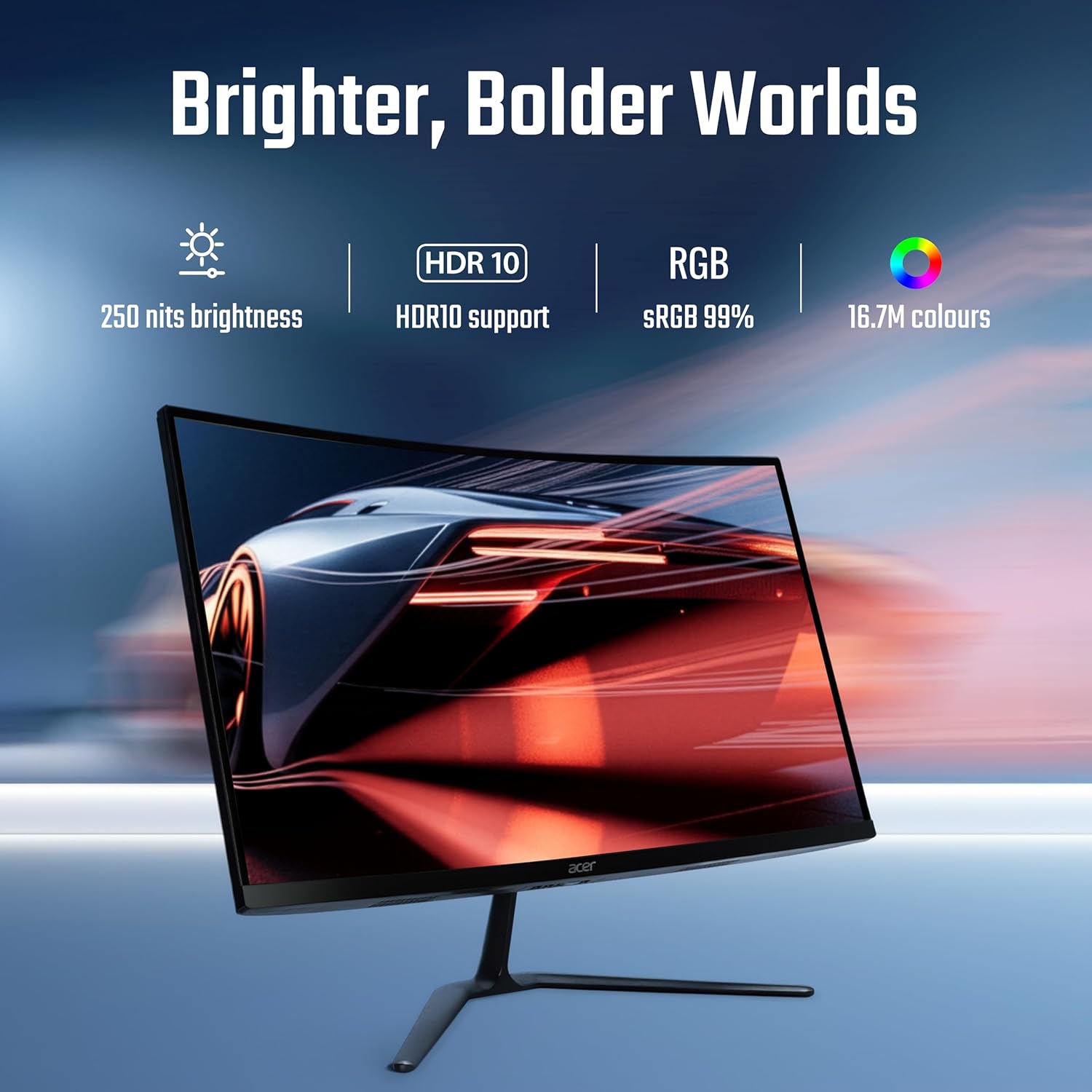
Figure 1.1: Front view of the Acer Nitro ED270 X0 Curved Gaming Monitor.
2. Package Contents
Verify that all items listed below are included in your package. If any items are missing or damaged, please contact your retailer or Acer customer support.
- Acer Nitro ED270 X0 Monitor
- Monitor Stand (Base and Neck)
- Power Cord
- HDMI Cable
- User Manual (this document)
3. Assembly
Follow these steps to assemble the monitor stand and prepare your monitor for use.
- Attach the Stand Base: Carefully place the monitor face down on a soft, clean surface to prevent scratches. Align the stand neck with the mounting slot on the back of the monitor and secure it.
- Attach the Stand Neck: Connect the stand base to the stand neck. Ensure it clicks into place or is secured with the provided screw.
- Position the Monitor: Gently lift the assembled monitor and place it on a stable, flat surface.

Figure 3.1: Side view of the monitor, illustrating the stand attachment.

Figure 3.2: Top view of the monitor, showing its curved design.
4. Connections
Connect the monitor to your computer or other devices using the appropriate cables.
- Power Connection: Connect the power cord to the monitor's power input and then to a power outlet.
- Video Connection: Use the provided HDMI cable or a DisplayPort cable to connect your computer's video output to one of the monitor's input ports. The monitor features 2 HDMI 2.0 ports and 1 DisplayPort 1.4.

Figure 4.1: Rear view of the monitor, highlighting the HDMI and DisplayPort connections.
5. Initial Setup and Power On
After connecting all cables, follow these steps to power on and perform initial setup.
- Power On: Press the power button, usually located on the bottom right side of the monitor, to turn it on.
- Input Source Selection: The monitor should automatically detect the active input source. If not, use the OSD menu buttons to manually select the correct input (HDMI 1, HDMI 2, or DisplayPort).
6. Operating the Monitor
6.1 On-Screen Display (OSD) Menu Navigation
The monitor's settings can be adjusted using the buttons located on the bottom side of the monitor. These buttons allow you to navigate through the OSD menu to customize various display parameters.
6.2 Display Settings
Adjust visual parameters for optimal viewing experience.
- Brightness & Contrast: Modify these settings to suit your environment and preference.
- Color Settings: Adjust color temperature, gamma, and other color-related options. The monitor supports HDR10 and offers sRGB 99% color accuracy with 16.7 million colors.

Figure 6.1: Visual representation of the monitor's display capabilities, including brightness and color support.
6.3 Performance Settings
Optimize your monitor for gaming and fast-paced content.
- Refresh Rate: The monitor supports up to a 200 Hz refresh rate for smooth motion. Ensure your graphics card settings are configured to utilize this rate.
- Response Time (VRB): The 1 ms Visual Response Boost (VRB) technology reduces motion blur. This can be enabled or adjusted via the OSD.
- AMD FreeSync Premium: This technology synchronizes the monitor's refresh rate with your GPU's frame rate, eliminating screen tearing and stuttering. Enable FreeSync Premium in both the monitor's OSD and your graphics card control panel.

Figure 6.2: Demonstration of motion clarity with 1ms VRB and AMD FreeSync Premium technology.
6.4 Ergonomics and Eye Comfort
Adjust the monitor for comfortable viewing and reduce eye strain.
- Tilt Adjustment: The monitor stand allows for tilt adjustment from -5° to 20° to find your preferred viewing angle.
- Acer VisionCare: Features like Flicker-less, BlueLightShield, and ComfyView are integrated to reduce eye fatigue during extended use. These settings can be managed through the OSD.

Figure 6.3: Monitor setup designed for extended use, emphasizing eye comfort technologies.
7. Maintenance
Proper care ensures the longevity and performance of your monitor.
- Cleaning the Screen: Use a soft, lint-free cloth lightly dampened with water or a specialized screen cleaner. Do not spray cleaner directly onto the screen.
- Cleaning the Casing: Wipe the monitor casing with a soft, dry cloth. Avoid using abrasive cleaners or solvents.
- Ventilation: Ensure the monitor's ventilation openings are not blocked to prevent overheating.
8. Troubleshooting
If you encounter issues with your monitor, refer to the following common problems and solutions.
| Problem | Possible Solution |
|---|---|
| No image on screen |
|
| Image is blurry or distorted |
|
| Screen flickering |
|
If the problem persists, please contact Acer customer support.
9. Specifications
Key technical specifications for the Acer Nitro ED270 X0 monitor.
| Feature | Specification |
|---|---|
| Model Number | UM.HE0SI.001 |
| Screen Size | 27 Inches |
| Panel Type | VA Curved (1500R) |
| Resolution | 1920 x 1080 (Full HD) |
| Refresh Rate | Up to 200 Hz |
| Response Time | 1 ms (VRB) |
| Brightness | 250 nits |
| Color Gamut | sRGB 99% |
| Color Support | 16.7 Million |
| HDR Support | HDR10 |
| Viewing Angle | 178° (H/V) |
| Video Inputs | 2 x HDMI 2.0, 1 x DisplayPort 1.4 |
| Ergonomics | Tilt (-5° to 20°) |
| Dimensions (LxWxH) | 19.9 x 61.1 x 45.6 cm |
| Item Weight | 3.9 kg |
| Included Components | Monitor, Stand, Power cord, Manual, HDMI Cable |
10. Warranty Information
Acer products are manufactured to high-quality standards and are covered by a limited warranty. Please refer to the warranty card included in your package or visit the official Acer website for detailed warranty terms and conditions specific to your region. Keep your purchase receipt as proof of purchase for warranty claims.
11. Customer Support
For service-related queries, technical assistance, or further information, please contact Acer customer support using the details below:
- Toll-Free Number: 1800-11-4100
- Phone: 6366800400
- Email: acersupport@in.startek.com
- Online Support: https://acer1.in/swdlo
- Live agent support available from Monday to Saturday, 9 AM to 6 PM (Public Holidays excluded).

Figure 11.1: Acer Customer Support contact details.


