
1. Introduction
Thank you for choosing the RAPOO 9500M Wireless Keyboard and Mouse Combo. This combo is designed for versatility and efficiency, allowing seamless switching between multiple devices using Bluetooth 3.0, Bluetooth 4.0, and 2.4G wireless connections. This manual provides detailed instructions for setup, operation, maintenance, and troubleshooting to ensure optimal performance of your new peripheral set.

Image: The RAPOO 9500M Wireless Keyboard and Mouse Combo, featuring the keyboard, mouse, and USB receiver.
2. Product Overview
2.1 Key Features
- Multi-device Connection: Connects to up to 4 devices simultaneously via Bluetooth 3.0, Bluetooth 4.0, and 2.4G wireless.
- Ultra-Slim Keyboard: Features a 4.5mm ultra-slim design with a durable stainless steel base and accurate scissor key structure for comfortable typing.
- Full-Size Layout: Standard US QWERTY layout with a numeric keypad and 12 multimedia hotkeys.
- Programmable Mouse: RAPOO MT550 mouse with 6 customizable buttons and 4-level adjustable DPI (600/1000/1300/1600).
- Long Battery Life: Extended battery life for both keyboard and mouse (up to 12 months).

Image: Dimensions of the RAPOO 9500M keyboard and mouse, highlighting the ultra-slim profile of the keyboard.

Image: Overview of RAPOO 9500M features, including multi-device connection, slim design, and customizable buttons.
3. Setup
3.1 Battery Installation
The keyboard requires 2 AAA batteries and the mouse requires 1 AA battery (batteries are pre-included). To install or replace batteries:
- Locate the battery compartment on the underside of the keyboard and mouse.
- Open the battery cover.
- Insert the batteries, ensuring correct polarity (+/-).
- Close the battery cover securely.
- Turn on the power switch located near the battery compartment on both devices.

Image: Illustration of battery installation for the keyboard and mouse, showing the battery compartments and required battery types.
3.2 Connecting to Devices
The RAPOO 9500M combo supports connection to up to 4 devices. The keyboard can connect via Bluetooth 3.0, Bluetooth 4.0, or 2.4G wireless. The mouse can connect via Bluetooth or 2.4G wireless.
2.4G Wireless Connection (USB Receiver)
For 2.4G wireless connection, use the included USB receiver. The USB receiver is typically stored in the battery compartment of the mouse.
- Remove the USB receiver from the mouse's battery compartment.
- Plug the USB receiver into an available USB port on your computer.
- Turn on both the keyboard and mouse.
- For the keyboard, press Fn + 4 to switch to 2.4G mode.
- The devices should automatically connect.
Bluetooth Connection (Keyboard & Mouse)
The keyboard supports Bluetooth 3.0 and Bluetooth 4.0. The mouse supports Bluetooth.
- For Keyboard: Press Fn + 1 (for Bluetooth 3.0), Fn + 2 (for Bluetooth 4.0), or Fn + 3 (for Bluetooth 4.0) to select a Bluetooth channel. The indicator light will blink slowly.
- For Mouse: Press the Bluetooth pairing button on the bottom of the mouse to select a Bluetooth channel (indicated by a light).
- On your device (computer, tablet, smartphone), go to Bluetooth settings and search for new devices.
- Select "RAPOO BT3.0 Keyboard" or "RAPOO BLE Keyboard" for the keyboard, and "RAPOO BLE Mouse" for the mouse from the list of available devices.
- Follow any on-screen prompts to complete the pairing process (e.g., entering a code).
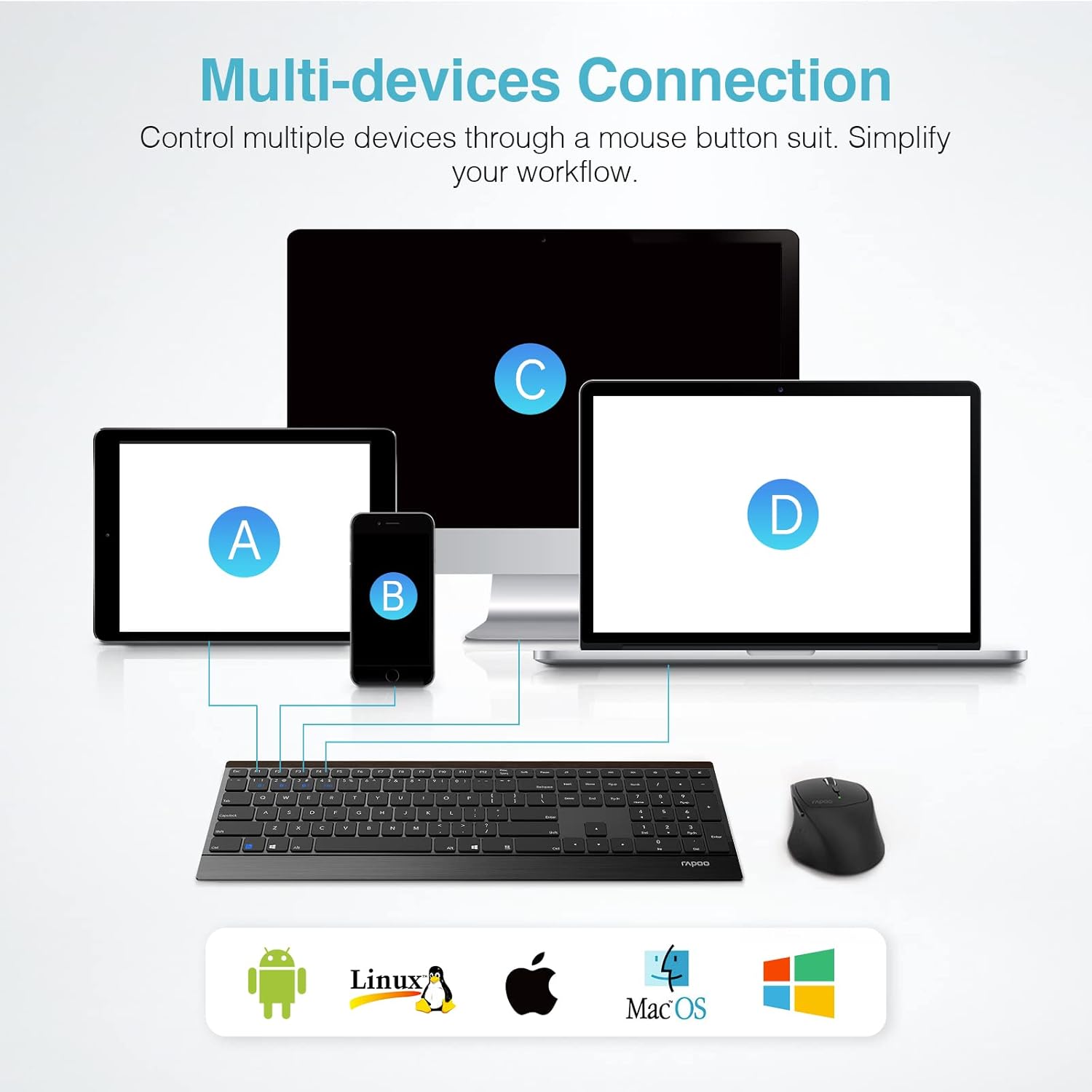
Image: Diagram illustrating the multi-device connection capability of the keyboard and mouse, showing connections to a tablet, smartphone, desktop, and laptop.
Video: Demonstrates the multi-device switching functionality of the RAPOO wireless keyboard and mouse combo, showing how to switch between connected devices using keyboard shortcuts and mouse buttons.
4. Operating Instructions
4.1 Switching Between Devices
- Keyboard: Press Fn + 1/2/3/4 to switch between the paired Bluetooth devices (1, 2, 3) or the 2.4G connection (4).
- Mouse: Press the Bluetooth button on the bottom of the mouse to cycle through the connected devices.
4.2 Multimedia Hotkeys (Keyboard)
The keyboard features 12 multimedia hotkeys (F1-F12) that provide quick access to various functions. These functions are typically activated by pressing the Fn key simultaneously with the desired F-key.
| Key Combination | Function |
|---|---|
| Fn + F1 | Multimedia Player |
| Fn + F2 | Play/Pause |
| Fn + F3 | Previous Track |
| Fn + F4 | Next Track |
| Fn + F5 | Volume - |
| Fn + F6 | Volume + |
| Fn + F7 | Mute |
| Fn + F8 | Web Browser |
| Fn + F9 | |
| Fn + F10 | My Computer |
| Fn + F11 | Calculator |
| Fn + F12 | Search |
4.3 Mouse DPI Adjustment
The RAPOO MT550 mouse allows you to adjust the DPI (Dots Per Inch) sensitivity to suit your preference. It offers 4 levels of DPI: 600, 1000, 1300, and 1600.
- Press the DPI button located on the top of the mouse (usually behind the scroll wheel) to cycle through the DPI settings.
- The indicator light on the mouse will change or blink to indicate the current DPI level.
4.4 Programmable Mouse Buttons
The RAPOO MT550 wireless mouse features 6 customizable programming keys. You can download custom macro software from the official RAPOO website to personalize these buttons for specific functions or macros, enhancing your workflow for office or gaming tasks.

Image: Screenshot of the RAPOO MT550 customization software interface, showing options for adjusting pointer speed and button assignments.
5. Maintenance
5.1 Cleaning
- To clean the keyboard and mouse, use a soft, lint-free cloth.
- For stubborn dirt, slightly dampen the cloth with water or a mild, non-abrasive cleaning solution.
- Avoid spraying liquids directly onto the devices.
- Do not use harsh chemicals, solvents, or abrasive cleaners.
5.2 Battery Replacement
When the battery indicator light on the keyboard or mouse begins to flash, or if you experience connectivity issues, it may be time to replace the batteries. Refer to Section 3.1 for battery installation instructions.
- Always use new, high-quality batteries of the specified type (AAA for keyboard, AA for mouse).
- Dispose of old batteries responsibly according to local regulations.
6. Troubleshooting
Common Issues and Solutions
| Problem | Possible Cause | Solution |
|---|---|---|
| Keyboard/Mouse not responding | Low battery; Not powered on; Not paired; USB receiver disconnected (for 2.4G) | Check/replace batteries; Ensure power switch is ON; Re-pair devices (see Section 3.2); Re-insert USB receiver. |
| Intermittent connection/lag | Interference; Distance from receiver/device; Low battery | Move closer to the receiver/device; Remove obstacles; Replace batteries; Avoid using near other strong wireless signals. |
| Mouse cursor erratic or not moving | Dirty sensor; Unsuitable surface; Low battery | Clean the optical sensor; Use on a smooth, non-reflective surface or mouse pad; Replace batteries. |
| Cannot switch between devices | Incorrect key combination; Device not properly paired to selected channel | Ensure correct Fn + number key is pressed for keyboard; Ensure mouse button is pressed to cycle channels; Re-pair device to desired channel. |
7. Specifications
- Model: 9500M
- Connectivity Technology: Bluetooth (3.0/4.0), 2.4G Wireless
- Keyboard Dimensions: 19.5 x 6 x 2 inches
- Item Weight: 2.1 pounds
- Keyboard Power: 2 x AAA batteries (included)
- Mouse Power: 1 x AA battery (included)
- Mouse DPI: 600/1000/1300/1600 adjustable
- Compatible Devices: Mac, iPad, iPhone, Laptop, Computer, Notebook (Windows, Android, macOS)
- Special Features: Portable, Ergonomic, Multi-device support, Programmable mouse buttons
8. Warranty and Support
RAPOO products are manufactured to the highest quality standards. For warranty information, technical support, or to download the latest drivers and customization software, please visit the official RAPOO website or contact their customer service. Keep your purchase receipt for warranty claims.
Official RAPOO Website: www.rapoo.com