
1. Introduction
Thank you for choosing the InAndOn V3 Max All-in-One Karaoke Player. This device integrates a 15.6-inch touch screen, intelligent voice keying, real-time scoring, and extensive cloud song download capabilities to provide a comprehensive karaoke experience. This manual provides essential information for setting up, operating, maintaining, and troubleshooting your karaoke player.
2. Package Contents
Please verify that all items listed below are included in your package:
- InAndOn V3 Max All-in-One Karaoke Player (15.6" Touch Screen)
- 2 x UHF Wireless Microphones
- HDMI Cable
- Audio/Video RCA Cable
- Power Adapter
- User Manual (this document)

Image 2.1: Front view of the InAndOn V3 Max Karaoke Player.

Image 2.2: Included UHF Wireless Microphones.
3. Setup
3.1 Connecting Power
Connect the provided power adapter to the DC 12V input port on the back of the karaoke player, then plug the adapter into a standard electrical outlet.
3.2 Connecting to a Display (Optional)
To output video to an external display (TV, projector), use the supplied HDMI cable. Connect one end to the HDMI OUT port on the karaoke player and the other end to an HDMI input on your external display.
3.3 Connecting to an Audio System (Optional)
For enhanced audio output, connect the karaoke player to an external sound system or amplifier using one of the following methods:
- RCA Audio Out: Use the supplied RCA cable to connect the AUDIO OUT ports (red and white) on the player to the corresponding audio input ports on your amplifier or sound system.
- Optical Audio Out: For digital audio, connect an optical cable (not included) from the OPTICAL port on the player to an optical input on your sound system.
3.4 Microphone Setup
The InAndOn V3 Max includes two UHF wireless microphones. Insert batteries (not included) into each microphone. The microphones will automatically pair with the karaoke player when powered on. Ensure the MIC IN ports on the player are not used for wired microphones if using the wireless ones.
3.5 Network Connection
The player supports both wired and wireless network connections for cloud song downloads and online features:
- Wired (LAN): Connect an Ethernet cable from your router to the LAN port on the back of the player.
- Wireless (Wi-Fi): Navigate to the system settings on the touch screen, select Wi-Fi, and connect to your preferred wireless network.

Image 3.1: Rear panel connections including HDMI, RCA, Optical, LAN, and power input.
4. Operating Instructions
4.1 Power On/Off
Press the POWER button located on the back panel to turn the unit on or off. The touch screen will illuminate upon startup.
4.2 Touch Screen Interface
The 15.6-inch capacitive touch screen is the primary interface for controlling the karaoke player. Navigate through menus, select songs, and adjust settings by touching the screen icons and options.
4.3 Song Selection and Cloud Downloads
The player offers a vast library of songs, including Mandarin, Cantonese, Taiwanese, and English tracks. Connect to the internet to access and download new songs from the cloud library. The system supports free, unlimited downloads of new songs.

Image 4.1: Cloud song library interface with various categories.
4.4 Voice Control
The InAndOn V3 Max features intelligent voice keying. Use voice commands to select songs, adjust volume, or perform other functions without needing to touch the screen. Refer to the on-screen prompts for available voice commands.
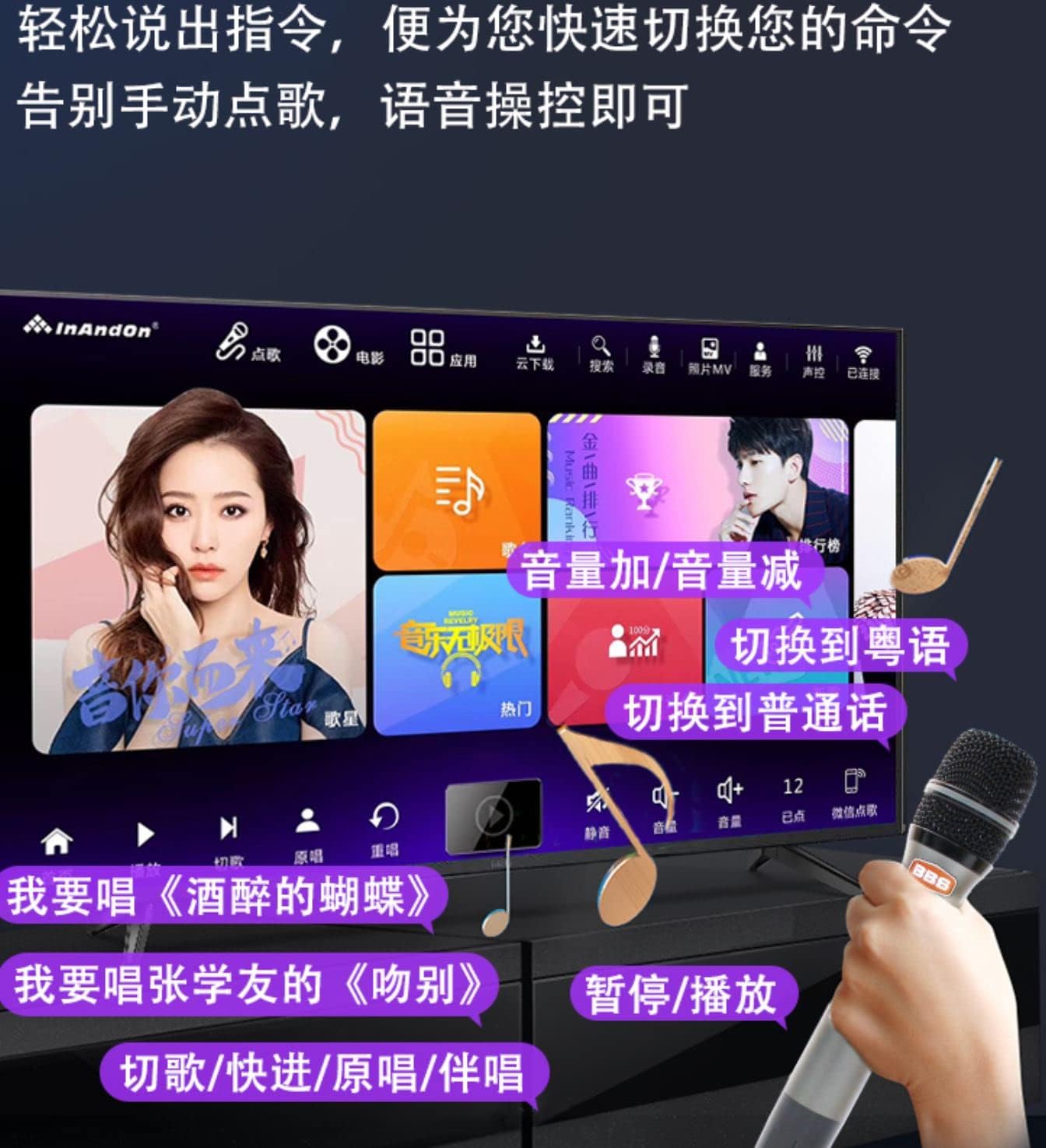
Image 4.2: Voice control interface for hands-free operation.
4.5 Recording Function
The player allows you to record your singing performances. Access the recording function through the main interface. Recorded tracks can be saved and shared.
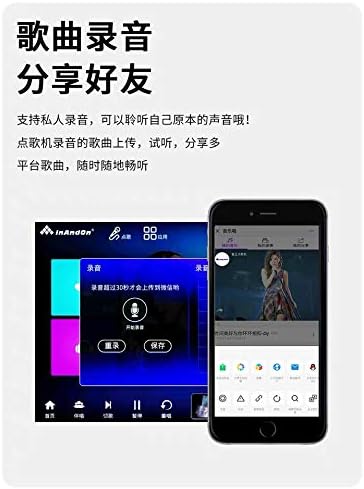
Image 4.3: Recording function interface.
4.6 Other Features
- Real-time Score: Receive instant feedback on your singing performance.
- YouTube App: Access YouTube directly from the player for additional content.
- Pitch Adjustment: Adjust the song's pitch to match your vocal range.
- Language Switching: The system supports multiple languages, including Simplified Chinese, Traditional Chinese, and English. You can switch the interface language in the settings.
- Mobile Song Ordering: Use a smartphone or tablet to order songs by scanning a QR code.
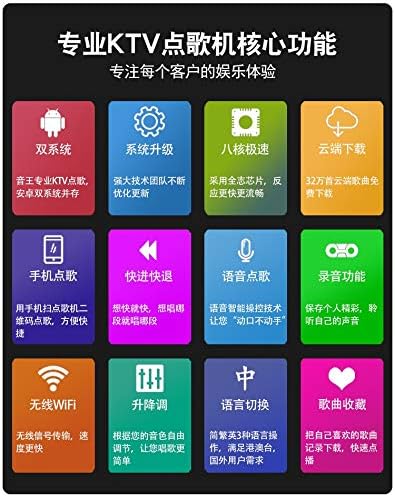
Image 4.4: Overview of key features including dual system, cloud download, and voice control.
5. Maintenance
5.1 Cleaning the Screen
Use a soft, lint-free cloth to gently wipe the touch screen. For stubborn smudges, slightly dampen the cloth with water or a screen-safe cleaning solution. Avoid harsh chemicals or abrasive materials.
5.2 Software Updates
Periodically check for system software updates through the settings menu to ensure optimal performance and access to new features. Ensure a stable internet connection during updates.
5.3 Storage and Handling
Store the karaoke player in a cool, dry place away from direct sunlight and extreme temperatures. Avoid dropping or subjecting the device to strong impacts.
6. Troubleshooting
If you encounter issues with your InAndOn V3 Max Karaoke Player, please refer to the following common problems and solutions:
| Problem | Possible Solution |
|---|---|
| No power | Ensure the power adapter is securely connected to the player and a working electrical outlet. Press the power button firmly. |
| No sound output | Check volume settings on the player and any connected external audio system. Verify audio cables (RCA, Optical) are correctly connected. |
| No display on external screen | Ensure the HDMI cable is securely connected to both the player and the external display. Select the correct HDMI input source on your TV/projector. |
| Microphones not working | Check microphone batteries. Ensure microphones are powered on. Verify that the wireless microphones are paired correctly (usually automatic). |
| Cannot connect to Wi-Fi | Ensure your Wi-Fi router is on and within range. Double-check the Wi-Fi password. Try restarting the player and your router. |
| Interface language is incorrect | Navigate to the system settings and select your preferred language (e.g., English). |
If the problem persists, please contact customer support.
7. Specifications
- Model: V3 Max
- Screen Size: 15.6 inches
- Output Resolution: Up to 6K
- Item Weight: 14.97 pounds
- Package Dimensions: 18.9 x 12.99 x 8.66 inches
- Color: Black
- Compatible Devices: Smartphone, Tablet (for remote control/song ordering)
- Connector Types: HDMI, RCA, Optical, LAN, USB
- Speaker Count: 1 (Internal)
- Power Source: Battery Powered (Internal, for portability) / AC Adapter
- Special Feature: Wireless Microphones, Touch Screen, Voice Control, Cloud Download
- First Available: January 22, 2022
8. Warranty and Support
The InAndOn V3 Max Karaoke Player comes with a manufacturer's warranty. Please refer to the warranty and return policy documentation provided with your purchase for specific terms and conditions.
For technical assistance, customer support is available via WeChat or LINE. Please contact inandonusa on either platform for prompt support.

Image 8.1: InAndOn offers global support and multi-language interfaces.

