
moonka ZN-DP1002
FRAMEO Digital Photo Frame User Manual
Model: ZN-DP1002
Brand: moonka
1. Product Overview
The FRAMEO Digital Photo Frame is a 10.1-inch WiFi-enabled digital picture frame designed to easily share and display your cherished memories. Featuring a high-definition 1280x800 IPS touch screen, 32GB of internal storage, and auto-rotate functionality, it allows family and friends to instantly share photos and short videos from anywhere in the world via the intuitive Frameo app. This frame offers a vibrant display and versatile placement options, making it an ideal way to keep your favorite moments alive.

Image: The FRAMEO Digital Photo Frame showcasing its display and the companion Frameo app on a smartphone.
2. Key Features
- HD IPS LCD Screen: 10.1-inch display with 1280x800 resolution, 16:10 aspect ratio, and 178° viewing angle for clear, vibrant images.
- Wi-Fi Connectivity: Built-in 2.4GHz Wi-Fi for seamless photo and video sharing via the Frameo App from anywhere.
- Large Storage: 32GB internal storage, expandable with a Micro SD card (up to 32GB, not included).
- Auto-Rotate Function: Automatically adjusts photo orientation for both landscape and portrait display.
- Wall Mountable & Desk Placement: Versatile design allows for display on a desk or mounted on a wall.
- Touch Screen: Highly sensitive touch screen for intuitive navigation and control.
- Video Playback: Supports short video clips (max. 15 seconds via Frameo app).
- Multi-User Connectivity: Easily invite and manage multiple users to share photos and videos to your frame.
- Customizable Settings: Includes slideshow mode, adjustable brightness, sleep mode, and caption display.

Image: An overview of the Frameo 10.1 Inch HD IPS Touchscreen Digital Picture Frame's key functionalities.

Image: Details on the high-quality image display capabilities of the frame, including resolution and viewing angles.
3. Package Contents
Please check the package contents carefully upon unboxing to ensure all items are present and undamaged.
- FRAMEO 10.1 Inch Digital Photo Frame
- Power Adapter
- User Manual
4. Setup Guide
4.1 Initial Power On
- Connect the power adapter to the DC port on the back of the frame.
- Plug the power adapter into a wall outlet. The frame will automatically power on.
- Follow the on-screen prompts to select your language and time zone.
4.2 Wi-Fi Connection
The frame requires a 2.4GHz Wi-Fi connection to receive photos and videos via the Frameo app.
- From the initial setup screen or settings menu, select 'Wi-Fi'.
- Choose your 2.4GHz Wi-Fi network from the list.
- Enter your Wi-Fi password and tap 'Connect'.
- Once connected, the Wi-Fi icon will appear on the screen.
4.3 Frameo App Installation
The Frameo app is essential for sending photos and videos to your digital frame.
- On your smartphone or tablet, open the App Store (for iOS) or Google Play Store (for Android).
- Search for "Frameo" and download the official app.
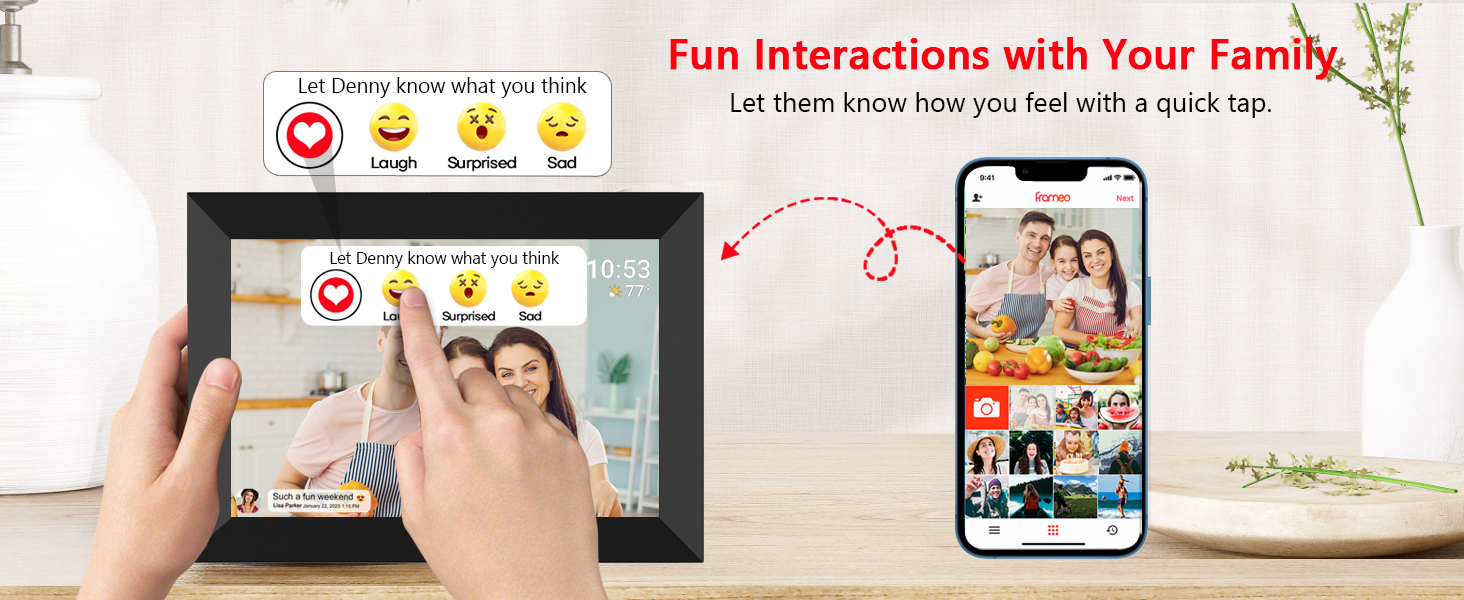
Image: Instructions on searching for the Frameo app in your device's app store.
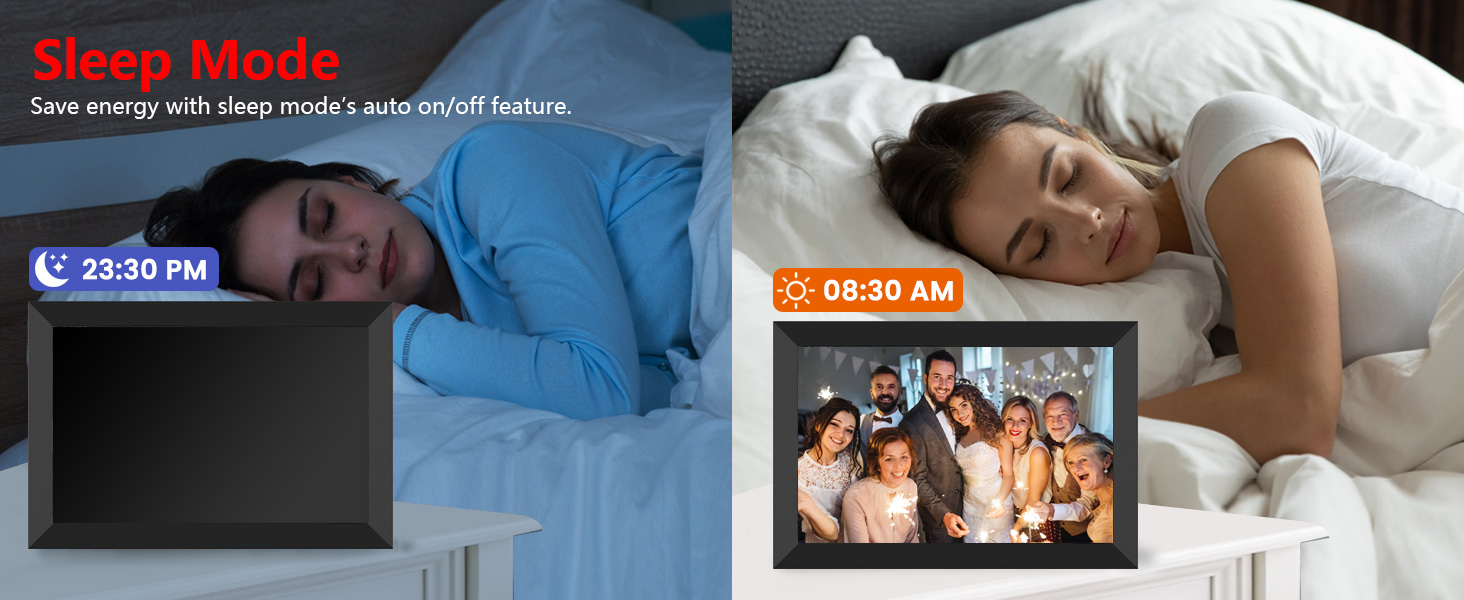
Image: Visual guide for downloading the Frameo app and the initial setup screens.
4.4 Pairing with Frameo App
- On your Frameo digital photo frame, navigate to 'Settings' and then 'Add friend' or 'Connect app'. A unique 6-digit code will be displayed.
- Open the Frameo app on your smartphone.
- Follow the app's instructions to add a new frame. When prompted, enter the 6-digit code displayed on your digital frame.
- Once paired, you can start sending photos and videos to your frame.
5. Operating Instructions
5.1 Sharing Photos and Videos
The Frameo app allows you to send photos and short videos directly to your digital frame.
- Open the Frameo app on your smartphone.
- Tap the camera icon to capture a new photo/video or select existing media from your gallery.
- Choose one or more frames to send your selected media to.
- Optionally, add a caption to your photo or video.
- Adjust and send the media. Videos sent via the app are limited to 15 seconds.

Image: Visual representation of capturing and sharing life's moments wirelessly to the frame.
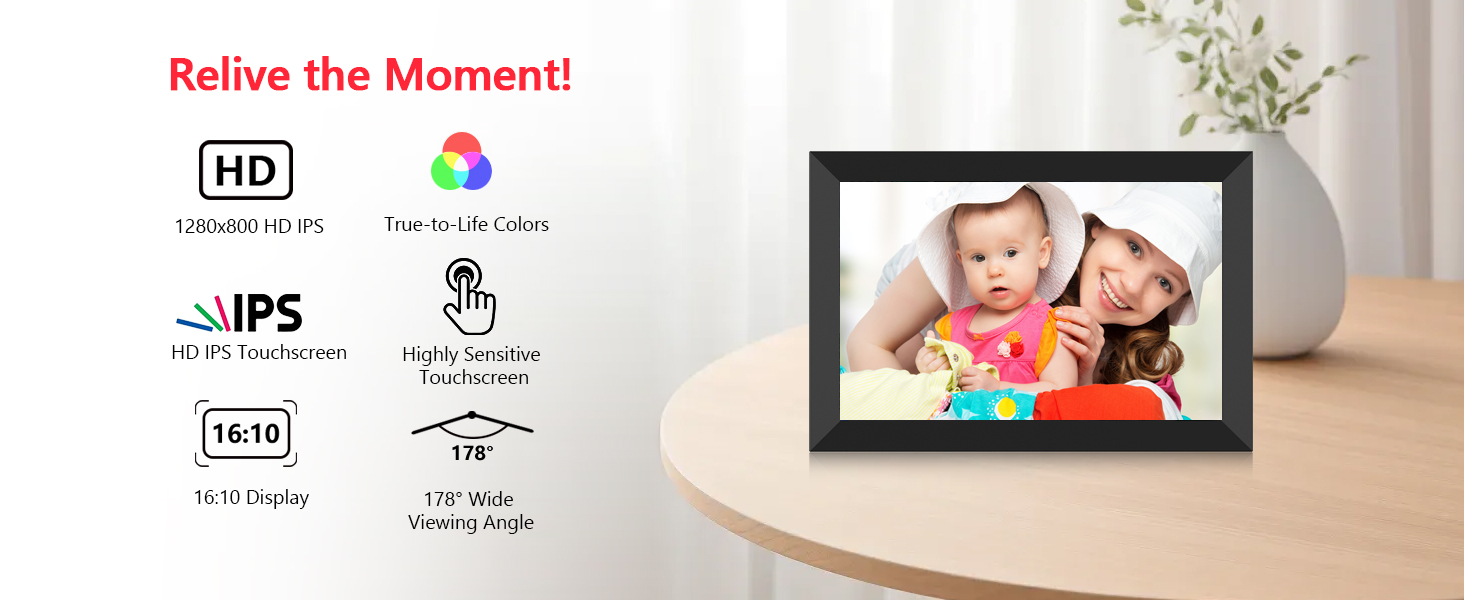
Image: Step-by-step guide within the Frameo app for sending photos and videos.
5.2 Managing Media and Storage
The frame comes with 32GB of internal storage. You can also use a Micro SD card for additional storage or to import/export media.
- Internal Storage: The 32GB built-in memory can store approximately 40,000 photos.
- Micro SD Card: Insert a Micro SD card (up to 32GB) into the designated slot to expand storage or transfer media.
- Deleting Media: You can delete individual photos or videos directly from the frame's touch screen or through the Frameo app.

Image: The frame's built-in 32GB memory and Micro SD card support for storing memories.
5.3 Adjusting Display Settings
Customize your viewing experience through the frame's settings.
- Auto-Rotate: The frame automatically detects its orientation (landscape or portrait) and adjusts the display accordingly. This feature is seamless for both desk and wall placements.
- Slideshow Mode: Configure the duration each photo is displayed before transitioning to the next.
- Brightness: Adjust the screen brightness to suit your environment.

Image: The frame's adjustable placement options, including desk and wall mounting, with auto-rotate functionality.
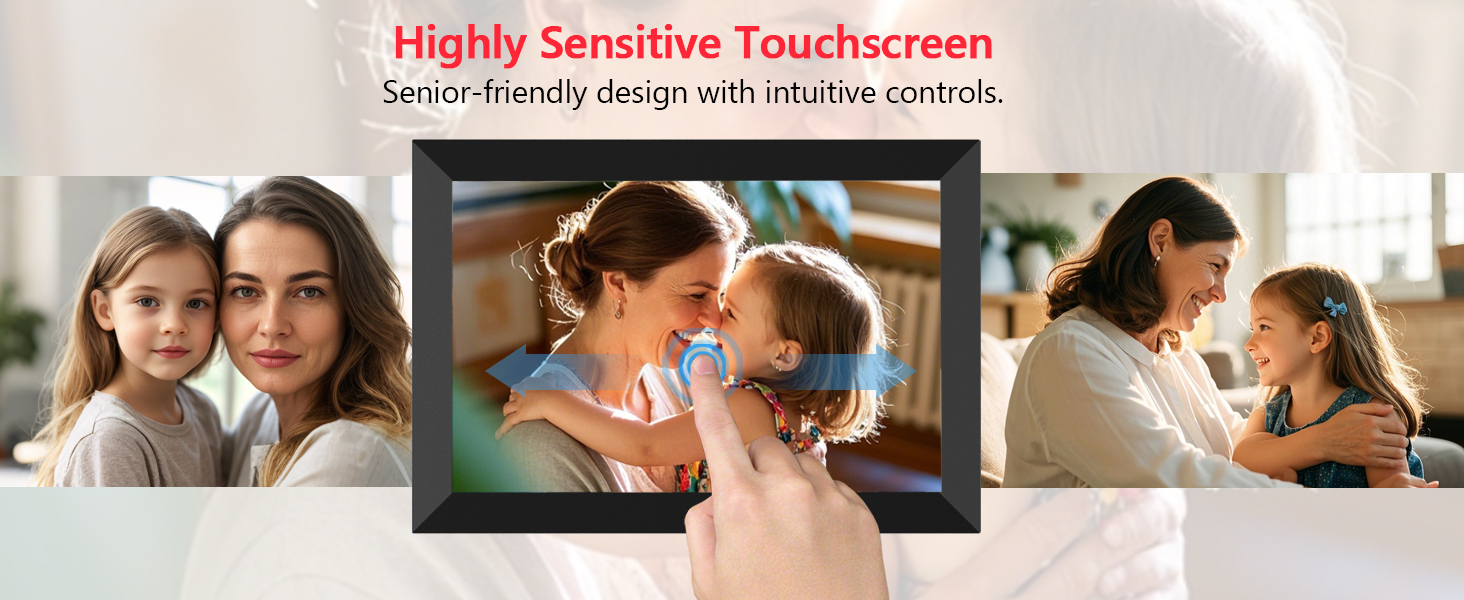
Image: The auto-rotate feature allowing flexible placement on a desk or wall.
5.4 Multi-User Sharing
Invite family and friends to share their photos and videos directly to your frame.
- From the frame's settings, you can generate a unique code to share with others.
- Friends and family can enter this code in their Frameo app to connect to your frame and send media.
- You have full control over who can send photos to your frame.

Image: The multi-user connection feature, allowing invited users to share photos to the frame.
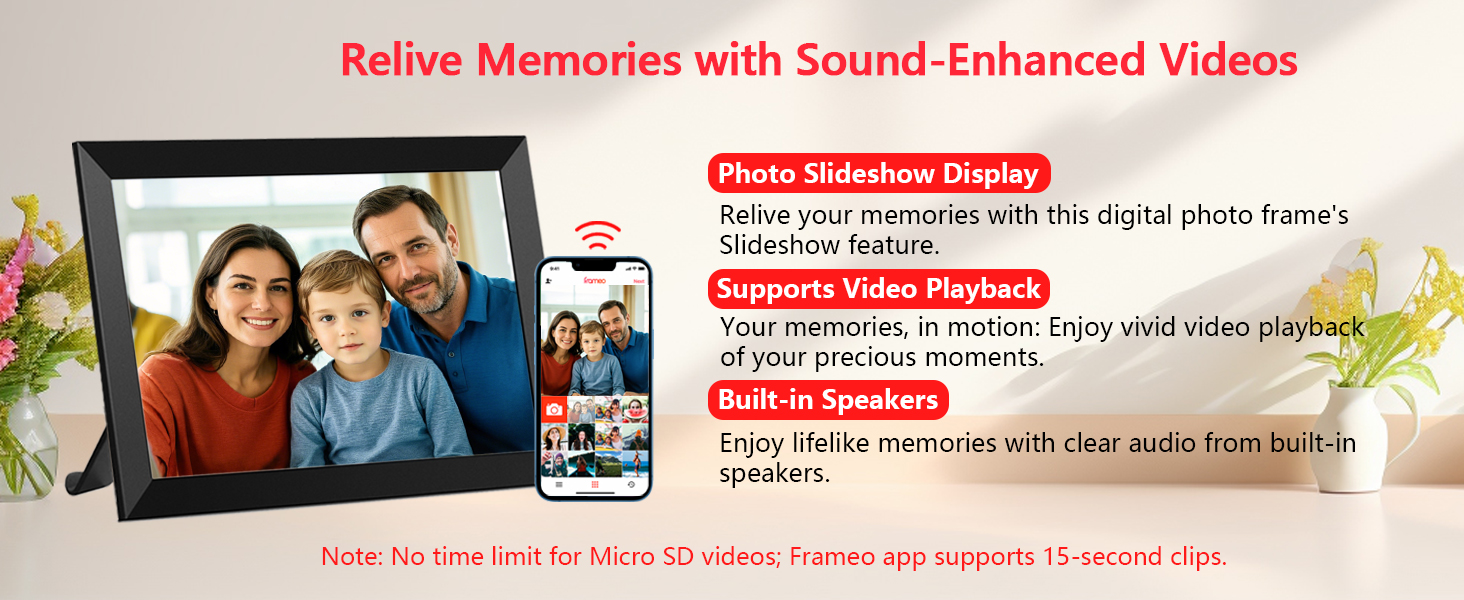
Image: Frameo's multi-user sharing capability, enabling relatives and friends to send photos/videos.
5.5 Sleep Mode
The sleep mode feature allows you to set specific times for the frame to automatically turn off and on, saving energy and ensuring privacy during non-viewing hours.
- Navigate to 'Settings' on your frame.
- Select 'Sleep Mode' and set your desired on/off times.
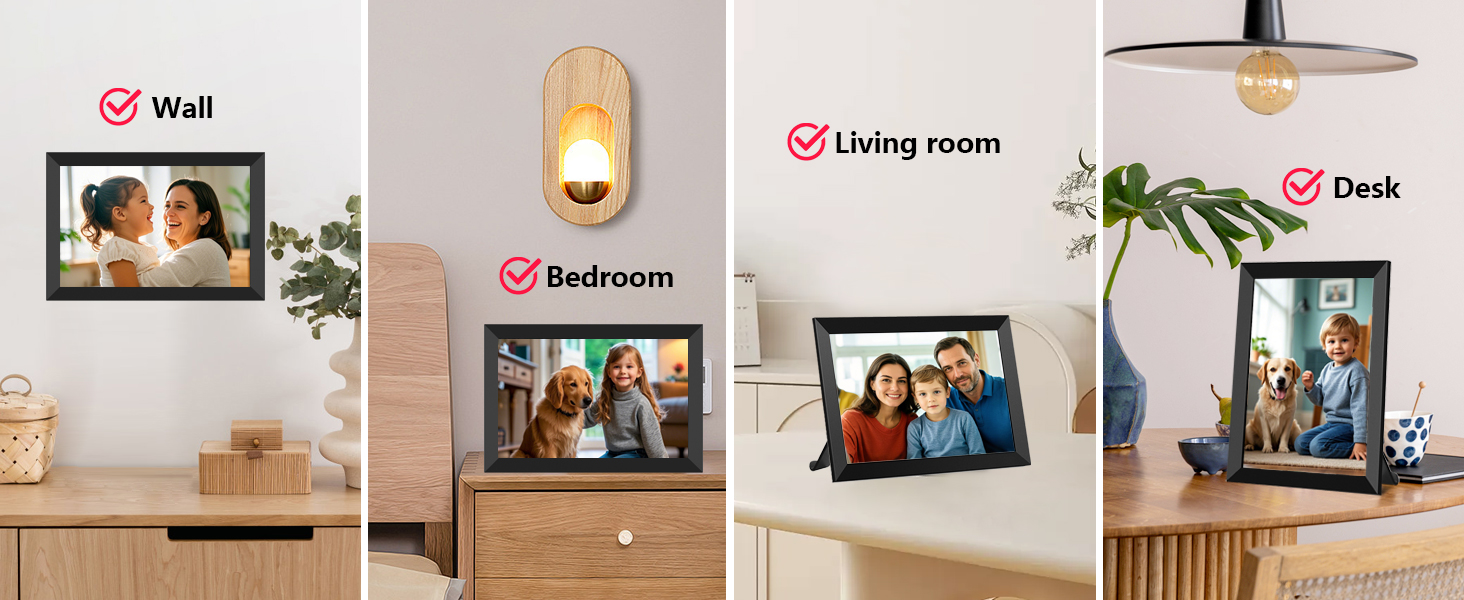
Image: The sleep mode feature, which saves energy with an auto on/off function.
5.6 Sending Greetings
The Frameo app allows you to send special greeting cards for various occasions directly to the frame.
- Ensure your Frameo app is updated to the newest version.
- In the app, choose the 'Greetings' option.
- Select the Frameo frames you wish to send the greeting to.
- Add a caption or message.
- Preview and send your greeting.
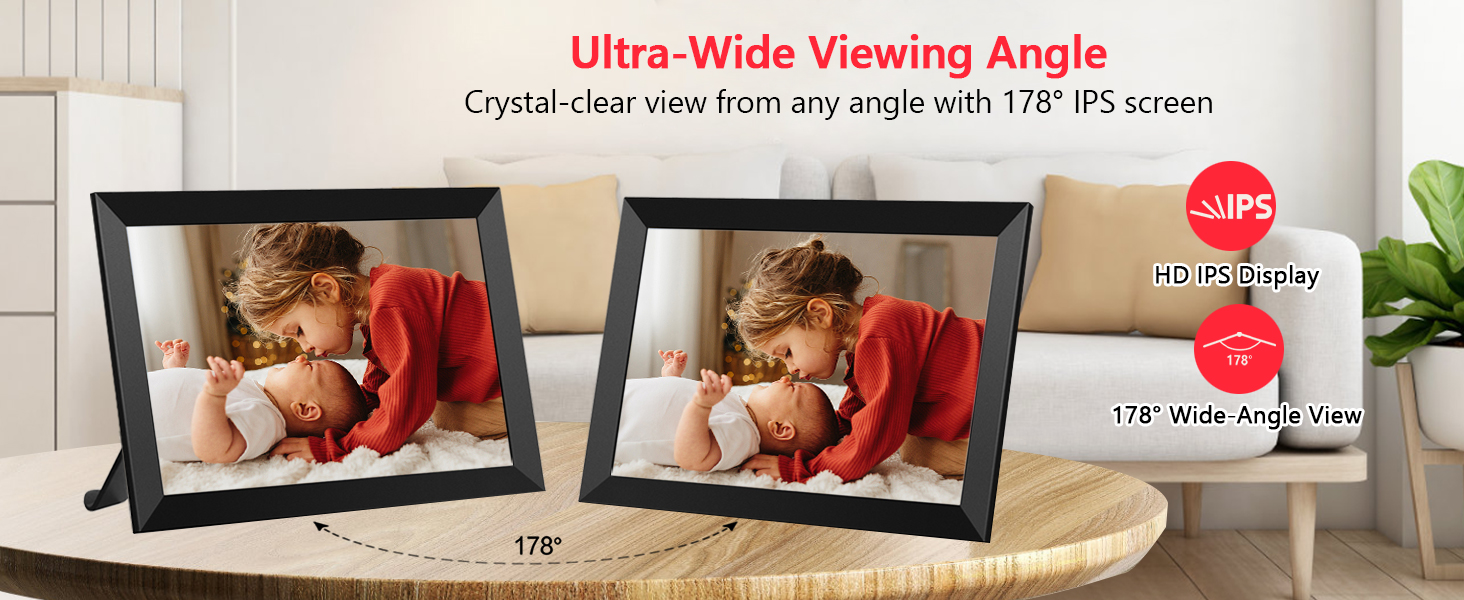
Image: The greetings feature, perfect for sending special messages for any occasion.
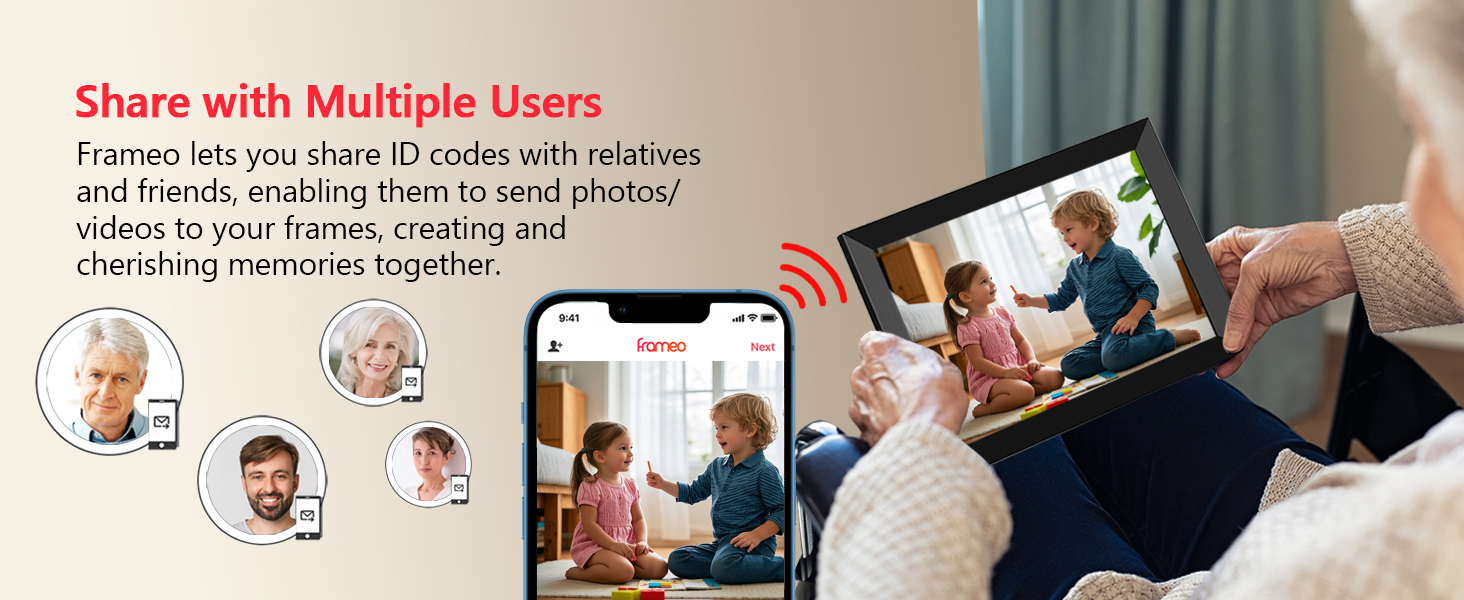
Image: A step-by-step guide to sending greetings via the Frameo app.
5.7 Interactive Features
The frame allows for simple interactions, enabling family members to express reactions to photos.
- Users can tap on the screen to react to photos with emojis like 'Laugh', 'Surprised', or 'Sad'.
- These reactions can be seen by the sender through the Frameo app.
Image: The interactive feature allowing users to express reactions to photos with a quick tap.
6. Maintenance
6.1 Cleaning the Frame
- Always unplug the frame before cleaning.
- Use a soft, dry, lint-free cloth to gently wipe the screen and frame.
- For stubborn smudges on the screen, lightly dampen the cloth with water or a screen-cleaning solution designed for electronics. Do not spray liquid directly onto the screen or frame.
- Avoid using abrasive cleaners, solvents, or aerosol sprays, as they may damage the surface.
6.2 Storage
- Store the frame in a cool, dry place away from direct sunlight and extreme temperatures.
- If storing for an extended period, it is recommended to pack it in its original packaging to protect it from dust and physical damage.
7. Troubleshooting
If you encounter any issues with your FRAMEO Digital Photo Frame, please refer to the following common problems and solutions:
| Problem | Possible Cause | Solution |
|---|---|---|
| Frame does not power on. | Power adapter not connected or faulty outlet. | Ensure the power adapter is securely connected to the frame and a working power outlet. Try a different outlet. |
| Cannot connect to Wi-Fi. | Incorrect Wi-Fi password, 5GHz network, or weak signal. | Double-check the Wi-Fi password. Ensure you are connecting to a 2.4GHz network. Move the frame closer to the Wi-Fi router. Restart your router. |
| Photos/Videos not appearing on the frame. | Frame not connected to Wi-Fi, incorrect frame code, or app issue. | Verify Wi-Fi connection on the frame. Ensure the correct frame code was used in the app. Check the Frameo app for any error messages. Restart both the frame and the app. |
| Screen is unresponsive. | Temporary software glitch. | Unplug the power adapter, wait 10 seconds, then plug it back in to restart the frame. |
| Images appear blurry or distorted. | Low resolution of original image or screen smudges. | Ensure the original images are of high resolution. Clean the screen with a soft, lint-free cloth. |
8. Specifications
| Feature | Detail |
|---|---|
| Screen Size | 10.1 Inches |
| Resolution | 1280x800 IPS HD |
| Internal Storage | 32GB |
| External Storage Support | Micro SD Card (max. 32GB, not included) |
| Connectivity | Wi-Fi (2.4GHz only) |
| Dimensions | 4 x 6 x 0.99 inches |
| Item Weight | 1.54 pounds |
| Model Number | ZN-DP1002 |
| Compatible Devices | iPhone, Android (via Frameo App) |
9. Warranty and Support
The FRAMEO WiFi Digital Photo Frame is covered by a one-year warranty from the date of purchase.
For any issues or technical assistance, please contact moonka customer support. Online support is available to help you with any problems you might encounter.
Please refer to your purchase documentation or the manufacturer's website for specific contact details and warranty claim procedures.
Ask a question about this manual
Ask about setup, troubleshooting, compatibility, parts, safety, or missing instructions. Manuals+ will review the question and use this page’s manual context to help answer it.