
XTOOL XV200
XTOOL XV200 Inspection Camera User Manual
Comprehensive guide for setup, operation, and maintenance.
1. Introduction
This user manual provides detailed instructions for the XTOOL XV200 Inspection Camera. The XV200 is a high-definition, waterproof endoscope designed for visual inspection in hard-to-reach areas, commonly used in automotive, industrial, and household applications. Please read this manual thoroughly before using the device to ensure proper operation and safety.
2. Safety Information
- Do not attempt to disassemble or modify the device.
- Keep the device away from extreme temperatures, direct sunlight, and corrosive liquids.
- Ensure the Type-C connector is clean and dry before connecting to any device.
- Avoid bending the flexible cable excessively or sharply to prevent damage.
- This device is rated IP67 waterproof for the probe and cable; however, the main handle and connector are not waterproof. Do not submerge the entire unit.
3. Package Contents
Verify that all items are present in your package:
- XTOOL XV200 Inspection Camera
- USB Type-C Cable (integrated)
- User Manual
- Accessory attachments (e.g., hook, magnet, mirror - if included with your specific model)
4. Product Overview
The XTOOL XV200 Inspection Camera features a high-resolution camera probe with adjustable LED lighting, connected to a handle with a Type-C USB cable for compatibility with various XTOOL diagnostic tools and other Type-C enabled devices.

Image 4.1: The XTOOL XV200 Inspection Camera, showing the main handle, flexible probe, and integrated USB Type-C cable.
Key features include:
- 1080P HD Resolution: Captures clear images and videos with 1920x1080 resolution and 2.0 megapixels.
- 8 Adjustable LEDs: Provides illumination for dark environments with 8 levels of brightness adjustment.
- IP67 Waterproof Probe: The camera probe and flexible cable are waterproof, allowing for inspection in wet or submerged conditions.
- Flexible Cable: A 0.34-inch diameter semi-rigid cable (2.63 ft length) can be bent to navigate tight spaces.

Image 4.2: Visual representation of the camera's 1080P HD resolution, 8 adjustable LED lights, and IP67 waterproof rating.
5. Setup
The XTOOL XV200 Inspection Camera is designed for easy integration with compatible XTOOL diagnostic tools and other devices featuring a Type-C port.
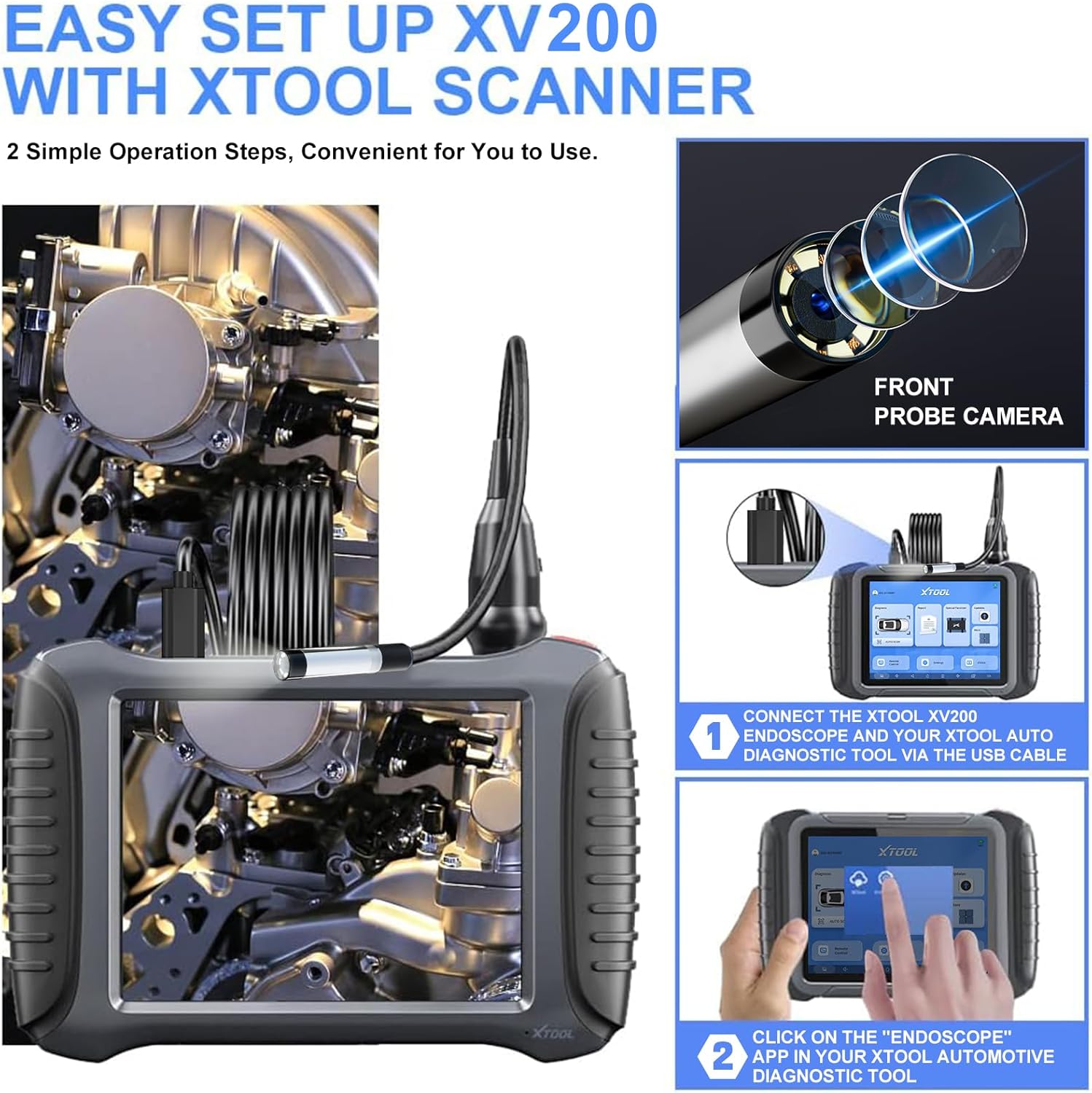
Image 5.1: Setup process for connecting the XV200 to an XTOOL diagnostic tool.
- Connect the XV200: Plug the Type-C connector of the XV200 inspection camera into the Type-C port of your compatible XTOOL diagnostic tool (e.g., D7/D7S/D7W, D8S/D8W, D9S/D9S PRO, IP900/IP900S, IP919/IP919 PRO) or other Type-C enabled device.
- Launch the Application: On your XTOOL diagnostic tool, navigate to 'Extended functions' and select the 'Endoscope' application. If using another device, open a compatible endoscope or camera application.
Note: The XV200 features a Type-C connector. Ensure your tablet or device has a compatible Type-C port. If your device has a USB-A port, a Type-C to USB-A adapter will be required (not included).
6. Operating Instructions
Once connected and the application is launched, you can begin your inspection:
- Positioning the Probe: Carefully guide the flexible camera probe into the area you wish to inspect. The semi-rigid cable allows for some shaping to navigate obstacles.
- Adjusting LED Brightness: The XV200 features 8 adjustable LED lights. Use the control button on the camera handle to cycle through brightness levels or turn the lights off. Refer to your specific diagnostic tool's endoscope application for on-screen controls if available.
- Capturing Images/Videos: Use the controls within the endoscope application on your connected device to capture still images or record video footage.
- Optimal Observation Distance: For best image clarity, maintain an observation distance of approximately 1.2 to 3.2 inches (3 to 8 cm) from the object.
7. Applications
The XTOOL XV200 Inspection Camera is suitable for a wide range of inspection tasks:

Image 7.1: Examples of common uses for the XV200 inspection camera.
- Automotive Repair: Inspecting engine cylinders, valves, gears, and other internal components without disassembly.
- Industrial Inspection: Checking machinery, pipes, and manufacturing equipment for defects or blockages.
- HVAC Systems: Examining ducts, vents, and air conditioning units for cleanliness, damage, or obstructions.
- Household Inspection: Investigating walls for wiring, plumbing issues, or pest infestations; inspecting drains and hard-to-reach areas.
8. Maintenance
- Cleaning: After each use, gently wipe the camera probe and cable with a soft, damp cloth. For stubborn dirt, a mild detergent can be used, ensuring no liquid enters the main handle.
- Storage: Store the inspection camera in a clean, dry place, away from direct sunlight and extreme temperatures. Avoid coiling the cable too tightly.
- Probe Protection: Always ensure the camera lens is free from scratches or debris, which can affect image quality.
9. Troubleshooting
- No Image/Video Display:
- Ensure the Type-C cable is securely connected to both the XV200 and the diagnostic tool/device.
- Verify that the 'Endoscope' application (or equivalent) is open and active on your device.
- Check if your device's Type-C port is functional.
- If using a USB-A port on your device, confirm that a functional Type-C to USB-A adapter is being used.
- Poor Image Quality:
- Clean the camera lens with a soft, lint-free cloth.
- Adjust the LED brightness using the control button on the handle.
- Ensure the camera probe is within the optimal observation distance (1.2 to 3.2 inches).
- Check for any physical damage to the camera lens or cable.
- LED Lights Not Working:
- Confirm the camera is properly connected and receiving power from the host device.
- Press the LED control button on the handle to cycle through brightness levels.
10. Specifications
| Feature | Specification |
|---|---|
| Model Number | XD-XV100 (Marketed as XV200) |
| Video Capture Resolution | 1080P HD (1920x1080) |
| Camera Megapixels | 2.0 MP |
| Probe Diameter | 8.5mm (0.34 inches) |
| Cable Length | 2.63 ft (0.8 meters) |
| Waterproof Rating | IP67 (for probe and cable) |
| Operating Temperature | 32 ℉ to 158 ℉ (0 ℃ to 70 ℃) |
| Illumination | 8 Adjustable LED Lights |
| Macro Focus Range | 1-10 cm (0.39-3.94 inches) |
| Connector Type | USB Type-C |
| Product Dimensions | 12.17 x 2.14 x 7.95 inches |
| Item Weight | 1.01 pounds |
| Manufacturer | XTOOL |
11. Warranty and Support
The XTOOL XV200 Inspection Camera comes with a standard manufacturer's warranty. For specific warranty details, please refer to the warranty card included with your product or visit the official XTOOL website. For technical support, troubleshooting assistance, or service inquiries, please contact XTOOL customer support through their official channels.
Ask a question about this manual
Ask about setup, troubleshooting, compatibility, parts, safety, or missing instructions. Manuals+ will review the question and use this page’s manual context to help answer it.