
Product Overview
The Emerson SMARTSET PLL Radio Alarm Clock (Model CKS1507WCB) and the Emerson 10W Fast Wireless Charger (Model ER-WC100) are designed to provide convenient timekeeping, audio entertainment, and device charging. The clock radio features Emerson's patented SmartSet technology for automatic time setting, Bluetooth connectivity, FM radio, dual alarms, and a USB charging port. The wireless charger offers fast charging for compatible devices.
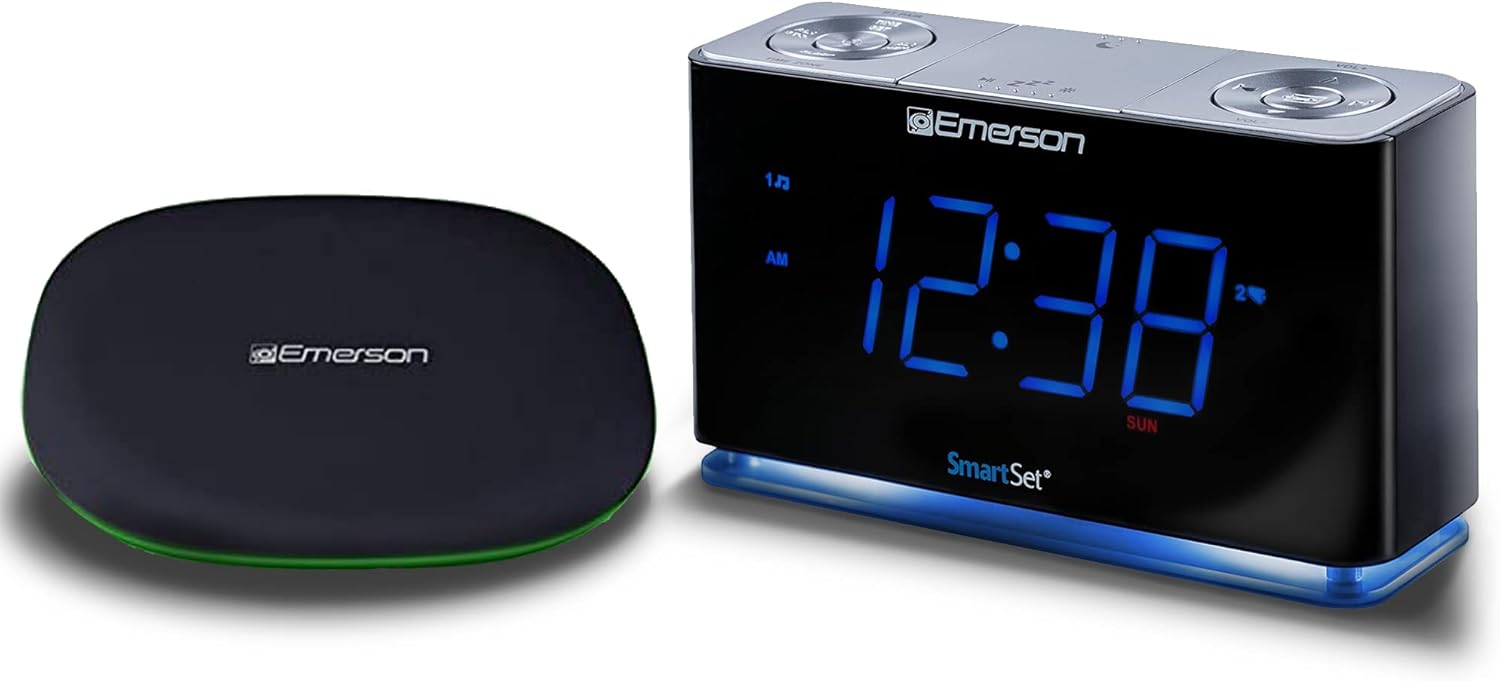
Figure 1: Emerson SmartSet Clock Radio (CKS1507WCB) and 10W Fast Wireless Charger (ER-WC100)
This image displays the Emerson SmartSet Clock Radio on the right, featuring a large blue LED display showing "12:38" and "SUN", with control buttons on top. To the left is the Emerson 10W Fast Wireless Charger, a sleek black oval pad with a green illuminated edge.
Setup and Initial Use
Unpacking and Placement
- Carefully remove all components from the packaging.
- Place the clock radio and wireless charger on a stable, flat surface, away from direct sunlight, heat sources, or excessive moisture.
Power Connection
- Connect the provided AC power adapter to the DC IN jack on the back of the CKS1507WCB clock radio.
- Plug the AC power adapter into a standard wall outlet (AC 120V, 60Hz).
- For the ER-WC100 wireless charger, connect its USB cable to a compatible USB power adapter (not included) and plug it into a wall outlet.
SmartSet Automatic Time Setting
The CKS1507WCB features Emerson's patented SmartSet technology. Upon initial power connection, the clock will automatically set itself to the correct year, month, date, day, and time. This feature also ensures the correct time is maintained after power interruptions.
- Ensure the time zone is correctly set if the automatic time is incorrect. Refer to the "Setting Time and Time Zone" section for adjustments.
- The clock automatically adjusts for Daylight Saving Time and Leap Year.
Operating Instructions
Clock Display and Dimmer Control

Figure 2: Front Display of CKS1507WCB Clock Radio
This image shows the front of the Emerson SmartSet Clock Radio with its large, clear blue LED display. The time "12:38" is prominently shown, along with "AM" and "SUN" indicators. The "SmartSet" logo is visible at the bottom center.
The clock features a large, easy-to-read 1.4-inch blue LED display. Use the dimmer control button (often labeled with a sun icon or integrated into a multi-function button) to adjust the brightness of the display to your preference, especially for nighttime viewing.
Setting Time and Time Zone

Figure 3: Top Panel Controls of CKS1507WCB
This image provides a top-down view of the Emerson SmartSet Clock Radio, highlighting its control panel. Buttons are arranged in two main circular clusters: one for Bluetooth pairing, time setting, and alarms (AL1, AL2, SLEEP, TIME ZONE), and another for volume and radio tuning (VOL+, VOL-, skip/tune buttons). Indicators for sleep, snooze, and dimmer are also visible.
While SmartSet automatically sets the time, you may need to adjust the time zone or manually set the time if desired.
- Time Zone: Press the "TIME ZONE" button (refer to Figure 3) repeatedly to cycle through available time zones until your local time zone is selected.
- Manual Time Set: Press and hold the "TIME SET" button until the display flashes. Use the tuning/skip buttons to adjust hours and minutes. Press "TIME SET" again to confirm.
Alarm Functions (Dual Alarms)
The CKS1507WCB supports dual alarms (Alarm 1 and Alarm 2).
- Setting Alarm: Press and hold either "AL1" or "AL2" button. The alarm time will flash. Use the tuning/skip buttons to set the desired alarm time. Press the alarm button again to confirm.
- Alarm Source: After setting the time, press the alarm button again to select the alarm source: FM Radio or Buzzer.
- Alarm Mode: Press the alarm button repeatedly to cycle through alarm modes: Weekdays only, Weekends only, or All seven days.
- Snooze: When the alarm sounds, press the "SNOOZE" button (often the large central button) to temporarily silence the alarm for a set period (e.g., 9 minutes).
- Stopping Alarm: To turn off the alarm for the day, press the "AL1 STO." or "AL2 MEM." button once. To disable the alarm completely, press the respective alarm button until the alarm indicator disappears from the display.
FM Radio Operation
- Turning On/Off: Press the "POWER" button to turn the radio on or off.
- Tuning: Use the "TUNE +/-" buttons to manually tune to a desired FM frequency. Press and hold to auto-scan for the next available station.
- Station Memories: The radio supports 20 station memories. To save a station, tune to the desired frequency, then press and hold the "MEM." button until the memory number flashes. Use the tuning buttons to select a memory slot, then press "MEM." again to confirm. To recall a saved station, press the "MEM." button repeatedly to cycle through saved stations.
Bluetooth Speaker Function
The CKS1507WCB features Bluetooth V2.1 technology for wireless audio streaming.
- Pairing: Press the "BT PAIR" button (refer to Figure 3) on the top panel. The Bluetooth indicator on the display will flash, indicating pairing mode.
- Enable Bluetooth on your mobile device and search for "Emerson CKS1507WCB". Select it to pair.
- Once paired, the Bluetooth indicator will stop flashing and remain solid. You can now stream audio from your device to the clock radio.
- Volume Control: Use the "VOL+" and "VOL-" buttons on the clock radio, or your connected device, to adjust the volume.
USB Charging Port

Figure 4: CKS1507WCB with Phone Charging via USB
This image shows the Emerson SmartSet Clock Radio from a slight angle, with a smartphone connected to its side via a white USB cable, indicating that the phone is charging. The clock display shows "5:30" and "SAT".
A USB port is located on the back of the CKS1507WCB clock radio for convenient charging of your mobile devices. Connect your device's USB charging cable to this port.
AUX-IN Input
The clock radio includes an AUX-IN input. Connect an external audio device (e.g., MP3 player) using a 3.5mm audio cable (not included) to play audio through the clock radio's speakers.
Night Light Function
The CKS1507WCB features a soft nightlight. This can typically be toggled on or off using a dedicated button or a combination of buttons (refer to your specific model's detailed manual for exact button location if not obvious).
ER-WC100 Wireless Charger Operation

Figure 5: ER-WC100 10W Fast Wireless Charger
This image shows the Emerson 10W Fast Wireless Charger, a black oval-shaped pad with a subtle green glow around its base, indicating it is powered on and ready for use.
The ER-WC100 provides 10W fast wireless charging for compatible devices (e.g., smartphones with Qi wireless charging capability).
- Ensure the wireless charger is connected to a power source.
- Place your Qi-compatible device directly onto the center of the charging pad.
- The device should indicate that it is charging. If not, adjust its position on the pad.
Maintenance
- Cleaning: Disconnect the power before cleaning. Use a soft, dry cloth to wipe the surfaces of the clock radio and wireless charger. Do not use abrasive cleaners, waxes, or solvents.
- Dust: Regularly dust the unit to prevent accumulation, especially around vents and buttons.
- Liquid Exposure: Avoid exposing the units to water or excessive moisture. If liquid spills occur, immediately disconnect power and allow to dry completely before reconnecting.
Troubleshooting
| Problem | Possible Cause | Solution |
|---|---|---|
| Clock display is blank. | No power. | Ensure the AC adapter is securely plugged into the clock radio and a working wall outlet. |
| Time is incorrect. | Incorrect time zone; SmartSet not activated or power interruption. | Check time zone setting. If power was interrupted, the SmartSet feature should automatically reset the time. If not, manually set the time. |
| No sound from radio/Bluetooth. | Volume too low; incorrect mode; device not paired (Bluetooth). | Increase volume. Ensure correct mode (FM/Bluetooth/AUX). Re-pair Bluetooth device if necessary. |
| Wireless charger not charging. | Device not Qi-compatible; misaligned device; charger not powered. | Ensure your device supports Qi wireless charging. Re-position the device on the center of the pad. Verify the charger is connected to a working power source. |
| Alarm does not sound. | Alarm not set or disabled; volume too low. | Verify alarm time and mode are correctly set and enabled. Increase alarm volume. |
Specifications
| Feature | Specification |
|---|---|
| Brand | Emerson |
| Model Number | CKS1507WCB (Clock Radio), ER-WC100 (Wireless Charger) |
| Display Type | 1.4" Blue LED Display |
| Connectivity | Bluetooth V2.1, USB (Charging), AUX-IN |
| Radio Bands | FM (Digital Tuning, 20 Station Memories) |
| Alarm Features | Dual Alarms, Wake to FM Radio or Buzzer, Weekday/Weekend/7-Day Modes, Snooze |
| Special Features | SmartSet Automatic Time Setting, Dimmer Control, Night Light, Automatic Daylight Saving Time/Leap Year Adjustment |
| Power Source | Corded Electric |
| Clock Radio Dimensions (L x W x H) | Approximately 8.38 x 2.63 x 4 inches |
| Item Weight | 1.03 pounds (Clock Radio) |
| Material | Acrylonitrile Butadiene Styrene |
| Wireless Charger Output | 10W Fast Wireless Charging |

Figure 6: Approximate Dimensions of CKS1507WCB Clock Radio
This image illustrates the approximate dimensions of the Emerson SmartSet Clock Radio, showing a length of 8.38 inches, a height of 4 inches, and a depth of 2.63 inches.
Warranty and Support
Emerson products are designed for reliability and performance. For specific warranty information, please refer to the warranty card included with your product or visit the official Emerson website. Keep your purchase receipt as proof of purchase for warranty claims.
For technical support, troubleshooting assistance, or service inquiries, please contact Emerson customer support. Contact details can typically be found on the manufacturer's website or in the product packaging.
You can visit the official Emerson store on Amazon for more information and product updates: Emerson Store