
1. Introduction
This manual provides essential instructions for the setup, operation, and maintenance of your TCL TS6110 Sound Bar with Wireless Subwoofer. Please read this guide thoroughly before using the product to ensure proper functionality and safety.
The TCL TS6110 is a 2.0 channel sound system designed to enhance your audio experience with 240W peak power, Dolby Audio support, Bluetooth connectivity, and HDMI ARC for seamless integration with your television.

Image 1.1: The TCL TS6110 Sound Bar and its accompanying Wireless Subwoofer.
2. Package Contents
Verify that all items are present in the package:
- TCL TS6110 Sound Bar
- Wireless Subwoofer
- Remote Control (with 2x AAA batteries)
- HDMI Cable
- Power Cords (for Sound Bar and Subwoofer)
- Wall Mounting Kit
- Quick Start Guide / User Manual
3. Setup
3.1 Placement
For optimal audio performance, consider the following placement guidelines:
- Sound Bar: Place the sound bar centrally below your television. Ensure no objects obstruct the front of the sound bar.
- Wireless Subwoofer: Position the subwoofer on the floor, preferably in a corner or near a wall, to enhance bass response. The wireless design allows for flexible placement without direct cable connection to the sound bar.

Image 3.1: Dimensions of the TCL TS6110 Sound Bar (800mm x 107mm x 61mm) and Wireless Subwoofer (200mm x 200mm x 325mm) for placement planning.
3.2 Connections
Follow these steps to connect your sound bar system:
- HDMI ARC (Recommended): Connect one end of the provided HDMI cable to the HDMI ARC port on your sound bar and the other end to the HDMI ARC port on your television. This allows for audio return channel functionality, enabling your TV remote to control the sound bar volume.
- Optical: If your TV does not have an HDMI ARC port, connect an optical cable (not included) from your TV's optical output to the OPTICAL input on the sound bar.
- Power: Connect the power cords to the sound bar and the wireless subwoofer, then plug them into a wall outlet.

Image 3.2: An illustration showing the sound bar and subwoofer positioned in a living room setup, ready for connection.
3.3 Wall Mounting
The sound bar can be mounted on a wall using the included wall mounting kit. Refer to the detailed instructions in the separate Quick Start Guide for specific steps and safety precautions.
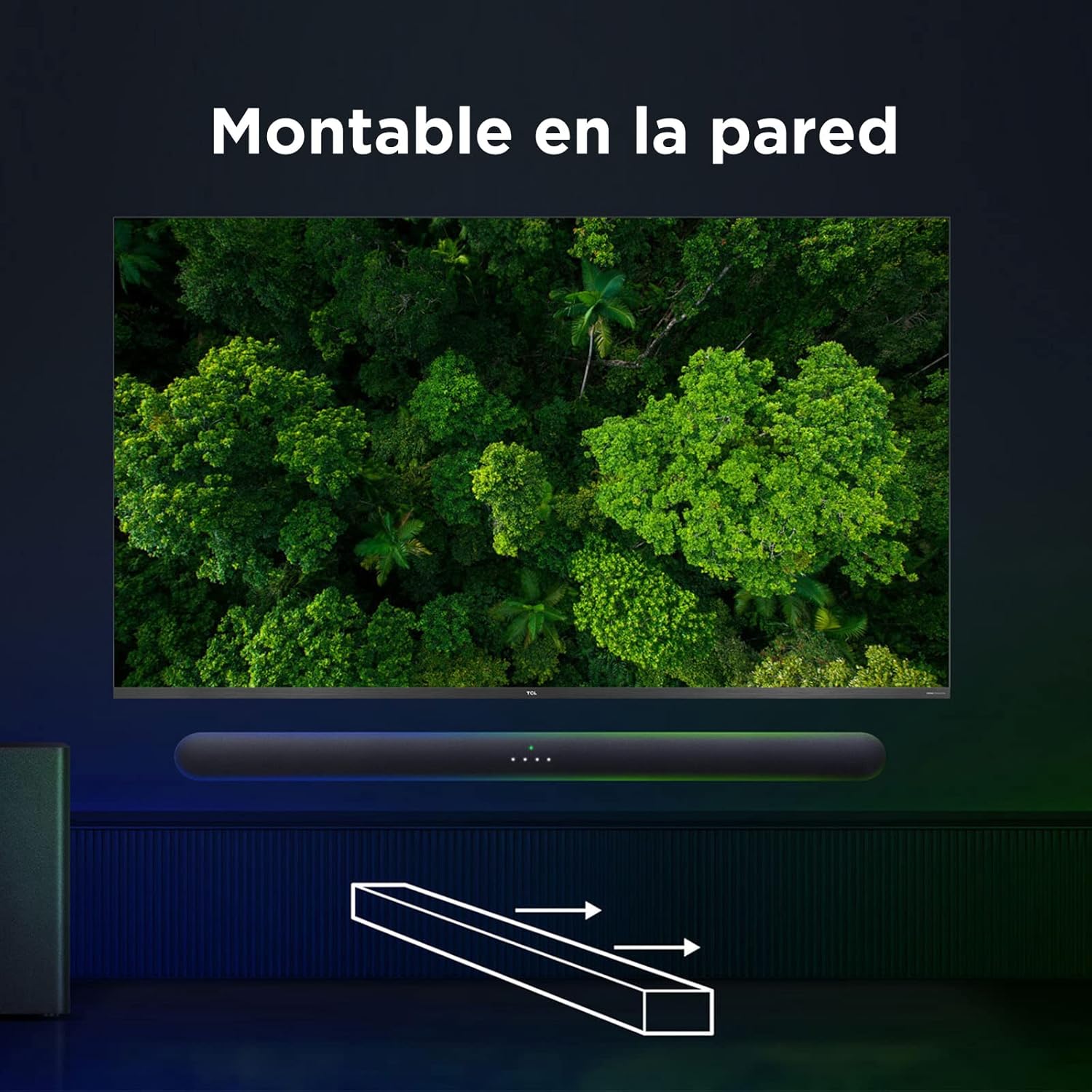
Image 3.3: An illustration demonstrating the sound bar's capability for wall mounting.
4. Operating the Sound Bar
4.1 Power On/Off
Press the Power button on the remote control or on the sound bar to turn the system on or off.
4.2 Input Selection
Press the Source button on the remote control repeatedly to cycle through available input sources: HDMI ARC, Optical, and Bluetooth.
4.3 Volume Control
Use the Volume Up (+) and Volume Down (-) buttons on the remote control or the sound bar to adjust the master volume. The sound bar's LED indicators will show the current volume level.
4.4 Bluetooth Pairing
To connect a Bluetooth device:
- Select Bluetooth input on the sound bar. The LED indicator will flash.
- Enable Bluetooth on your mobile device and search for 'TCL TS6110'.
- Select the sound bar from the list to pair. Once connected, the LED indicator will glow solid.

Image 4.1: A smartphone connected via Bluetooth to the TCL TS6110 Sound Bar, illustrating wireless music streaming.
4.5 Audio Modes
The sound bar features specialized audio modes to optimize sound for different content types. Use the dedicated buttons on the remote control to switch between modes:
- Movie Mode: Enhances dialogue clarity and dynamic range for films.
- Music Mode: Provides balanced audio for music playback.
- TV Mode: Optimized for general television viewing.
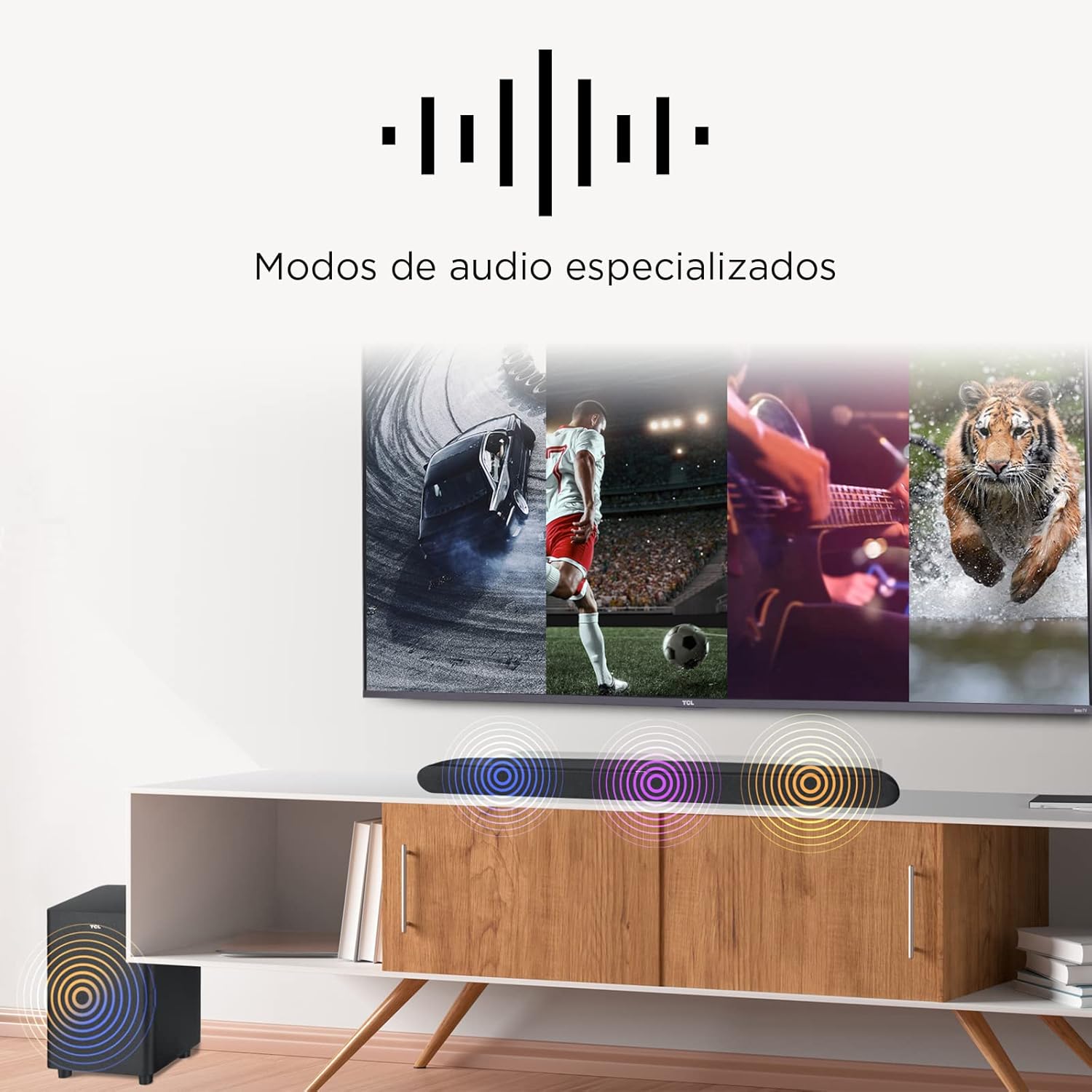
Image 4.2: Visual representation of the sound bar's specialized audio modes, adapting sound for various content like sports, music, and action scenes.
4.6 Dolby Audio
The TCL TS6110 supports Dolby Audio, delivering an immersive and high-quality sound experience. Ensure your source content is Dolby Audio compatible for the best results.

Image 4.3: An illustration depicting the immersive sound field created by Dolby Audio, enhancing the listening experience.
4.7 Wireless Subwoofer
The subwoofer connects wirelessly to the sound bar automatically upon powering on. This provides powerful bass without the need for additional audio cables between the two units.

Image 4.4: The wireless subwoofer unit, highlighting its independent placement capability.
5. Maintenance
To ensure the longevity and optimal performance of your TCL TS6110 Sound Bar system, follow these maintenance guidelines:
- Cleaning: Use a soft, dry cloth to clean the surfaces of the sound bar and subwoofer. Do not use liquid cleaners, abrasive cleaners, or solvents, as these can damage the finish.
- Ventilation: Ensure that the ventilation openings on the sound bar and subwoofer are not blocked. Adequate airflow prevents overheating.
- Environment: Avoid exposing the system to extreme temperatures, humidity, direct sunlight, or dusty environments.
- Power: Disconnect the power cords from the wall outlet if the system will not be used for an extended period.
6. Troubleshooting
If you encounter issues with your sound bar, refer to the following common problems and solutions:
- No Power:
- Ensure both the sound bar and subwoofer power cords are securely plugged into working electrical outlets.
- Check if the power outlet is functional by plugging in another device.
- No Sound:
- Verify that the correct input source (HDMI ARC, Optical, Bluetooth) is selected on the sound bar.
- Increase the volume on both the sound bar and your television/connected device.
- Check all cable connections (HDMI, Optical) for secure fit.
- If using HDMI ARC, ensure ARC is enabled in your TV's audio settings.
- Bluetooth Pairing Issues:
- Ensure the sound bar is in Bluetooth pairing mode (flashing LED).
- Move your Bluetooth device closer to the sound bar.
- Try unpairing and re-pairing the device.
- Clear the Bluetooth device list on your phone/tablet and try again.
- Subwoofer Disconnection:
- Ensure the subwoofer is powered on and within range of the sound bar.
- If the connection is intermittent, try moving the subwoofer to a different location to avoid interference.
- Power cycle both the sound bar and subwoofer (turn off, unplug, wait 30 seconds, plug back in, turn on).
- Remote Control Not Working:
- Replace the batteries in the remote control.
- Ensure there are no obstructions between the remote and the sound bar's sensor.
7. Specifications
| Feature | Detail |
|---|---|
| Model Name | TS6110 |
| Brand | TCL |
| Total Audio Power | 240 Watts (Max) |
| Speaker Type | Sound Bar, Subwoofer |
| Sound Channel Configuration | 2.0 |
| Connectivity Technology | Bluetooth, HDMI |
| Wireless Communication | Bluetooth |
| Special Features | 240W, Bluetooth Connectivity, Dolby Audio, HDMI ARC, Wireless Subwoofer |
| Compatible Devices | Devices with Bluetooth and HDMI ARC connection |
| Subwoofer Diameter | 10 Inches |
| Signal-to-Noise Ratio | 101 dB |
| Material | Aluminum, Plastic |
| Color | Black |
| Product Dimensions (Sound Bar) | 80 x 10.7 x 6.1 cm (approx. 31.5 x 4.2 x 2.4 inches) |
| Product Dimensions (Subwoofer) | 20 x 20 x 32.5 cm (approx. 7.9 x 7.9 x 12.8 inches) |
| Total Weight | 6.54 kg (approx. 14.4 lbs) |
| Power Source | Electric Cable |
| Control Method | Remote Control |
| Mounting Type | Wall Mount |
8. Warranty Information
The TCL TS6110 Sound Bar system comes with a limited warranty. Please refer to the warranty card or the specific warranty section in the comprehensive user guide included in your product packaging for detailed terms, conditions, and registration information. Keep your proof of purchase for warranty claims.
9. Support
For further assistance, technical support, or service inquiries, please contact TCL customer service. You can typically find contact information on the TCL official website or in the documentation provided with your product.
TCL Official Website: www.tcl.com


