
1. Introduction
The RunSTAR Smart Scale FG2116WB is designed to provide comprehensive body composition analysis, offering more than just weight measurement. Equipped with advanced technology, this digital scale helps you track various health metrics and monitor your progress over time through a dedicated smartphone application.
Key features include:
- High Accuracy: Features 4 high-precision G-shape sensors and 4 high-sensitive electrodes for accurate readings with a division of 0.2lb/100g, up to a maximum capacity of 400lb/180kg.
- Comprehensive Data: Measures 13 essential body data points including Weight, BMI, Body Fat, Subcutaneous Fat, Body Water, Protein, Muscle Mass, Bone Mass, Visceral Fat, Skeletal Muscle, BMR, and Body Age.
- Smart Tracking: The Starfit app provides detailed charts and saves historical data, allowing you to track body composition changes over days, weeks, months, or years.
- Multi-User Support: Supports up to 24 user profiles, automatically recognizing individuals when they step on the scale.
- Fitness App Integration: Syncs health data with popular third-party fitness applications such as Apple Health, Google Fit, Fitbit, and Samsung Health.

Image 1: The RunSTAR Smart Scale FG2116WB, showcasing its sleek design and integration with a smartphone app.
2. Setup
2.1 Battery Installation
The RunSTAR Smart Scale requires 4xAAA batteries (included). To install or replace batteries:
- Locate the battery compartment on the underside of the scale.
- Open the battery compartment cover.
- Remove the insulator strip from the batteries if it's a new scale.
- Insert the 4xAAA batteries, ensuring correct polarity.
- Close the battery compartment cover securely.
2.2 App Download and Registration
The Starfit app is essential for accessing and tracking your body composition data. Follow these steps to download and register:
- Scan the QR code provided in the Quick Start Guide or search for "Starfit" on the App Store (iOS) or Google Play (Android).
- Download and install the Starfit app on your smartphone.
- Open the app and complete the registration process by creating a new user account or logging into an existing one.
- Add your personal data such as age, height, and gender. This information is crucial for accurate body composition calculations.
2.3 Device Pairing
To connect your scale to the Starfit app:
- Ensure Bluetooth is enabled on your smartphone. For Android users, GPS and Location services must also be ON along with Bluetooth.
- Open the Starfit app. Navigate to "Account" and then select "My Devices".
- Tap the "+" icon in the upper right corner to add a new device.
- The app will search for smart devices. When "Runstar-RX" (the scale's Bluetooth name) appears, tap to connect.
- A connected logo will appear on the scale screen once pairing is successful.

Image 2: The Starfit app interface demonstrating connectivity with other popular fitness applications.
3. Operating Instructions
3.1 Scale Placement
For accurate measurements, place the scale on a hard, flat surface. Avoid placing it on soft surfaces like carpets or rugs, as this can affect precision.
3.2 Taking a Measurement
To take a body composition measurement:
- Gently step on the scale to activate it. The LED screen will display '0.0'.
- Step off the scale and wait for the display to return to '0.0'.
- Step back onto the scale with bare, dry feet, ensuring both feet make full contact with the metal sensors.
- Stand still on the scale until the display locks your weight and blinks 3 times.
- Your detailed body analysis data will automatically sync to the Starfit app.
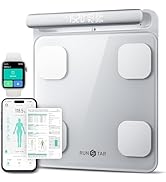
Image 3: Proper foot placement on the scale's sensors for accurate body composition analysis.
3.3 Changing Units
To switch between measurement units (kg/lb/st):
- Turn the scale over to access the underside.
- Locate the unit button near the battery compartment.
- Press the button to cycle through the available units until your desired unit is displayed.
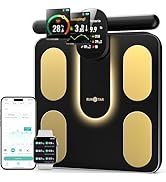
Image 4: Location of the unit change button on the back of the scale.
4. Understanding Your Data
The RunSTAR Smart Scale, in conjunction with the Starfit app, provides a comprehensive analysis of your body composition. The app displays 13 essential body data points:
- Weight: Your current body mass.
- BMI (Body Mass Index): A measure of body fat based on height and weight.
- Body Fat: Percentage of total body weight that is fat.
- Subcutaneous Fat: Fat stored directly under the skin.
- Body Water: Percentage of total body weight that is water.
- Protein: Percentage of total body weight that is protein.
- Muscle Mass: Total weight of muscle in your body.
- Bone Mass: Total weight of bone in your body.
- Visceral Fat: Fat stored around the organs in your abdomen.
- Skeletal Muscle: Muscle attached to bones that allows movement.
- BMR (Basal Metabolic Rate): The number of calories your body needs to function at rest.
- Body Age: An estimation of your body's biological age based on your health metrics.

Image 5: Visual representation of the 13 essential body measurements tracked by the scale.
4.1 Tracking Progress with the Starfit App
The Starfit app is designed to help you visualize and understand your health trends:
- The app provides detailed charts and graphs to illustrate changes in your body composition over time.
- You can view historical data to monitor your progress and identify trends.
- The app includes an Athlete Mode for individuals with higher fitness levels, offering specialized analysis.

Image 6: The Starfit app's tracking feature, displaying body data fluctuations over time.
4.2 Multi-User Functionality
The scale supports up to 24 user profiles, making it suitable for families or shared environments. The scale automatically recognizes the user when they step on it, eliminating the need for manual selection.

Image 7: The multi-user feature of the Starfit app, allowing up to 24 profiles.
5. Maintenance
To ensure the longevity and accuracy of your RunSTAR Smart Scale:
- Clean the scale with a slightly damp cloth. Do not use chemical cleaning agents.
- Do not immerse the scale in water.
- Avoid dropping or shaking the scale.
- Always keep your scale in a horizontal position when not in use.
6. Troubleshooting
6.1 App Connection Issues
If your Starfit app is not connecting with the scale:
- Ensure Bluetooth is ON on your smartphone.
- For Android devices, ensure GPS & Location services are ON along with Bluetooth.
- Verify the scale is ON and displaying '0.00' during the pairing process.
- If issues persist, try reinstalling the Starfit app and logging in, ensuring all requested authorizations are granted.
6.2 Inaccurate or Inconsistent Readings
If you experience inaccurate or inconsistent readings:
- Ensure the scale is placed on a hard, flat surface, not carpet or uneven flooring.
- The LED screen must display '0.00' before each reading. If the scale has been moved, recalibrate it by stepping on it briefly until '0.00' is displayed (ignore the first reading).
- Ensure your personal data (age, height, gender) entered in the app is correct, as this affects body composition calculations.
- For body fat measurements, ensure bare and dry feet are making full contact with all metal sensors.
- Body weight can fluctuate throughout the day due to food and liquid intake. For best accuracy, weigh yourself at the same time each morning on an empty stomach.
6.3 Low Battery / Overload Indication
The scale's display will show specific indicators for low battery or overload conditions:
- "Lo": Indicates low battery. Replace the 4xAAA batteries.
- "Er-1": Indicates overload. The scale's maximum capacity is 400 lbs (180 kg).
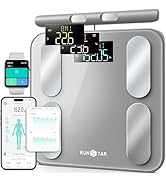
Image 8: Display indicators for low battery ('Lo') and overload ('Er-1').
7. Specifications
| Feature | Detail |
|---|---|
| Brand | RunSTAR |
| Model Number | FG2116WB |
| Color | Black |
| Display Type | LED |
| Weight Limit | 400 Pounds (180 kg) |
| Readout Accuracy | +/- 0.2lb/100g |
| Material | Tempered Glass |
| Power Source | 3 x AAA Batteries |
| Product Dimensions | 13.1 x 12.79 x 1.96 inches |
| Item Weight | 3.58 Pounds |
| UPC | 860007976537 |
8. Warranty and Support
To activate your product warranty, please visit the official RunSTAR website or scan the QR code provided in the Quick Start Guide within 15 days of purchase.
For any questions, concerns, or support needs, please contact RunSTAR customer service:
- Email: service@runstar.store
9. Official Product Video Guide
Watch the official product video for a visual guide on the RunSTAR Smart Scale's features and usage.
Video 1: An official overview of the RunSTAR Smart Scale, demonstrating its design and key functionalities.


