
Introduction
This manual provides comprehensive instructions for the installation, operation, and maintenance of your Eonon R0020 HD 720P Dashcam. Designed for seamless integration with compatible Android car stereos, this dashcam enhances your driving experience by recording road conditions. Please read this manual thoroughly before use to ensure proper functionality and safety.
Product Overview
Key Features
- High-Definition 720P Recording: Captures clear video footage at 1280x720 resolution.
- Android Head Unit Compatibility: Integrates with various Eonon Android car stereos for viewing and control.
- Seamless Loop Recording: Automatically overwrites older footage when the storage card is full, ensuring continuous recording.
- G-Sensor for Emergency Recording: Automatically locks important video clips to prevent overwriting during sudden impacts or events.
- Adjustable Lens Angle: Allows for optimal recording angle adjustment.
- Easy Installation: Plug-and-play USB connection with automatic power on/off.
Components
- Eonon R0020 Dashcam Unit
- Suction Mount
- USB Cable
- User Manual
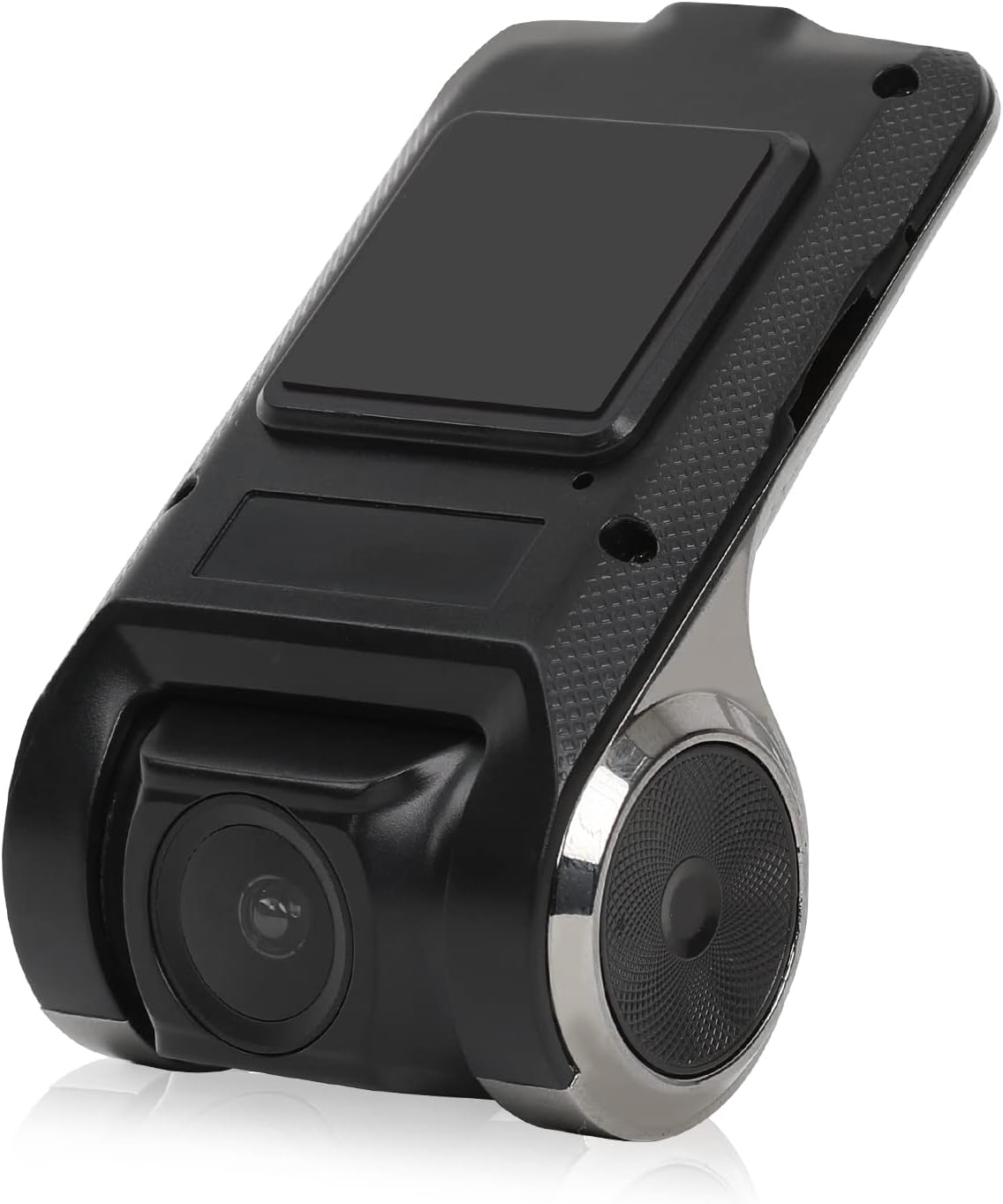
Figure 1: Eonon R0020 Dashcam Unit. This image displays the compact design of the dashcam, highlighting its lens and mounting area.
Setup
What's in the Box
- 1x Eonon R0020 Dashcam
- 1x Suction Mount
- 1x User Manual
Installation Steps
- Prepare the Mounting Area: Clean the area on your windshield where you intend to mount the dashcam. Ensure it is free of dust and grease for optimal adhesion of the suction mount.
- Attach Suction Mount: Securely attach the suction mount to the dashcam unit. Then, press the suction mount firmly onto the cleaned windshield area, ensuring a stable position that does not obstruct your view.
- Insert MicroSD Card: Insert a compatible MicroSD card (up to 32GB, not included) into the dashcam's card slot. Ensure it is inserted correctly until it clicks into place.
- Connect USB Cable: Connect one end of the provided USB cable to the dashcam unit. Route the cable neatly along the windshield trim and dashboard to avoid interference with driving.
- Connect to Android Head Unit: Plug the other end of the USB cable into an available USB port on your compatible Eonon Android car stereo.
- Power On: The dashcam is designed for plug-and-play operation and will automatically power on/off with your vehicle's ignition.
- Adjust Lens Angle: Once powered on, adjust the lens angle up or down to capture the desired view of the road.
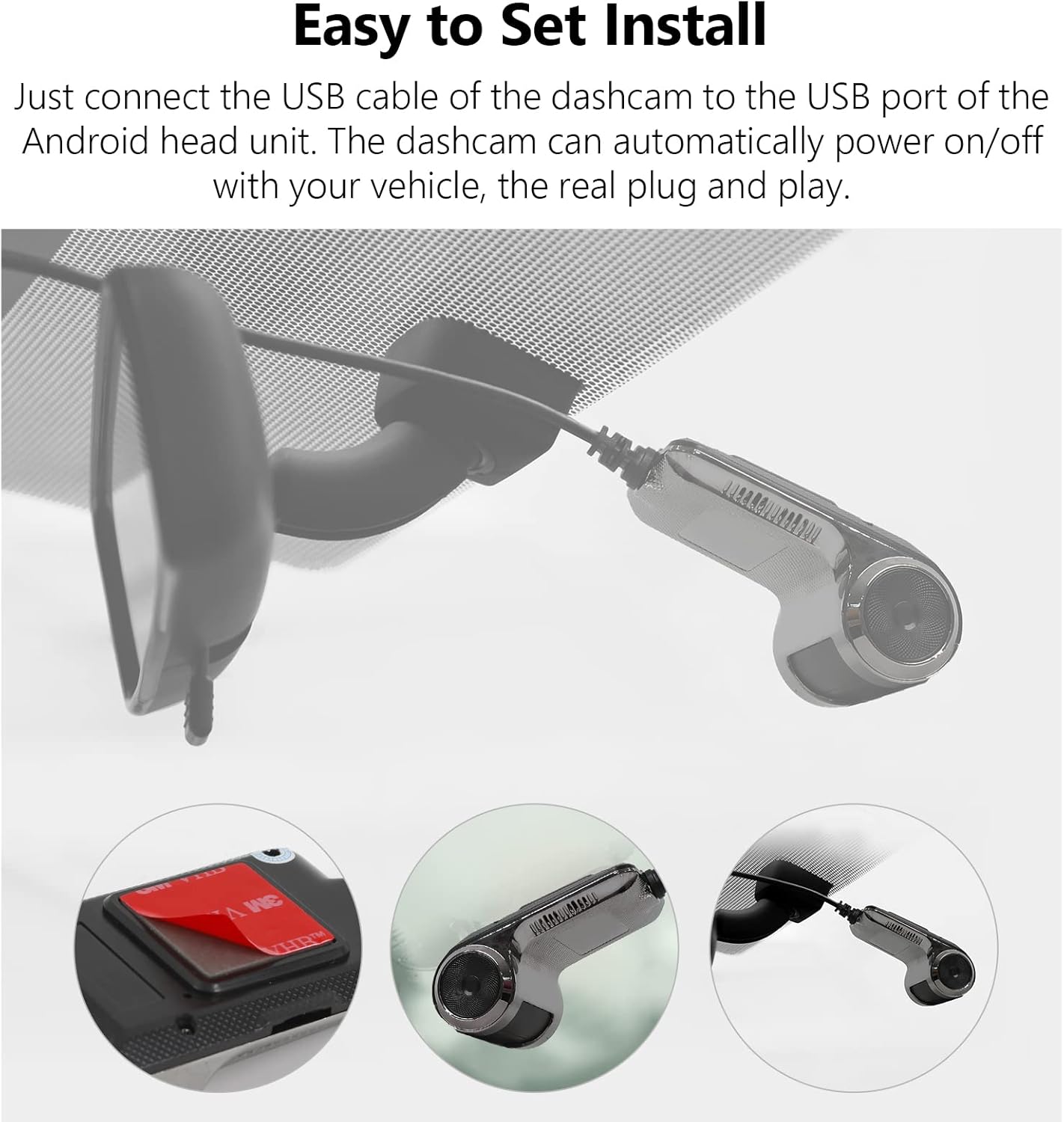
Figure 2: Easy Installation. This image illustrates the simple steps for mounting the dashcam and connecting it via USB.
Operating Instructions
Basic Operation
- Automatic Recording: The dashcam begins recording automatically when your vehicle's ignition is turned on and stops when the ignition is turned off.
- Viewing Footage: Access recorded videos directly through the interface on your compatible Eonon Android car stereo. The dashcam's application will typically launch automatically or can be found in your stereo's app menu.
- Real-time Monitoring: View live road conditions on the large screen of your head unit for enhanced awareness.

Figure 3: Compatible with Android Head Units. The dashcam's live feed is displayed on a car stereo screen, showing integration.
Loop Recording
The dashcam utilizes seamless loop recording. When the MicroSD card reaches its full capacity, the oldest video files are automatically overwritten by new recordings. This ensures continuous operation without manual intervention.
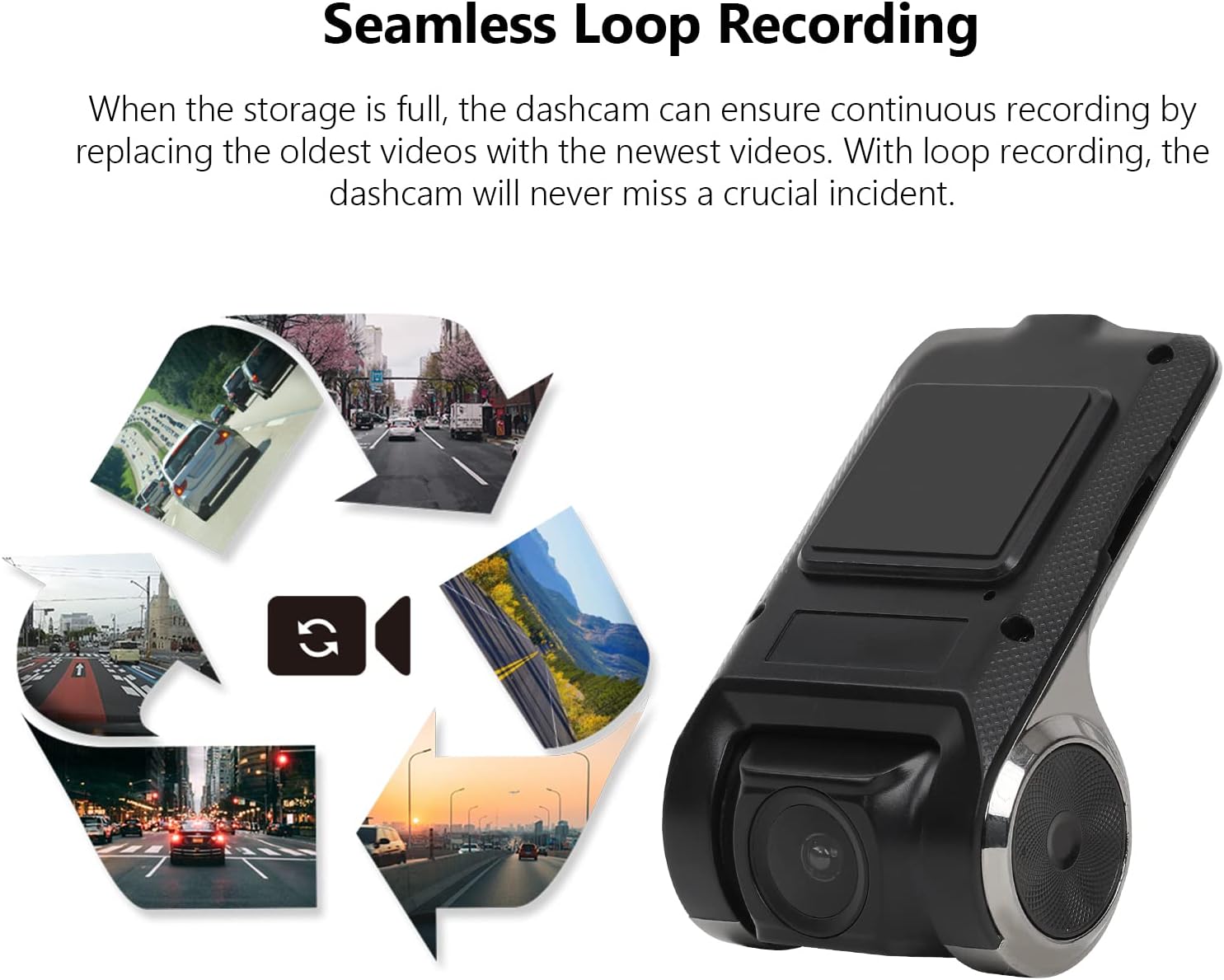
Figure 4: Seamless Loop Recording. This image visually explains how older footage is replaced by new recordings to maintain continuous operation.
Locking Important Footage
In the event of a sudden impact or emergency, the built-in G-Sensor will automatically detect the event and lock the current video segment. This prevents the footage from being overwritten by loop recording, preserving critical evidence.

Figure 5: Retain the Important Footage. A lock icon on the screen indicates that a video segment has been protected from overwriting.
Maintenance
- MicroSD Card Management: Regularly check the MicroSD card for errors or degradation. It is recommended to format the card periodically (e.g., monthly) through the dashcam's settings to maintain optimal performance. The dashcam supports MicroSD cards up to 32GB.
- Cleaning the Lens: Use a soft, lint-free cloth to gently clean the dashcam lens. Avoid abrasive materials or harsh chemicals that could scratch the lens.
- Firmware Updates: Check the Eonon website periodically for any available firmware updates for your R0020 Dashcam. Keeping the firmware updated ensures the best performance and access to new features.
Troubleshooting
- Dashcam not powering on:
- Ensure the USB cable is securely connected to both the dashcam and the Android head unit.
- Verify that the Android head unit is powered on and functioning correctly.
- Test the USB port on the head unit with another device to confirm it is supplying power.
- MicroSD card not detected or recording:
- Ensure the MicroSD card is inserted correctly and fully seated in the slot.
- Verify that the MicroSD card is 32GB or less. Larger capacity cards may not be recognized.
- Try formatting the MicroSD card through the dashcam's settings menu on the Android head unit.
- Test with a different, known-good MicroSD card to rule out card failure.
- Poor video quality:
- Clean the dashcam lens with a soft, lint-free cloth.
- Ensure the windshield area in front of the dashcam is clean and free of obstructions.
- Adjust the lens angle to avoid glare or reflections.
Specifications
| Feature | Specification |
|---|---|
| Brand | EONON |
| Model Name | R0020 |
| Video Capture Resolution | 720p (1280x720) |
| Special Feature | Loop Recording |
| Connectivity Technology | USB |
| Mounting Type | Suction Mount |
| Control Method | Touch (via Android Head Unit) |
| Color | Black |
| Item Weight | 6.7 ounces |
| Package Dimensions | 6.65 x 4.96 x 2.05 inches |
Warranty and Support
For warranty information, technical support, or service inquiries, please refer to the contact details provided in the packaging or visit the official Eonon website. Keep your purchase receipt as proof of purchase for any warranty claims.


