1. Introduction
Thank you for choosing the JieruiDeng MK-500 Rechargeable Wireless Gaming Keyboard and Mouse Combo. This product features 2.4G wireless technology for a stable connection, a mechanical-feel keyboard with RGB backlighting, and an ergonomic optical mouse. Both devices are rechargeable and designed for comfort during extended use. This manual provides detailed instructions for setup, operation, maintenance, and troubleshooting to ensure optimal performance.

Image 1.1: The JieruiDeng MK-500 Wireless Gaming Keyboard and Mouse Combo, featuring the white keyboard, white mouse, and USB receiver.
2. Setup
2.1 Package Contents
- 1 x JieruiDeng Wireless Gaming Keyboard
- 1 x JieruiDeng Wireless Optical Mouse
- 1 x USB Receiver (located in the mouse's battery compartment)
- 1 x USB Charging Cable
- 1 x User Manual (this document)
2.2 Initial Charging
Before first use, please fully charge both the keyboard and mouse to activate their internal batteries. Use the provided USB charging cable. The keyboard has a 3000mAh battery, and the mouse has a 1000mAh battery. Both can be used while charging.

Image 2.1: Illustration of the rechargeable keyboard (3000mAh) and mouse (1000mAh) with battery level indicators.
2.3 Connection
- Locate the USB receiver: The 2.4G USB receiver is stored in the battery compartment on the underside of the mouse.
- Insert the receiver: Plug the USB receiver into an available USB port on your computer.
- Power on: Ensure the ON/OFF switch on both the keyboard and mouse are in the 'ON' position.
- Automatic connection: The keyboard and mouse should automatically connect to your computer. No additional drivers are typically required.
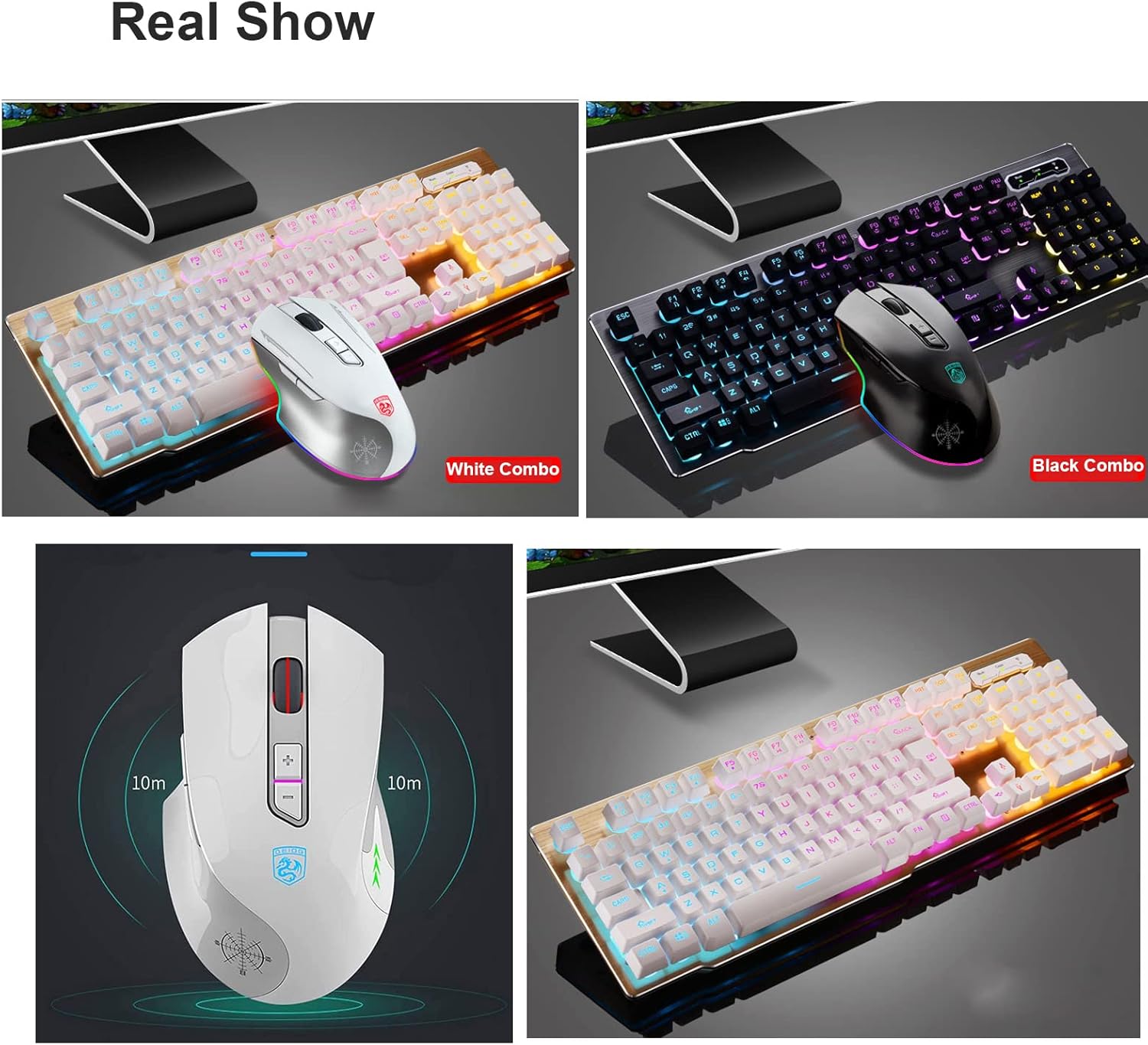
Image 2.2: The white keyboard and mouse combo, demonstrating the product's appearance. The USB receiver is typically stored within the mouse.
2.4 Compatibility
The JieruiDeng MK-500 combo is compatible with Windows XP/Vista/Win7/8/10, MAC, and Linux operating systems. It can be used with various devices including desktop computers, laptops, integrated machines, and smart TVs.

Image 2.3: The keyboard and mouse combo shown with various compatible devices such as notebooks, laptops, integrated machines, smart TVs, desktop computers, and TV boxes.
3. Operating Instructions
3.1 Power On/Off and Auto-Sleep
- Ensure the physical ON/OFF switch on both the keyboard and mouse is set to 'ON' for operation.
- To conserve battery, both the keyboard and mouse feature an intelligent power-saving system. They will automatically enter sleep mode after 5 minutes of no operation.
- To wake the devices, simply click any key on the keyboard or move/click the mouse.
3.2 Keyboard Backlight Control
The keyboard features a cool RGB backlight with adjustable settings.
- FN + PAU: Switch between different backlight modes (e.g., breathing, static). Long press FN + PAU to turn off the backlight.
- FN + PGUP: Increase backlight brightness.
- FN + PGDN: Decrease backlight brightness.
- FN + ← (Left Arrow): Decrease backlight speed (for dynamic modes).
- FN + → (Right Arrow): Increase backlight speed (for dynamic modes).

Image 3.1: Visual guide for controlling keyboard backlight effects, speed, and brightness using FN key combinations.

Image 3.2: Close-up of the keyboard demonstrating the 'Night Glow' effect and the two-color injection molding process of the keycaps.
3.3 Multimedia Hotkeys (Keyboard)
The keyboard includes dedicated multimedia function keys accessible via the FN key.
| FN Function Key | Function | Meaning | FN Function Key | Function | Meaning |
|---|---|---|---|---|---|
| FN+F1 | Music Player | Open media player | FN+F7 | Pause/Play | Toggle media playback |
| FN+F2 | Volume - | Decrease volume | FN+F8 | Next Song | Skip to next track |
| FN+F3 | Volume + | Increase volume | FN+F9 | Open default email client | |
| FN+F4 | Mute | Toggle mute | FN+F10 | Home | Open browser homepage |
| FN+F5 | Stop Play | Stop media playback | FN+F11 | Screen Lock | Lock the computer screen |
| FN+F6 | Previous Song | Skip to previous track | FN+F12 | Calculator | Open calculator application |
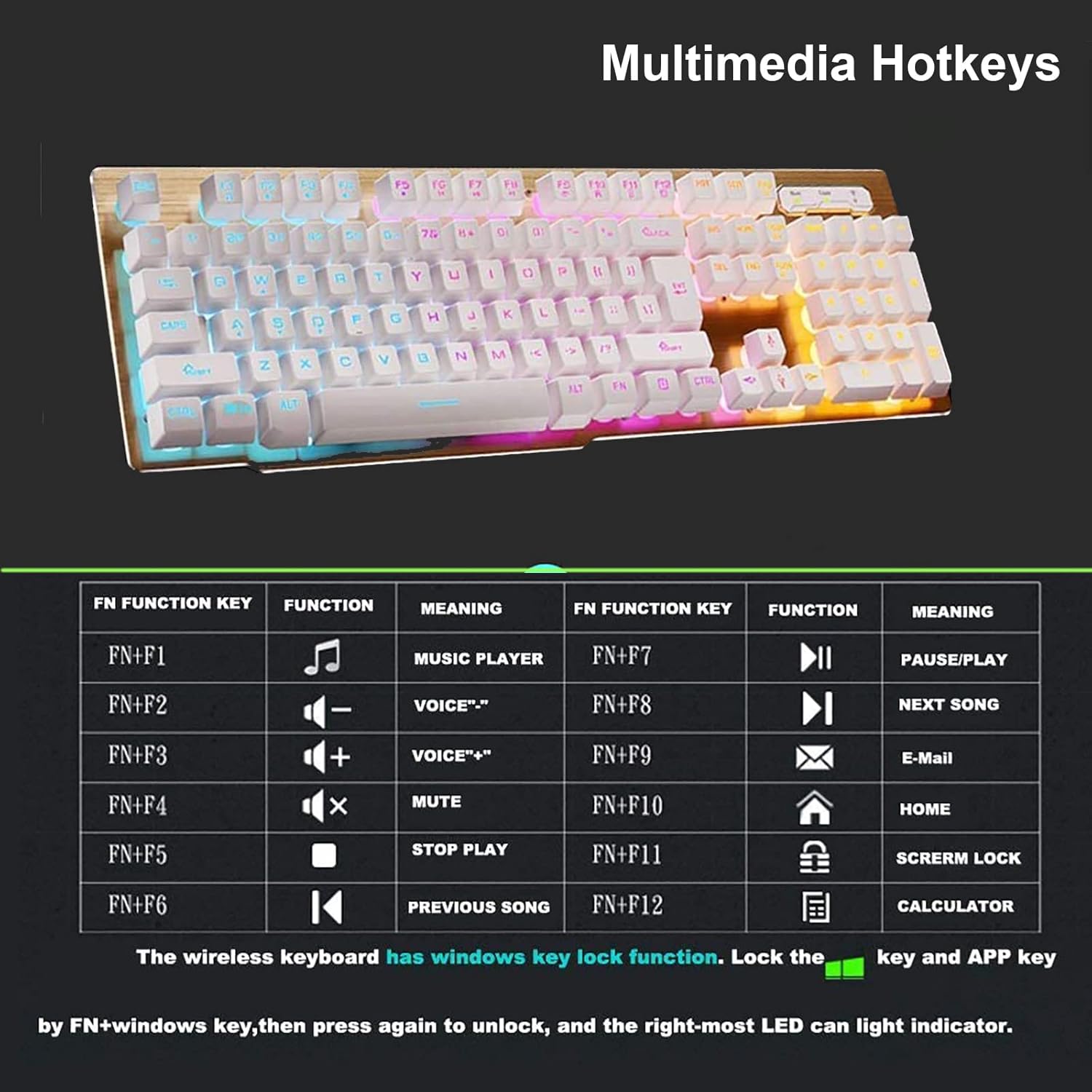
Image 3.3: The keyboard layout highlighting the multimedia hotkeys and their functions when combined with the FN key.
3.4 Mouse RGB Lighting
The wireless mouse also features RGB color modes, including lighting and breathing effects along its back and side edges. These lighting effects are typically automatic and cannot be manually adjusted.
3.5 Windows Key Lock
To prevent accidental interruptions during gaming, the keyboard has a Windows key lock function.
- FN + Windows Key: Press this combination to lock the Windows key and the APP key. The right-most LED indicator will light up to confirm.
- FN + Windows Key (again): Press the combination again to unlock the Windows key and APP key.
4. Maintenance
4.1 Cleaning
The keyboard features a metal wire drawing panel and two-color injection keycaps, making its surface hard, wear-resistant, and easy to clean. For both the keyboard and mouse:
- Turn off the devices before cleaning.
- Use a soft, damp cloth to wipe surfaces. Avoid harsh chemicals or abrasive materials.
- For dust between keys, use compressed air or a soft brush.
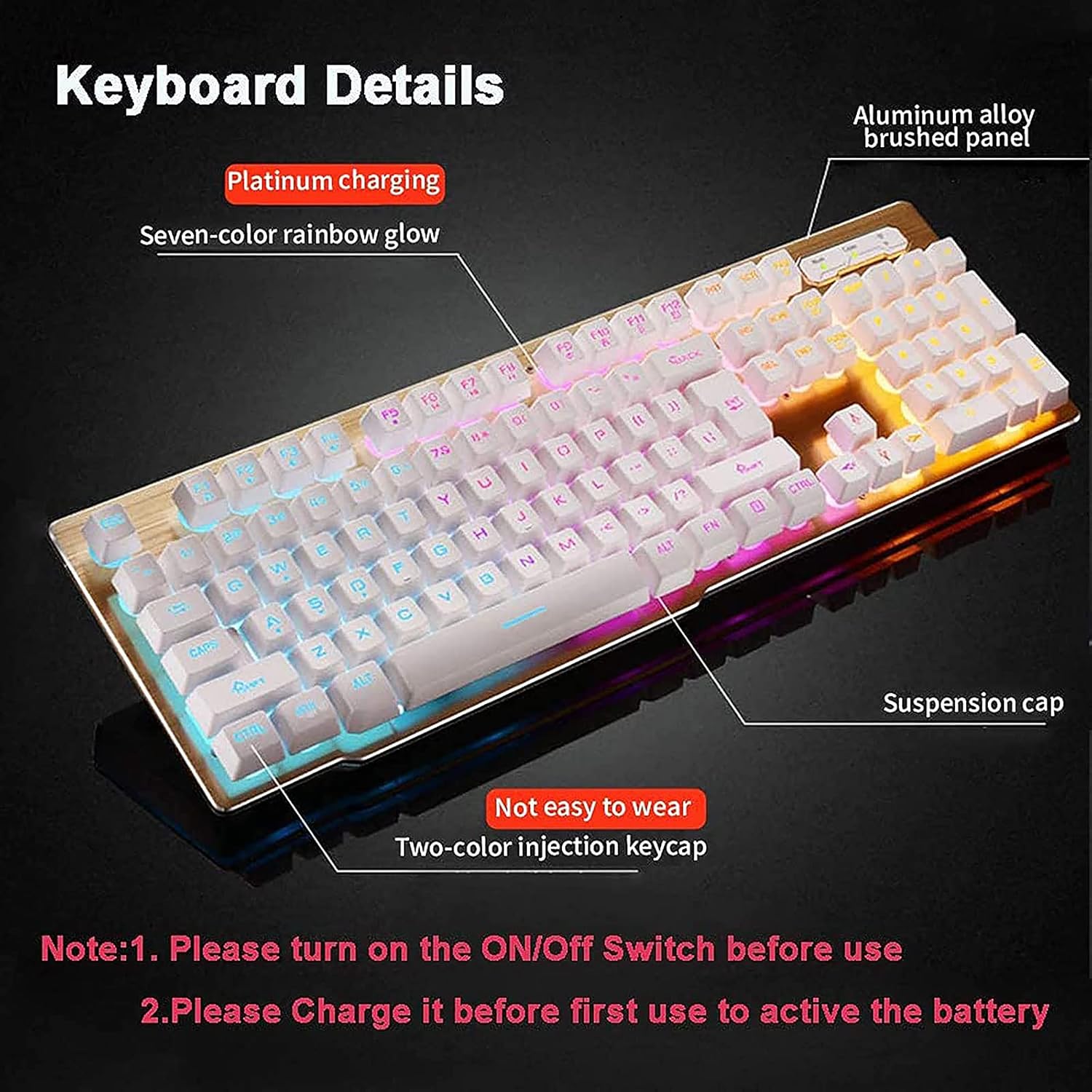
Image 4.1: Close-up of the keyboard highlighting the aluminum alloy brushed panel and the durable two-color injection keycaps, which contribute to ease of cleaning.
4.2 Charging
Regularly charge the keyboard and mouse using the provided USB cable to maintain optimal battery life. The battery life will vary based on usage habits.
5. Troubleshooting
- Devices not connecting:
- Ensure the USB receiver is securely plugged into a working USB port.
- Verify that both the keyboard and mouse are powered on (ON/OFF switch).
- Check battery levels and charge if necessary.
- Try plugging the USB receiver into a different USB port.
- Restart your computer.
- Backlight not working or dim:
- Ensure the keyboard is powered on and charged.
- Press FN + PAU to cycle through backlight modes or turn it on.
- Adjust brightness using FN + PGUP/PGDN.
- The backlight may automatically turn off after a period of inactivity to save power. Press any key to wake it.
- Keyboard/Mouse frequently disconnects or lags:
- Ensure the devices are within the 10m/33ft wireless range of the USB receiver.
- Minimize interference from other 2.4G wireless devices.
- Charge the devices to ensure sufficient power.
- Keys not responding:
- Check if the Windows key lock is active (right-most LED indicator). Press FN + Windows Key to unlock.
- Ensure the keyboard is charged and connected.
6. Specifications
| Model Number | MK-500 |
| Connectivity | 2.4G Wireless |
| Wireless Range | Up to 10m (33ft) |
| Keyboard Battery Capacity | 3000mAh |
| Mouse Battery Capacity | 1000mAh |
| Keyboard Backlight | RGB (Adjustable modes, brightness, speed) |
| Mouse Lighting | RGB (Color modes, lighting and breathing effects) |
| Keyboard Dimensions | Approximately 447mm x 137mm (17.6 x 5.4 inches) |
| Mouse Dimensions | Approximately 140mm x 72mm x 42mm (5.5 x 2.8 x 1.6 inches) |
| Item Weight | Approximately 2.55 pounds (1.16 kg) |
| Compatibility | Windows XP/Vista/7/8/10, MAC, Linux |
| Special Features | Ergonomic design, Rechargeable, Auto-sleep function, Multimedia hotkeys, Windows key lock |

Image 6.1: Diagram showing the approximate dimensions of the keyboard (447mm x 137mm) and mouse (140mm x 72mm x 42mm).
7. Warranty Information
JieruiDeng products are designed for quality and reliability. For specific warranty terms and conditions, please refer to the warranty card included with your purchase or contact the seller/manufacturer directly. Keep your proof of purchase for any warranty claims.
8. Customer Support
If you encounter any issues or have questions not covered in this manual, please contact your retailer or the JieruiDeng customer support team for assistance. Contact information can typically be found on the product packaging or the official JieruiDeng website.


