
Targus PMB58102GL
Targus Ambidextrous Bluetooth Mouse
Model: PMB58102GL
Introduction
This manual provides comprehensive instructions for the setup, operation, and maintenance of your Targus Ambidextrous Bluetooth Mouse (Model: PMB58102GL). This compact, multi-device wireless mouse offers dual-mode connectivity (2.4 GHz and Bluetooth 5.0) and is compatible with Windows and macOS. It also features Targus DefenseGuard Protection, an antimicrobial additive that helps prevent the growth of microorganisms on the mouse surface.
Product Features
- Ambidextrous Design: The mouse features an oval, pebble-shaped design suitable for both left and right-handed users.
- Multi-Device Connectivity: Connects to up to three devices using either 2.4 GHz wireless (via USB receiver) or Bluetooth 5.0.
- DefenseGuard Protection: Infused with an antimicrobial additive (Silver Phosphate Glass (nano-)) that works continuously to protect the mouse surface by inhibiting microbial growth. This protection does not wear off.
- Essential Controls: Equipped with three essential buttons for clicking, pointing, and scrolling.
- Broad Compatibility: Fully compatible with Windows and macOS operating systems.
Setup
Package Contents
- Targus Ambidextrous Bluetooth Mouse (PMB58102GL)
- USB Receiver (stored inside the mouse)
- AA Battery (pre-installed or included)
- Quick Start Guide
Battery Installation
- Locate the battery compartment cover on the underside of the mouse.
- Slide the cover open.
- Insert one AA battery, ensuring correct polarity (+/-).
- Close the battery compartment cover securely.
Note: The USB receiver is typically stored inside the battery compartment for safekeeping.

Image: The underside of the Targus mouse, displaying the battery compartment, the power switch, and the multi-device pairing button.
Connecting via 2.4 GHz USB Receiver
- Remove the USB receiver from its storage slot inside the mouse.
- Plug the USB receiver into an available USB-A port on your computer.
- Turn on the mouse using the power switch on the underside.
- The mouse should automatically connect to your computer.
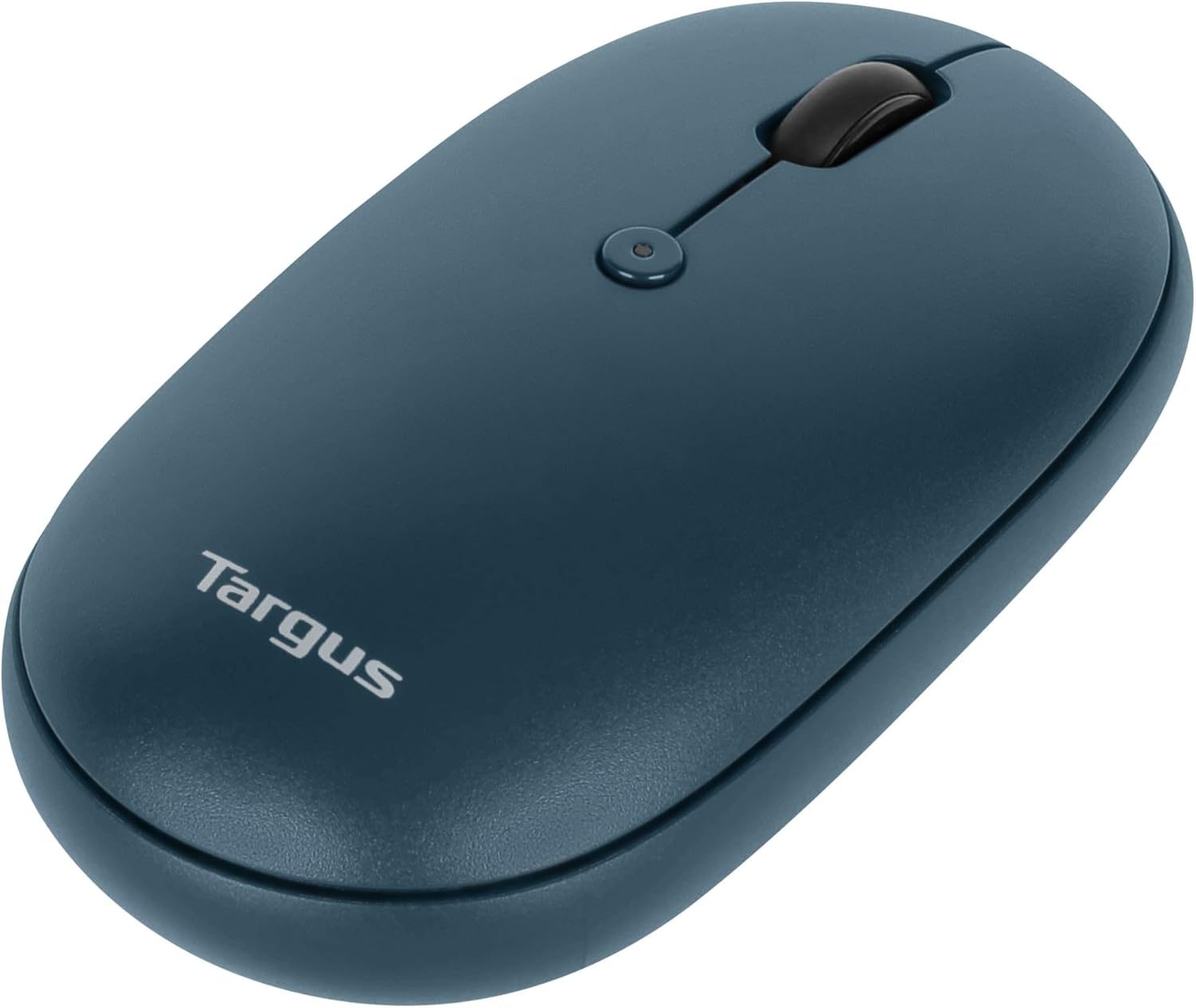
Image: An angled view of the Targus mouse, with its small USB receiver placed beside it, illustrating the 2.4 GHz wireless connection component.
Connecting via Bluetooth 5.0
- Turn on the mouse using the power switch on the underside.
- Press the multi-device pairing button on the underside of the mouse to select a Bluetooth channel (indicated by LED lights 1, 2, or 3).
- Press and hold the pairing button for 3-5 seconds until the selected LED light blinks rapidly, indicating pairing mode.
- On your computer (Windows or macOS), go to Bluetooth settings and search for new devices.
- Select "Targus Mouse" from the list of available devices to complete the pairing process.
Note: You can pair up to three devices (one via 2.4 GHz USB receiver, two via Bluetooth).
Operating Instructions
Power On/Off
Use the ON/OFF switch located on the underside of the mouse to power it on or off. Turning the mouse off when not in use conserves battery life.
Switching Between Connected Devices
If you have paired the mouse with multiple devices, press the multi-device pairing button on the underside of the mouse to cycle through the connected devices (channels 1, 2, and 3). The corresponding LED light will indicate the currently active channel.
Basic Mouse Functions
- Left Click: Primary selection and activation.
- Right Click: Accesses contextual menus.
- Scroll Wheel: Scrolls content vertically. The scroll wheel also functions as a middle click button.

Image: A top-down view of the Targus mouse, highlighting the left and right click buttons and the central scroll wheel.
DPI Adjustment (Scroll Speed)
The mouse features a button near the scroll wheel that allows you to adjust the DPI (Dots Per Inch) setting, which controls the cursor speed. Press this button to cycle through different sensitivity levels to match your preference.

Image: An angled top view of the Targus mouse, clearly showing the small button located behind the scroll wheel, used for DPI adjustment.
Maintenance
- Cleaning: Use a soft, damp cloth to clean the exterior of the mouse. Avoid harsh chemicals or abrasive materials.
- Battery Replacement: When the mouse performance degrades or the indicator light signals low battery, replace the AA battery as described in the "Battery Installation" section.
- Storage: When not in use, store the USB receiver inside the mouse's battery compartment to prevent loss.
Troubleshooting
| Problem | Solution |
|---|---|
| Mouse not responding. |
|
| Intermittent connection. |
|
| Scroll wheel not working correctly. |
|
Specifications
| Feature | Detail |
|---|---|
| Brand | Targus |
| Model Number | PMB58102GL (also AUB09QC3P5LR) |
| Connectivity Technology | 2.4 GHz Wireless, Bluetooth 5.0 |
| Movement Detection Technology | Optical |
| Operating System Compatibility | Windows, macOS |
| Power Source | Battery Powered (1x AA) |
| Item Weight | 5.3 ounces |
| Package Dimensions | 7.28 x 6.22 x 2.52 inches |
| Color | Blue |
| Antimicrobial Protection | Targus DefenseGuard (Silver Phosphate Glass (nano-)) |
Official Product Video
Video: An official overview of the Targus Compact Multi-Device Wireless Mice, demonstrating key features like multi-device connectivity and design.
Warranty and Support
The Targus Ambidextrous Bluetooth Mouse (PMB58102GL) comes with a Limited 2-year Warranty. This warranty covers specific parts and types of damage for computer keyboards, mice, and accessories. For detailed warranty information and support, please refer to the official Targus website or contact customer service.
For further assistance, visit the Targus Store.
Related documentsPMB58102GL


Ask a question about this manual
Ask about setup, troubleshooting, compatibility, parts, safety, or missing instructions. Manuals+ will review the question and use this page’s manual context to help answer it.