
1. Introduction
This manual provides detailed instructions for setting up, operating, maintaining, and troubleshooting your Roku Ultra LT (2023) streaming player. The Roku Ultra LT delivers a premium streaming experience with stunning 4K Ultra HD and HDR picture quality, including Dolby Vision, and immersive Dolby Atmos audio compatibility. It features a voice remote with private listening, dual-band Wi-Fi, and Ethernet connectivity for reliable streaming.

Image 1.1: Roku Ultra LT (2023) product packaging, showing the device, remote, and key features.
2. What's Included
Ensure all items are present in the box before proceeding with setup.
- Roku Ultra LT (2023) Streaming Player
- Voice Remote with Private Listening
- In-ear Headphones
- HDMI Cable
- Power Adapter
- 2 AAA Batteries (for remote)

Image 2.1: Contents of the Roku Ultra LT package, including the streaming device, voice remote, and headphones.
3. Setup Guide
3.1 Connecting Your Roku Ultra LT
- Connect to TV: Plug one end of the included HDMI cable into the HDMI port on your Roku Ultra LT and the other end into an available HDMI port on your TV.
- Connect to Power: Connect the power adapter to the DC IN port on the Roku Ultra LT and then plug the adapter into a wall outlet.
- (Optional) Connect to Ethernet: For a wired internet connection, plug an Ethernet cable (not included) into the Ethernet port on the Roku Ultra LT and the other end into your router or network switch.

Image 3.1: Rear view of the Roku Ultra LT, highlighting the HDMI, Ethernet, and DC IN (power) ports.
3.2 Setting Up the Voice Remote
- Insert Batteries: Open the battery compartment on the back of the remote and insert the two included AAA batteries, matching the positive (+) and negative (-) indicators.
- Pairing: The remote should automatically pair with your Roku Ultra LT. If not, press and hold the pairing button inside the battery compartment for 5 seconds until the indicator light on the remote begins to flash.
- TV Control Setup: Follow the on-screen instructions to set up the remote to control your TV's power and volume.

Image 3.2: The Roku Ultra LT voice remote control.
3.3 On-Screen Setup
- Power On: Turn on your TV and select the HDMI input where your Roku Ultra LT is connected.
- Language Selection: Follow the on-screen prompts to select your preferred language.
- Network Connection:
- If using Ethernet, the device should automatically connect.
- If using Wi-Fi, select your wireless network from the list and enter your password.
- Software Update: The Roku Ultra LT will check for and install the latest software. This may take a few minutes.
- Roku Account: You will be prompted to link your Roku Ultra LT to a Roku account. If you don't have one, you can create one during this process.
- Channel Installation: Select the streaming channels you wish to add. You can add more later.
4. Operating Your Roku Ultra LT
4.1 Remote Control Functions
The Roku voice remote provides intuitive control over your streaming experience.

Image 4.1: Detailed view of the Roku Ultra LT voice remote, indicating the function of each button.
- TV Power: Turns your TV on or off.
- Back: Returns to the previous screen.
- Home: Returns to the Roku home screen.
- Directional Pad (Up, Down, Left, Right): Navigates menus and content.
- OK: Selects an item.
- Volume Up/Down: Controls your TV's volume.
- Mute: Mutes your TV's audio.
- Voice Button: Press and hold to use voice commands for search and control.
- Instant Replay: Jumps back a few seconds in video playback.
- Rewind/Fast Forward: Controls video playback speed.
- Play/Pause: Starts or pauses video playback.
- Options (*): Accesses additional options for selected content or channels.
- Channel Shortcut Buttons: Provides quick access to popular streaming services (e.g., Netflix, Hulu).
- Headphone Jack: Plug in the included headphones for private listening.

Image 4.2: The Roku Ultra LT remote with headphones connected for private listening.
4.2 Streaming Content
The Roku Ultra LT supports high-quality streaming.
- 4K Ultra HD & HDR: Enjoy content in stunning 4K resolution with High Dynamic Range (HDR), HDR10+, and Dolby Vision for vibrant colors and enhanced contrast, provided your TV and content support these formats.
- Dolby Atmos: Experience immersive, three-dimensional audio when connected to a compatible sound system.
- Channel Access: Navigate to the desired channel from the home screen and select content to begin streaming.

Image 4.3: The Roku Ultra LT setup, emphasizing its capabilities for 4K HDR, long-range Wi-Fi, Ethernet, TV controls, and private listening.
4.3 Using Voice Commands
Press and hold the voice button on your remote to issue commands.
- "Search for [movie title]"
- "Launch Netflix"
- "Show me comedies"
- "Rewind 30 seconds"
The Roku Ultra LT also works with Google Assistant for integrated control.
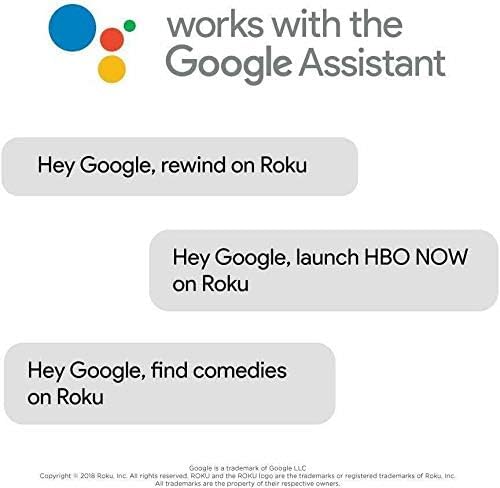
Image 4.4: Examples of voice commands compatible with Google Assistant for controlling your Roku device.
5. Maintenance
5.1 Cleaning Your Device
- Use a soft, dry, lint-free cloth to clean the exterior of the Roku Ultra LT and the remote.
- Do not use liquid cleaners, aerosols, or solvents.
- Ensure the device is unplugged before cleaning.
5.2 Software Updates
Your Roku Ultra LT automatically checks for and installs software updates. To manually check for updates:
- Go to the Home screen.
- Navigate to Settings > System > Software update.
- Select Check Now.
5.3 Remote Battery Replacement
When the remote's batteries are low, a notification will appear on your TV screen. Replace the two AAA batteries as described in Section 3.2.
6. Troubleshooting
6.1 Common Issues and Solutions
- No Power:
- Ensure the power adapter is securely connected to the Roku Ultra LT and a working wall outlet.
- Try a different power outlet.
- No Picture:
- Verify the HDMI cable is securely connected to both the Roku Ultra LT and your TV.
- Ensure your TV is set to the correct HDMI input.
- Try a different HDMI port on your TV or a different HDMI cable.
- No Sound:
- Check your TV's volume and mute settings.
- Ensure your audio receiver or soundbar is properly connected and selected as the audio output.
- If using private listening, ensure headphones are fully plugged into the remote.
- Remote Not Responding:
- Replace the AAA batteries in the remote.
- Re-pair the remote by pressing and holding the pairing button inside the battery compartment for 5 seconds.
- Network Connection Issues:
- For Wi-Fi, ensure your router is on and within range. Try restarting your router.
- For Ethernet, ensure the cable is securely connected to both the Roku Ultra LT and your router/switch.
- Go to Settings > Network > Check connection on your Roku device.
6.2 Factory Reset
A factory reset will erase all settings and linked accounts, returning the device to its original state. This should be a last resort for persistent issues.
- Go to the Home screen.
- Navigate to Settings > System > Advanced system settings > Factory reset.
- Follow the on-screen instructions.
7. Specifications
| Model Number | 4801RW |
| Product Dimensions | 6.54 x 2.87 x 6.5 inches |
| Item Weight | 1.37 pounds |
| Resolution | 4K (2160p), 720p, 1080p |
| HDR Support | HDR10+, Dolby Vision |
| Audio Compatibility | Dolby Atmos |
| Connectivity | Dual-Band Wi-Fi (802.11ac), Ethernet, HDMI, Bluetooth |
| Controller Type | Voice Control Remote |
| Remote Batteries | 2 x AAA (included) |
| Supported Internet Services | Amazon Instant Video, Browser, Hulu, Netflix, Disney+, Apple TV+, and thousands more. |
8. Warranty and Support
For information regarding your product's warranty, please refer to the warranty card included in your product packaging or visit the official Roku support website.
For additional support, FAQs, and contact information, please visit: support.roku.com


