
Easyfone Prime-A1 Pro
User Manual for Easyfone Prime-A1 Pro 4G Flip Mobile Phone
Model: Prime-A1 Pro | Brand: Easyfone
1. Introduction
The Easyfone Prime-A1 Pro is a 4G unlocked flip mobile phone specifically designed for seniors. It features a user-friendly interface with large buttons, clear sound, and essential functions like an SOS button for emergencies. This manual provides detailed instructions on how to set up, operate, and maintain your device to ensure optimal performance and ease of use.

Figure 1.1: Easyfone Prime-A1 Pro 4G Flip Mobile Phone (Red)
2. Package Contents
Please check the package carefully to ensure all items are present:
- Easyfone Prime-A1 Pro Mobile Phone
- User Manual (this document)
- Charging Dock
- 1500mAh Battery
- USB Cable
- Power Adapter (Charger)
- Lanyard

Figure 2.1: Included items in the Easyfone Prime-A1 Pro package.
3. Product Overview
3.1 Displays
The Easyfone Prime-A1 Pro features two high-definition displays for easy viewing:
- Main Display: A 2.4-inch HD IPS LCD screen located inside the flip phone, showing detailed information and menus.
- External Display: A 1.44-inch colorful HD screen on the outside, displaying time, date, battery status, and incoming call information without needing to open the phone.

Figure 3.1: The phone's main and external HD displays, designed for clear readability.
3.2 Buttons and Keyboard
The phone is equipped with a silicone keyboard featuring large, easy-to-press buttons and talking numbers for simplified dialing.
- Large Numeric Keypad: Clearly labeled buttons for dialing and text input.
- Dedicated Shortcut Buttons: Includes a 'Block' button for unwanted calls, an 'Alarm Clock' button for quick access to alarms, and 'Photo Speed Dial' buttons for one-touch calling to favorite contacts.

Figure 3.2: Close-up of the large, easy-to-read silicone keyboard.
3.3 SOS Emergency Button
A prominent SOS button is located on the back of the phone, providing a critical safety feature for emergencies. When pressed, it can automatically dial pre-set emergency contacts and send location information.

Figure 3.3: Location and function of the SOS One-Touch Emergency Button. Note: GPS function may cause long or unsuccessful positioning time due to differences in user environment.
3.4 Audio Features
The phone is designed with powerful audio capabilities for clear communication:
- Loud & Clear Receiver: Ensures incoming calls are easily heard.
- Powerful Loud Speaker: Provides amplified sound for ringtones and speakerphone calls.
- HAC Compatible: Hearing Aid Compatible, allowing users with hearing aids to use the phone without interference.

Figure 3.4: Illustration of the phone's loud receiver and powerful speaker, indicating hearing aid compatibility.
4. Setup
4.1 SIM Card and Battery Installation
Before using your phone, you need to install the SIM card (not included) and the battery.
- Carefully remove the back cover of the phone.
- Insert your 4G compatible SIM card into the designated SIM slot. The phone supports both Micro SIM and Nano SIM cards (with adapter).
- Insert the provided 1500mAh Lithium Ion battery into the battery compartment, ensuring the gold contacts align.
- Replace the back cover until it clicks securely into place.

Figure 4.1: View of the phone's interior showing SIM and Micro SD card slots.
4.2 Charging the Phone
The phone comes with a convenient charging dock for easy charging.
- Connect the USB cable to the power adapter and plug it into a wall outlet.
- Connect the other end of the USB cable to the charging dock.
- Place the Easyfone Prime-A1 Pro onto the charging dock, ensuring it is seated correctly. The phone will begin charging automatically.
- Alternatively, you can connect the USB cable directly to the phone's charging port.
A full charge provides long standby time, typically 96 hours or more.

Figure 4.2: The Easyfone Prime-A1 Pro charging in its dedicated dock.
5. Basic Operations
5.1 Power On/Off
- To Power On: Press and hold the Power/End Call button (red button) until the screen lights up.
- To Power Off: Press and hold the Power/End Call button until the power off options appear, then select 'Power off'.
5.2 Making and Receiving Calls
- Making a Call: Dial the number using the large keypad and press the Call button (green button).
- Receiving a Call: Simply flip open the phone to answer an incoming call. To end a call, close the flip or press the Power/End Call button.
5.3 Messaging
The phone supports basic text messaging (SMS).
- Navigate to the 'Messaging' menu from the main screen.
- Select 'New Message' to compose a text.
- Enter the recipient's number or select from contacts, then type your message using the keypad.
- Press 'Send' to transmit the message.
5.4 SOS Function
The SOS button is a critical safety feature. To set up and use:
- Go to the 'SOS Settings' in the phone's menu.
- Add up to 5 emergency contact numbers. These contacts will be called in sequence until one answers.
- You can also enable an emergency SMS message to be sent to these contacts, including your location if GPS is available.
- In an emergency, press and hold the SOS button on the back of the phone for 3 seconds to activate the function.
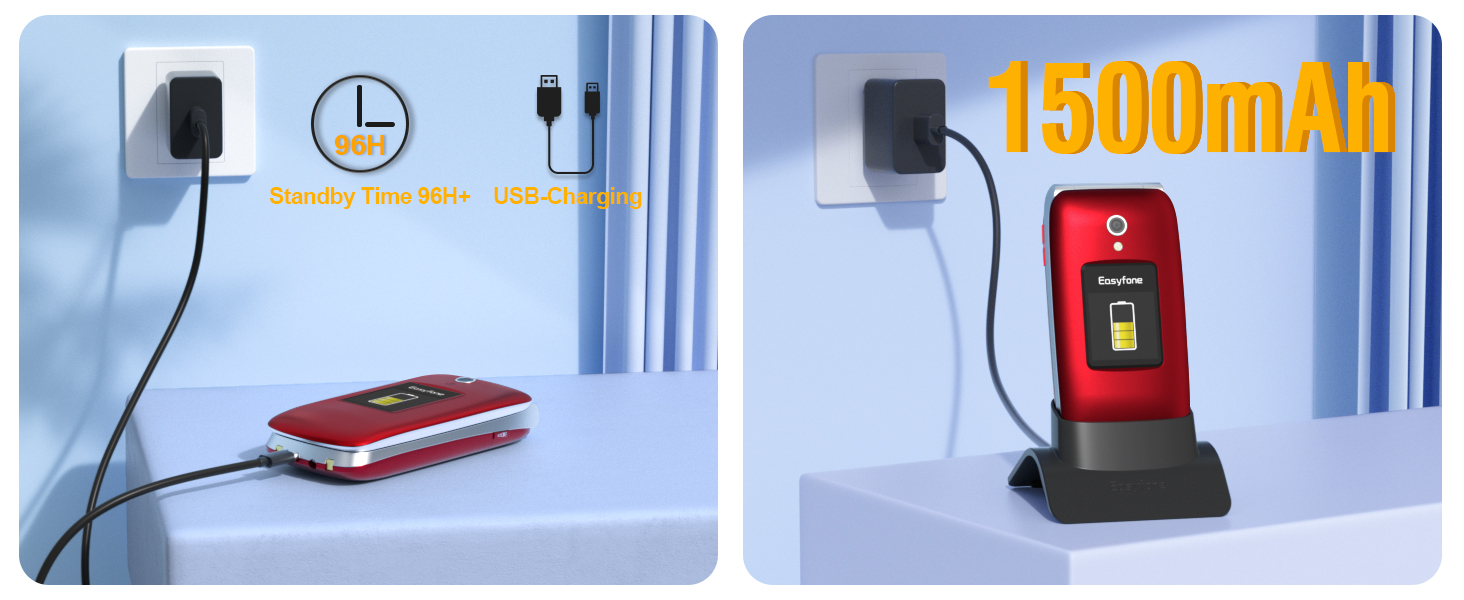
Figure 5.1: Visual representation of the SOS emergency call and message sequence.
6. Advanced Features
6.1 Photo Speed Dial
The phone supports 8 photo speed dial buttons, allowing you to assign a picture to a contact for quick dialing.
- Access the 'Photo Speed Dial' settings in the menu.
- Select an empty slot (e.g., 1-8).
- Assign a contact from your phonebook and optionally upload a photo for that contact.
- Once set, simply press and hold the corresponding number key on the keypad to dial the contact.
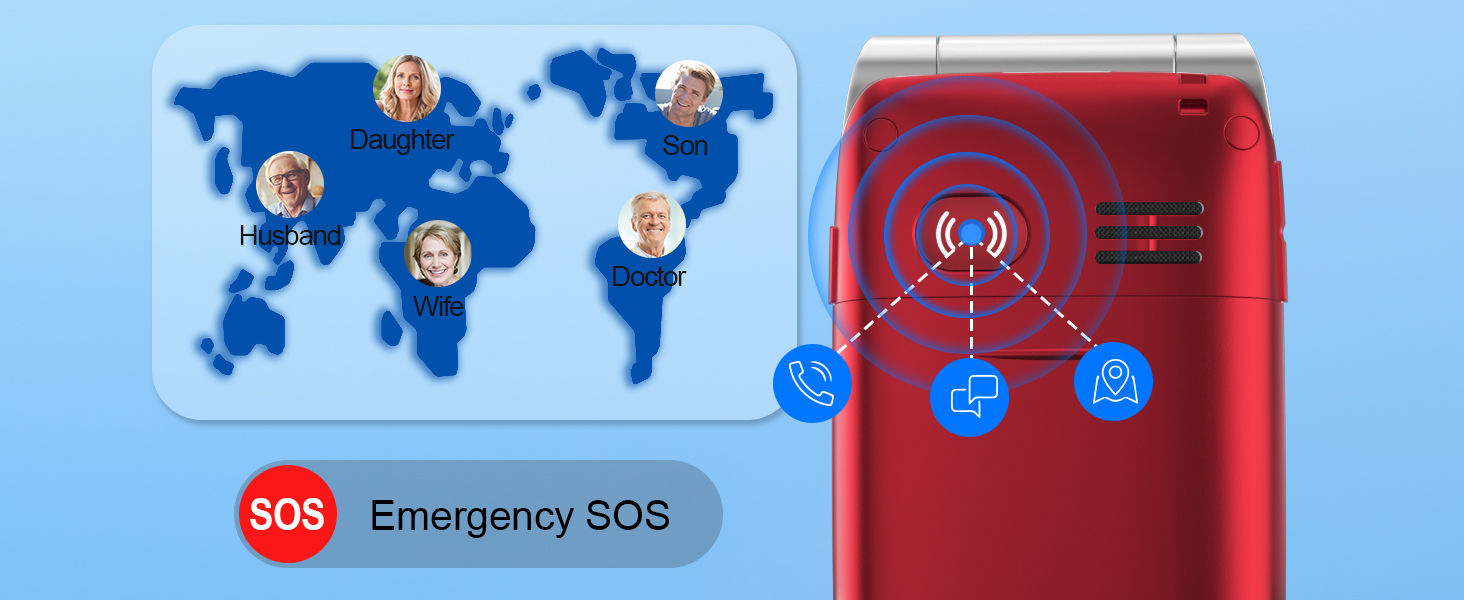
Figure 6.1: How to use the photo speed dial feature with assigned contacts.
6.2 Hearing Aid Compatibility (HAC)
The Easyfone Prime-A1 Pro is designed to be compatible with hearing aid devices, minimizing interference and providing a clearer audio experience for users with hearing impairments.
7. Maintenance
To ensure the longevity and optimal performance of your Easyfone Prime-A1 Pro, follow these maintenance guidelines:
- Cleaning: Use a soft, dry cloth to clean the phone's exterior. Avoid using liquid cleaners or aerosols.
- Battery Care: Avoid extreme temperatures. Do not overcharge the battery; disconnect the charger once the battery is full. If the phone will not be used for an extended period, charge it to about 50% before storing.
- Storage: Store the phone in a cool, dry place away from direct sunlight and excessive humidity.
- Handling: Handle the phone with care to prevent drops or impacts, which can damage internal components or the display.
8. Troubleshooting
If you encounter issues with your Easyfone Prime-A1 Pro, refer to the following common problems and solutions:
| Problem | Possible Cause | Solution |
|---|---|---|
| Phone does not power on | Battery is drained or not installed correctly. | Charge the phone for at least 30 minutes. Ensure the battery is properly inserted. |
| Cannot make or receive calls | No SIM card, SIM card not activated, or no network signal. | Ensure SIM card is inserted and activated. Check network signal strength. Contact your carrier if necessary. |
| Poor call quality / Low volume | Weak signal, speaker/microphone obstruction, or volume too low. | Move to an area with better signal. Ensure speaker/microphone are not covered. Adjust call volume using side buttons. |
| Phone not charging | Charger/cable faulty, charging port/dock dirty, or battery issue. | Try a different charger/cable. Clean the charging port/dock. Ensure phone is correctly seated in the dock. |
| SOS button not working | Emergency contacts not set up, or button not pressed long enough. | Verify emergency contacts are configured in SOS settings. Press and hold the SOS button for 3 seconds. |
9. Specifications
Detailed technical specifications for the Easyfone Prime-A1 Pro:
| Feature | Specification |
|---|---|
| Brand | Easyfone |
| Model | Prime-A1 Pro |
| Model Year | 2022 |
| Operating System | Easyfone OS |
| Processor Type | Allwinner A31 |
| RAM Memory Installed Size | 6 GB |
| Main Display Size | 2.4 Inches |
| External Display Size | 1.44 Inches |
| Display Technology | LCD |
| Resolution | 1280x720 (720p) |
| Battery Capacity | 1500 mAh Lithium Ion |
| Cellular Technology | 4G |
| Connectivity Technology | Bluetooth, Wi-Fi |
| Form Factor | Flip |
| Special Features | Big Volume & Big Button & Big Font, Easy-to-Use Charging Station, Hearing aid compatible, Photo speed dial, SOS Emergency Button |
| Product Dimensions | 10.4 x 5.2 x 2.3 cm; 4 g |
10. Warranty and Support
Easyfone provides customer support for the Prime-A1 Pro. For warranty information, technical assistance, or service inquiries, please contact Easyfone directly through their official channels or the retailer where the product was purchased.
Please retain your proof of purchase for warranty claims.
Related documentsPrime-A1 Pro


Ask a question about this manual
Ask about setup, troubleshooting, compatibility, parts, safety, or missing instructions. Manuals+ will review the question and use this page’s manual context to help answer it.