
Intelbras IM3 C
Intelbras iM3 C Smart Indoor Camera User Manual
Model: iM3 C
1. Product Overview
The Intelbras iM3 C Smart Indoor Camera is designed to provide comprehensive surveillance for your home and family, even when you are away. This camera offers full control directly from your smartphone, enabling easy installation, recording management, and real-time notification reception.

Image: Front view of the Intelbras iM3 C Smart Indoor Camera, showcasing its compact white design with a black camera lens.
Key Features:
- Full HD 1080p Video Resolution
- Wi-Fi Connectivity
- Night Vision up to 10 meters
- Remote Access via Smartphone
- Motion Detection Notifications
- Two-Way Audio Communication
- 131° Field of View
- Compatible with Amazon Alexa and OK Google
- Magnetic Base for Easy Installation
- Electronic Baby Monitor Function
- Supports MicroSD Card up to 256GB (sold separately)

Image: The Intelbras iM3 C camera, shown mounted on a wall, providing security for a family in their living room. This image highlights the camera's discreet design and its magnetic, articulated base.
2. Package Contents
Verify that all items are present in the package:
- Intelbras iM3 C Smart Indoor Camera
- Power Cable
- Bivolt Power Supply
- Installation Guide
- Installation Kit (screws and wall plugs)

Image: Rear view of the iM3 C camera, displaying the USB power input, reset button, and a QR code for easy setup.
3. Setup
Follow these steps to set up your Intelbras iM3 C camera:
- Power Connection: Connect the power cable to the camera's USB port and plug the power supply into an electrical outlet. The camera will power on and its status LED will indicate readiness for setup.
- Download the Mibo Cam App: Search for "Mibo Cam" in your smartphone's app store (Google Play Store for Android or Apple App Store for iOS) and download the application.
- Create an Account: Open the Mibo Cam app and follow the on-screen instructions to create a new user account or log in if you already have one.
- Add Device: In the app, tap the "+" icon to add a new device. Select the iM3 C camera model.
- Wi-Fi Configuration: Follow the app's prompts to connect the camera to your home Wi-Fi network. Ensure your smartphone is connected to the 2.4 GHz Wi-Fi band, as the camera only supports this frequency. You may need to scan a QR code displayed on your phone screen with the camera lens.
- Placement: Place the camera in your desired indoor location. The magnetic base allows for flexible placement on metallic surfaces or easy mounting with the included installation kit.

Image: A smartphone displaying the Mibo Cam app, showing a live view from the camera and various control options, including joystick, photo, bidirectional audio, record, and inactive mode. This illustrates how users can monitor their home and pets.
4. Operating the Camera
Once set up, you can utilize the camera's features through the Mibo Cam app:
- Live View: Open the Mibo Cam app to access the live video feed from your camera anytime, anywhere.
- Recording:
- MicroSD Card: Insert a MicroSD card (up to 256GB, sold separately) into the camera's slot for local storage of recordings. The camera supports continuous recording or event-triggered recording.
- Cloud Storage: Optional cloud storage services are available through the Mibo Cam app for secure off-site storage of your video footage.
- Motion Detection: Enable motion detection in the app to receive instant notifications on your smartphone when movement is detected in the camera's field of view. You can adjust sensitivity settings.
- Two-Way Audio: Use the microphone and speaker functions in the app to listen to what's happening near the camera and speak through the camera to communicate with people or pets.
- Night Vision: The camera automatically switches to infrared night vision in low-light conditions, providing clear black-and-white video up to 10 meters.
- Electronic Baby Monitor: Utilize the camera's features, including live view, two-way audio, and motion detection, to monitor your baby in real-time.
- Smart Home Integration: Connect your iM3 C camera with Amazon Alexa or OK Google for voice control and integration into your smart home ecosystem. Refer to the respective smart assistant's app for pairing instructions.
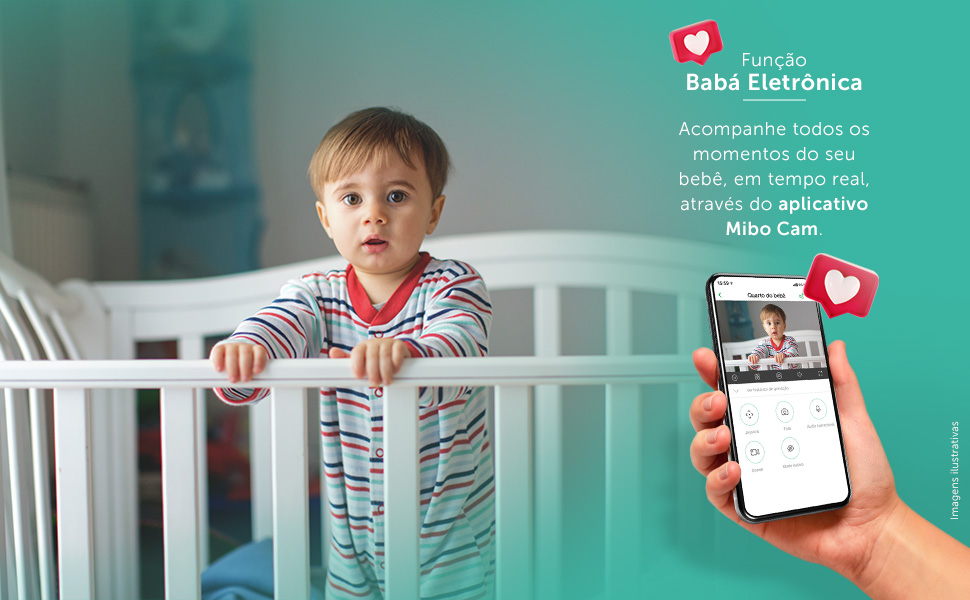
Image: This visual demonstrates the "Electronic Baby Monitor" function, showing a baby in a crib and a smartphone displaying the Mibo Cam app with a live feed of the baby, emphasizing real-time monitoring.
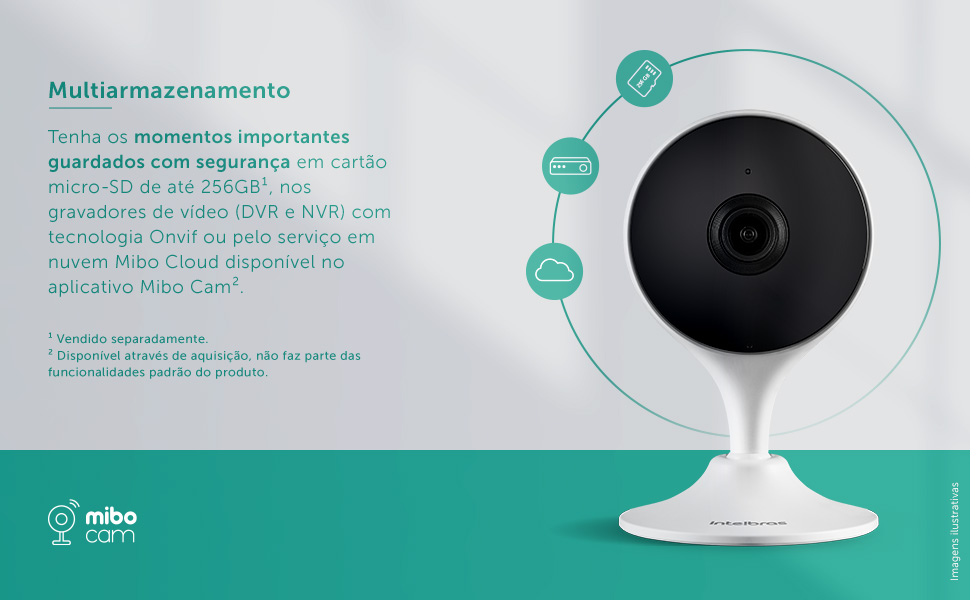
Image: A diagram illustrating the multi-storage capabilities of the iM3 C camera, showing options for saving important moments securely on a micro-SD card (up to 256GB), DVR/NVR recorders with Onvif technology, or through the Mibo Cloud service available in the Mibo Cam app.
5. Maintenance
- Cleaning: Gently wipe the camera lens and body with a soft, dry cloth. Do not use liquid cleaners or aerosols.
- Software Updates: Regularly check the Mibo Cam app for firmware updates. Keeping your camera's software up-to-date ensures optimal performance and security.
- Power Cycle: If the camera experiences issues, try unplugging it from the power source for a few seconds and then plugging it back in.
6. Troubleshooting
| Problem | Possible Cause | Solution |
|---|---|---|
| Camera not connecting to Wi-Fi. | Incorrect Wi-Fi password, camera too far from router, 5GHz Wi-Fi network. | Ensure correct password. Move camera closer to router. Connect to a 2.4 GHz Wi-Fi network. |
| Poor image quality. | Dirty lens, low bandwidth, insufficient lighting. | Clean the camera lens. Check your internet connection speed. Ensure adequate lighting or verify night vision is active. |
| No motion detection notifications. | Motion detection disabled, sensitivity too low, app notifications blocked. | Enable motion detection in the Mibo Cam app. Increase sensitivity. Check phone notification settings for the Mibo Cam app. |
| Two-way audio not working. | Microphone/speaker permissions not granted, volume too low. | Check app permissions for microphone. Adjust volume settings in the app and on your phone. |
7. Specifications
| Feature | Detail |
|---|---|
| Model | IM3 C |
| Color | White |
| Indoor/Outdoor Environment | Indoor Area |
| Compatible Devices | Smartphone |
| Power Source | Wired Electric |
| Connectivity Protocol | Wi-Fi (2.4 GHz) |
| Controller Type | Amazon Alexa |
| Mounting Type | Fixed (Magnetic Base) |
| Video Capture Resolution | 1080p Full HD |
| Number of Items | 1 |
| Included Components | Power cable, Camera, Bivolt power supply, Installation guide, Installation kit |
| Wireless Communication Technology | Wi-Fi |
| Form Factor | Box |
| Installation Type | Screwed |
| Night Vision Range | 10 Meters |
| Material | Plastic |
| Voltage | 110 Volts |
| Power | 3.1 watts |
| Item Dimensions (L x W x H) | 3.3 x 6.6 x 10.9 cm |
| Water Resistance Level | Not water resistant |
| Certification | 12641-21-10749 |
| Manufacturer | Intelbras |
| Product Weight | 322 g |
8. Warranty and Support
Warranty: The Intelbras iM3 C Smart Indoor Camera comes with a 1-year warranty from the manufacturer, covering defects in materials and workmanship under normal use.
Technical Support: For technical assistance, troubleshooting, or warranty claims, please contact Intelbras customer support. You can find contact information on the official Intelbras website or within the Mibo Cam application.
Online Resources: Visit the official Intelbras website for additional resources, FAQs, and updated product information: www.intelbras.com.br
Related documentsIM3 C


Ask a question about this manual
Ask about setup, troubleshooting, compatibility, parts, safety, or missing instructions. Manuals+ will review the question and use this page’s manual context to help answer it.