
1. Product Overview
The EPEVER BLE-RJ45-A is an optional Bluetooth module designed to enable wireless communication with EPEVER/EPsolar brand solar charge controllers, inverters, and inverter/chargers. This module allows users to remotely monitor device status and modify operational parameters using a mobile application or cloud server.

Image 1.1: Front view of the EPEVER BLE-RJ45-A Bluetooth Module, showing Link and Power indicators, and RS485 port.
It is compatible with various EPEVER solar charge controller series, including Tracer-AN, Tracer-BN, XTRA-N, Triron-N, Tracer-BP, LS-B, LS-BP, VS-BN, eTracer, and iTracer. Please note that this module is not compatible with other brands of controllers.

Image 1.2: The EPEVER BLE-RJ45-A Bluetooth Module shown with various compatible EPEVER solar charge controllers such as Tracer-AN, XTRA, Triron-N, VS-BN, Tracer-BP, Tracer-BN, iTracer, and LS-B.
2. Features
- Wireless monitoring of solar controllers, inverters, and inverter/chargers.
- Supports communication via cloud server or mobile APP.
- Convenient connection and operation.
- Equipped with a high-performance, low-power consumption Bluetooth chip.
- Adapts Bluetooth 5.0 and BLE (Bluetooth Low Energy) technology.
- Features fast communication and strong anti-interference ability.
- No external power supply required; powered directly by the communication port.
- Communication distance of up to 10 meters.
- Includes a reload button to restore factory settings.

Image 2.1: Detailed overview and list of features for the EPEVER BLE-RJ45-A Bluetooth Module.
3. Technical Specifications
| Parameter | EPEVER-BLE-RJ45-A |
|---|---|
| Input voltage | 5V± 0.5V (Powered by RS485 com. port) |
| Power consumption | 5V@30mA |
| Communication distance | ≤ 10m |
| Serial port baud rate | 2400 ~ 115200bps (default 115200bps) |
| Communication method | RS485 to Bluetooth |
| Connection port | RJ45 port |
| Connection cable | Standard network cable (parallel line) |
| Bluetooth protocol | Bluetooth 5.0, compatible with Bluetooth 4.0 |
| Dimension | 51 x 67 x 24.5mm |
| Mounting dimension | 41.2, Φ3.2 |
| Working temperature | -20 ~ 70℃ |
| Enclosure | IP30 |
| Net Weight | 38.5g |

Image 3.1: Table detailing the technical specifications of the EPEVER BLE-RJ45-A Bluetooth Module.
4. Setup and Installation
The EPEVER BLE-RJ45-A module connects directly to your compatible EPEVER solar charge controller via an RJ45 communication port. No external power supply is needed as the module draws power from the controller's communication port.
- Locate the RJ45 communication port on your EPEVER solar charge controller.
- Connect one end of the standard network cable (parallel line) to the RJ45 port on the EPEVER BLE-RJ45-A module.
- Connect the other end of the network cable to the RJ45 communication port on your EPEVER solar charge controller.
- Once connected, the 'Power' indicator on the BLE-RJ45-A module should illuminate, indicating it is receiving power. The 'Link' indicator will show communication status.

Image 4.1: The EPEVER BLE-RJ45-A Bluetooth Module shown alongside its connecting RJ45 cable.
5. Operating Instructions (Mobile APP)
To monitor and modify parameters, you will need to use the official EPEVER mobile application. Ensure your mobile device's GPS/location services are enabled for the app to function correctly.
5.1 App Download and Connection
- Download the App: Search for "Epever Pair" in your mobile device's app store (Google Play Store for Android or Apple App Store for iOS). Download and install the official "Epever Pair" application. Avoid other Epever-related apps like "(li)epever" as they may be buggy or incompatible.
- Open the App: Launch the "Epever Pair" application on your mobile device.
- Enter BLE Connection Page: On the app's main screen, click the "Local" icon to proceed to the Bluetooth Low Energy (BLE) connection page. Note that BLE does not support cloud functionality.
- Search for Modules: Click the "BLE" icon within the app to automatically search for available Bluetooth modules.
- Connect to Module: From the list of found modules, click on your module's name (e.g., "HN_00900") to establish a connection.

Image 5.1: Step-by-step guide for downloading the "Epever Pair" app and connecting to the Bluetooth module.
5.2 Monitoring and Parameter Modification
- Main Information Page: Once connected, the app will display the main information page, showing real-time data from your connected controller, such as PV voltage, current, power, battery temperature, capacity, voltage, and load information.
- Modify Parameters: To adjust settings, click the "setting" icon (often represented by a gear or cogwheel) on the main information page.
- Access Parameter Categories: You will be presented with various parameter categories such as Slave Address, Load, Battery, and Time. Select the category you wish to modify.
- Adjust Settings: Within each category, you can adjust specific parameters. For example, under "Battery," you can select battery type (AGM, GEL, FLD, LFP, etc.) and rated voltage level. Under "Load," you can set working modes.
- Save Changes: After making adjustments, ensure you click the "Write" or "Submit" button to save the new settings to the controller.

Image 5.2: Screenshots illustrating the app's main information display and the process for accessing and modifying parameters.
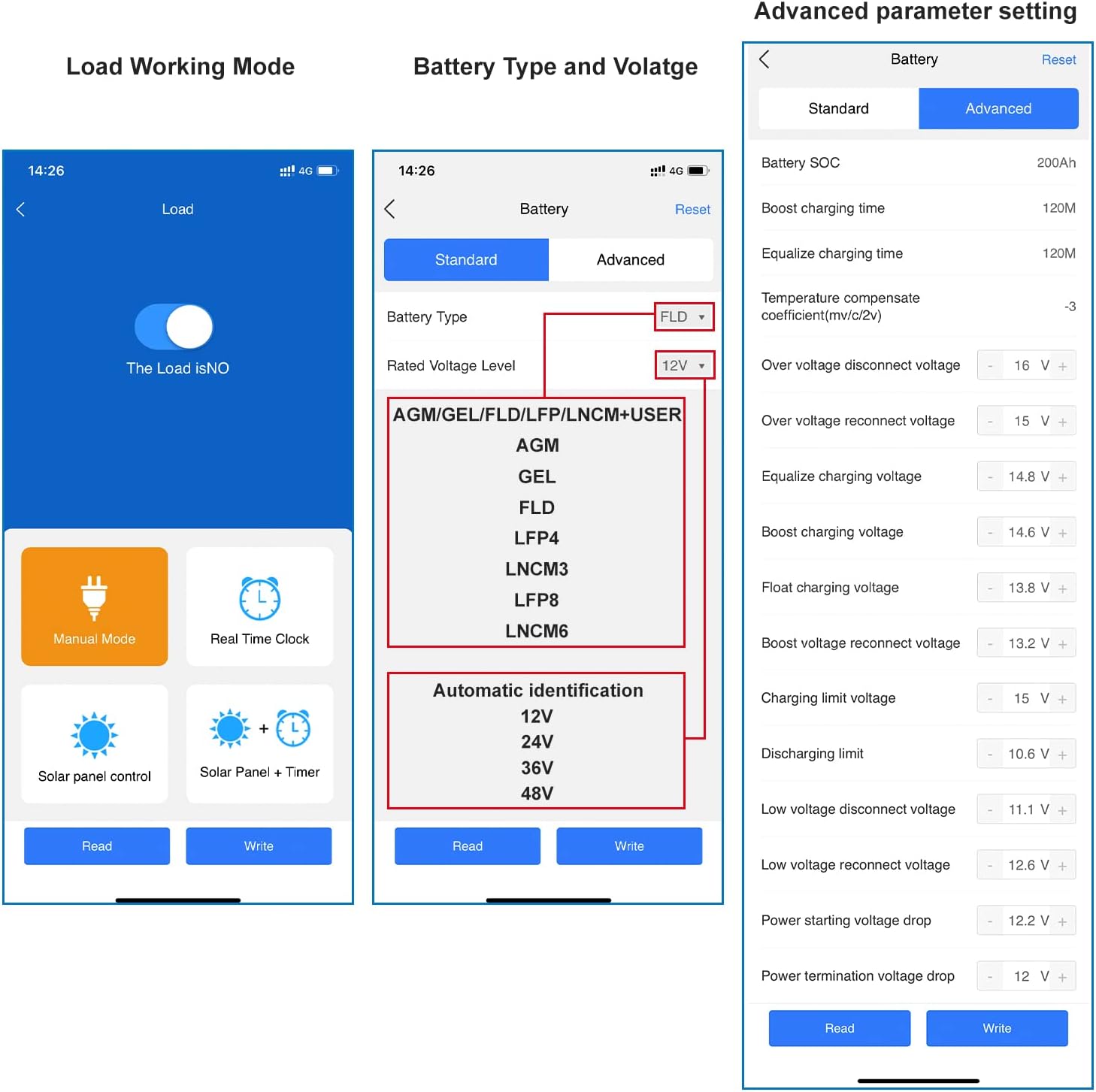
Image 5.3: Examples of advanced parameter settings within the app, including load working modes and battery type/voltage configurations.
6. Troubleshooting
- Module Not Found by App:
- Ensure the EPEVER BLE-RJ45-A module is correctly connected to the controller and its 'Power' indicator is on.
- Verify that you have downloaded and are using the correct app: "Epever Pair". Other Epever apps may not be compatible.
- Confirm that Bluetooth is enabled on your mobile device.
- Ensure your mobile device's GPS or location services are enabled. Some Bluetooth apps require this for device discovery.
- Try restarting the app or your mobile device.
- Inconsistent App Behavior:
- Ensure your app is updated to the latest version.
- Check for any firmware updates for your EPEVER controller, as compatibility issues can sometimes arise.
- If issues persist, try reinstalling the "Epever Pair" app.
- Restoring Factory Settings:
- The module features a 'Reset' button. Pressing this button will restore the module to its factory default settings. This can be useful for resolving persistent communication issues.
7. Related Accessories
EPEVER offers a range of accessories that can enhance your solar power system monitoring and control:
- MT50 Remote Meter: A display unit for monitoring controller data.
- EPEVER-WiFi-2.4G-RJ45-A WiFi Adapter: For WiFi connectivity instead of Bluetooth.
- RTS300R47K3.81A Temp Sensor Cable: External temperature sensor for accurate battery temperature compensation.
- CC-RS485-USB-150U PC Communication Cable: For connecting the controller to a PC for monitoring and configuration.
- eLOG01 Logger: A data logger for recording system performance over time.

Image 7.1: An illustrative diagram showcasing the EPEVER BLE-RJ45-A module and other EPEVER accessories, demonstrating how they connect within a solar power system.
8. Warranty and Support
GolandCentury is an official authorized sales agent for the EPEVER brand, providing the latest versions of controllers, inverters, and accessories. They offer comprehensive technical support to ensure customer satisfaction.
GolandCentury has established warehouses and service centers in key locations including Chicago (USA), Munich (Germany), Toronto (Canada), and Melbourne (Australia). Technical support is provided free of charge to assist customers with their solar product inquiries and issues.
For technical assistance or warranty claims, please contact the authorized service center in your region.


