
1. Introduction and Overview
The Vansuny H4C21 USB 3.0 Hub is a versatile 6-in-1 multi-port expansion device designed to enhance connectivity for your PC or laptop. It features four USB 3.0 ports for high-speed data transfer and two dedicated ports for fast charging, addressing the common issue of insufficient USB ports on modern devices. Its compact and lightweight design makes it suitable for various environments, including home, office, and business travel.
Key features include:
- High-Speed 5 Gbps Data Transfer: Transfer large files, such as HD movies, in seconds. Backward compatible with USB 2.0 and 1.1.
- 6-Port USB Expansion: Includes 4 USB 3.0 data ports and 2 fast-charging ports.
- Portable Design: Small and lightweight, ideal for on-the-go use.
- Powered Hub: Equipped with a power cable to support high-power devices, ensuring stable connections.
- Broad Compatibility: Plug-and-play functionality with Windows XP/Vista/7/8/10, macOS-8/9/X, UNIX, and Linux operating systems.

Image 1: The Vansuny USB 3.0 Hub is suitable for multiple scenarios, including home, office, and business use, facilitating easy data transfer.
2. Package Contents
Please check the package for the following items:
- Vansuny USB 3.0 Hub (Model H4C21-Black)
- USB 3.0 A-to-A Data Cable (approx. 100 cm / 39.37 inches)
- EU Power Adapter (12V/2A, approx. 120 cm / 47.24 inches)
- User Manual

Image 2: Package contents showing the hub, USB 3.0 data cable, and EU power adapter. The image also details the charging port specifications: one BC1.2 port (Max. 2.4A) and one fast charging port (5V-2.4A; 9V-2A; 12V-1.5A).
3. Setup Instructions
Follow these steps to set up your Vansuny USB 3.0 Hub:
- Connect Power: Plug the provided EU power adapter into the DC IN port on the hub, then connect the adapter to a wall power outlet. This ensures stable power for all connected devices, especially high-power peripherals.
- Connect to Computer: Use the included USB 3.0 A-to-A data cable to connect the hub's upstream USB 3.0 port to an available USB 3.0 port on your computer (PC or laptop).
- Automatic Installation: The hub is plug-and-play. Your operating system (Windows, macOS, Linux, UNIX) should automatically detect and install the necessary drivers. No manual driver installation is typically required.
- Ready for Use: Once detected, the hub is ready to connect your USB devices.
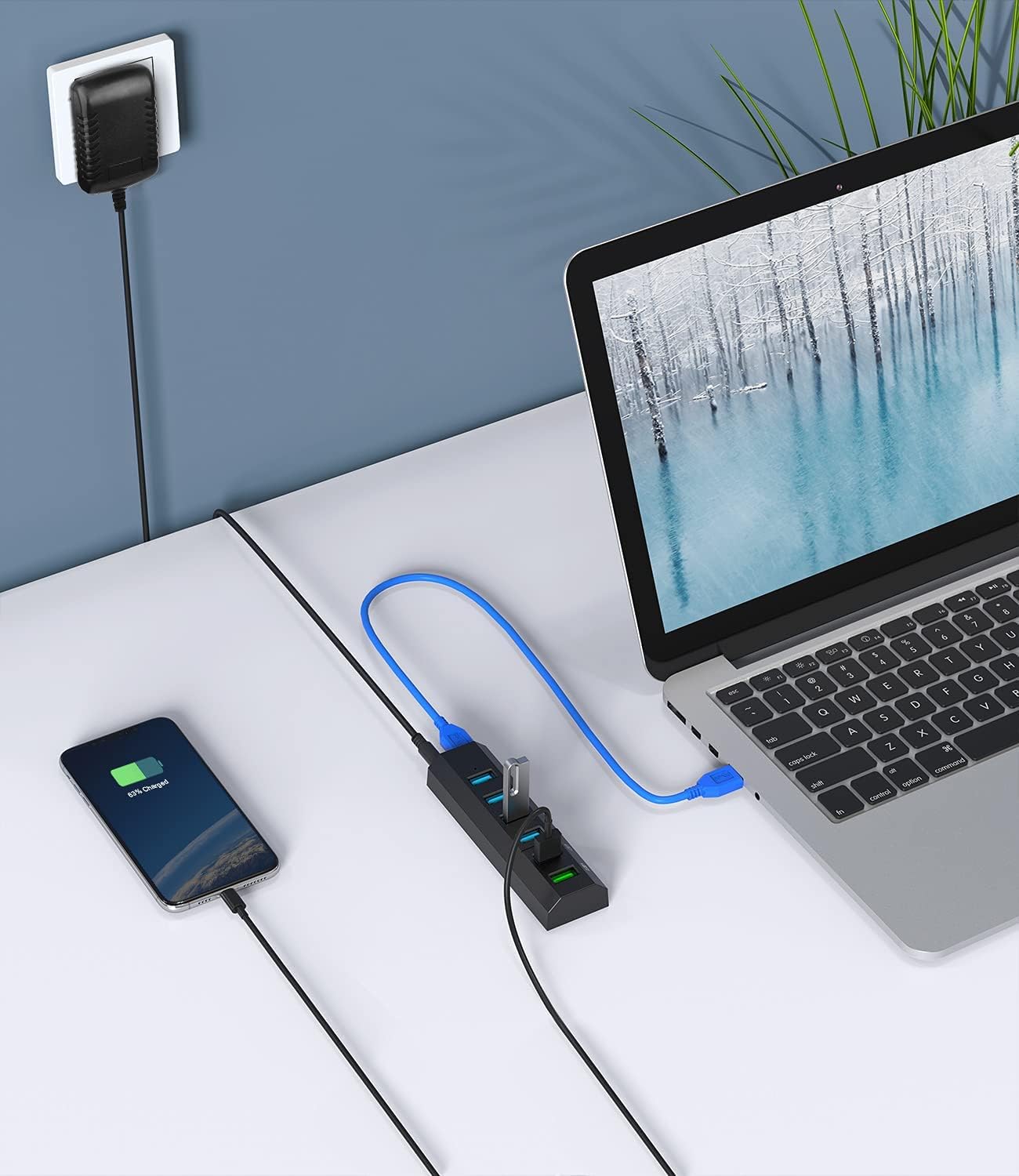
Image 3: The hub connected to a laptop and a power source, demonstrating a smartphone charging from one of its ports.
4. Operating Instructions
The Vansuny USB 3.0 Hub provides both data transfer and charging capabilities.
4.1. Data Transfer Ports (USB 3.0)
The hub features 4 USB 3.0 ports (typically blue inside) for connecting various peripherals and transferring data at speeds up to 5 Gbps.
- Connect USB flash drives, external hard drives, keyboards, mice, printers, cameras, and other USB devices to these ports.
- Ensure your devices and computer also support USB 3.0 for optimal transfer speeds. The hub is backward compatible with USB 2.0/1.1 devices, but speeds will be limited to the lower standard.
- Each port supports hot-swapping, allowing you to connect or disconnect devices without restarting your computer.
4.2. Charging Ports
The hub includes 2 dedicated charging ports for quick and efficient device charging.
- One port is a BC1.2 charging port, providing up to 2.4A.
- The other is a fast-charging port, supporting various power outputs: 5V-2.4A, 9V-2A, and 12V-1.5A.
- Connect smartphones, tablets, smartwatches, and other USB-chargeable devices to these ports.

Image 4: The hub features 4 USB 3.0 data ports for devices like cameras, keyboards, mice, and game consoles, and 2 charging ports for phones, tablets, and other small electronics.
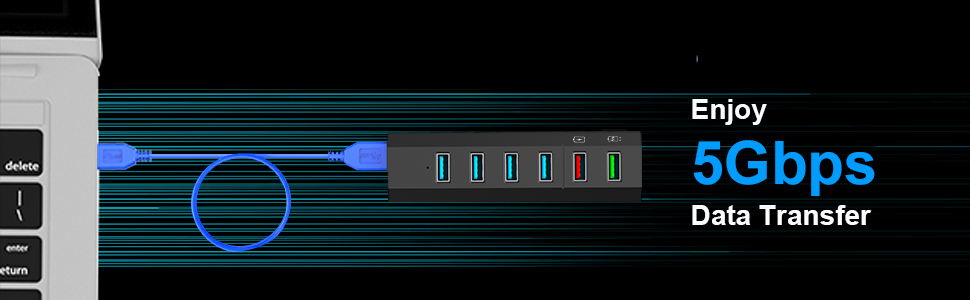
Image 5: Visual representation of 5Gbps data transfer speed when using the USB 3.0 ports.
5. Maintenance
To ensure the longevity and optimal performance of your Vansuny USB 3.0 Hub, follow these maintenance guidelines:
- Cleaning: Use a soft, dry cloth to clean the hub's exterior. Avoid using liquid cleaners, aerosols, or solvents.
- Storage: Store the hub in a cool, dry place away from direct sunlight and extreme temperatures.
- Handling: Avoid dropping the hub or subjecting it to strong impacts. Do not attempt to disassemble or modify the device.
- Environment: Keep the hub away from water, moisture, and corrosive materials.
6. Troubleshooting
If you encounter issues with your Vansuny USB 3.0 Hub, refer to the following common problems and solutions:
| Problem | Possible Cause | Solution |
|---|---|---|
| Device not recognized or unstable connection | Loose connection, insufficient power, incompatible device. | Ensure all cables (power and data) are securely connected. Verify the power adapter is plugged into a wall outlet. Try connecting the device to a different port on the hub or directly to your computer. Ensure the device is compatible with USB 3.0/2.0. |
| Slow data transfer speed | Device or computer port is USB 2.0, not USB 3.0. | Ensure both the connected device and the computer's USB port are USB 3.0 compatible for maximum speed. USB 3.0 ports are typically blue. |
| Devices not charging or charging slowly | Power adapter not connected, device requires more power than available, incorrect charging port used. | Confirm the power adapter is connected and functioning. Use the dedicated fast-charging ports for devices requiring higher power. Ensure your device's charging cable is not faulty. |
| Hub not detected by computer | Faulty USB cable, computer USB port issue. | Try using a different USB 3.0 data cable. Connect the hub to a different USB port on your computer. Restart your computer. |
7. Specifications
| Feature | Detail |
|---|---|
| Brand | Vansuny |
| Model | H4C21 |
| Color | Black |
| Interface | USB, USB 3.0 |
| Total USB Ports | 6 (4 x USB 3.0 Data, 2 x Charging) |
| Data Transfer Rate | 5 Gigabits per second (USB 3.0) |
| Material | ABS Plastic |
| Dimensions (L x W x H) | 12 cm x 3.4 cm x 1.8 cm (4.72 x 1.34 x 0.71 inches) |
| Weight | 55 Grams |
| Power Adapter Output | 12V/2A (24W) |
| Operating System Compatibility | Windows XP/Vista/7/8/10, macOS-8/9/X, UNIX, Linux |
| Compatible Devices | USB drives, DVD players, desktop computers, laptops, tablets |
8. Warranty and Support
Vansuny products are designed for reliability and performance. For warranty information or technical support, please refer to the contact details provided with your purchase or visit the official Vansuny website. Keep your purchase receipt for warranty claims.