
1. Introduction
Thank you for choosing the Uiosmuph U58 Rechargeable 2.4G Wireless Optical Mouse. This manual provides essential information for setting up, operating, maintaining, and troubleshooting your new mouse. Please read these instructions carefully before use to ensure optimal performance and longevity of your device.
2. What's in the Box
- 1x Uiosmuph U58 Wireless Mouse
- 1x USB Nano Receiver
- 1x Type-C Adapter
- 1x USB Charging Cable
- 1x User Manual
3. Product Overview
Familiarize yourself with the components of your Uiosmuph U58 mouse.
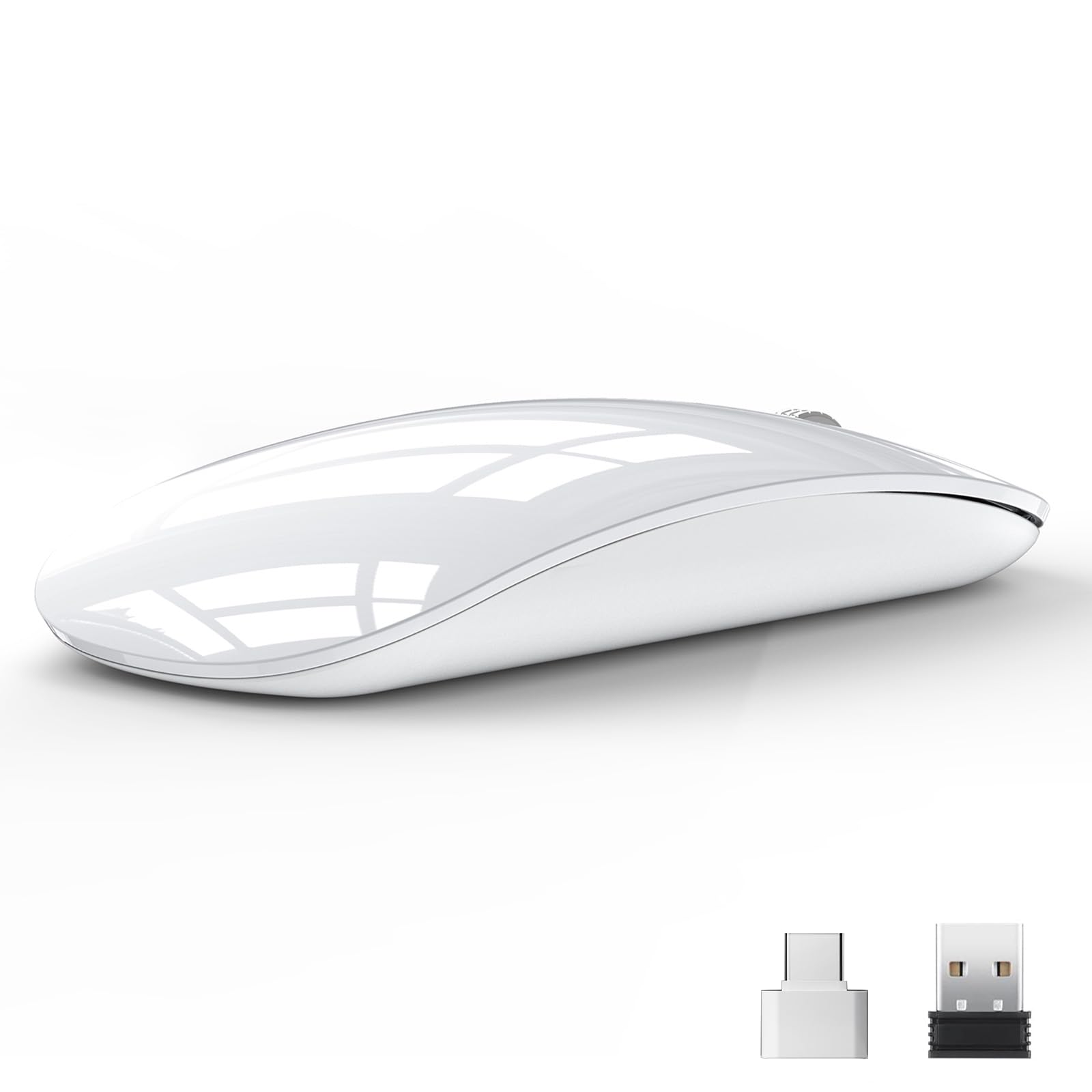
Figure 3.1: Top view of the Uiosmuph U58 Wireless Mouse.

Figure 3.2: Bottom view showing the DPI adjustment button and battery indicator lights.
- Left Click Button: Standard left mouse button.
- Right Click Button: Standard right mouse button.
- Scroll Wheel: For scrolling and middle-click functionality.
- DPI Adjustment Button: Located on the bottom, cycles through DPI settings.
- Power Switch: On/Off switch on the bottom.
- USB-C Charging Port: Located at the front of the mouse.
- USB Nano Receiver Slot: Located on the bottom for storage.
4. Setup Instructions
Follow these steps for initial setup:
- Charge the Mouse: Before first use, connect the mouse to a USB power source using the provided USB charging cable. The charging port is located at the front of the mouse. The battery indicator lights will show charging status. Do not use fast charger adapters.
- Retrieve the USB Receiver: The USB Nano Receiver is stored in a slot on the bottom of the mouse. Gently pull it out.
- Connect the Receiver:
- For devices with a standard USB-A port: Plug the USB Nano Receiver directly into an available USB-A port on your PC, tablet, or laptop.
- For devices with a USB-C port: Attach the provided Type-C adapter to the USB Nano Receiver, then plug the combined unit into an available USB-C port on your device.
- Power On the Mouse: Flip the power switch on the bottom of the mouse to the "ON" position.
- Automatic Connection: The mouse should automatically connect to your device. No additional drivers or software are typically required.

Figure 4.1: Connecting the USB-C charging cable to the mouse.

Figure 4.2: Plugging the USB receiver into a laptop port.
5. Operating Instructions
Learn how to use your Uiosmuph U58 mouse effectively:
- DPI Adjustment: The mouse features 3 adjustable DPI levels (1000, 1200, 1600 DPI). Press the DPI button on the bottom of the mouse to cycle through these settings. Each press changes the cursor speed, allowing you to select the sensitivity that best suits your needs.
- Silent Click Feature: The left and right click buttons are designed for silent operation, minimizing noise in quiet environments such as libraries or offices.
- Power Saving Mode: To conserve battery life, the mouse will automatically enter sleep mode after 8 minutes of inactivity. To reactivate it, simply move the mouse gently.
- Battery Indicator: The mouse is equipped with a battery indicator to show the remaining power level. Refer to the bottom of the mouse for these indicator lights.
Figure 5.1: Illustrates the DPI button and its settings (1000, 1200, 1600 DPI).

Figure 5.2: Visual representation of the noiseless click feature.

Figure 5.3: Close-up of the battery indicator lights on the mouse.
6. Maintenance
Proper care ensures the longevity of your mouse:
- Cleaning: Use a soft, dry cloth to clean the surface of the mouse. Avoid using harsh chemicals or abrasive materials.
- Battery Care: Recharge the mouse when the battery indicator shows low power. Avoid completely draining the battery frequently. Store the mouse in a cool, dry place when not in use for extended periods.
- Storage: When transporting, store the USB Nano Receiver in its dedicated slot on the bottom of the mouse to prevent loss.
7. Troubleshooting
If you encounter issues, refer to the following common solutions:
| Problem | Possible Solution |
|---|---|
| Mouse not responding |
|
| Cursor movement is erratic or lagging |
|
| Mouse not charging |
|
8. Specifications
| Feature | Detail |
|---|---|
| Brand | Uiosmuph |
| Model | U58 |
| Connectivity Technology | 2.4 GHz Wireless (USB Receiver) |
| Special Features | Portable, Rechargeable, Wireless, Silent Click |
| Movement Detection Technology | Optical |
| Number of Buttons | 3 |
| Hand Orientation | Ambidextrous |
| Recommended Uses | Office |
| Compatible Devices | PC, Tablet, Laptop |
| Item Weight | 65 Grams |
| Operating System Compatibility | Windows 7/8/10/XP, Vista, Linux, Mac OS, iOS, Chrome OS |
| Average Battery Life | 8 hours (usage time, standby much longer) |
| Battery Type | 1 Lithium metal (included) |
| Power Source | Battery Powered |
| Max Sensitivity | 1600 DPI (Adjustable: 1000/1200/1600 DPI) |
| Dimensions (L x W) | 11.5 cm x 6.3 cm |
| Country of Origin | China |
9. Warranty and Support
Uiosmuph products are designed for reliability and performance. For warranty information or technical support, please refer to the contact details provided on the product packaging or visit the official Uiosmuph website. Keep your purchase receipt as proof of purchase for warranty claims.
10. Safety Information
- Do not expose the mouse to extreme temperatures, direct sunlight, or high humidity.
- Avoid dropping or subjecting the mouse to strong impacts.
- Keep out of reach of children.
- Do not attempt to disassemble or modify the mouse, as this will void the warranty and may cause damage.
- Dispose of the product and its battery responsibly according to local regulations.