
Introduction
This manual provides comprehensive instructions for the installation, operation, and maintenance of your Lorex Nocturnal 3 4K 16-Channel NVR System. This system includes a Network Video Recorder (NVR) and Smart IP Bullet Cameras, designed for professional property surveillance. Key features include real-time 30fps 4K recording, Color Night Vision, Smart Motion Detection, and listen-in audio capabilities. This versatile security solution is suitable for various environments, including large homes, small businesses, offices, or commercial facilities.
Setup
1. Unboxing and Component Identification
Carefully unpack all components. Ensure the package contains the NVR unit, IP cameras, Ethernet cables, power adapter for the NVR, USB mouse, and any mounting hardware for the cameras.
2. NVR Connections
Connect the NVR to your network, power source, and a display monitor. The NVR features Power over Ethernet (PoE) ports for direct camera connection.
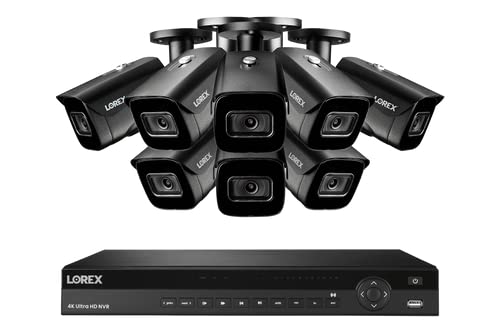
Image: Rear panel of the Lorex Nocturnal 3 NVR, illustrating the PoE ports (1-16), VGA, HDMI, USB, RS232, and audio input/output connections. Connect your cameras to the PoE ports, a monitor to HDMI or VGA, and the NVR to power.
- Power: Connect the NVR's power adapter to the power input on the rear panel and then to a power outlet.
- Monitor: Connect a monitor to the NVR's HDMI or VGA port.
- Mouse: Connect the included USB mouse to a USB port on the NVR.
- Network: Connect an Ethernet cable from the NVR's LAN port to your router or network switch.
- Cameras: Connect each IP camera directly to one of the NVR's PoE ports using an Ethernet cable. The NVR will provide both power and video signal.
3. Camera Installation
Mount the IP bullet cameras in desired locations, ensuring optimal viewing angles and coverage. Route the Ethernet cables securely to the NVR.

Image: A Lorex Smart IP Bullet Camera, showing its robust housing and adjustable mounting bracket. Ensure the camera is securely mounted and cables are protected from environmental elements.
4. Initial NVR Setup
Upon first power-on, the NVR will guide you through an initial setup wizard. Follow the on-screen prompts to configure:
- Language settings
- Date and time
- Administrator password
- Network settings (DHCP is recommended for most home networks)
5. Mobile App Connection
Download the Lorex Home app from your device's app store. Create an account and follow the in-app instructions to add your NVR system by scanning the QR code on the NVR or entering its device ID.
Operating Instructions
1. Accessing the System
- Local Access: Use the connected monitor and USB mouse to navigate the NVR's interface.
- Remote Access: Use the Lorex Home mobile application on your smartphone or tablet for live view, playback, and system management from anywhere.
2. Live View and Playback
- Live View: The main screen displays live feeds from all connected cameras. You can switch between single-camera view and multi-camera grid views.
- Playback: Access the playback menu to review recorded footage. You can search by date, time, and event type (e.g., motion detection).
3. Recording Modes
The NVR supports various recording configurations:
- Continuous Recording: Records 24/7, overwriting the oldest footage when the hard drive is full.
- Motion Detection Recording: Records only when motion is detected, conserving storage space.
- Scheduled Recording: Allows you to set specific times for continuous or motion-activated recording.
4. Smart Features
- Smart Motion Detection: The system can differentiate between person and vehicle motion, reducing false alarms. Configure detection zones and sensitivity in the NVR settings.
- Color Night Vision: Cameras provide full-color video in low-light conditions, enhancing detail compared to traditional black and white infrared night vision.
- Listen-in Audio: Cameras with built-in microphones allow you to hear audio from the camera's location. This feature can be enabled/disabled in camera settings.
Maintenance
1. Hard Drive Management
The 4TB hard drive will automatically overwrite the oldest recordings once full. Regularly back up any critical footage to an external USB drive or network storage before it is overwritten. Check the hard drive status periodically in the NVR's system settings to ensure proper function.
2. Firmware Updates
Periodically check for and apply firmware updates for both the NVR and cameras. Firmware updates often include security enhancements, bug fixes, and new features. Updates can typically be performed via the NVR's network connection or by downloading files to a USB drive from the Lorex support website.
3. Camera Cleaning
To ensure clear image quality, regularly clean the camera lenses. Use a soft, damp cloth to gently wipe away dust, dirt, or water spots. Avoid abrasive cleaners that could scratch the lens. Ensure the camera's protective housing is free from obstructions.
4. Environmental Considerations
While the cameras are designed for outdoor use, extreme weather conditions can affect performance. Ensure cameras are installed in locations that minimize direct exposure to harsh elements where possible. Regularly inspect cables and connections for wear or damage.
Troubleshooting
1. No Video Display on Monitor
- Check the HDMI or VGA cable connection between the NVR and the monitor.
- Ensure the monitor is powered on and set to the correct input source.
- Verify the NVR is powered on and its power indicator light is active.
2. No Camera Image / Offline Camera
- Check the Ethernet cable connection from the camera to the NVR's PoE port. Ensure it is securely plugged in at both ends.
- Try connecting the camera to a different PoE port on the NVR.
- Reboot the NVR.
- Ensure the camera's power indicator (if applicable) is on.
3. No Recording
- Check the hard drive status in the NVR's system settings. Ensure it is detected and functioning correctly.
- Verify that recording schedules are properly configured for the desired cameras and times.
- If using motion detection recording, check the motion detection settings and sensitivity for the affected cameras.
4. Network Connection Issues / Remote Access Failure
- Ensure the NVR's LAN port is connected to your router/network switch with a working Ethernet cable.
- Verify your router and internet connection are operational.
- Check the NVR's network settings to ensure it has a valid IP address.
- For remote access, ensure your mobile device has an active internet connection and you are logged into the Lorex Home app with the correct credentials.
5. Audio Not Working
- Ensure the camera's microphone is enabled in the NVR's camera settings.
- Check the audio output settings on the NVR and your connected monitor/speakers.
- Verify the camera model supports listen-in audio.
Specifications
| Feature | Detail |
|---|---|
| Brand | Lorex |
| Model Number | NC4K3F-168BB-1 |
| Connectivity Technology | HDMI |
| Video Capture Resolution | 4K |
| Special Feature | Night Vision, Vehicle Detection |
| Number of Channels | 16 |
| Memory Storage Capacity | 4 TB |
| Color | Black |
| Power Source | Corded Electric |
| Item Dimensions (L x W x H) | 24 x 18 x 18 inches |
| Operating System | Linux |
| Compatible Devices | Cameras |
| Other Camera Features | Front |
| Low Light Technology | Yes |
| Frame Rate | 30 |
| Recording Mode | Motion Detection |
| Hardware Interface | MicroSD |
| Lens Type | Zoom |
| Video Input | HDMI |
| Manufacturer | Lorex |
| Smart Home Compatibility | Smart Home Compatible |
| Item Weight | 37.8 pounds |
| Date First Available | January 6, 2022 |
Warranty Information
For detailed warranty information regarding your Lorex Nocturnal 3 4K 16-Channel NVR System, please refer to the official Lorex website or the warranty card included with your product. Warranty terms and conditions may vary by region and product type.
Customer Support
Should you require technical assistance or have questions about your Lorex Nocturnal 3 4K 16-Channel NVR System, please visit the official Lorex support website. You can find FAQs, troubleshooting guides, software downloads, and contact information for customer service representatives there.
Lorex Support Website: www.lorex.com/support


