
Product Overview
The Phomemo 241BT Bluetooth Thermal Printer is an advanced, inkless label printer designed for efficiency and convenience in small business and personal use. It offers versatile connectivity options, supporting both wireless Bluetooth and wired USB connections across various operating systems. This manual provides detailed instructions for setup, operation, and maintenance to ensure optimal performance of your printer.

Figure 1: Phomemo 241BT Bluetooth Thermal Printer in a typical use environment.
What's in the Box
Upon unboxing your Phomemo 241BT printer, please ensure all the following components are present:
- 1 x Phomemo 241BT Bluetooth Shipping Label printer
- 1 x Power Cord & Adapter for shipping label printer
- 1 x USB-C adapter for MAC OS
- 20 x 4x6 shipping labels for print test
- 1 x PM-241BT quick start guide
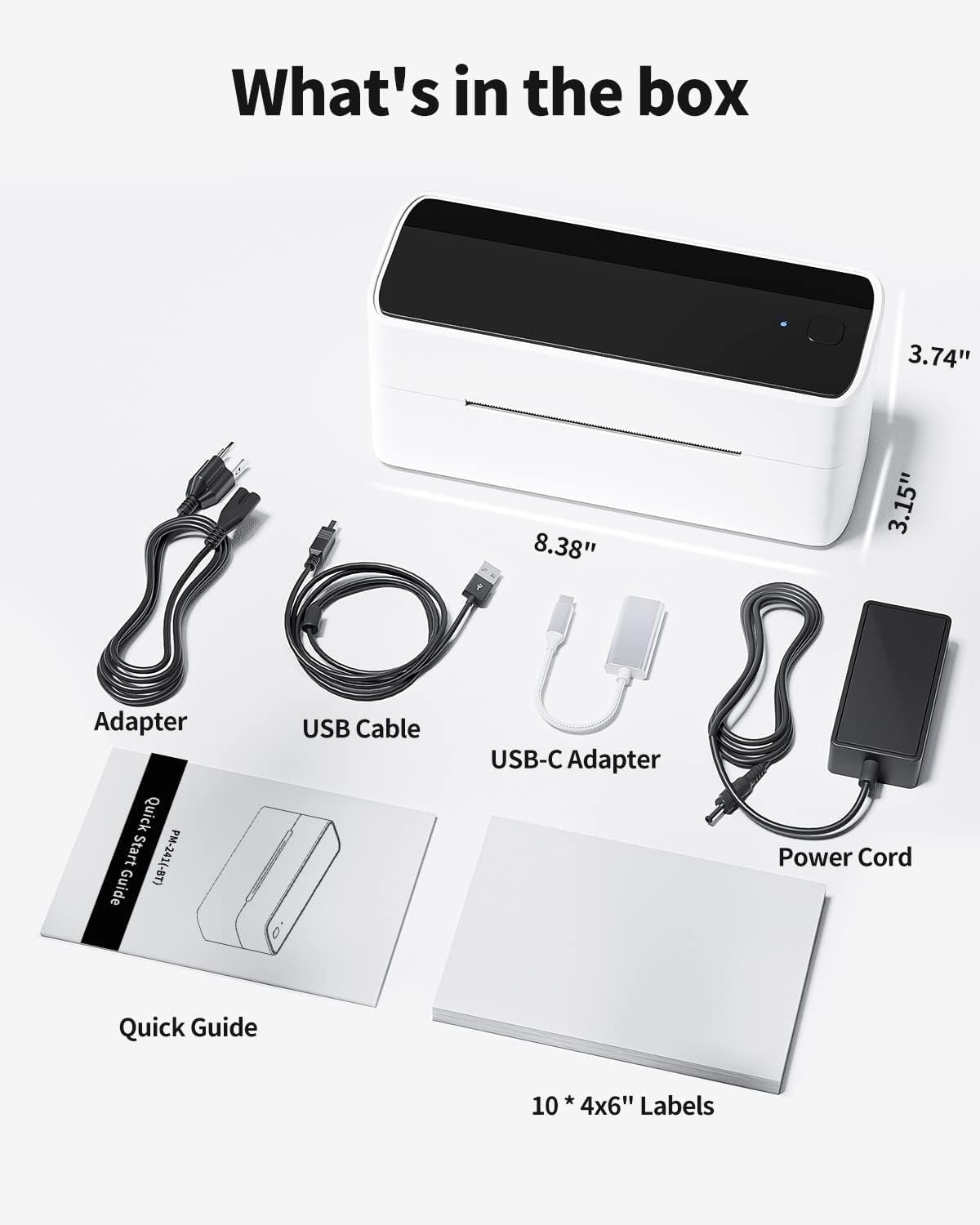
Figure 2: All components included in the Phomemo 241BT package.
Setup Guide
1. Physical Setup
- Connect the power adapter to the printer and plug it into a power outlet.
- Open the printer cover by pressing the button on the side.
- Load the thermal labels into the printer. Ensure the labels are facing up and aligned correctly between the adjustable guides.
- Close the printer cover. The printer will automatically calibrate and feed a small portion of the label.
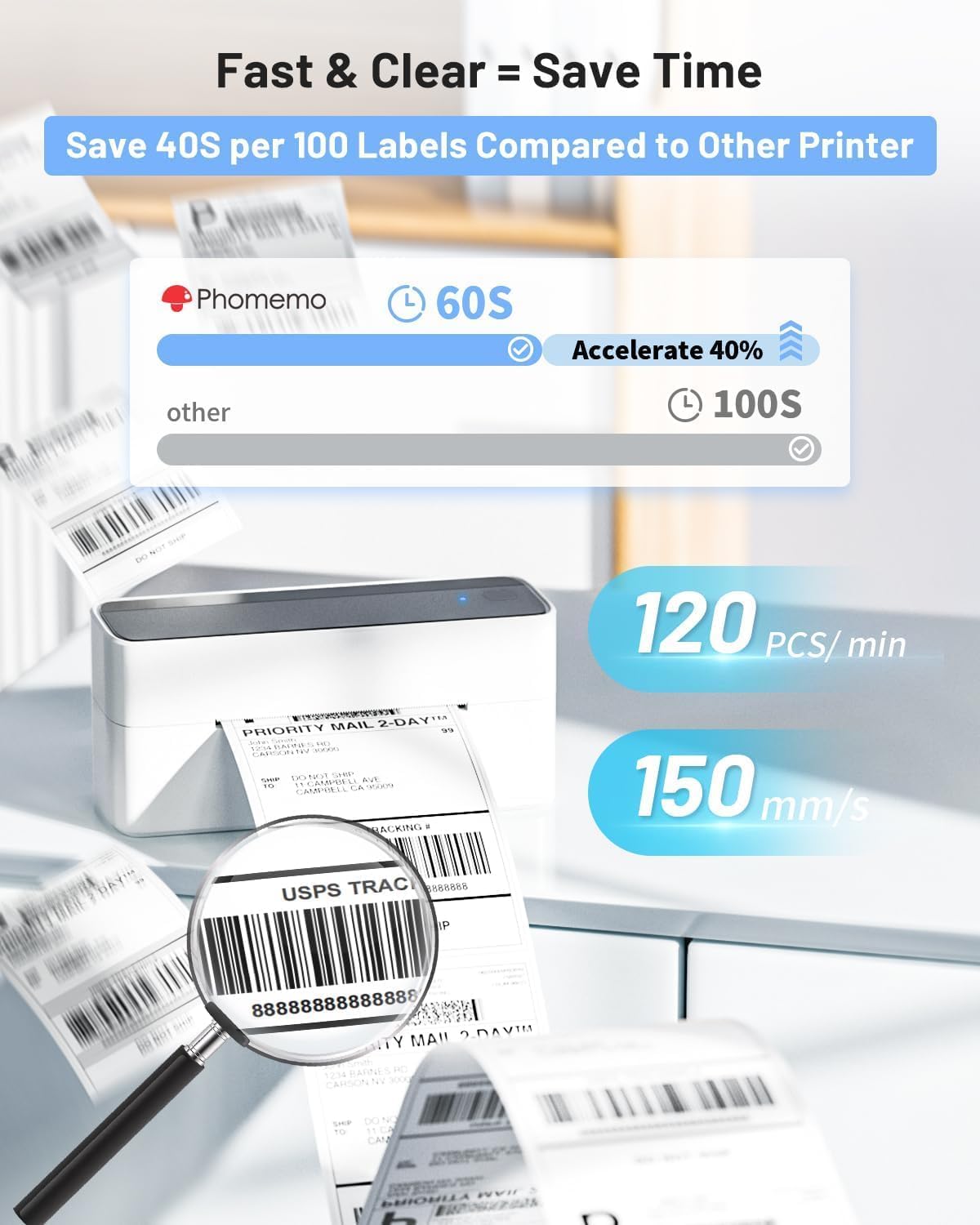
Figure 3: Proper label loading and automatic calibration.
2. Software & Connectivity
The Phomemo 241BT supports various connection methods:
Mobile (Phone/Tablet) via Bluetooth
- Download the 'Labelife' app from Google Play Store (Android) or Apple App Store (iOS).
- Open the 'Labelife' app and navigate to the device connection section.
- Search for your printer (PM-241BT) and click to connect. Important: Search for the printer within the 'Labelife' app, not your phone's system Bluetooth settings.
Video 1: Step-by-step guide to connecting the 241BT printer to your phone or tablet via Bluetooth using the Labelife app.
Video 2: Demonstrates connecting the thermal label printer to a cell phone via Bluetooth.
PC (Windows/Mac/Linux/ChromeOS) via Bluetooth or USB
- Install the 'Labelife' software from www.labelife.net.
- For Bluetooth connection, ensure your PC supports Bluetooth or has a Bluetooth driver installed. Search for the printer within the 'Labelife' software.
- For wired printing, connect the printer to your PC using the provided USB cable. A USB flash drive with printer drivers and instruction videos is included for quick setup.
Video 3: Bluetooth connection guide for PC (Windows, Mac, ChromeOS).
Video 4: Tutorial on installing the Chrome extension for printing.
Operating Instructions
The Phomemo 241BT printer is designed for fast and clear label printing, saving you time and resources.
1. Printing Labels
- Once connected, open your desired label file (PDF, image, or use a template) in the 'Labelife' app/software.
- Adjust label dimensions as needed. The printer supports label widths from 1 to 4.6 inches.
- Initiate the print command from the software/app. The printer can achieve speeds of up to 72 labels per minute (or 120 pieces per minute).

Figure 4: Wireless and wired printing options for the Phomemo 241BT.

Figure 5: Examples of labels printed with varying sizes and purposes.
2. Supported Platforms
The Phomemo 241BT is compatible with a wide range of e-commerce and shipping platforms, making it ideal for small businesses:
- USPS
- Shopify
- UPS
- Etsy
- eBay
- Amazon
- Poshmark
- ShipStation
- Shippo
- Ordoro
- Temu
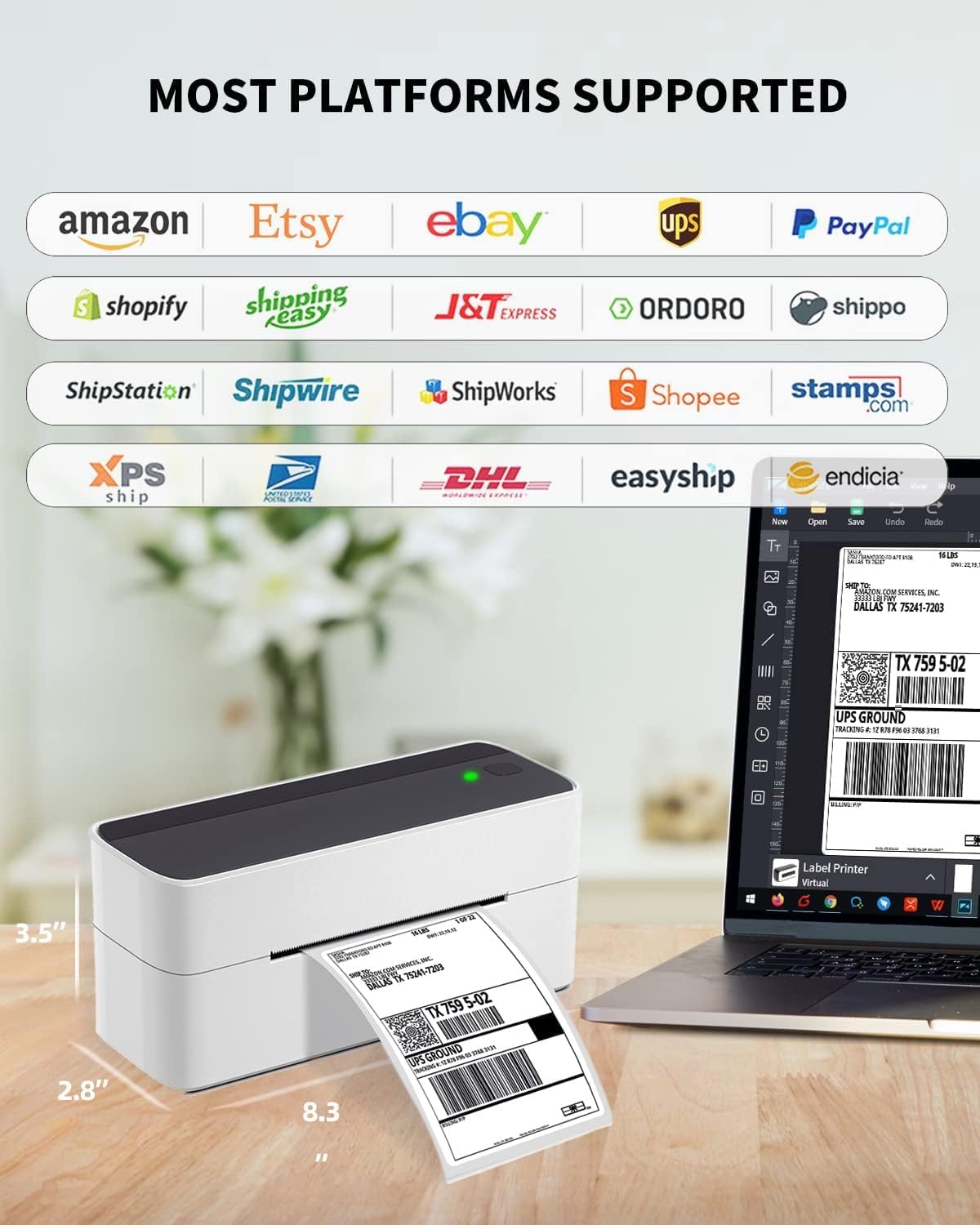
Figure 6: The printer supports a wide array of popular shipping platforms.
Video 5: Overview of the 241BT Bluetooth Shipping Label Printer's features.
Video 6: Demonstrates the Phomemo label printer's use for small businesses.
Maintenance
To ensure the longevity and optimal performance of your thermal printer, regular maintenance is recommended:
- Keep the printer clean and free from dust and debris. Use a soft, dry cloth to wipe the exterior.
- Periodically clean the print head with an alcohol wipe or a specialized thermal printer cleaning pen to prevent print quality issues.
- Store labels in a cool, dry place away from direct sunlight to maintain their quality.
Troubleshooting
For common issues and solutions, please refer to the comprehensive Troubleshooting Guide (PDF) provided by Phomemo. Additionally, if you encounter Bluetooth connection issues, remember to search for the printer within the 'Labelife' software or app, not your device's system settings.
Specifications
| Feature | Detail |
|---|---|
| Model Name | 241BT |
| Product Dimensions | 3.5"D x 7.5"W x 5.5"H |
| Item Weight | 1.59 pounds |
| Printing Technology | Thermal |
| Connectivity Technology | Bluetooth, USB |
| Printer Media Size Maximum | 4 x 6 inch labels (supports 1" to 4.6" width) |
| Maximum Black and White Print Resolution | 203DPI |
| Max Copy Speed (Black & White) | 81 ppm (72 labels/min) |
| Compatible Devices | Smartphones, IOS & Android Phone/Pad, PC, Laptops (Windows, Mac OS, Chrome OS, Linux) |
Warranty & Support
Phomemo offers a free replacement service for up to 24 months from the date of purchase. For any technical assistance or inquiries, please contact the Phomemo technical team. Contact information is clearly visible on the printer's label and in the included instructions.
Support options include:
- Live Chat
- Phone Calls (from 9:00 AM to 6:00 PM, Working days)
- Emails
- Remote-desktop operations support
Phone: +1 833 940 3818

Figure 7: Phomemo's dedicated customer service and technical support team.


