
Introduction
This manual provides comprehensive instructions for the installation, operation, and maintenance of your BSTUOKEY WiFi Access Control Keypad. Please read this manual thoroughly before installation and use to ensure proper functionality and safety.
Product Overview
Product Features
- Wireless Smartphone App Operation: Control the keypad remotely via the free Tuya App (iOS/Android).
- Multiple Access Modes: Supports password, RFID card (125Khz EM Card), password + RFID card, and Android Smartphone NFC function.
- High User Capacity: Stores up to 2000 users.
- Durable & Weatherproof: High-quality ABS case with IP67 waterproof rating, suitable for outdoor use.
- Backlight Touch Keypad: Illuminated keys for easy operation in low-light conditions.
- Wiegand Interface: Supports Wiegand 26/34 input and output for integration with other access control systems.
- Doorbell Function: Capacitive doorbell function.
- Unlock Record: View door opening records via the Tuya App.
- Compatibility: Compatible with various electric locks (strike lock, magnetic lock, electric mortise lock, electric gate lock, bolt lock).

Figure 1: Overview of the BSTUOKEY WiFi Access Control Keypad's main features, including its wireless capabilities, user capacity, and waterproof design.
Product Dimensions

Figure 2: Front and back views of the keypad with approximate dimensions (11.4cm x 7.3cm x 1.6cm) and visible wiring harness on the back.
Setup
Installation Guide
The keypad requires a 9-16V DC power supply. Ensure all connections are secure and follow the wiring diagram carefully. The keypad operates on a 2.4 GHz Wi-Fi network.

Figure 3: Typical product usage diagram illustrating the connection of the access controller with a magnetic lock, power supply, and an indoor exit switch.

Figure 4: Comprehensive wiring diagram for connecting the keypad to different types of electric locks (electric gate lock, strike lock, bolt lock, magnetic lock), power supply, exit button, and doorbell.
Initial Setup and Wi-Fi Pairing
- Connect the access controller to the power supply and the electric lock according to the wiring diagram.
- On the keypad, enter
*999999#73#to activate Wi-Fi pairing mode. The keypad will indicate it's ready for pairing. - Download and open the free Tuya App on your smartphone (available on App Store for iOS and Google Play for Android).
- In the Tuya App, add the keypad as a new device. Follow the on-screen prompts to connect the keypad to your 2.4 GHz Wi-Fi network. Ensure your smartphone is connected to the same Wi-Fi network during pairing.
Video 1: Demonstrates the Wi-Fi pairing process for the BSTUOKEY Access Control Keypad with the Tuya mobile application, including entering the pairing code on the keypad and connecting via the app.
Operating Modes
Multiple Access Methods
The keypad supports various methods for unlocking, providing flexibility and convenience:
- Password Unlock: Enter your programmed password directly on the keypad.
- RFID Card Unlock: Swipe a registered 125Khz RFID EM Card over the keypad's sensor.
- Password + RFID Card Unlock: Requires both a correct password entry and a registered RFID card swipe for enhanced security.
- Tuya Mobile App Remote Control: Unlock the door remotely from anywhere using the Tuya App on your smartphone.
- Android Smartphone NFC Function: Use compatible Android smartphones with NFC enabled to unlock the door. (Note: iOS NFC is not supported for unlocking).
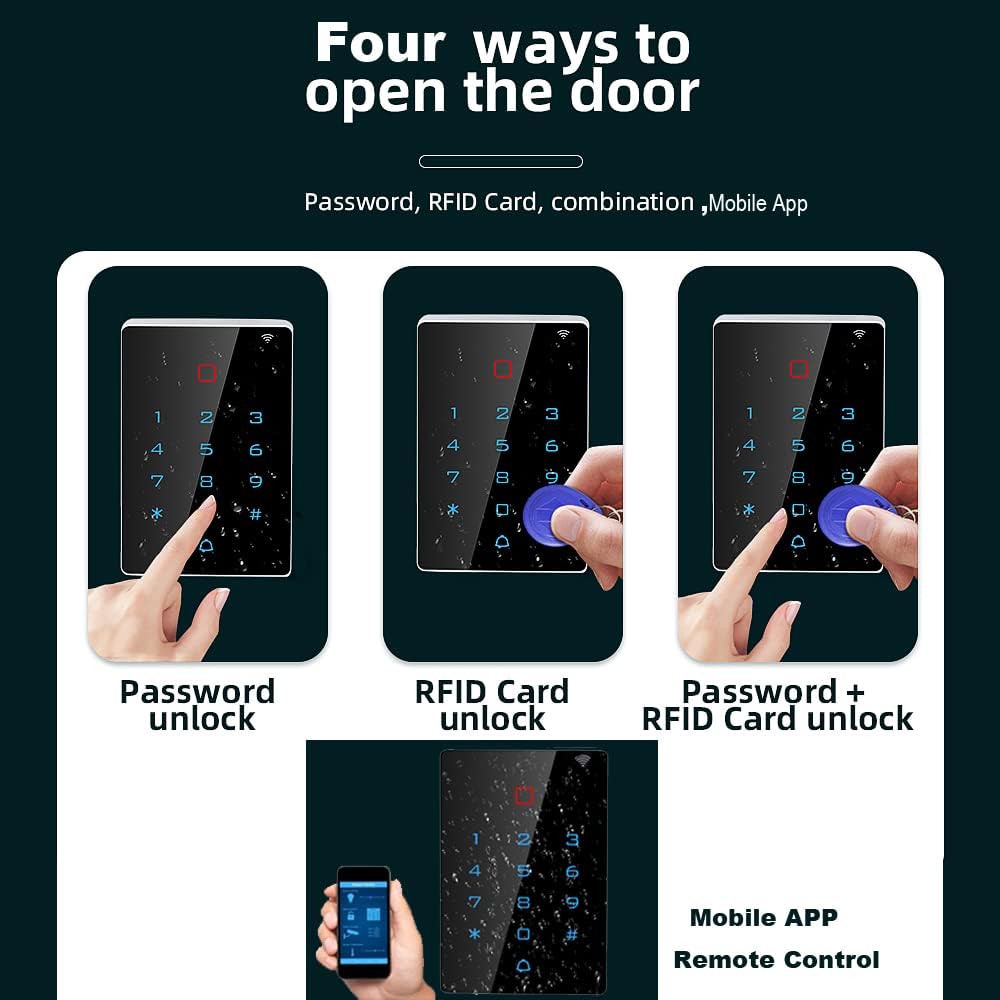
Figure 5: Visual representation of the four primary methods to unlock the access control keypad: using a password, an RFID card, a combination of both, or the mobile application.
App Management
User and Access Management via Tuya App
The Tuya App provides comprehensive tools for managing users, passwords, and access records:
- Add/Delete Users: Easily add new users or remove existing ones as needed.
- Share/Modify Passwords/ID Cards: Manage access credentials for all users.
- Set Public/Private Passwords: Configure different password types based on access requirements.
- Temporary Codes: Generate temporary access codes for guests or service personnel with defined validity periods.
- View Door Opening Records: Access a detailed log of all door opening events, including time and method.
Maintenance
Care and Maintenance
The BSTUOKEY Access Control Keypad is designed for durability with an IP67 waterproof rating. To ensure its longevity and optimal performance:
- Regularly wipe the keypad surface with a soft, damp cloth to remove dust and grime.
- Avoid using abrasive cleaners or solvents that could damage the surface or internal components.
- Ensure the wiring connections remain secure and free from corrosion.
- While waterproof, avoid submerging the device in water for extended periods.
Video 2: Short demonstration highlighting the IP68 waterproof capability of the keypad, showing it functioning while submerged in water.
Troubleshooting
Common Issues and Solutions
| Issue | Possible Cause | Solution |
|---|---|---|
| Keypad not powering on. | Incorrect power supply voltage or wiring. | Verify power supply is 9-16V DC and check all wiring connections against the diagram. |
| Unable to connect to Wi-Fi. | Incorrect Wi-Fi password; 5 GHz network; weak signal; keypad not in pairing mode. | Ensure you are on a 2.4 GHz network. Re-enter *999999#73# on keypad. Check Wi-Fi signal strength. |
| RFID card not recognized. | Card not properly registered or incorrect card type (not 125Khz EM Card). | Ensure the card is registered in the Tuya App. Verify it's a compatible 125Khz EM Card. |
| Temporary password expired. | The set validity period for the temporary code has passed. | Generate a new temporary code via the Tuya App. |
Technical Specifications
- Brand: BSTUOKEY
- Model: 48214a21-9335-4dfe-be74-4e900d30b35d
- Material: Acrylonitrile Butadiene Styrene (ABS)
- Lock Type: Keypad
- Item Dimensions (L x W x H): 2.88 x 0.62 x 4.49 inches
- Item Weight: 7 ounces
- User Capacity: 2000 users
- Card Type: 125Khz RFID EM Card
- Waterproof Rating: IP67
- Connectivity Protocol: Wi-Fi (2.4 GHz)
- Control Method: App, Remote
- Controller Type: iOS, Android
Warranty and Support
For warranty information and technical support, please refer to the product packaging or contact BSTUOKEY customer service directly. Keep your purchase receipt for warranty claims.