
SKYLOONG SK96
SKYLOONG SK96 Full Size Gaming Keyboard Instruction Manual
Model: SK96 | Brand: SKYLOONG
Introduction
This manual provides detailed instructions for the SKYLOONG SK96 Full Size Gaming Keyboard. Designed for enhanced productivity and an immersive gaming experience, this keyboard features a 96% compact layout, hot-swappable switches, customizable RGB lighting, and a unique Lite Gasket design for noise and vibration damping. Please read this manual thoroughly to ensure proper setup, operation, and maintenance of your keyboard.
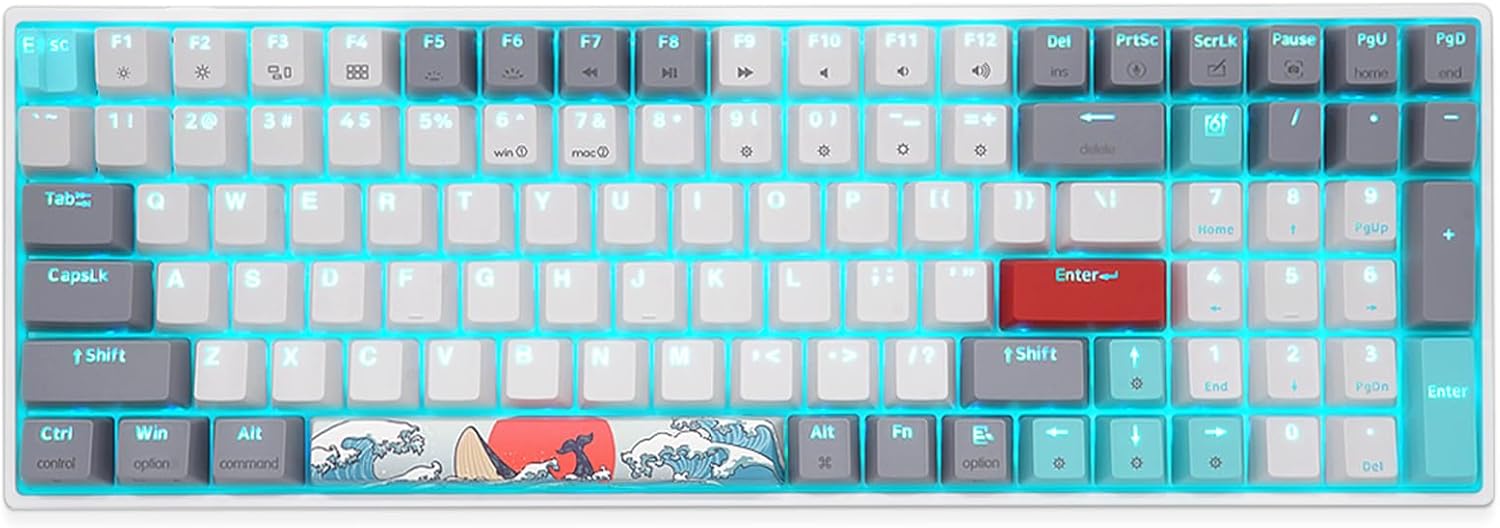
Figure 1: Overview of the SKYLOONG SK96 Full Size Gaming Keyboard.
Setup
1. Package Contents
Before proceeding, ensure all items are present in the package:
- SKYLOONG SK96 Gaming Keyboard
- USB Cable
- Keycap Puller
- Switch Puller
- Supplementary keycap/experience Switch (6 pieces)

Figure 2: Included accessories: USB-C cable, keycap puller, and switch puller.
2. Connecting the Keyboard
The SKYLOONG SK96 keyboard connects via a USB-C cable, ensuring a stable and reliable connection to your computer.
- Locate the USB-C port on the keyboard, typically at the top edge.
- Connect one end of the provided USB-C cable to the keyboard.
- Connect the other end of the USB cable to an available USB port on your computer (Laptop or PC).
- The keyboard should be automatically recognized by your operating system (Windows or Mac).

Figure 3: Connecting the keyboard using the USB-C cable.
3. Adjusting Keyboard Angle
The keyboard features a three-stage leg brace design, allowing you to adjust the typing angle for optimal comfort.
- Flip the keyboard over to access the adjustable feet on the underside.
- Extend the feet to your preferred angle (approximately 4°, 8°, or 10°).

Figure 4: Adjustable feet for ergonomic typing angles.
Operating Instructions
1. Keyboard Layout and Features
The SK96 offers a 96% compact layout, retaining most of the functionality of a full-size keyboard while optimizing desk space. It includes a numeric keypad for enhanced productivity.

Figure 5: Key features of the SKYLOONG SK96 keyboard.
The keyboard is equipped with Gateron G Pro pre-lubricated 3-pin mechanical switches, ensuring a smooth and consistent typing experience. The unique Lite Gasket design incorporates a silicone integrated cushion to reduce noise and vibration from stabilizers and switches hitting the PCB.

Figure 6: Illustration of the Lite Gasket noise and vibration damping design.
A stepped ESC keycap is designed to prevent accidental touches during use.

Figure 7: The stepped ESC keycap for improved usability.
2. RGB Backlighting and Customization
The keyboard features immersive 16 million RGB lighting options. You can customize lighting effects using the dedicated driver software.
To activate the musical rhythm light effect mode, press FN + = four times. The lighting will then move with the music rhythm.

Figure 8: Musical rhythm effect demonstration.
For a visual demonstration of the RGB display, please watch the official product video below:
Video 1: Demonstration of the SKYLOONG SK96 RGB lighting effects.
3. Programmable Driver
The keyboard features a highly programmable driver that allows for extensive customization. This includes remapping keys, creating custom macros, and fine-tuning lighting effects to suit your specific needs and workflow.
Details on downloading and using the driver software can typically be found on the official SKYLOONG website or through the product's support page.

Figure 9: Illustration of the keyboard's internal hardware, supporting advanced customization.
Maintenance
1. Cleaning the Keyboard
Regular cleaning helps maintain the keyboard's appearance and functionality.
- Disconnect the keyboard from your computer before cleaning.
- Use a soft, lint-free cloth slightly dampened with water or a mild cleaning solution to wipe down the keycaps and frame.
- For dust and debris between keys, use compressed air.
- Avoid spraying liquids directly onto the keyboard.
2. Hot-Swappable Switches and Keycaps
The SKYLOONG SK96 features hot-swappable sockets, allowing you to easily change mechanical switches without soldering. It also comes with extra PBT keycaps for customization.

Figure 10: Demonstrating the hot-swappable switch feature.

Figure 11: Customize your keyboard with included extra PBT keycaps.
To replace switches or keycaps:
- Use the provided keycap puller to gently remove the desired keycap.
- Use the provided switch puller to carefully extract the switch from its socket.
- Align the pins of the new switch with the holes on the PCB and press firmly until it clicks into place.
- Place the new keycap onto the switch stem and press down gently.
Note: Some larger keys may come with pre-installed "Chocolate Rose" switches for a different tactile feel. Extra Gateron switches are provided if you prefer uniformity.

Figure 12: Locations of pre-installed Chocolate Rose switches on larger keys.
Troubleshooting
| Problem | Possible Cause | Solution |
|---|---|---|
| Keyboard not responding | Loose USB connection, faulty cable, driver issue. | Ensure USB-C cable is securely connected to both keyboard and computer. Try a different USB port or cable. Restart your computer. Check device manager for driver issues. |
| RGB lighting not working or inconsistent | Software settings, power issue, specific keycap/switch interference. | Ensure the keyboard is receiving sufficient power. Check the RGB settings in the SKYLOONG driver software. Try resetting RGB effects using keyboard shortcuts (refer to driver manual). Ensure keycaps are fully seated and switches are properly installed. |
| Keys not registering or double-typing | Faulty switch, debris under keycap, software conflict. | Remove the keycap and switch, inspect for debris, and reinsert. If the issue persists, replace the switch with one of the spares provided. Ensure no conflicting software is running. |
| Custom macros or keybindings not working | Driver software not running, incorrect configuration. | Ensure the SKYLOONG driver software is installed and running in the background. Verify your macro and keybinding configurations within the software. Save and apply changes. |
Specifications
| Feature | Detail |
|---|---|
| Product Dimensions | 14.55 x 4.84 x 1.48 inches |
| Item Weight | 2.21 pounds |
| Manufacturer | SKYLOONG |
| Model Number | SK96 |
| Compatible Devices | Laptop, PC |
| Connectivity Technology | USB-C |
| Keyboard Description | Mechanical |
| Recommended Uses | Everyday Use |
| Special Feature | Backlit |
| Color (Switches) | Gateron G Pro Brown Switches - Tactile |
| Number of Keys | 100 |
| Keyboard Backlighting | RGB (16 million colors) |
| Style | Classic |
| First Available Date | January 6, 2022 |
Support and Warranty
For any questions, technical assistance, or warranty inquiries regarding your SKYLOONG SK96 keyboard, please contact SKYLOONG customer support.
You can reach out to the manufacturer directly via the contact information provided on their official website or through the platform where the product was purchased.

Figure 13: SKYLOONG After-sales service contact information.
For the most up-to-date support resources, including driver downloads and FAQs, please visit the official SKYLOONG website.
Related documentsSK96

Ask a question about this manual
Ask about setup, troubleshooting, compatibility, parts, safety, or missing instructions. Manuals+ will review the question and use this page’s manual context to help answer it.