
1. Introduction
This manual provides detailed instructions for the safe and efficient operation of your InFocus P120 INL412 Multimedia Projector (Model INL4128). Please read this manual thoroughly before using the projector and keep it for future reference. This projector is designed for high-quality image projection, suitable for various applications including presentations, home entertainment, and gaming.
2. Safety Information
Observe the following safety precautions to prevent damage to the projector and ensure user safety:
- Ventilation: Ensure adequate ventilation around the projector. Do not block ventilation openings. Maintain a minimum distance of 30 cm (12 inches) from walls or other objects.
- Power Source: Use only the specified power supply and voltage. Connect the power cord securely.
- Heat: The projector generates heat during operation. Do not touch the projector's vents or exhaust areas directly after use.
- Light Output: Do not look directly into the projector lens when the lamp is on, as the intense light can cause eye damage.
- Placement: Place the projector on a stable, level surface. Avoid placing it in direct sunlight, near heat sources, or in areas with high humidity or dust.
- Cleaning: Disconnect the power cord before cleaning. Use a soft, dry cloth. Do not use liquid or aerosol cleaners.
- Servicing: Do not attempt to service the projector yourself. Refer all servicing to qualified service personnel.
3. Product Overview
3.1 Top Panel and Lens Area
The top panel features the control buttons for basic operation and the lens area with focus and zoom adjustments.

Figure 3.1: Top view of the InFocus P120 INL412 projector, highlighting the control panel on the right and the lens adjustment area on the left. The InFocus logo is visible on the top surface.
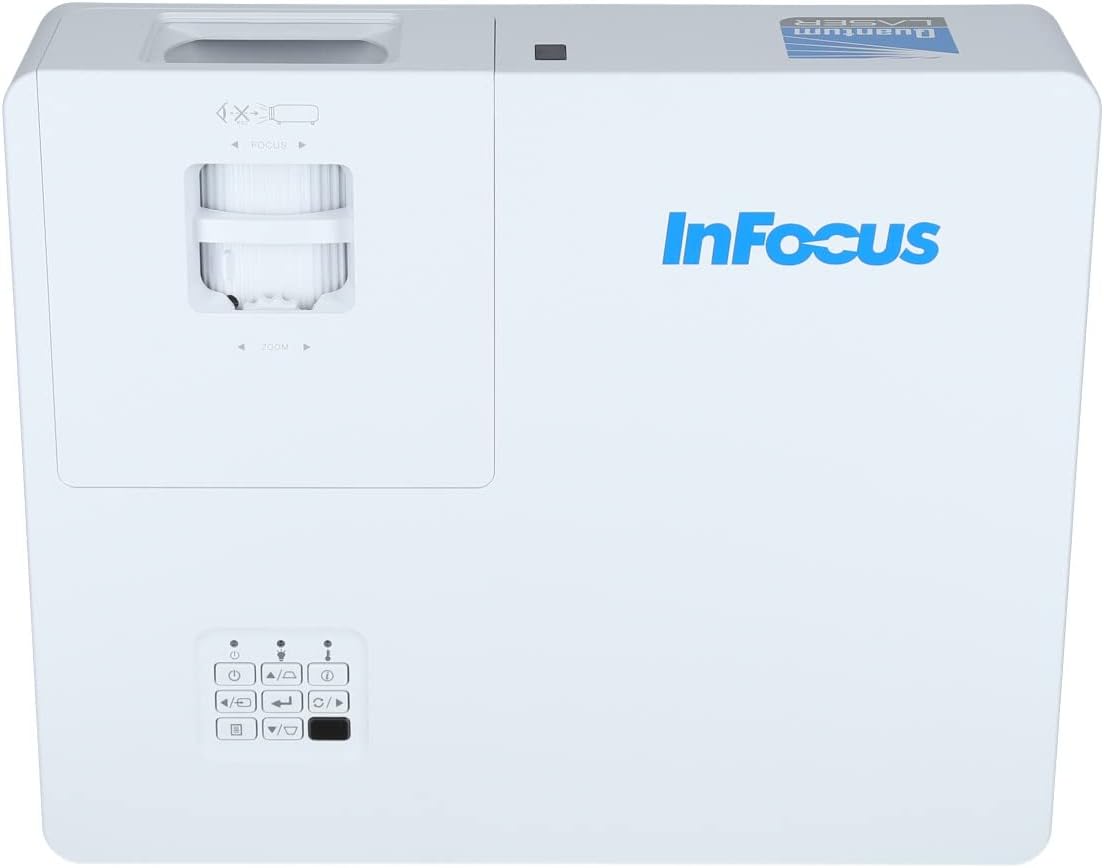
Figure 3.2: A closer view of the projector's top panel, showing the focus and zoom rings near the lens opening and the array of control buttons for power, menu, source selection, and navigation.
3.2 Rear Panel Connections
The rear panel provides various input and output ports for connecting external devices.

Figure 3.3: Rear panel of the InFocus P120 INL412 projector, displaying a comprehensive array of connectivity options including HDMI (x2), USB, S-Video, Ethernet (LAN), VGA In (x2), VGA Out, RS232, and Audio In/Out ports. The power input is located on the bottom left.
Key ports include:
- HDMI 1 & 2: For connecting high-definition digital video and audio sources.
- USB: For connecting USB devices, potentially for media playback or firmware updates.
- S-Video: For connecting older video sources.
- VGA IN 1 & 2: For connecting computers or other devices with VGA output.
- VGA OUT: For connecting to an external monitor.
- Ethernet (LAN): For network connectivity and control.
- Audio IN 1 & 2 / Audio OUT: For analog audio connections.
- RS232: For serial control.
- Power Input: For connecting the AC power cord.
3.3 Front and Side Panels
The front panel houses the projection lens and front ventilation, while the side panels feature additional ventilation grilles.

Figure 3.4: Front view of the InFocus P120 INL412 projector, displaying the main projection lens on the right and the extensive front ventilation grille on the left, crucial for heat dissipation.
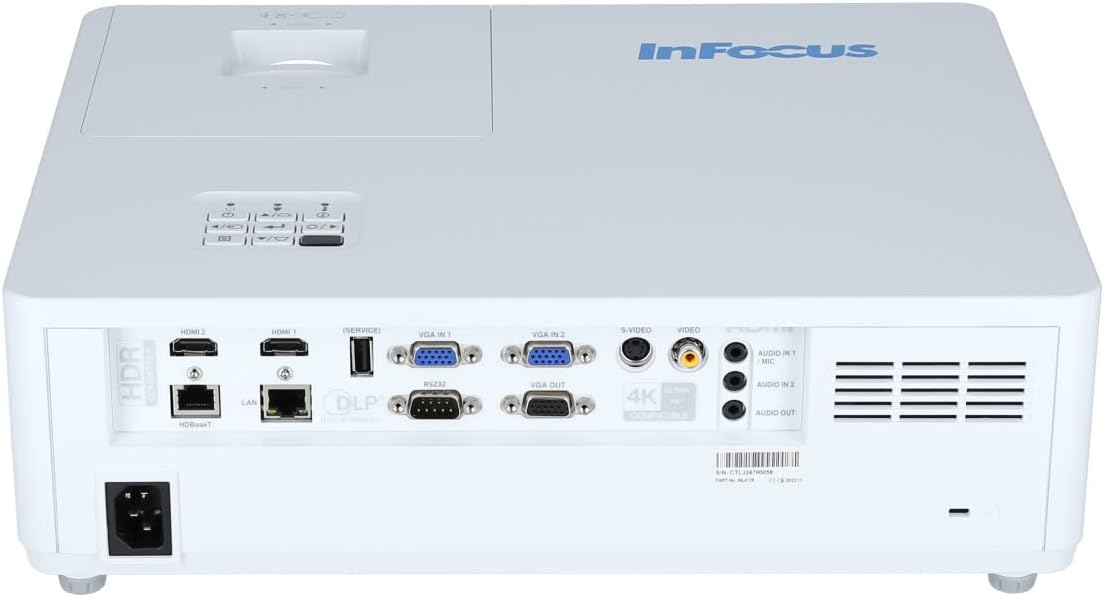
Figure 3.5: Side view of the InFocus P120 INL412 projector, illustrating the side ventilation grilles that contribute to maintaining optimal operating temperature.
4. Setup
4.1 Projector Placement
Position the projector on a stable, flat surface or mount it securely. Ensure the projector is within the optimal projection distance for your screen size. Maintain clear space around the projector for proper ventilation.
4.2 Connecting Devices
Before connecting any cables, ensure the projector and all source devices are powered off.
- HDMI Connection: Connect an HDMI cable from your source device (e.g., laptop, Blu-ray player, gaming console) to either the HDMI 1 or HDMI 2 port on the projector.
- VGA Connection: Connect a VGA cable from your computer to either VGA IN 1 or VGA IN 2. For audio, connect a separate audio cable from your computer's audio output to the corresponding Audio IN port on the projector.
- USB Connection: Insert a USB drive into the USB port for media playback (if supported by firmware) or service functions.
- Ethernet (LAN) Connection: Connect an Ethernet cable to the LAN port for network control or updates.
- Audio Output: If using external speakers, connect an audio cable from the Audio OUT port on the projector to your audio system.
4.3 Power Connection
Connect the power cord to the projector's power input and then plug the other end into a grounded electrical outlet.
5. Operating Instructions
5.1 Powering On/Off
- Power On: Press the Power button on the projector's control panel or the remote control. The power indicator light will change.
- Power Off: Press the Power button again. A confirmation message may appear. Press the button a second time to confirm shutdown. Allow the projector to cool down before unplugging it.
5.2 Adjusting Focus and Zoom
Rotate the focus ring around the lens until the image appears sharp and clear. Use the zoom ring to adjust the image size to fit your screen.
5.3 Selecting Input Source
Press the Source button on the control panel or remote control to cycle through available input sources (HDMI 1, HDMI 2, VGA 1, VGA 2, S-Video, USB). Select the input corresponding to your connected device.
5.4 Menu Navigation
Use the Menu button to access the on-screen display (OSD) menu. Use the arrow buttons to navigate through menu options and the Enter button to select. Press Menu again to exit.
6. Maintenance
6.1 Cleaning the Lens
Gently wipe the lens with a soft, lint-free cloth specifically designed for optical surfaces. Do not use abrasive cleaners or excessive force, as this can scratch the lens.
6.2 Cleaning the Projector Exterior
Use a soft, dry cloth to clean the projector's casing. For stubborn dirt, dampen the cloth slightly with water, then wipe dry immediately. Avoid getting liquids into the projector's openings.
6.3 Ventilation Care
Regularly check the projector's ventilation grilles for dust accumulation. Use a soft brush or a vacuum cleaner with a brush attachment to gently remove dust from the vents to ensure proper airflow and prevent overheating.
7. Troubleshooting
7.1 No Image Displayed
- Ensure the projector is powered on and the power indicator light is solid.
- Verify that the video cable (HDMI, VGA, etc.) is securely connected to both the projector and the source device.
- Check that the correct input source is selected on the projector.
- Confirm that the source device (laptop, player) is powered on and outputting a signal.
7.2 Image is Blurry or Out of Focus
- Adjust the focus ring on the projector lens until the image is sharp.
- Ensure the projector is at the correct distance from the screen.
- Clean the projector lens if it appears dirty.
7.3 No Sound
- If using HDMI, ensure the source device's audio output is set to HDMI.
- If using VGA, ensure a separate audio cable is connected from the source to the projector's Audio IN port.
- Check the volume settings on both the projector and the source device.
- If using external speakers, ensure they are properly connected to the Audio OUT port and powered on.
8. Specifications
| Feature | Detail |
|---|---|
| Brand | InFocus |
| Manufacturer | In Focus |
| Model Name | P120 INL412 |
| Model Number | INL4128 |
| Year | 2023 |
| Hardware Interface | Ethernet, HDMI, S-Video, USB |
| Number of Items | 1 |
| Aspect Ratio | 16:9 |
| Wattage | 341 watts |
| Batteries Included | No |
| Batteries Required | No |
| Form Factor | Desktop |
| Mounting Type | Table mount |
| Remote Control Included | Yes |
| Product Dimensions | 56.13 x 46.48 x 25.15 cm |
| Item Weight | 5.5 kg |
| Maximum Image Size | 308.28 inches |
| Minimum Image Size | 910.63 Millimeters |
| First Available Date | January 5, 2022 |
9. Warranty and Support
For warranty information and technical support, please refer to the documentation included with your purchase or visit the official InFocus website. Keep your proof of purchase for warranty claims.


