Introduction
The E Gate K9 Pro-Max is an advanced automatic Android projector designed to deliver a superior home theater experience. It features Full HD 1080p native resolution with 4K support, ultra-bright 600 ISO Lumens, and intelligent automatic focus and keystone correction for effortless setup. With built-in Android 9, dual-band Wi-Fi, Bluetooth, and multiple connectivity options, this projector offers seamless access to entertainment and versatile usage.

Figure 1: Front view of the E Gate K9 Pro-Max Projector, showcasing its lens and sleek design.
What's in the Box
Upon unboxing your E Gate K9 Pro-Max projector, please ensure all the following items are present:
- 1 x E Gate K9 Pro-Max Projector
- 1 x Remote Control
- 1 x Power Cord
- 1 x AV Connector
- 1 x User Manual with Warranty Card
Product Features
The E Gate K9 Pro-Max projector is equipped with a range of features designed for optimal performance and user convenience.
Display and Visuals
- Native Full HD 1080p Resolution: Delivers crisp and clear images.
- 4K Support: Compatible with 4K content for enhanced detail.
- 600 ISO Lumens Brightness: Provides vibrant and bright projections, suitable for various lighting conditions.
- Max Screen Size 300 inches: Capable of projecting a large, immersive display.
- 6000:1 Contrast Ratio: Ensures deep blacks and bright whites for dynamic visuals.
- 100% NTSC Wide Color Gamut: Offers accurate and rich color reproduction.
- HDR+ Support: Enhances image quality with improved contrast and color.

Figure 2: Comparison illustrating the K9 Pro-Max's superior color reproduction and detail.

Figure 3: Visual representation of the projector's capability to produce large screen sizes up to 300 inches.
Smart Features and Connectivity
- Android 9.0 Operating System: Access to pre-installed apps like Netflix, Prime Video, Hotstar, SonyLiv, and more.
- Automatic Focus and Keystone Correction: Ensures a perfectly clear and rectangular image without manual adjustments. Supports 4P & 6D Digital correction.
- Dual-Band Wi-Fi (2.4GHz + 5GHz): Provides stable and fast wireless connectivity for streaming and online content.
- Bluetooth: Connect external audio devices like speakers or soundbars wirelessly.
- Wireless Screen Mirroring: Easily cast content from Android, iOS, and Windows devices.
- Multiple Ports: Includes 2 x HDMI, 2 x USB, AV, and Audio Out for diverse device connections.

Figure 4: The projector's automatic focus and keystone correction in action, ensuring a perfectly aligned image.

Figure 5: The built-in Android 9 interface with access to popular streaming applications.

Figure 6: Demonstrating wireless casting capabilities from mobile devices to the projector.
Audio
- 7 Watt Hi-Fi Stereo Speaker: Integrated speaker with passive bass radiator for immersive sound.
- Bluetooth Audio Output: Connect to external speakers or soundbars for enhanced audio.
Setup Guide
Follow these steps for initial setup of your E Gate K9 Pro-Max projector:
- Placement: Position the projector on a stable, flat surface. Ensure there is adequate ventilation around the unit. For optimal projection, place it directly in front of your screen or wall.
- Power Connection: Connect the power cord to the projector's power input and then to a power outlet.
- Power On: Press the power button on the projector or the remote control to turn on the device.
- Automatic Adjustment: The projector will automatically perform focus and keystone correction upon startup or when moved, ensuring a clear and rectangular image. Allow a few seconds for this process to complete.
- Initial Setup (Android): If this is your first time using the projector, you may be prompted to complete the initial Android setup, including Wi-Fi connection and Google account login. Follow the on-screen instructions.
- Connect Devices (Optional): If connecting external devices (e.g., set-top box, gaming console), use the appropriate HDMI or USB ports.
Operating Instructions
This section provides instructions for operating your E Gate K9 Pro-Max projector.
Basic Operation
- Power On/Off: Press the power button on the remote or projector.
- Navigation: Use the directional buttons on the remote to navigate the Android interface. The "OK" button confirms selections.
- Volume Control: Use the volume buttons on the remote to adjust audio output.
- Source Selection: Press the "Source" button on the remote to switch between HDMI, AV, and Android inputs.
Advanced Features
- Digital Zoom: Adjust the screen size digitally without moving the projector. Access this feature through the projector's settings menu.
- Screen Mirroring:
- Ensure your projector and mobile device are connected to the same Wi-Fi network.
- Select the "Screen Mirroring" or "Wireless Display" option on the projector's home screen.
- On your mobile device (Android, iOS) or PC (Windows), enable screen mirroring/casting and select the projector from the list of available devices.
- Bluetooth Audio:
- Go to Bluetooth settings in the Android interface.
- Enable Bluetooth and search for available devices.
- Select your Bluetooth speaker or soundbar to pair.
Connectivity
The E Gate K9 Pro-Max offers a variety of connectivity options to integrate with your existing devices.
| Port Type | Quantity | Function |
|---|---|---|
| HDMI | 2 | Connect set-top boxes, gaming consoles, laptops, Fire TV Stick, etc. |
| USB | 2 | Connect USB drives for media playback or external peripherals. |
| AV | 1 | Connect older devices with composite video and stereo audio output. |
| Audio Out (3.5mm Jack) | 1 | Connect wired headphones or external speakers. |
| LAN | 1 | Wired internet connection for stable network access. |
| Wi-Fi | Dual-Band (2.4GHz + 5GHz) | Wireless internet connectivity for streaming and online features. |
| Bluetooth | Yes | Wireless connection for audio devices (speakers, headphones). |
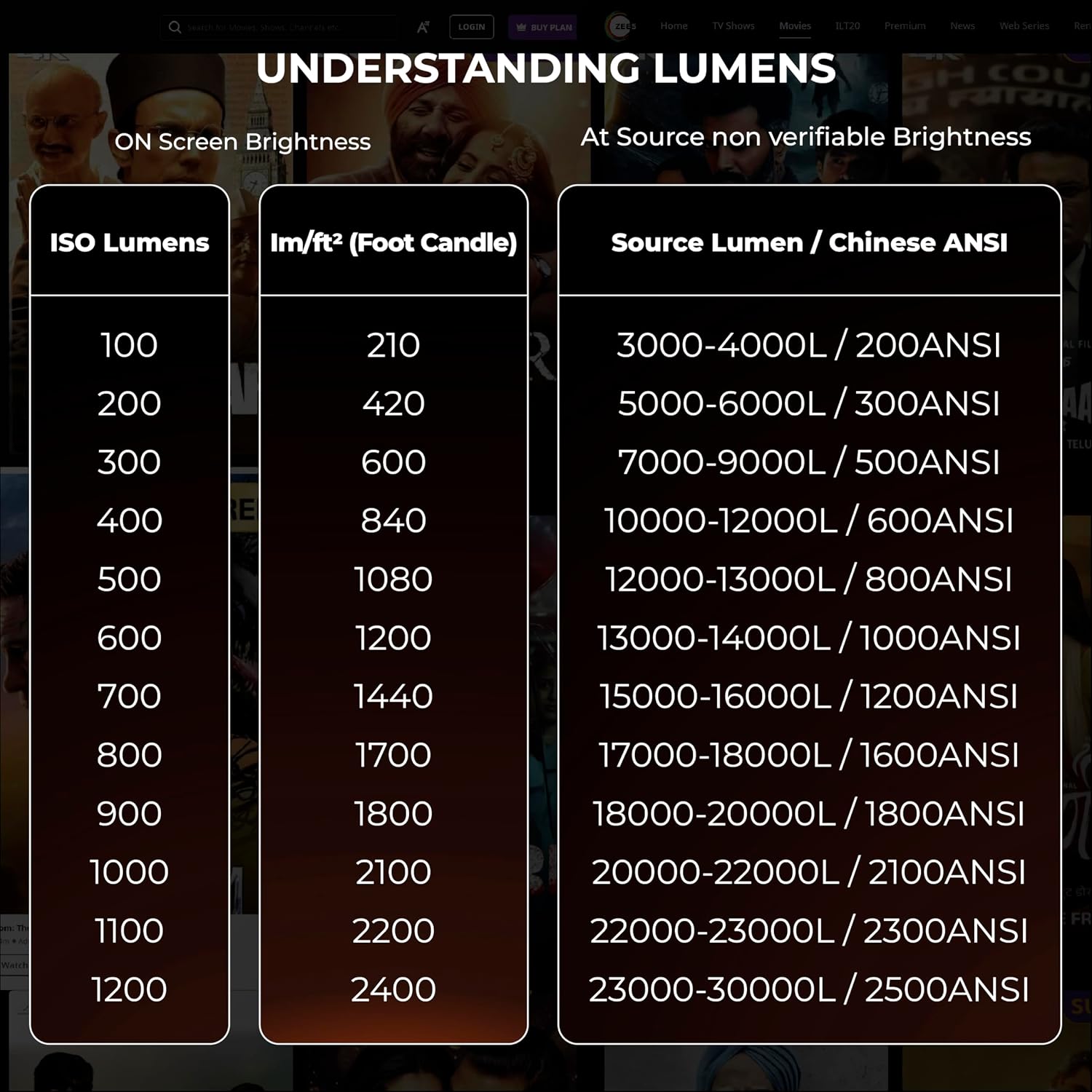
Figure 7: The projector's support for latest 2.4GHz + 5GHz Wi-Fi for faster and smoother connectivity.
Maintenance
Proper maintenance ensures the longevity and optimal performance of your projector.
- Cleaning the Lens: Use a soft, lint-free cloth specifically designed for optical lenses. Gently wipe the lens to remove dust or smudges. Avoid abrasive materials or harsh chemicals.
- Cleaning the Exterior: Wipe the projector's exterior with a soft, dry cloth. For stubborn marks, a slightly damp cloth can be used, followed by a dry one.
- Ventilation: Ensure the projector's ventilation openings are clear and not obstructed. This prevents overheating and maintains performance.
- Dust Accumulation: Over time, dust may accumulate inside the projector, particularly on the LCD panel, which can affect image clarity. If you notice dark spots or reduced clarity, professional cleaning may be required. For advanced users, the LCD panel can be cleaned with care, but it is recommended to consult support or a qualified technician if unsure.
- Lamp Life: The projector features a "Life Long Lamp" with an estimated lifespan of 60,000 hours, minimizing the need for frequent lamp replacement.
- Storage: When not in use for extended periods, store the projector in a cool, dry place, ideally covered to protect it from dust.
Troubleshooting
This section addresses common issues you might encounter with your projector.
| Problem | Possible Cause | Solution |
|---|---|---|
| Image is blurry or out of focus. | Projector not focused, or keystone correction issues. | The projector has automatic focus and keystone. Ensure the projector is stable and allow it to auto-adjust. If issues persist, check for obstructions or try restarting the projector. Avoid manual keystone adjustments if possible, as they can sometimes cause blurriness at edges. |
| No image displayed. | Incorrect input source, loose cable connection, or device not powered on. | Verify the input source (HDMI, AV) is correctly selected. Check all cable connections (HDMI, power) are secure. Ensure the connected source device is powered on. |
| No sound. | Volume too low, muted, or incorrect audio output setting. | Increase projector volume. Check if the projector or source device is muted. If using external speakers, ensure they are connected correctly via Bluetooth or 3.5mm jack and are powered on. |
| Dark spots or dust on screen. | Dust accumulation on the internal LCD panel. | This can occur over time. For minor dust, try gently tapping the projector. For persistent or significant dust, professional cleaning is recommended. Avoid opening the projector yourself unless you have technical expertise. |
| Remote control not working. | Dead batteries, obstruction, or remote not paired. | Replace batteries in the remote. Ensure no obstructions between the remote and the projector's IR receiver. |
Specifications
Detailed technical specifications for the E Gate K9 Pro-Max projector:
| Attribute | Detail |
|---|---|
| Brand | E GATE |
| Model Name | K9 Pro-Max |
| Model Number | E08i33 |
| Operating System | Android 9.0 |
| Resolution | Native 1920 x 1080 (Full HD), 4K Support |
| Image Brightness | 600 ISO Lumens (equivalent to 6600 ANSI Lumens) |
| Image Contrast Ratio | 6000:1 |
| Display Technology | LED |
| Standing Screen Display Size | Up to 300 Inches (762 cm) |
| Aspect Ratio | 16:9 |
| Hardware Interface | Bluetooth, USB, HDMI, LAN, AV |
| Wireless Connectivity | Dual-band Wi-Fi (2.4GHz + 5GHz), Bluetooth |
| Special Features | Automatic Focus, Automatic Keystone (4P & 6D Digital), Digital Zoom, Wireless Screen Mirroring, HDR+ Support |
| Audio Output Mode | Stereo (7 Watt Hi-Fi Speaker) |
| Lamp Life | 60,000 Hours |
| Product Dimensions | 29.21 x 17.5 x 6.5 cm |
| Item Weight | 1.8 kg |
| Power Consumption | 90 Watts |
| Mounting Type | Ceiling Mount, Tabletop |
Warranty and Support
E GATE is committed to providing excellent customer service and support for your product.
- Warranty Period: Your E Gate K9 Pro-Max projector comes with a 1-year warranty from the date of purchase.
- Warranty Registration: It is mandatory to register your product to avail full warranty benefits. Please refer to the warranty card included in the box or visit the official E GATE website for registration details.
- Service: During the warranty period, E GATE provides free home pickup and drop service for repairs.
- Contact Support: For any technical assistance, troubleshooting not covered in this manual, or warranty claims, please visit the official E GATE website or contact their customer support.