
Introduction
This manual provides detailed instructions for the installation, operation, and maintenance of your Olideauto Smart Fingerprint Electronic Access Control Kit. This system is designed to enhance security and convenience for home and office doors, offering multiple access methods including fingerprint, password, RFID tags, wireless FoB keys, and smartphone application control.
Package Contents
Please verify that all components listed below are included in your package:
- 1x Wireless Smart WiFi Receiver (Model: OS210WN) with Power Adapter
- 1x Wireless Fingerprint Access Keypad (Model: 270)
- 5x RFID Tags
- 2x Wireless FoB Keys
- 1x Electric Strike (400lbs holding force, NC and NO mode selectable)
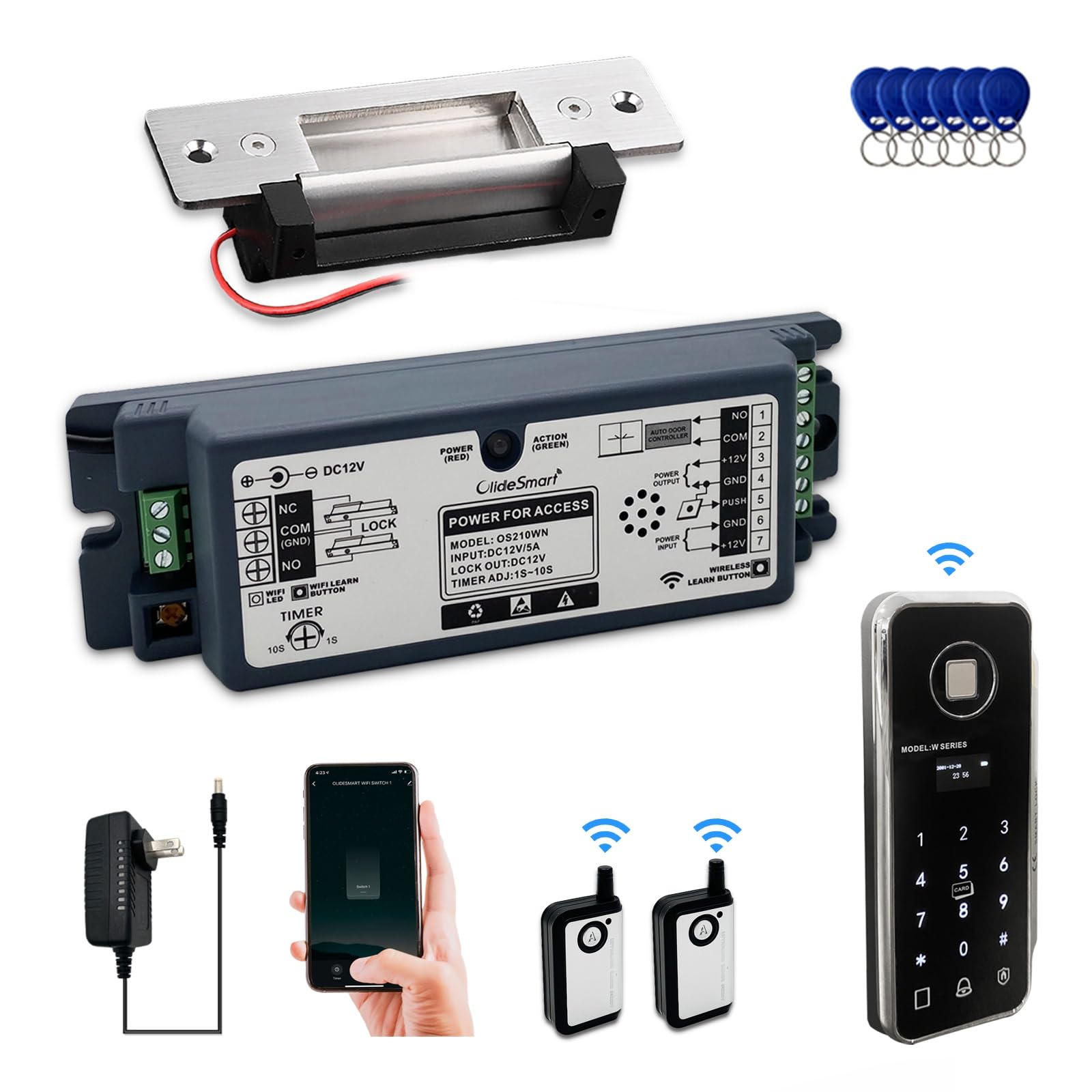
Image: All components of the Olideauto Smart Fingerprint Electronic Access Control Kit, including the wireless receiver, fingerprint keypad, RFID tags, FoB keys, and electric strike, with their respective dimensions.
Technical Specifications
| Feature | Specification |
|---|---|
| Model | OS210WN (Receiver), 270 (Keypad) |
| Power Input (Receiver) | 100V-240V, 50-60Hz |
| Power Output (Receiver) | DC12V, 5A |
| Static Current (Receiver) | 120mA (electric lock not included) |
| Unlock & Door Opening Time Difference | 0.5 seconds |
| WiFi Functionality | 2.4GHz router connection only |
| Material | Stainless Steel (Electric Strike) |
| Recommended Use | Residential, Office |
| Certifications | UL Listed (Power Adapter) |

Image: Detailed diagram of the Olideauto OS210WN Wireless Receiver, highlighting its various ports and indicators for power, WiFi, and learning functions.
Setup Guide
Step 1: Power Connection
Connect the provided power adapter to the OS210WN Wireless Smart WiFi Receiver. Ensure the receiver is placed in a location with good 2.4GHz Wi-Fi signal strength.
Step 2: App Installation and Account Registration
Download the Tuya Smart application from your smartphone's app store (Google Play Store for Android or Apple App Store for iOS). Register for a new account or log in if you already have one. Ensure your account is fully registered and verified.
Video: A comprehensive guide demonstrating the installation and setup process of the Olideauto Smart WIFI Automatic Door Opener, including connecting to the Tuya Smart app and integrating with Alexa for voice control.
Step 3: Device Pairing
Open the Tuya Smart app. Press and hold the Wi-Fi learning button on the OS210WN receiver until the blue indicator light flashes rapidly. In the app, select 'Add Device' and follow the on-screen prompts to pair the receiver. Ensure your phone's Wi-Fi is connected to a 2.4GHz network, as 5GHz networks are not supported for initial pairing.
Video: A short demonstration showing how to pair the Olideauto wireless receiver with your smartphone and connect it to Alexa for automated door control.
Step 4: Physical Installation
Install the electric strike on your door frame, ensuring it aligns correctly with your door's latch. Mount the wireless fingerprint keypad and the wireless receiver in suitable locations near the door. The wireless components do not require hardwiring to each other, simplifying installation. Connect the electric strike to the OS210WN receiver according to the wiring diagram provided in the receiver's packaging.

Image: The Olideauto access control system installed on a modern glass door, showcasing the discreet placement of the electric strike and the wireless keypad for seamless integration.

Image: The Olideauto access control system integrated into an office environment, demonstrating its application for secure and convenient entry in a professional setting.
Operating Instructions
Using the Fingerprint Keypad
To unlock the door using the fingerprint keypad, place your registered finger on the sensor. The system will verify your fingerprint and unlock the door. Alternatively, you can enter your programmed password on the keypad.
Using Wireless FoB Keys
Press the button on your wireless FoB key to transmit an unlock signal to the receiver. Ensure you are within the effective range of the receiver for the FoB key to function correctly.
Using the Mobile App (Tuya Smart)
Open the Tuya Smart app on your smartphone. Select the paired device (e.g., "door") from your device list. Tap the unlock icon to remotely open the door. This feature allows you to grant access from anywhere with an internet connection.
Voice Control (Alexa, Google Home)
Once integrated with Alexa or Google Home via the Tuya Smart app, you can use voice commands to control your door. For example, say "Alexa, turn door on" to unlock the door. Ensure your voice assistant device is properly configured and linked to your Tuya Smart account.

Image: The Olideauto access control system demonstrating voice control capabilities through Amazon Alexa and Google Home, allowing users to unlock doors with simple commands.
Maintenance
- Cleaning: Regularly wipe the fingerprint sensor and keypad surface with a soft, dry cloth to remove dust and smudges. Avoid using abrasive cleaners or solvents.
- Battery Replacement: The wireless keypad and FoB keys are battery-powered. Replace batteries promptly when the low battery indicator appears to ensure continuous operation.
- Firmware Updates: Periodically check the Tuya Smart app for available firmware updates for the OS210WN receiver. Keeping the firmware updated ensures optimal performance and security.
- Physical Inspection: Annually inspect all installed components for any signs of wear, damage, or loose connections. Ensure the electric strike operates smoothly and is free from obstructions.
Troubleshooting
| Problem | Possible Cause | Solution |
|---|---|---|
| Door does not unlock via app/voice. | No internet connection, incorrect Wi-Fi band, device offline, incorrect voice command. | Check Wi-Fi connection (2.4GHz required). Verify device status in Tuya app. Ensure correct voice command syntax. |
| Fingerprint not recognized. | Fingerprint not registered, dirty sensor, improper placement. | Ensure fingerprint is registered. Clean sensor. Place finger flat and centered on sensor. |
| Wireless FoB key not working. | Low battery, out of range, not paired. | Replace battery. Move closer to receiver. Re-pair FoB key if necessary. |
| Electric strike not engaging/disengaging. | Wiring issue, power supply problem, mechanical obstruction. | Check all wiring connections. Verify power supply to receiver. Inspect strike for debris or misalignment. |
Warranty and Support
The Olideauto Smart Fingerprint Electronic Access Control Kit comes with a 60-month (5-year) product warranty from the date of purchase, covering manufacturing defects and malfunctions under normal use. For warranty claims or technical assistance, please contact Olideauto customer support.
For additional support, FAQs, and product information, please visit the official Olideauto store or contact their customer service department: