1. Introduction
This manual provides comprehensive instructions for the installation, operation, and maintenance of your Redragon Sapphire 23.8" Gamer Monitor, model M2444PH. Please read this manual thoroughly before using the product to ensure proper functionality and to prevent damage.
The Redragon Sapphire monitor is designed to deliver a high-quality visual experience for gaming and general computing, featuring a high refresh rate, IPS panel, and FreeSync technology.
2. Safety Information
Observe the following safety precautions to ensure safe operation and to prevent damage to the monitor or injury to yourself.
- Do not expose the monitor to rain, moisture, or extreme temperatures.
- Ensure proper ventilation around the monitor to prevent overheating.
- Use only the power adapter supplied with the monitor.
- Do not attempt to disassemble or repair the monitor yourself. Refer all servicing to qualified personnel.
- Clean the monitor screen with a soft, lint-free cloth. Avoid using abrasive cleaners or solvents.
- Keep the monitor away from strong magnetic fields.
- Position the monitor on a stable, level surface to prevent it from falling.
3. Package Contents
Verify that all items are present in the package before proceeding with installation:
- Redragon Sapphire M2444PH Monitor
- Monitor Stand (Base and Neck)
- Power Adapter
- Power Cable
- HDMI Cable
- User Manual (this document)
4. Setup
4.1 Assembling the Stand
- Carefully remove the monitor from its packaging, placing it face down on a soft, clean surface to prevent scratches.
- Attach the stand neck to the back of the monitor by aligning the mounting points and securing it with the provided screws.
- Connect the stand base to the stand neck, ensuring it clicks into place or is secured with the designated screw.
- Gently lift the assembled monitor and place it on a stable, flat desk or surface.
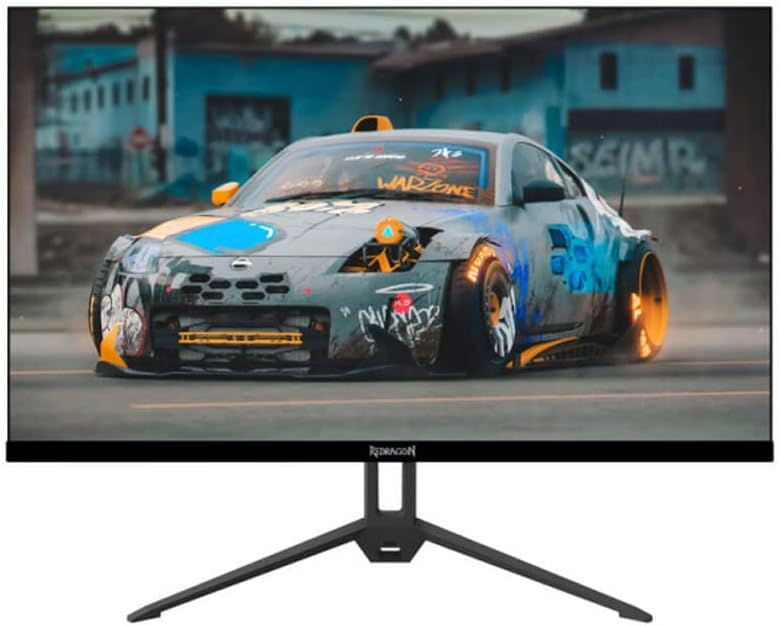
Figure 4.1: Front view of the Redragon Sapphire M2444PH monitor with its stand assembled, displaying a vibrant image.

Figure 4.2: Angled front view of the Redragon Sapphire M2444PH monitor, highlighting its sleek bezel design and stable stand.

Figure 4.3: Side profile of the Redragon Sapphire M2444PH monitor, showcasing its sleek and thin design.
4.2 Connecting the Monitor
The Redragon Sapphire M2444PH monitor offers multiple connectivity options. Choose the appropriate cable for your device.
- HDMI Connection: Connect one end of the HDMI cable to the HDMI port on your computer's graphics card and the other end to an HDMI port (HDMI-1 or HDMI-2) on the monitor.
- DisplayPort (DP) Connection: Connect one end of the DisplayPort cable to the DP port on your computer's graphics card and the other end to the DP port on the monitor.
- VGA Connection: Connect one end of the VGA cable to the VGA port on your computer and the other end to the VGA port on the monitor.
- Audio Output: If you wish to connect external speakers or headphones, use the 3.5mm audio out jack on the monitor.
- Power Connection: Connect the power adapter to the DC IN port on the monitor, then plug the power cable into the adapter and a wall outlet.

Figure 4.4: Rear view of the Redragon Sapphire M2444PH monitor, detailing the DC IN, HDMI, DisplayPort, VGA, and Audio Out connections.

Figure 4.5: Angled rear view of the Redragon Sapphire M2444PH monitor, providing a clearer perspective of the various input ports.
5. Operation
5.1 Powering On/Off
Press the power button, typically located on the bottom right or rear of the monitor, to turn the monitor on or off. The power indicator light will illuminate when the monitor is on.
5.2 Input Source Selection
Use the OSD (On-Screen Display) menu buttons to navigate and select your desired input source (HDMI-1, HDMI-2, DP, VGA). The OSD buttons are usually located near the power button.
5.3 OSD Menu Navigation
The OSD menu allows you to adjust various display settings. Common settings include:
- Picture Settings: Brightness, Contrast, Sharpness, Color Temperature.
- Display Settings: Aspect Ratio, Input Source.
- Audio Settings: Volume (if internal speakers are present, though this model may not have them, or for audio out).
- OSD Settings: OSD Language, OSD Transparency, OSD Timeout.
- Other Settings: FreeSync (Adaptive Sync) On/Off, Reset to Factory Defaults.
Refer to the on-screen prompts for specific button functions (e.g., Menu, Up, Down, Enter, Exit).
6. Maintenance
6.1 Cleaning the Monitor
- Always unplug the monitor from the power outlet before cleaning.
- Use a soft, lint-free cloth to gently wipe the screen. For stubborn marks, slightly dampen the cloth with water or a non-abrasive, monitor-safe cleaning solution.
- Clean the monitor casing with a soft, dry cloth.
- Avoid spraying liquids directly onto the screen or casing.
6.2 Storage
If storing the monitor for an extended period, disconnect all cables and store it in a cool, dry place, preferably in its original packaging to protect it from dust and physical damage.
7. Troubleshooting
This section addresses common issues you might encounter with your Redragon Sapphire monitor.
| Problem | Possible Cause | Solution |
|---|---|---|
| No image on screen |
|
|
| Image is blurry or distorted |
|
|
| No sound (if using monitor's audio out) |
|
|
| Flickering or tearing image (with FreeSync enabled) |
|
|
8. Specifications
| Feature | Detail |
|---|---|
| Model | M2444PH |
| Brand | Redragon |
| Screen Size | 27 Inches (Note: Product title states 23.8 inches) |
| Max Resolution | 1920 x 1080 Pixels |
| Refresh Rate | Up to 144Hz |
| Panel Type | IPS |
| Adaptive Sync Technology | FreeSync |
| Aspect Ratio | 16:9 |
| Connectivity | 2x HDMI, 1x DisplayPort, 1x VGA, 1x Audio Out |
| Dimensions (LxWxH) | 5.12 x 1.77 x 24.8 inches |
| Item Weight | 9.9 pounds |
| Color | Black |
| Power Source | Electric Power |
9. Warranty & Support
Redragon products typically come with a limited warranty. Please refer to the warranty card included with your product or visit the official Redragon website for detailed warranty terms and conditions specific to your region.
For technical support, troubleshooting assistance beyond this manual, or warranty claims, please contact Redragon customer service through their official website or the contact information provided on your product packaging.
Redragon Official Website: www.redragonusa.com (Example link, actual link may vary by region)