
1. Introduction
Thank you for purchasing the WONNIE Portable DVD Player. This device is designed for convenient entertainment on the go, featuring a 7-inch HD swivel screen, dual stereo speakers, and versatile connectivity options. Its compact size and lightweight design make it ideal for travel, camping, or in-car use.
This manual provides detailed instructions on how to set up, operate, maintain, and troubleshoot your portable DVD player to ensure optimal performance and longevity.
2. Package Contents
Please check the package carefully to ensure all items are present and in good condition:

This image displays the complete set of items included with your WONNIE Portable DVD Player. It shows the main DVD player unit, a remote control, the user manual, a 3.5mm RCA cable for audio/video connections, an AC power adapter for home charging, and a car charger for on-the-go power.
- WONNIE Portable DVD Player (Main Unit)
- Remote Control
- User Manual
- 3.5mm RCA Cable
- AC Power Adapter
- Car Charger
3. Product Features
- Portable Design: Compact and lightweight, making it easy to carry for travel, camping, or daily commutes.
- 7-inch HD Swivel Screen: The high-brightness color LCD screen can rotate 270 degrees and flip 180 degrees, providing flexible viewing angles.

This image illustrates the versatile swivel screen feature of the DVD player. The screen can be rotated up to 270 degrees horizontally and then folded back 180 degrees, allowing for various viewing positions, including a tablet-like mode.
- Dual Stereo Speakers: Integrated speakers provide clear audio for an immersive viewing experience.
- Multiple Power Modes: Equipped with two built-in 2500 mAh rechargeable batteries offering 2 to 5 hours of playback. Includes an AC adapter for home use and a car charger for on-the-go charging.
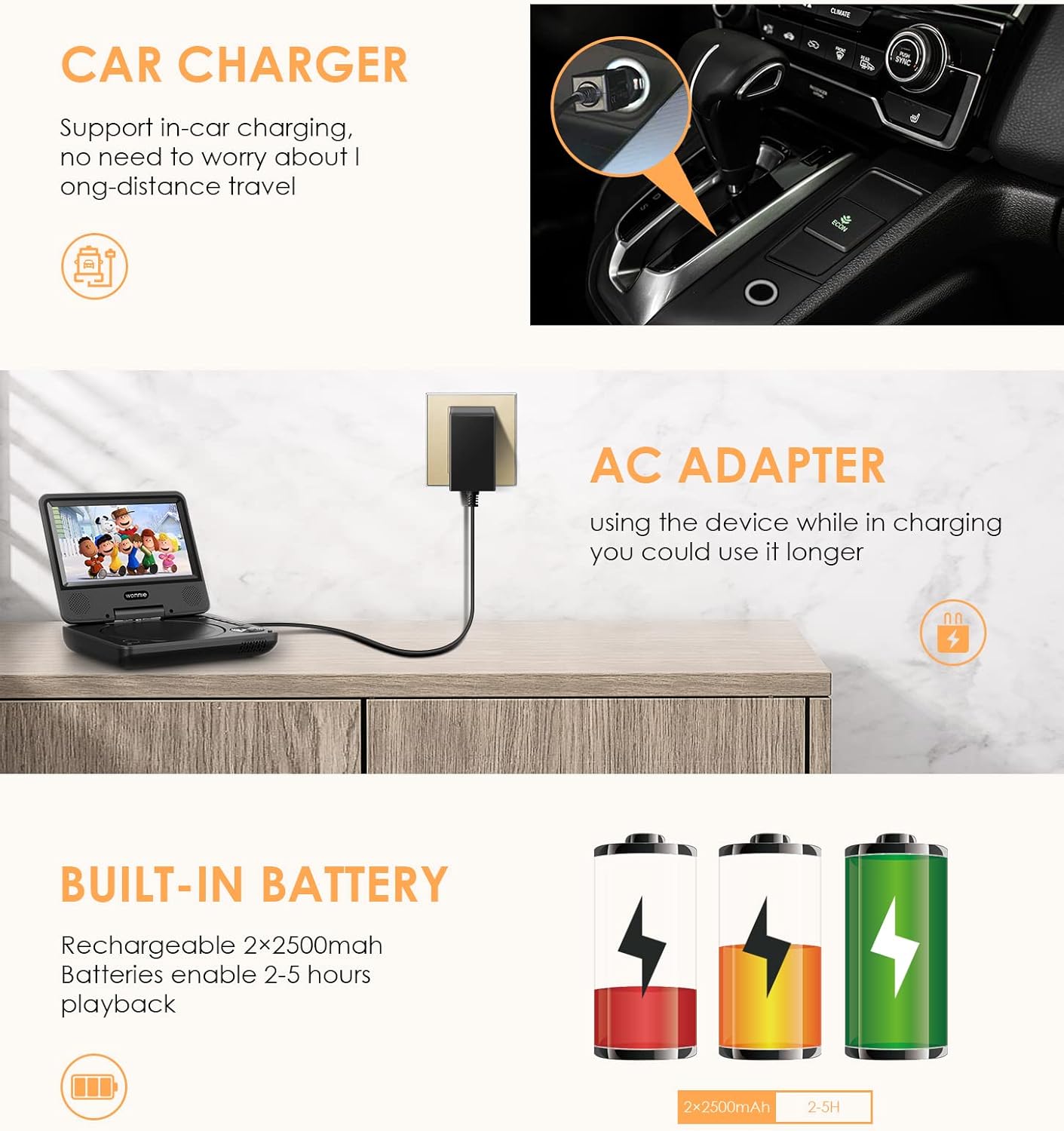
This image highlights the flexible power options for the DVD player. It shows the device being charged in a car using the car charger and also connected to a wall outlet via the AC adapter. Additionally, it depicts battery icons representing the built-in rechargeable batteries, emphasizing the player's portability and extended playback time.
- Multi-Region & Multi-Format Support: Region-free playback for DVDs. Compatible with a wide range of formats including CD, DVD, ± R / RW, VCD, MP3, WMA, VOB, AVI, MPEG1, XVID, JPEG. Supports USB/SD/MMC cards up to 32GB.

This image visually represents the multi-region and multi-format capabilities of the DVD player. The screen displays a globe with location pins, signifying its region-free functionality. Icons for SD card and USB connectivity are also shown, indicating support for various media types.
- Car Mount Compatibility: Easily attachable to car headrests for convenient viewing during long journeys.

This image demonstrates the practical use of the portable DVD player in a car setting. The player is securely mounted on the back of a car headrest, providing entertainment for a child sitting in the rear seat, making it ideal for long road trips.
4. Product Overview (Components and Ports)
Familiarize yourself with the various components and connection ports of your DVD player:

This image provides a detailed view of the WONNIE portable DVD player's side panel, highlighting its various input/output ports and overall dimensions. Key features indicated include the USB port, SD/MMC card slot, earphone jack, AV Out port, AV In port, Power On/Off switch, and DC In port for power supply. The image also shows the 9.5-inch overall size and 7-inch screen size, along with the location of the high-quality speakers.
- Screen: 7-inch HD LCD display.
- Disc Tray: For inserting DVDs/CDs.
- Control Buttons: Located on the unit for basic functions (Play/Pause, Stop, Volume, Menu, etc.).
- USB Port: For connecting USB flash drives (up to 32GB).
- SD/MMC Card Slot: For inserting SD or MMC memory cards (up to 32GB).
- Earphone Jack: 3.5mm output for headphones.
- AV OUT Port: For connecting the player to a larger TV or monitor.
- AV IN Port: For connecting external video sources to display on the player's screen.
- DC IN Port: For connecting the AC power adapter or car charger.
- Power ON/OFF Switch: To turn the device on or off.
5. Setup
5.1 Initial Charging
Before first use, fully charge the built-in battery. Connect the AC power adapter to the DC IN port on the player and plug it into a wall outlet. The charging indicator light will illuminate. A full charge typically takes several hours. You can also use the included car charger for charging in your vehicle.
5.2 Inserting Media
- DVD/CD: Gently open the disc cover. Place the disc onto the spindle with the label side facing up. Press down gently on the center of the disc until it clicks into place. Close the disc cover firmly.
- USB Drive: Insert your USB flash drive into the USB port.
- SD/MMC Card: Insert your SD or MMC memory card into the SD/MMC card slot until it clicks.
5.3 Connecting to External Devices
- AV OUT (Connecting to TV): Use the included 3.5mm RCA cable. Connect the 3.5mm end to the AV OUT port on the DVD player. Connect the red, white, and yellow RCA plugs to the corresponding AV input ports on your TV. Select the correct AV input source on your TV.
- AV IN (Connecting External Source): Use the included 3.5mm RCA cable. Connect the 3.5mm end to the AV IN port on the DVD player. Connect the red, white, and yellow RCA plugs to the corresponding AV output ports of your external device (e.g., game console, camcorder). Switch the player's input mode to AV IN.
6. Operating Instructions
6.1 Basic Playback

This image presents the WONNIE portable DVD player in an operational state, with its screen open and displaying content. A remote control is positioned beside the player, indicating the primary method of interaction and control for playback functions.
- Power On: Slide the Power ON/OFF switch to the "ON" position.
- Select Source: If a disc is inserted, it will usually start playing automatically. For USB or SD/MMC media, use the "MODE" button on the player or remote to select the desired input source (DVD, USB, SD).
- Play/Pause: Press the PLAY/PAUSE button to start or pause playback.
- Stop: Press the STOP button to stop playback.
- Next/Previous: Use the NEXT or PREVIOUS buttons to skip tracks/chapters.
- Fast Forward/Rewind: Press and hold the NEXT or PREVIOUS buttons for fast forward or rewind.
- Volume Control: Use the VOL+ and VOL- buttons on the player or remote to adjust the volume.
6.2 Screen Rotation
The screen can be rotated up to 270 degrees clockwise and then folded back 180 degrees to convert the player into a tablet-like display. This allows for optimal viewing angles in various situations.
6.3 Using the Remote Control
The included remote control provides full functionality for operating the DVD player from a distance. Point the remote control directly at the infrared sensor on the player.
- DISPLAY ON/OFF: Turns the screen display on or off.
- TITLE/MENU: Accesses the disc title or main menu.
- SETUP: Enters the system setup menu.
- Directional Buttons (Up/Down/Left/Right) & ENTER: For navigating menus and confirming selections.
- MUTE: Mutes or unmutes the audio.
- SUBTITLE/ANGLE/REPEAT/PROGRAM/ZOOM: Specific function buttons for DVD playback.
- Numeric Keypad (0-9, +10): For direct track/chapter selection.
6.4 Supported Formats
The player supports the following media and file formats:
- Discs: CD, DVD, CD-R/RW, DVD±R/RW, VCD
- Video Formats: VOB, AVI, MPEG1, XVID (from USB/SD)
- Audio Formats: MP3, WMA (from USB/SD)
- Image Formats: JPEG (from USB/SD)
- Storage: USB flash drives and SD/MMC cards up to 32GB.
7. Maintenance
- Cleaning: Use a soft, dry cloth to clean the exterior of the player. For the screen, use a soft, lint-free cloth specifically designed for electronics screens. Do not use liquid cleaners or abrasive materials.
- Disc Care: Handle discs by their edges. Keep them clean and free of scratches. Use a soft, lint-free cloth to wipe discs from the center outwards.
- Battery Care: To prolong battery life, avoid fully discharging the battery frequently. If storing the player for an extended period, charge it to about 50% every few months.
- Storage: Store the player in a cool, dry place away from direct sunlight, extreme temperatures, and high humidity.
8. Troubleshooting
| Problem | Possible Cause | Solution |
|---|---|---|
| No power | Battery is drained; Power adapter not connected properly. | Charge the battery; Ensure power adapter is securely connected to player and outlet. |
| No disc detected | Disc inserted incorrectly; Disc is dirty or scratched; Unsupported disc format. | Reinsert disc correctly; Clean or replace disc; Ensure disc format is supported. |
| No sound | Volume is too low or muted; Headphones connected. | Increase volume; Unmute; Disconnect headphones if using speakers. |
| No picture | Screen is off; AV cable not connected properly (if using external display); Incorrect input source on TV. | Press DISPLAY ON/OFF; Check AV cable connections; Select correct AV input on TV. |
| Remote control not working | Batteries are dead or inserted incorrectly; Obstruction between remote and player; Remote not pointed at sensor. | Replace batteries; Ensure correct battery polarity; Remove obstructions; Point remote directly at IR sensor. |
9. Specifications
| Feature | Detail |
|---|---|
| Brand | WONNIE |
| Model Number | 1 |
| Color | Black |
| Screen Size | 7 Inches |
| Display Type | LCD |
| Connectivity Technology | USB |
| Battery Composition | Lithium-ion |
| Rechargeable Battery | Yes (2 x 2500 mAh Lithium-polymer) |
| Playback Time | 2-5 hours (on full charge) |
| Supported Media Types | CD, DVD, ± R / RW, VCD, MP3, WMA, VOB, AVI, MPEG1, XVID, JPEG, SD, MMC |
| USB/SD/MMC Support | Up to 32GB |
| ASIN | B09PNG4SPL |
10. Warranty and Support
WONNIE is committed to providing high-quality products and excellent customer service. While specific warranty details are not provided in this manual, we offer 100% customer support for any issues or questions you may have regarding your portable DVD player.
If you encounter any problems or require assistance, please do not hesitate to contact WONNIE customer service. Please refer to the product packaging or the seller's information for contact details.
Keep your purchase receipt as proof of purchase for any warranty claims or support requests.


