
1. Introduction
The Easyfone T200 is a 4G feature phone designed for ease of use, featuring large buttons, clear sound, and essential functions. This manual provides detailed instructions for setting up and operating your device.
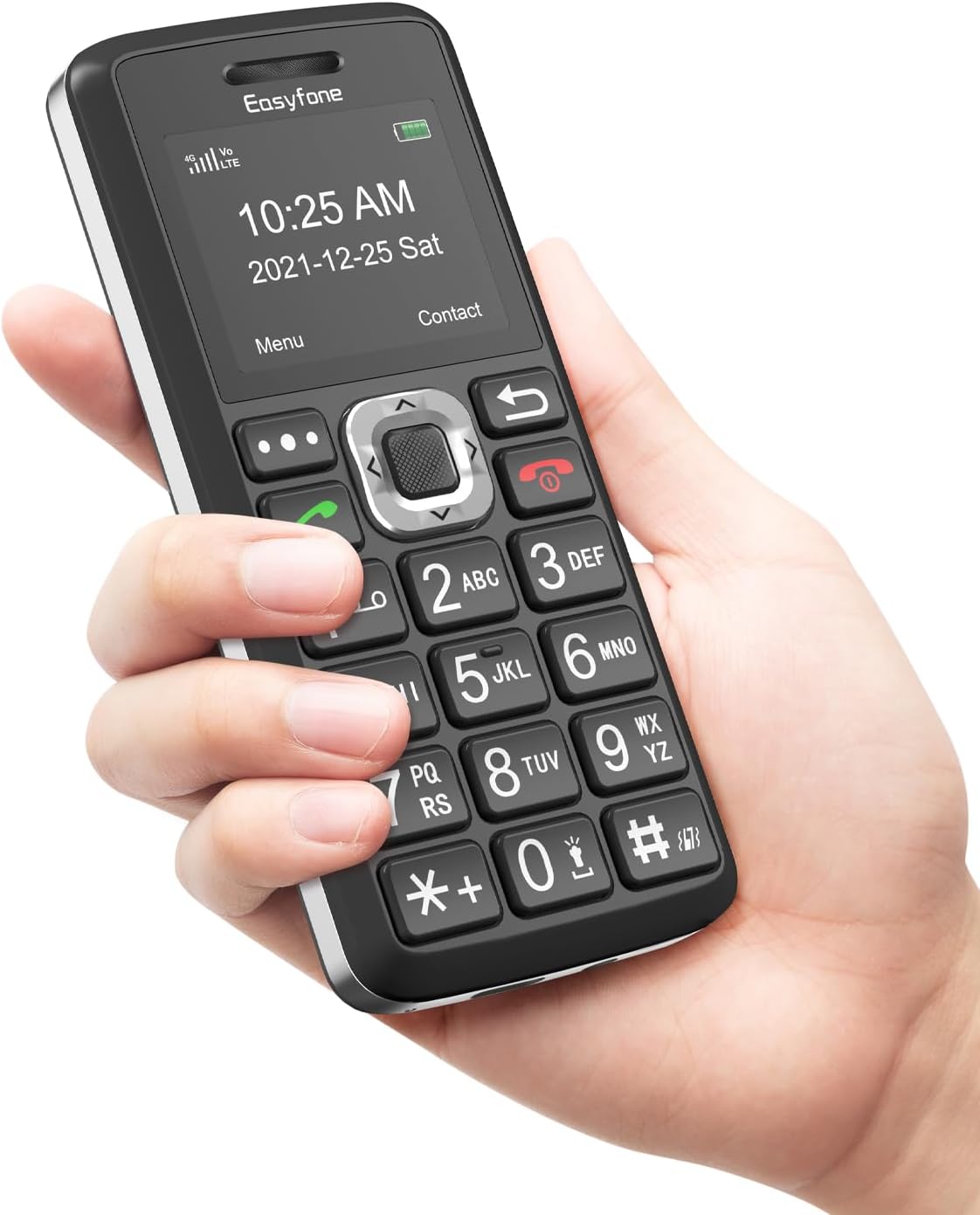
Image: The Easyfone T200 phone, held in a hand, highlighting its user-friendly design with large, well-spaced buttons and a clear screen displaying the time and date.

Image: A banner displaying the Easyfone T200, emphasizing its design as an easy-to-use big button cell phone.
2. Package Contents
Please check the box for the following items:
- Easyfone T200 Mobile Phone
- User Manual
- Battery (1050mAh)
- Type C USB Cable
- Charging Dock
- Power Adapter
- Lanyard

Image: An illustration showing all items included in the Easyfone T200 product package: the phone, user manual, battery, charging dock, power adapter, USB cable, and lanyard.
3. Device Layout
Familiarize yourself with the physical components of your Easyfone T200.
- Display Screen: Shows time, date, signal, battery, and menu options.
- Keypad: Large, well-spaced buttons for dialing and navigation.
- Navigation Keys: Central button for menu selection, directional keys for navigation.
- Call/End Keys: Green button to make/answer calls, Red button to end calls/power off.
- SOS Button: Dedicated button on the back for emergency calls.
- Flashlight: Integrated flashlight for convenience.
- Keypad Lock Switch: Side switch to easily lock and unlock the keypad.
- Non-slip Back Cover: Textured back for a secure grip.
- Charging Port: USB Type-C port for direct charging.
- Charging Contacts: Located at the bottom for use with the charging dock.
- 3.5mm Audio Jack: For headphones or external audio devices.

Image: A detailed view of the Easyfone T200 keypad, illustrating the generous size of the buttons (12.8mm by 9.2mm) for easy pressing.

Image: A side profile of the Easyfone T200, highlighting the convenient keypad lock/unlock switch and the textured non-slip back cover for improved grip.

Image: The Easyfone T200 with icons indicating its loud speaker and compatibility with hearing aids, ensuring clear audio for users.
4. Setup
4.1 Battery Installation
- Remove the back cover of the phone by gently prying it open from the notch.
- Insert the battery into the battery compartment, ensuring the gold contacts align with the phone's terminals.
- Replace the back cover, pressing firmly until it clicks into place.
4.2 SIM Card Installation
The Easyfone T200 supports 4G GSM networks. Ensure your SIM card is compatible with T-Mobile, MetroPCS, SpeedTalk, or Tello Mobile. It is not compatible with AT&T, Cricket, Verizon, Sprint, or Boost Mobile.
- With the back cover and battery removed, locate the SIM card slot(s).
- Carefully insert your SIM card(s) into the designated slot(s) with the gold contacts facing down, following the diagram on the phone.
- If using a MicroSD card for additional storage, insert it into the MicroSD card slot.
- Reinstall the battery and back cover.

Image: The rear view of the Easyfone T200 with the back cover removed, illustrating the battery compartment, SIM card slots, and MicroSD card slot for installation.

Image: A graphic listing compatible network carriers for the Easyfone T200, including T-Mobile, Metro by T-Mobile, Tello, Red Pocket Mobile, and Speedtalk Mobile.
4.3 Charging the Phone
The phone can be charged using the included charging dock or directly via the USB Type-C cable.
- Using the Charging Dock: Connect the USB cable to the power adapter, then plug the adapter into a wall outlet. Connect the other end of the USB cable to the charging dock. Place the phone into the dock, ensuring the charging contacts align. The phone will indicate charging.
- Direct USB Charging: Connect the USB cable to the power adapter and plug it into a wall outlet. Insert the Type-C end of the cable directly into the phone's charging port.
A full charge takes approximately 2.5 hours. The 1050mAh battery provides up to 6 hours of talk time and 96 hours of standby time.
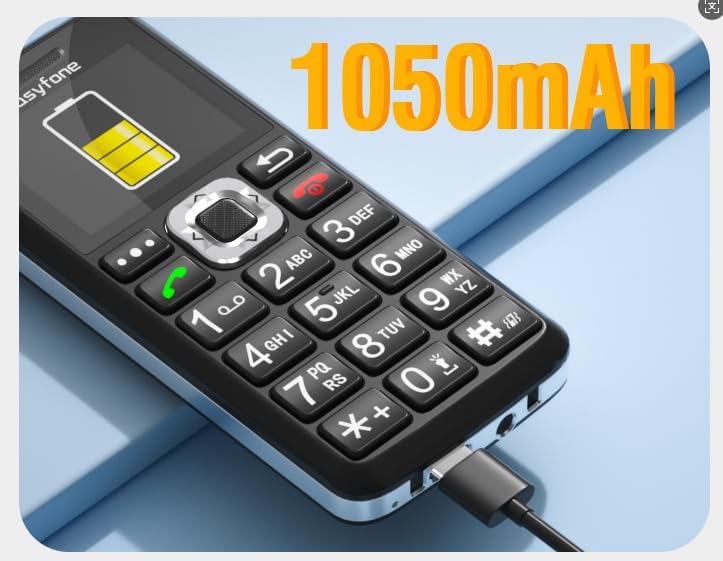
Image: The Easyfone T200 connected for charging via a USB cable, with an overlay indicating its 1050mAh battery capacity.

Image: The Easyfone T200 being charged both in its dedicated dock and directly via USB, emphasizing its long standby time of over 96 hours.

Image: A still from a video demonstrating how to connect the charging base to the Easyfone T200 and how to charge the device.
5. Operating Instructions
5.1 Power On/Off
- To Power On: Press and hold the Red (End Call/Power) button until the screen lights up.
- To Power Off: Press and hold the Red (End Call/Power) button until the power off confirmation appears, then select 'Yes'.
5.2 Making Calls
- Enter the phone number using the keypad.
- Press the Green (Call) button to initiate the call.
- To end the call, press the Red (End Call) button.

Image: A person holding the Easyfone T200 to their ear, demonstrating its use for making or receiving calls.
5.3 Receiving Calls
- When a call comes in, the phone will ring and display the caller ID.
- Press the Green (Call) button to answer the call.
- To reject the call, press the Red (End Call) button.
5.4 Sending and Receiving SMS
- Navigate to the 'Messages' menu.
- Select 'Write Message' to compose a new SMS.
- Enter the recipient's number or select from contacts.
- Type your message using the keypad (multiple presses on a key cycle through letters and numbers).
- Select 'Send'.
5.5 SOS Function
The SOS button is located on the back of the phone. In an emergency, press and hold this button to activate the SOS function.
- The phone will automatically call and send emergency SMS messages to up to five pre-set SOS contacts.
- Ensure SOS contacts are set up in the phone's settings.
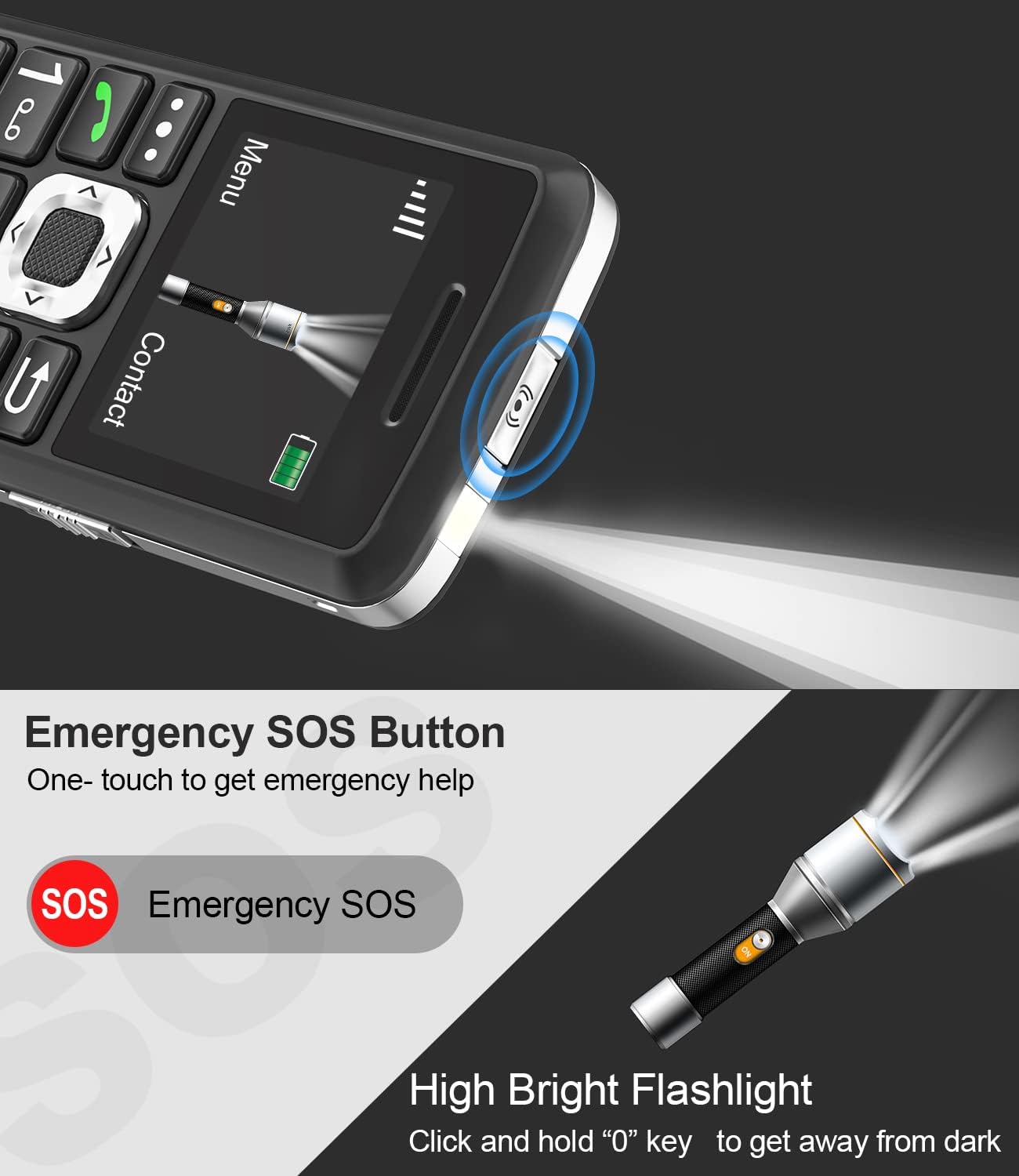
Image: The Easyfone T200 highlighting its dedicated SOS Emergency Button and the integrated high-bright flashlight.

Image: The Easyfone T200 illustrating the SOS Emergency function, showing how it triggers both emergency calls and messages to pre-selected contacts.
5.6 Speed Dial
You can assign up to eight speed dial contacts to the number keys (2-9).
- Go to 'Settings' > 'Speed Dial'.
- Select a number key (e.g., '2') and assign a contact from your phonebook.
- To use speed dial, press and hold the assigned number key on the keypad.

Image: The Easyfone T200 keypad demonstrating the speed dial feature, with numbers 2 through 9 assigned to specific contacts like 'Amy', 'Son', 'Dad', 'Dr.Li', 'Mom', 'Tom', 'Sam', and 'Bob'.
5.7 Keypad Lock/Unlock
Use the dedicated switch on the side of the phone to lock or unlock the keypad.
- Slide the switch upwards to unlock the keypad.
- Slide the switch downwards to lock the keypad.
Image: A still from a video demonstrating the Easyfone T200's big buttons with a talking number feature and the simple side switch for locking and unlocking the keyboard.
5.8 Flashlight
To activate the flashlight, press and hold the '0' key on the keypad.
5.9 Other Functions
The Easyfone T200 includes several useful features:
- FM Radio: Listen to local radio stations.
- Alarm Clock: Set multiple alarms.
- Audio Player: Play MP3 files stored on a MicroSD card.
- Notes: Create simple text notes.
- Calculator: Perform basic arithmetic.
- Calendar: View dates and add events.
- Bluetooth: Connect to compatible Bluetooth devices like headsets.

Image: The Easyfone T200 screen surrounded by icons representing its various functions, including FM Radio, Alarm Clock, MP3 Player, Calendar, SMS, Flashlight, Calculator, Bluetooth, Memo, and Voice Recorder.
6. Maintenance
- Keep the phone dry. Moisture can damage electronic circuits.
- Avoid extreme temperatures. High temperatures can shorten the life of electronic devices and damage batteries.
- Do not use harsh chemicals, cleaning solvents, or strong detergents to clean the phone. Wipe it with a soft, damp cloth.
- Handle the phone gently. Do not drop, knock, or shake it.
- Do not attempt to disassemble the phone. Unauthorized modifications can void your warranty.
7. Troubleshooting
| Problem | Possible Solution |
|---|---|
| Phone does not power on. | Ensure the battery is correctly installed and charged. Connect to charger for at least 30 minutes. |
| Cannot make or receive calls. | Check if the SIM card is properly inserted and activated. Verify network coverage in your area. Ensure your carrier is compatible (T-Mobile, MetroPCS, SpeedTalk, Tello Mobile). |
| Poor call quality. | Move to an area with better network signal. Ensure the speaker/microphone is not obstructed. |
| Battery drains quickly. | Reduce screen brightness. Close unused applications. Limit background data usage (if applicable). Ensure the battery is not old or damaged. |
| Keypad is unresponsive. | Check the keypad lock switch on the side of the phone. Slide it to the unlock position. |
| SOS function not working. | Ensure SOS contacts are correctly set up in the phone's settings. Verify that the contacts are valid phone numbers. |
8. Specifications
| Feature | Detail |
|---|---|
| Model Number | T200 |
| Product Dimensions | 4.57 x 2.23 x 0.55 inches |
| Item Weight | 2.88 ounces |
| Operating System | Nucleus OS |
| Screen Size | 2 Inches |
| Battery Capacity | 1050 Milliamp Hours (mAh) |
| Phone Talk Time | 6 Hours |
| Phone Standby Time | 96 Hours |
| Charging Time | 2.5 Hours |
| Cellular Technology | 4G LTE |
| Connectivity | Bluetooth, USB |
| Audio Jack | 3.5 mm |
| Special Features | Big Button/Font, Charging station, High Volume, Long standby time, SOS feature, Speed dial, Flashlight, FM Radio, Alarm clock, Audio Player, Notes, Calculator, Calendar |
9. Warranty and Support
For warranty information and technical support, please refer to the documentation included with your purchase or contact Easyfone customer service. Contact details can typically be found on the manufacturer's website or the product packaging.
