
1. Introduction
The SENSTREE DTC310ZJ-JP is a digital waterproof temperature controller designed for precise temperature management in various environments. Its robust construction and versatile functionality make it suitable for applications such as greenhouses, home brewing, fermentation, incubation, terrariums, and general heating or cooling control. This manual provides essential information for the safe and effective operation of your device.
2. Product Features
- Waterproof Design (IP65): The controller body and sensor are designed to be waterproof, allowing for reliable outdoor use in environments like greenhouses without concern for rain.
- Multipurpose Application: Ideal for a wide range of uses including home wine/beer brewing, aquariums, seedling heat mats, BBQ, boiler control, grow tents, mushroom growing, fermentation, incubation, refrigerators, chest freezers, heaters, fans, and AC units. It is also suitable for controlling temperatures for various reptiles and amphibians such as bearded dragons, geckos, snakes, and turtles.
- User-Friendly Operation: Features a plug-and-play design for easy setup and use. Supports both Celsius (°C) and Fahrenheit (°F) display modes. The handheld device is ergonomically designed for comfortable handling.
- High Accuracy Sensor: Equipped with a high-quality silicone temperature sensor that is waterproof, ensuring precise temperature readings and consistent optimal environmental conditions.
- Large LCD Screen: The display is glare-free and eye-protected, providing clear and easy-to-read temperature information and programming options. It features a standard U.S. outlet.

Image: The controller demonstrating its waterproof design, suitable for outdoor use.
3. Product Overview
Familiarize yourself with the components and controls of your temperature controller.
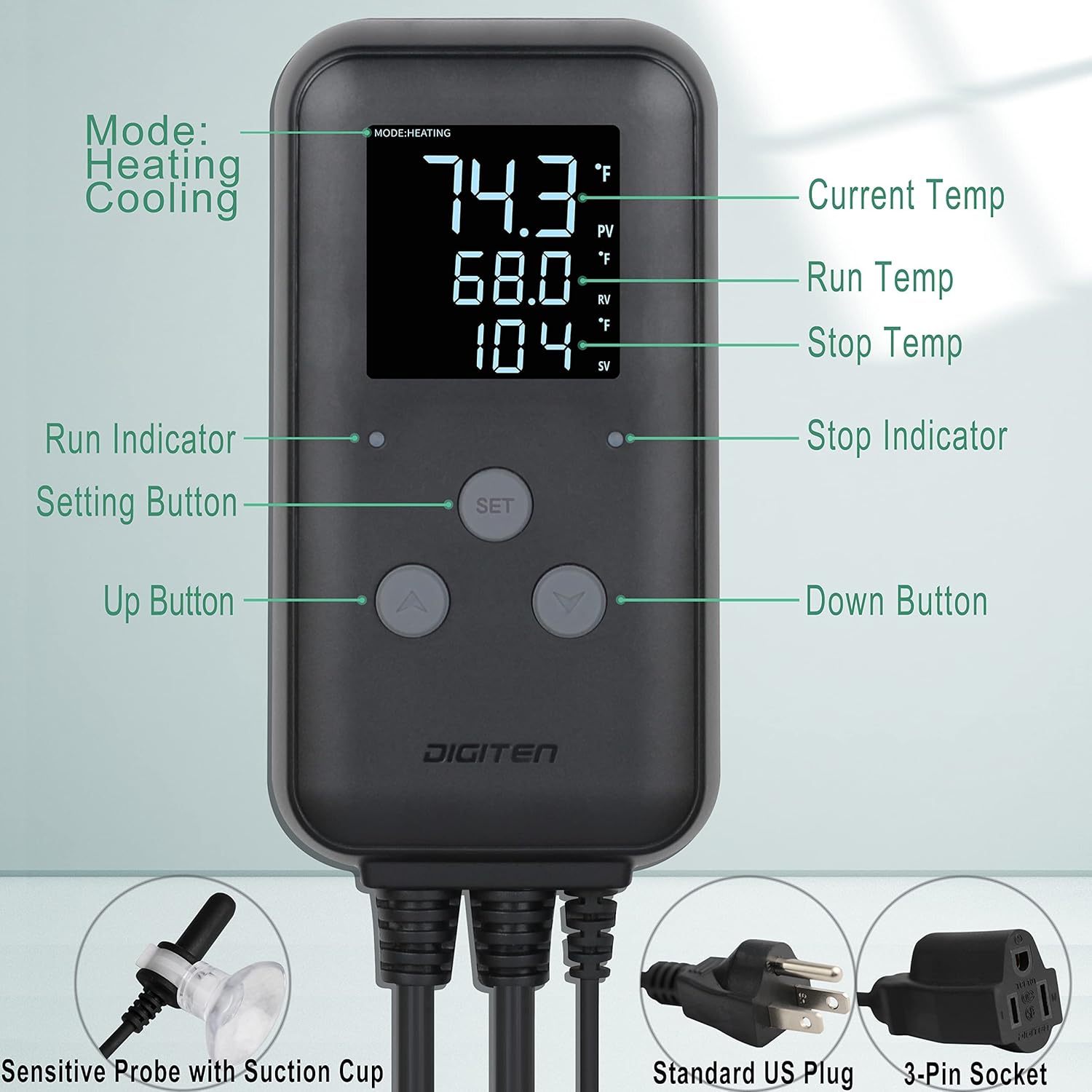
Image: Labeled diagram of the temperature controller's display, buttons, and connections.
- Display: Shows Current Temperature (PV), Run Temperature (RV), and Stop Temperature (SV).
- Buttons:
- SET Button: Used to enter and confirm settings.
- Up Button (▲): Used to increase values or navigate menus.
- Down Button (▼): Used to decrease values or navigate menus.
- Indicators:
- Run Indicator: Illuminates when the connected device is active (heating or cooling).
- Stop Indicator: Illuminates when the connected device is inactive.
- Connections:
- Temperature Probe: Waterproof silicone sensor with suction cup for placement.
- Power Plug: Standard US 3-pin plug for power input.
- Output Socket: 3-pin socket for connecting heating or cooling devices.

Image: Controller dimensions and key features.
4. Setup
- Mounting the Controller: Choose a suitable location for the controller. It can be mounted on a wall or hung using the integrated hanging function. Ensure it is easily accessible and visible.
- Connect the Temperature Sensor: Plug the waterproof temperature probe into the designated sensor port on the controller. Place the sensor in the environment where temperature needs to be monitored and controlled. Use the suction cup to secure the sensor if needed.
- Connect Heating/Cooling Device: Plug your heating or cooling appliance (e.g., heater, fan, heat mat) into the 3-pin output socket on the controller.
- Power On: Plug the controller's power plug into a standard 110V US electrical outlet. The display will light up, showing the current temperature.
Video: Demonstration of the waterproof feature and connecting the temperature controller. This video illustrates the durability and ease of connection for the device.
5. Operating Instructions
5.1 Switching Temperature Units (°C/°F)
To switch between Celsius and Fahrenheit:
- Press the Up (▲) and Down (▼) buttons simultaneously. The display will change to the selected unit.
5.2 Setting Run and Stop Temperatures
Follow these steps to set your desired temperature range:
- Long press and hold the SET button for 3 seconds to enter the temperature preset mode.
- Press the Up (▲) or Down (▼) button to set the Run Temperature (RV). This is the temperature at which your connected device will activate (e.g., heater turns on, fan turns off).
- Short press the SET button to move to the next value (Stop Temperature).
- Press the Up (▲) or Down (▼) button to adjust the Stop Temperature (SV). This is the temperature at which your connected device will deactivate (e.g., heater turns off, fan turns on).
- Long press and hold the SET button for 3 seconds to save your settings and exit the preset mode.

Image: Step-by-step guide for setting the temperature parameters.
5.3 Heating and Cooling Modes
The controller automatically determines whether to operate in heating or cooling mode based on your set Run and Stop temperatures. If the Run Temperature is higher than the Stop Temperature, it operates in heating mode. If the Run Temperature is lower than the Stop Temperature, it operates in cooling mode.
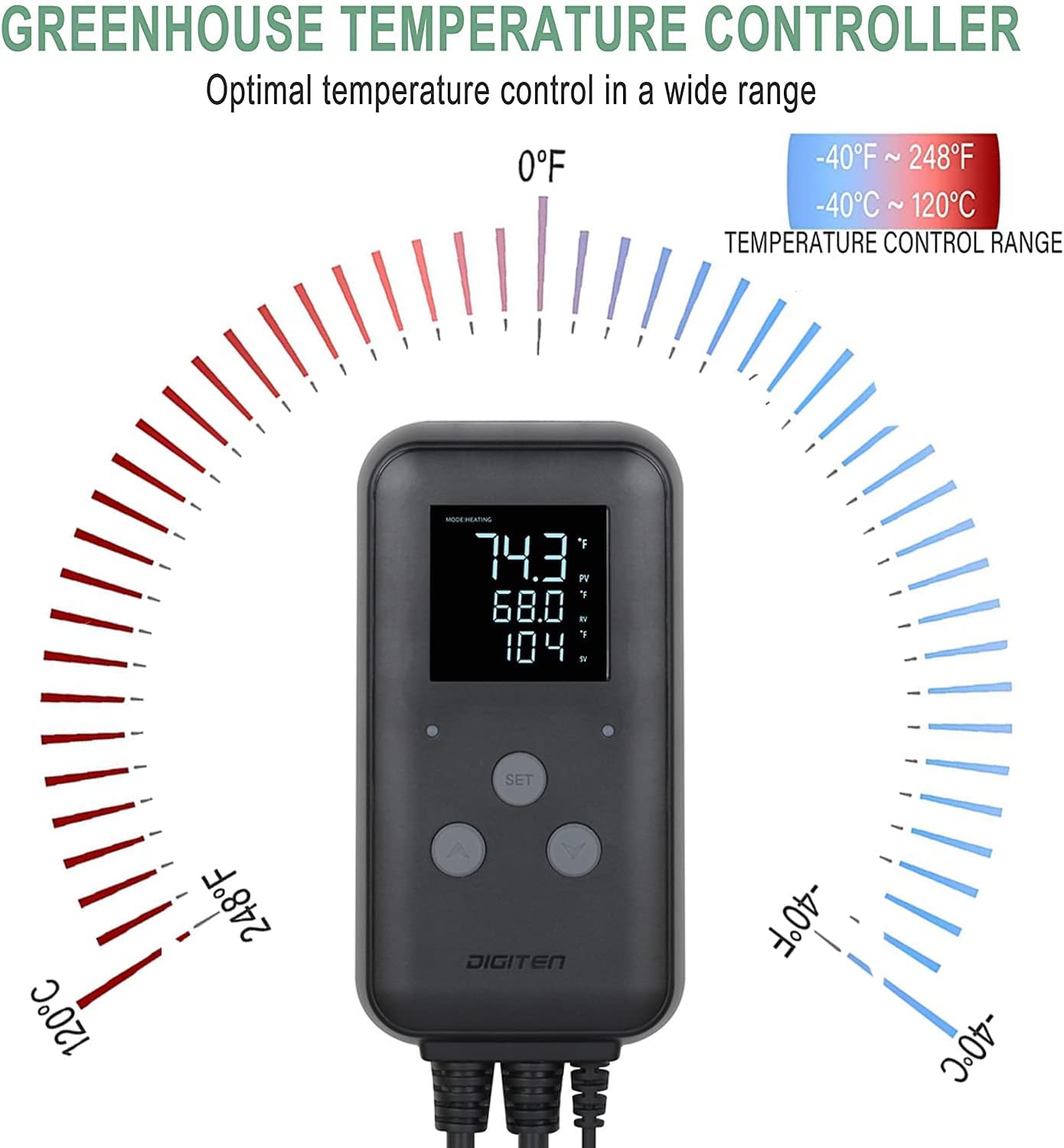
Image: Illustration of the wide temperature control range.
6. Maintenance
- Cleaning: Wipe the controller and sensor with a soft, damp cloth. Do not use abrasive cleaners or solvents. Ensure the device is unplugged before cleaning.
- Sensor Care: Regularly check the temperature sensor for any damage or debris that might affect its accuracy. Ensure it is securely placed in the desired monitoring area.
- Storage: If storing the device for an extended period, ensure it is clean, dry, and stored in a cool, dry place away from direct sunlight.
7. Troubleshooting
| Problem | Possible Cause | Solution |
|---|---|---|
| Display is blank | No power supply. | Check if the power plug is securely connected to a live outlet. Ensure the outlet is functioning. |
| Incorrect temperature reading | Sensor is damaged or improperly placed. | Verify the sensor is correctly plugged in and positioned in the desired area. Inspect the sensor cable for damage. |
| Heating/Cooling device not activating | Incorrect temperature settings or device not plugged in. | Check your Run and Stop temperature settings. Ensure the heating/cooling device is properly plugged into the controller's output socket and is functional. |
| Controller not responding to button presses | Temporary software glitch. | Unplug the controller from the power outlet, wait 10 seconds, then plug it back in to reset. |
8. Specifications
- Model: DTC310ZJ-JP
- Brand: SENSTREE
- Voltage: 110V (compatible with 220V models if specified, but product data says 110V 10A 1100W, and specifications list 110V, 220V. I will stick to 110V as per title and primary bullet point, but mention the spec data.)
Note: Product specifications indicate compatibility with 110 Volts and 220 Volts. Please verify your specific model's rating. - Current: 10A
- Power: 1100W
- Temperature Control Range: -40°F to 248°F (-40°C to 120°C)
- Waterproof Level: IP65
- Product Dimensions (L x W x H): 5.39" x 2.56" x 1.1"
- Material: Acrylonitrile Butadiene Styrene (ABS)
- Display Type: LCD
- Operating Temperature: Up to 120°C (248°F)
- Smart Home Compatibility: Not Smart Home Compatible
9. Warranty and Support
For warranty information or technical support, please contact SENSTREE customer service through the retailer where the product was purchased or visit the official SENSTREE website. Please have your product model number (DTC310ZJ-JP) and purchase details ready when contacting support.
You can visit the SENSTREE store for more information: SENSTREE Store

