
1. Introduction
The Homcloud SOS Emergency Button (Model WL-RFPB) is a radio frequency (RF) device designed to provide immediate emergency alerts. It is intended for use in situations where a quick and easy way to signal for help is required. This manual will guide you through the setup, operation, and maintenance of your device.
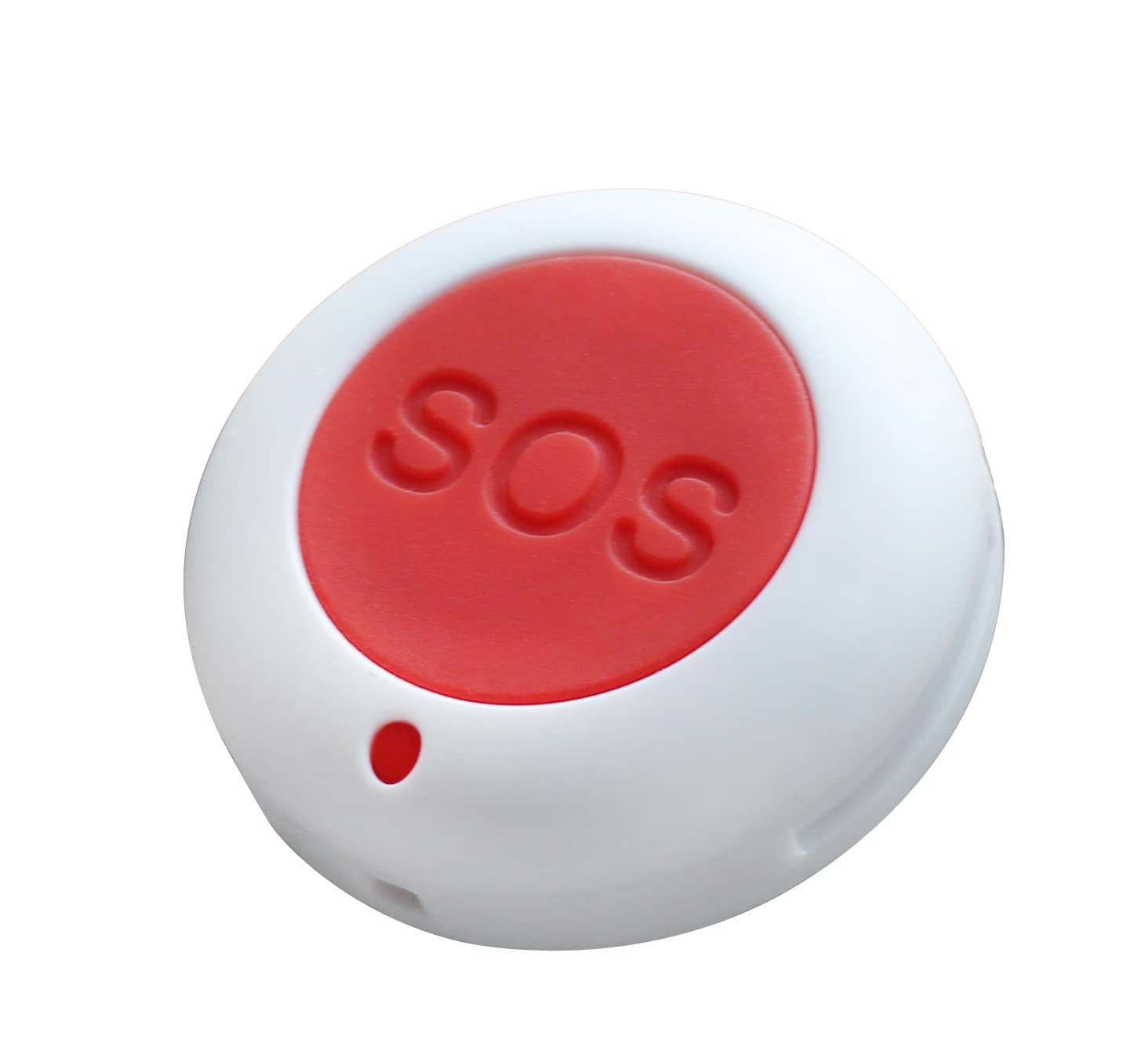
Image 1.1: The Homcloud SOS Emergency Button. This image shows the compact, white emergency button with a prominent red SOS symbol, indicating its primary function.
2. Package Contents
- 1 x Homcloud SOS Emergency Button (WL-RFPB)
- 1 x User Manual
3. Setup
3.1 Battery Installation
The Homcloud SOS Emergency Button is battery-powered. It requires two 'C' type batteries for operation.
- Locate the battery compartment on the back of the device.
- Open the battery compartment cover.
- Insert two 'C' type batteries, ensuring correct polarity (+/-).
- Close the battery compartment cover securely.
3.2 Pairing with Smart Home System
This device operates via radio frequency and is compatible with the Homcloud App, Smart Life App, Amazon Alexa, and Google Home when connected to a compatible smart home gateway or hub.
- Ensure your smart home gateway/hub is powered on and connected to your network.
- Open the Homcloud App or Smart Life App on your smartphone or tablet.
- Follow the in-app instructions to add a new device. Select the appropriate device type (e.g., 'Emergency Button' or 'Wireless Switch').
- Activate pairing mode on the SOS button (refer to specific instructions within the app, usually involves pressing and holding the button for a few seconds).
- Once successfully paired, the app will confirm the connection. You can then configure actions or notifications associated with the button press.
4. Operating Instructions
The Homcloud SOS Emergency Button is designed for simple, single-action use to trigger an emergency alert.
4.1 Triggering an SOS Alert
To activate the emergency alert:
- Press the large red SOS button firmly.
- Upon successful activation, the button will send a radio frequency signal to your paired smart home gateway/hub.
- Depending on your app configuration, this signal can trigger various actions, such as sending notifications to designated contacts, activating alarms, or initiating pre-set smart home routines.
Note: Ensure your smart home system and associated notifications are properly configured in the Homcloud or Smart Life App to receive and act upon emergency signals.
5. Maintenance
5.1 Battery Replacement
When the device's battery is low, it may indicate this through your smart home app (if supported) or by reduced responsiveness. Replace batteries as described in Section 3.1.
5.2 Cleaning
To clean the device, use a soft, dry cloth. Do not use abrasive cleaners or immerse the device in water.
6. Troubleshooting
| Problem | Possible Cause | Solution |
|---|---|---|
| Button does not respond. | Low or dead batteries. | Replace batteries (see Section 3.1). |
| Button not pairing with hub. | Incorrect pairing procedure. | Ensure the hub is in pairing mode and follow app instructions carefully. |
| No alert received after pressing. | Not paired, or app notifications not configured. | Verify pairing status in the app. Check app notification settings and routines. |
| Short range or intermittent connection. | Interference or distance from hub. | Move the button closer to the smart home hub. Check for sources of interference. |
7. Specifications
- Brand: Homcloud
- Model: WL-RFPB
- Dimensions (L x W x H): 5L x 2l x 6H cm
- Weight: 50 Grams
- Power Source: Battery powered
- Batteries Required: 2 x C type batteries
- Connectivity: Radio Frequency (RF), USB (for potential configuration/power)
- Compatible Devices: Homcloud App, Smart Life App, Amazon Alexa, Google Home (via compatible gateway/hub)
- Recommended Use: Emergency
8. Warranty Information
This product comes with a 2 Year Limited Warranty. Please retain your proof of purchase for warranty claims. The warranty covers defects in materials and workmanship under normal use. It does not cover damage caused by misuse, accidents, unauthorized modifications, or normal wear and tear.
9. Customer Support
For further assistance, troubleshooting, or warranty inquiries, please refer to the Homcloud official website or contact their customer support through the Homcloud App or Smart Life App. Ensure you have your product model number (WL-RFPB) and proof of purchase ready.