
WiMiUS K7
WiMiUS K7 Projector User Manual
Model: K7
Introduction
This manual provides comprehensive instructions for the setup, operation, and maintenance of your WiMiUS K7 Projector. The K7 projector is designed to deliver a high-quality visual experience with features such as Full HD 1080p resolution, 4K support, Auto 6D Keystone Correction, Infinity Zoom, and dual-band 2.4G/5G WiFi connectivity. It is suitable for various applications including home theater, gaming, and presentations.
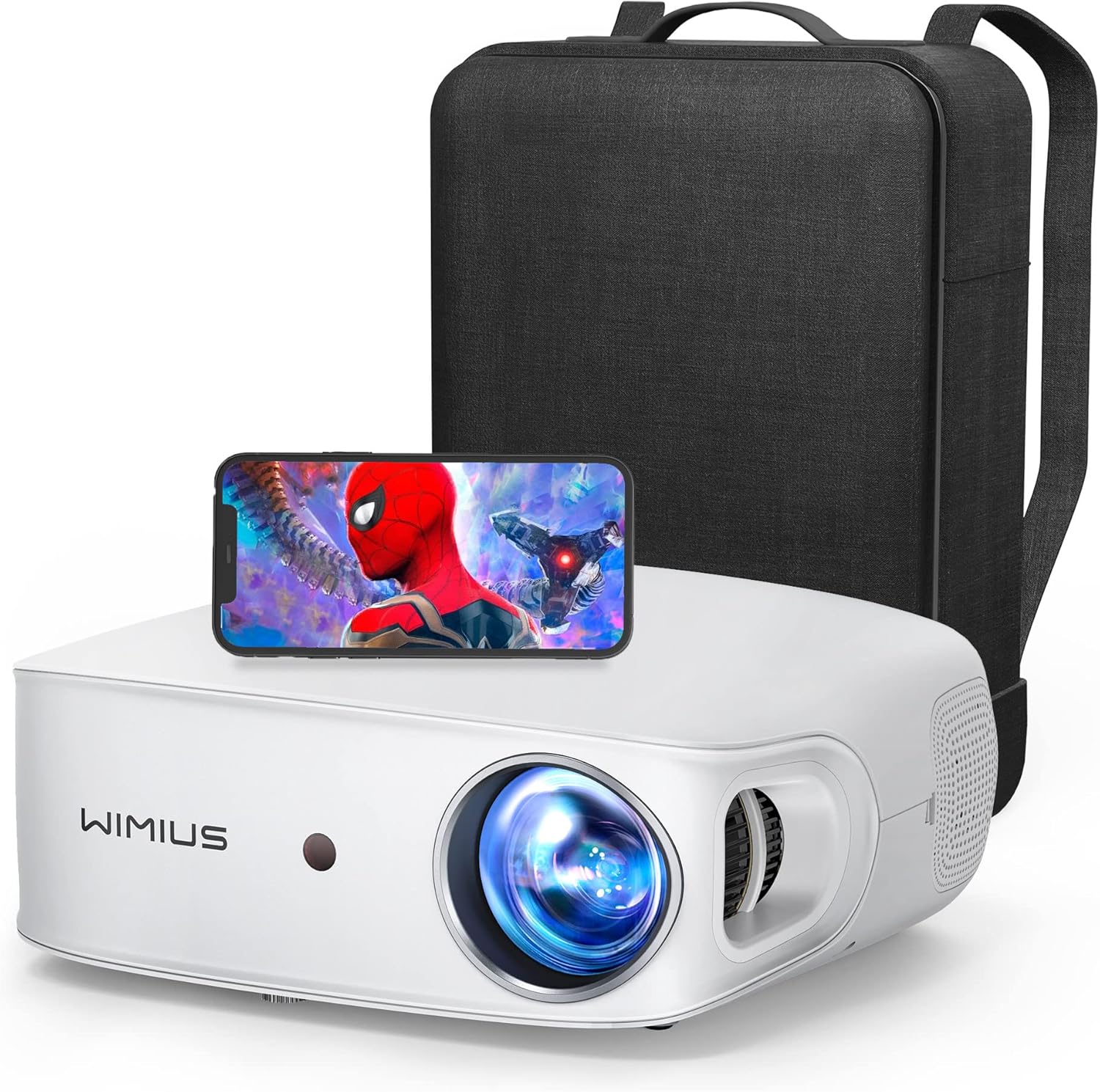
Image: The WiMiUS K7 Projector, shown in white, with a smartphone placed on top displaying a movie scene. A black carrying bag is visible behind the projector, indicating portability and included accessories.
Setup Guide
1. Unboxing and Initial Placement
Carefully remove all components from the packaging. The projector comes with a carrying bag for convenient transport. Place the projector on a stable, flat surface. For optimal viewing, consider the projection distance, which can range from 1.5m to 6m to achieve screen sizes from 50 inches to 300 inches. The optimum projection distance is typically 2.5-3m.
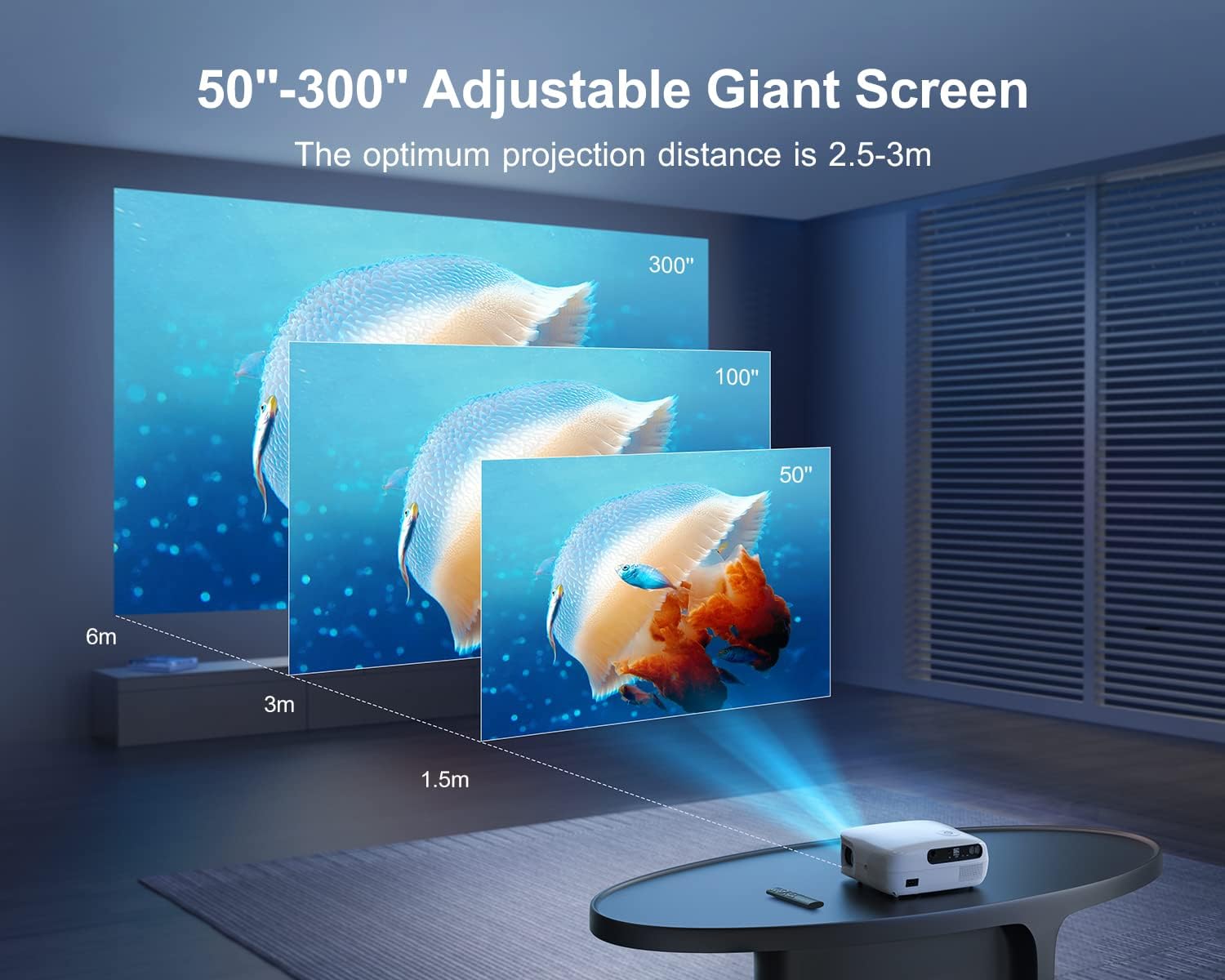
Image: An illustration demonstrating the adjustable screen size capability of the projector, ranging from 50 inches at 1.5m distance to 300 inches at 6m distance. This highlights the flexibility in setting up the projector in various room sizes.
2. Power Connection
Connect the power cable to the projector's power input port and then plug the other end into a standard electrical outlet. Ensure the power indicator light illuminates.
3. Auto 6D Keystone Correction
The WiMiUS K7 features automatic 6D keystone correction. This function automatically adjusts the image shape to be rectangular, even if the projector is placed at an angle or off-center. This is particularly useful for side projection setups. Manual adjustments are also available if needed.

Image: A visual representation of the projector's 6D Auto Keystone Correction. It shows how an initially trapezoidal projection from an angled projector is automatically corrected into a perfectly rectangular image on the screen, enhancing viewing quality.
4. Infinity Zoom Function
Utilize the infinity zoom function to adjust the screen size without physically moving the projector. This allows for fine-tuning the image to fit your projection surface perfectly.
Operating Instructions
1. Connectivity Options
The WiMiUS K7 Projector offers versatile connectivity:
- Wireless Connectivity: Supports dual-band 2.4G and 5G WiFi for smoother transmission and screen mirroring.
- Bluetooth 5.1: Connect external Bluetooth speakers or headphones for enhanced audio experience.
- Wired Inputs: Features multiple ports including HDMI (x2), USB (x2), and AV port for connecting various devices.

Image: A graphic illustrating the projector's dual-band 2.4G and 5G WiFi connectivity, with icons representing compatibility with iOS, Android, and Windows 10 devices for wireless screen mirroring.

Image: A visual representation of the projector's Bluetooth 5.1 capability, showing sound waves connecting the projector to a user, implying wireless audio output to external speakers or headphones.
2. Compatible Devices
The K7 projector is compatible with a wide range of devices, including laptops, smartphones (iOS and Android), gaming consoles (e.g., PS5), and media players that connect via HDMI, USB, or Bluetooth.

Image: An overhead view of the WiMiUS K7 Projector surrounded by various compatible devices, including a laptop, headphones, a tablet, and a game controller, demonstrating its multiple connectivity options (Double HDMI, Double USB, AV, Headset).
3. Screen Mirroring
Easily mirror content from your iOS, Android, or Windows 10 devices wirelessly using the built-in WiFi functionality. Follow the on-screen instructions for pairing your device.
4. Audio Output
The projector includes built-in stereo speakers for direct audio playback. For a more immersive experience, connect external speakers or a soundbar via Bluetooth 5.1 or the audio output port.
Maintenance
Regular maintenance ensures the longevity and optimal performance of your projector.
- Lens Cleaning: Gently clean the projector lens with a soft, lint-free cloth or a lens cleaning brush. Avoid abrasive materials that could scratch the lens.
- Ventilation: Ensure the projector's ventilation ports are clear of dust and obstructions to prevent overheating. Do not block the air vents during operation.
- Storage: When not in use, store the projector in its carrying bag in a cool, dry place to protect it from dust and damage.
Troubleshooting
If you encounter issues with your WiMiUS K7 Projector, refer to the following common troubleshooting steps:
- No Image:
- Check power connections and ensure the projector is turned on.
- Verify the input source is correctly selected (HDMI, USB, AV).
- Ensure the connected device (laptop, console) is powered on and outputting a signal.
- Poor Image Quality (Blurry/Distorted):
- Adjust the focus ring on the projector lens.
- Utilize the Auto 6D Keystone Correction or manually adjust keystone settings to correct image shape.
- Ensure the projection surface is flat and smooth.
- Check for dust on the lens and clean if necessary.
- No Sound:
- Increase the volume on both the projector and the connected device.
- If using external speakers, ensure they are properly connected and powered on.
- Verify Bluetooth connection if using wireless audio.
- WiFi/Bluetooth Connection Issues:
- Ensure the projector is within range of your WiFi router or Bluetooth device.
- Restart the projector and the device you are trying to connect.
- Check WiFi password or Bluetooth pairing status.
Specifications
| Feature | Detail |
|---|---|
| Brand | WiMiUS |
| Model Name | WiMiUS K7 Projector |
| Display Resolution | 1920 x 1080 Pixels (Full HD) |
| 4K Support | Yes |
| Brightness | 480 ANSI Lumens |
| Image Contrast Ratio | 5000:1 |
| Keystone Correction | Auto 6D Keystone Correction |
| Zoom Function | Infinity Zoom (70%-100%) |
| WiFi Connectivity | 2.4G + 5G Dual Band WiFi |
| Bluetooth | Bluetooth 5.1 |
| Hardware Interface | AV Port, Bluetooth, USB, HDMI |
| Compatible Devices | Laptops, Smartphones, Gaming Consoles (e.g. PS5), Media Players |
| Product Dimensions | 27 x 24 x 11 cm |
| Weight | 3.28 kg |
| Mounting Type | Portable Mount |
| Included Accessories | Carrying Bag |
Warranty and Support
WiMiUS is committed to providing excellent customer service. For any product-related inquiries, technical support, or warranty claims, please refer to the contact information provided with your product packaging or visit the official WiMiUS website. Customer support has been noted for its responsiveness and effectiveness.
Please retain your proof of purchase for warranty purposes.
Related documentsK7


Ask a question about this manual
Ask about setup, troubleshooting, compatibility, parts, safety, or missing instructions. Manuals+ will review the question and use this page’s manual context to help answer it.