
Beastron i8+BT
Rii Mini Wireless Bluetooth Keyboard with Touchpad
User Manual
1. Introduction and Overview
Thank you for choosing the Rii Mini Wireless Bluetooth Keyboard with Touchpad. This compact and versatile keyboard offers dual-mode connectivity (Bluetooth and 2.4GHz RF) for seamless control across a wide range of devices, including smartphones, PCs, tablets, laptops, and TV boxes. Its integrated touchpad provides intuitive navigation, making it an ideal solution for home entertainment, travel, and various computing needs.

Image 1.1: The Rii Mini Wireless Bluetooth Keyboard, showcasing its compact design and integrated touchpad.
2. Package Contents
Please check the box for the following items:
- 1 x Rii Mini Wireless Bluetooth Keyboard (Model: i8+BT)
- 1 x Wireless USB Dongle
- 1 x Micro USB Charging Cable
- 1 x User Manual
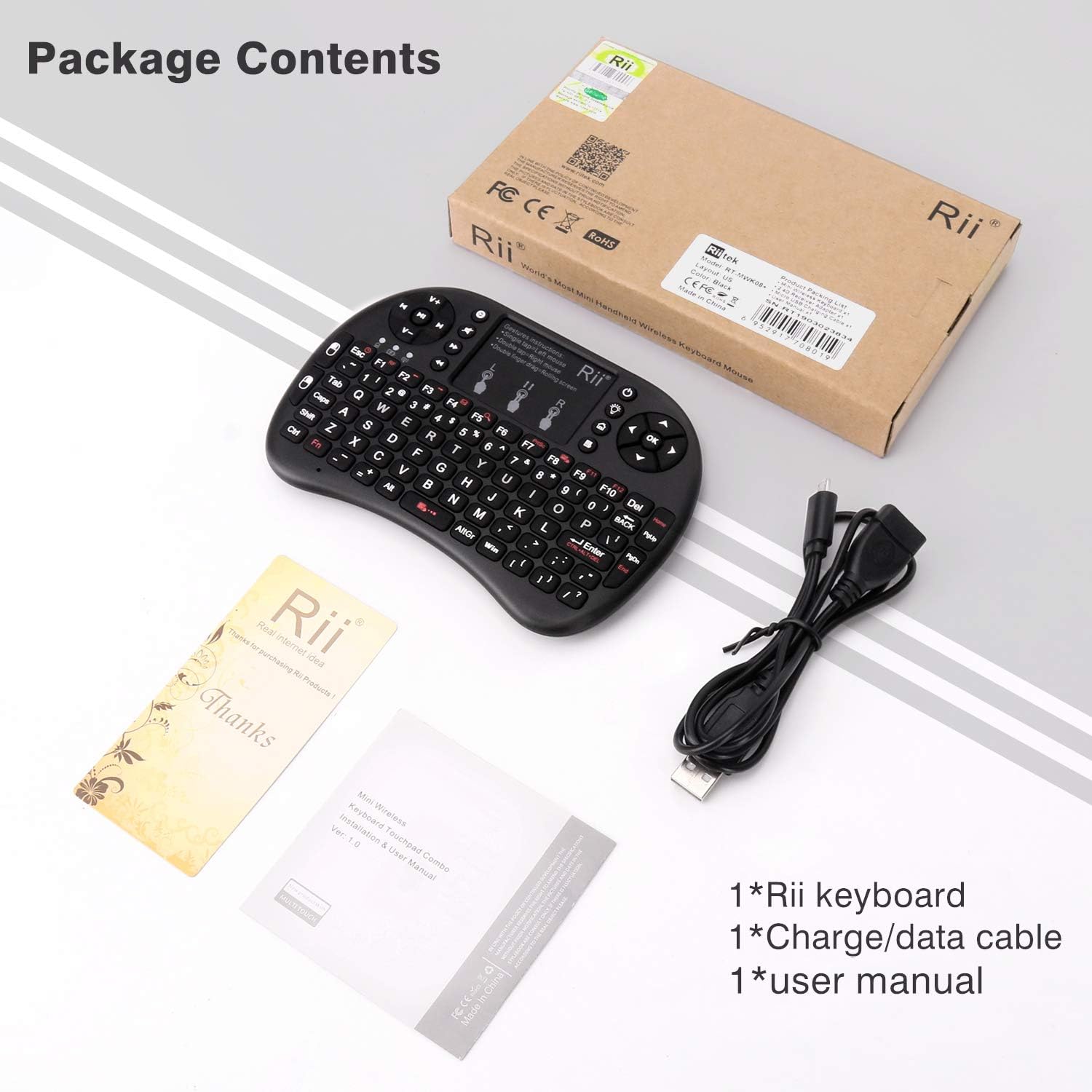
Image 2.1: All items included in the Rii Mini Wireless Bluetooth Keyboard package.
3. Features
- Dual Mode Connectivity: Supports both Bluetooth 4.0 and 2.4GHz RF wireless connections.
- Integrated Touchpad: High-sensitivity touchpad for precise cursor control, supporting multi-finger gestures.
- Full QWERTY Keyboard: 92-key layout for efficient typing.
- Rechargeable Battery: Built-in BL-5B 300mAh lithium-ion battery for extended use.
- Backlight Function: Illuminated keys for use in low-light conditions.
- Compact & Portable: Lightweight and pocket-sized design (5.9 x 3.9 x 0.5 inches, 5.3 ounces).
- Wide Compatibility: Compatible with Smartphones, PC, Tablet, Laptop, TV Box, iOS, Android, Windows, and Mac operating systems.

Image 3.1: The compact dimensions of the Rii Mini Keyboard, highlighting its portability.
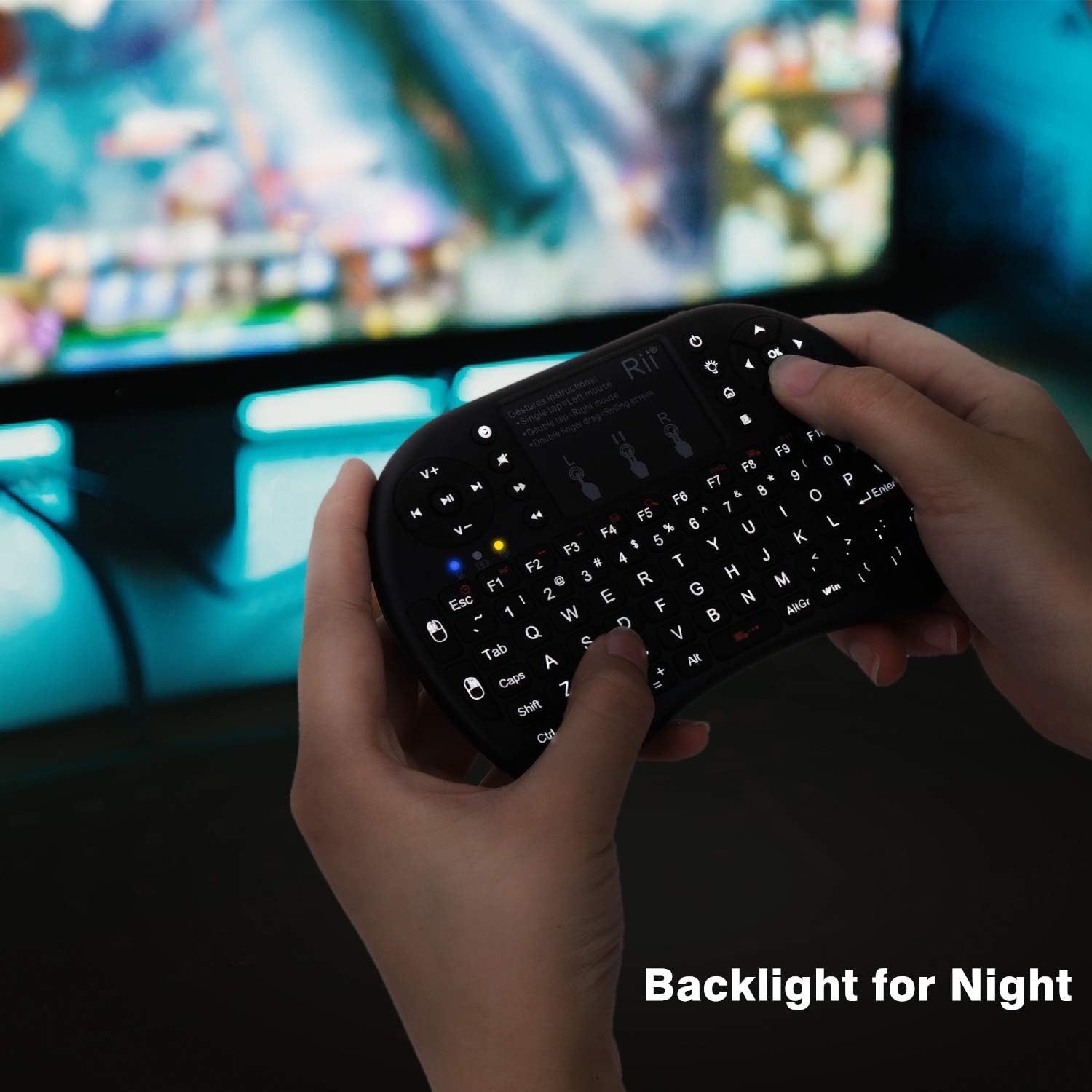
Image 3.2: The Rii Mini Keyboard with its backlight feature activated, ideal for night use.
4. Setup
4.1 Charging the Keyboard
Before first use, fully charge the keyboard using the provided Micro USB cable. Connect the Micro USB end to the keyboard's charging port and the USB-A end to a standard USB power source (e.g., computer USB port, USB wall adapter). The charging indicator light will illuminate during charging and turn off when fully charged.
4.2 2.4GHz RF Wireless Connection
- Locate the wireless USB dongle, usually stored in a compartment on the keyboard itself.
- Insert the USB dongle into an available USB port on your device (PC, Laptop, TV Box, etc.).
- Turn on the keyboard by sliding the power switch to the 'ON' position.
- The keyboard should automatically connect to the dongle. If not, press Fn + Tab to switch to 2.4G RF mode.
4.3 Bluetooth Connection
- Ensure the keyboard is powered on.
- Press the Bluetooth Pair Button (often indicated by a Bluetooth icon or specific Fn key combination) to enter pairing mode. The Bluetooth indicator light will blink.
- On your device (Smartphone, Tablet, PC), go to Bluetooth settings and search for new devices.
- Select "Rii Mini Keyboard" or a similar name from the list of available devices.
- If prompted, enter the pairing code displayed on your device using the Rii Mini Keyboard and press Enter.
- Once paired, the Bluetooth indicator light will stop blinking and remain solid.

Image 4.1: The Rii Mini Keyboard demonstrating its compatibility with smartphones, Mac, PC, tablets, Raspberry Pi, TV, Xbox, and PS3.
5. Operating Instructions
5.1 Basic Keyboard Usage
The keyboard functions like a standard QWERTY keyboard. Simply type as you would on a full-sized keyboard. Special characters and numbers can be accessed using the Fn key in combination with the corresponding keys.
5.2 Touchpad Gestures
The integrated touchpad supports various gestures for navigation:
- Single Tap: Left mouse click.
- Double Tap: Open item/execute.
- Two Fingers Click: Right mouse click.
- Two Fingers Drag: Scroll screen (vertical scrolling only).
- Fn + One Finger Movement: Alternative scrolling method.

Image 5.1: Visual guide to touchpad gestures including single tap for left click, double click to open, two fingers click for right click, and two fingers drag for scrolling.
5.3 Function Keys (Fn Combinations)
The keyboard features several function keys (F1-F12) and multimedia controls accessible by holding the Fn key and pressing the desired key. Some common combinations include:
- Fn + Esc: Standard browser start/home key.
- Fn + F1/F2: Display brightness down/up.
- Fn + F6: Opens email client.
- Fn + F8: Enables/disables tap-to-click on the touchpad.
- Light Bulb Icon: Toggles keyboard backlight on/off.
- House Icon: Home key (browser home on Windows, Android home).
- Menu Icon: Context menu (right-click menu).
5.4 Power Management
- Power Button: Acts as a sleep button for the connected PC.
- Dormancy Button: Puts the keyboard into a low-power sleep mode to conserve battery.
- Waking the Keyboard: Press any key to wake the keyboard from sleep. The first key press is not lost.

Image 5.2: The Rii Mini Keyboard being used as a remote control, portable keyboard, gaming keyboard, and handheld keyboard.
6. Maintenance
6.1 Cleaning
To clean the keyboard, gently wipe it with a soft, dry cloth. For stubborn dirt, a slightly damp cloth can be used, but ensure no moisture enters the device. Avoid using harsh chemicals or abrasive cleaners.
6.2 Battery Care
To prolong battery life:
- Avoid fully discharging the battery frequently.
- Charge the keyboard regularly, even if not in constant use.
- Store the keyboard in a cool, dry place when not in use for extended periods.
7. Troubleshooting
If you encounter issues with your Rii Mini Keyboard, please refer to the following common problems and solutions:
| Problem | Possible Cause | Solution |
|---|---|---|
| Keyboard not connecting via 2.4GHz RF | Dongle not properly inserted, incorrect mode, out of range. | Ensure dongle is fully inserted. Press Fn + Tab to switch to 2.4G RF mode. Reduce distance to dongle (optimal range is within 20ft, line of sight recommended). |
| Keyboard not connecting via Bluetooth | Not in pairing mode, already paired with another device, device Bluetooth off. | Ensure Bluetooth is enabled on your device. Press the Bluetooth Pair Button on the keyboard. Forget previous pairings on your device and re-pair. |
| Keys repeating or input delayed | Low battery, signal interference, software issue. | Charge the keyboard fully. Move closer to the receiver/device. Restart the keyboard and the connected device. Check for driver updates on your PC. |
| Touchpad unresponsive or erratic | Tap-to-click disabled, dirty touchpad, software issue. | Press Fn + F8 to ensure tap-to-click is enabled. Clean the touchpad surface. Restart the keyboard and device. |
| Backlight not working | Backlight off, low battery. | Press the Light Bulb Icon button to toggle the backlight. Ensure the keyboard is sufficiently charged. |
8. Specifications
| Feature | Detail |
|---|---|
| Transmit Mode | Bluetooth + (RF) 2.4GHz wireless technology |
| Power Supply | BL-5B 300mAh Lithium Polymer battery (included) |
| Working Current | <68mA |
| Sleeping Current (Class 1) | 130uA |
| Product Weight | 124.5g (4.4 ounces) |
| Product Dimensions | 5.9 x 3.9 x 0.5 inches (150 x 99 x 13 mm) |
| Number of Keys | 92 |
| Connectivity Technology | Bluetooth, USB |
| Compatible Devices | Laptop, PC, Tablet, Smartphones, TV Box, iOS, Android, Windows, Mac |
| Manufacturer | Beastron |
| Model Number | i8+BT |
9. Warranty and Support
This product comes with a standard manufacturer's warranty. Please refer to the product packaging or the retailer's website for specific warranty terms and duration. For technical support, troubleshooting assistance, or inquiries about your product, please contact Beastron customer service through their official website or the platform where you purchased the product. Keep your purchase receipt as proof of purchase for warranty claims.
Ask a question about this manual
Ask about setup, troubleshooting, compatibility, parts, safety, or missing instructions. Manuals+ will review the question and use this page’s manual context to help answer it.