
JBL JBL BAR5.0
JBL Bar 5.0 MultiBeam Soundbar User Manual
Model: JBL BAR5.0
1. Introduction
Welcome to your new JBL Bar 5.0 MultiBeam Soundbar. This manual provides essential information for setting up, operating, and maintaining your soundbar to ensure optimal performance and an immersive audio experience.
The JBL Bar 5.0 MultiBeam soundbar delivers an immersive 3D surround sound experience with Virtual Dolby Atmos and JBL MultiBeam technology. It features built-in 4K video pass-through with HDMI eARC, powerful bass from four passive radiators, and seamless music streaming via Chromecast built-in, AirPlay, and Bluetooth.
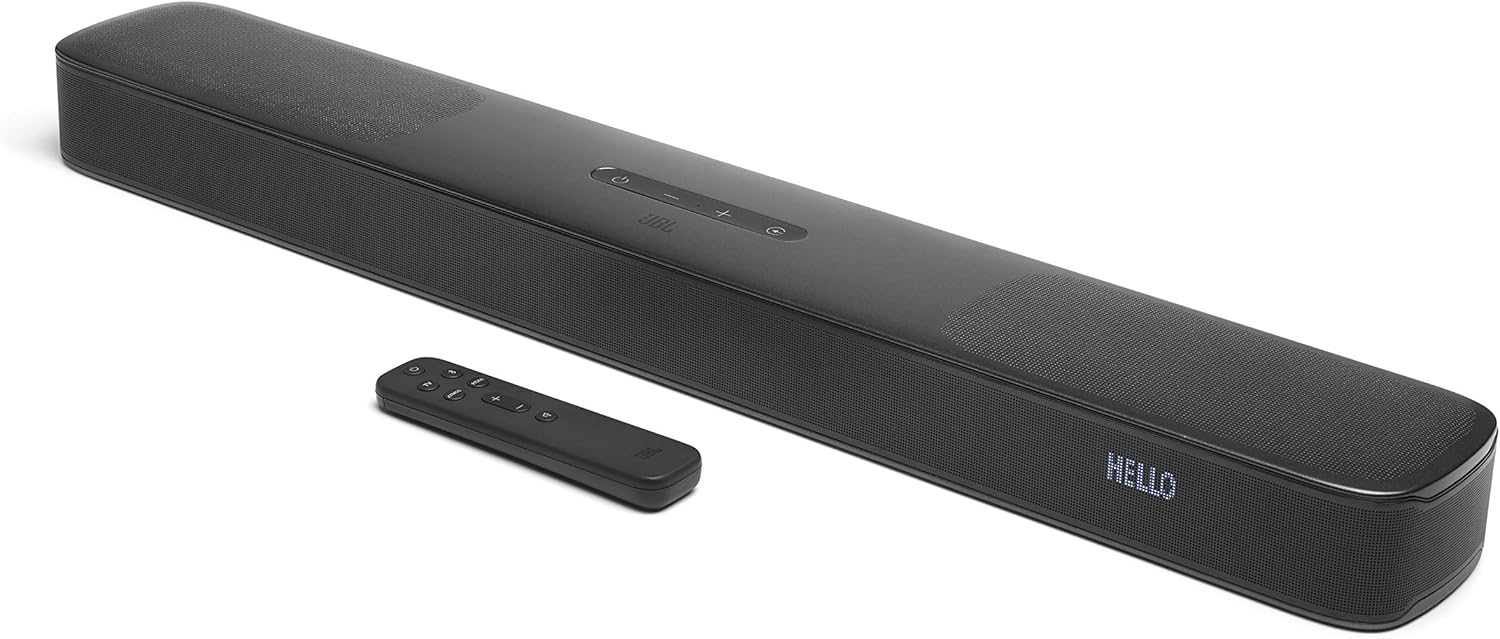
An overhead view of the JBL Bar 5.0 MultiBeam Soundbar in black, accompanied by its compact remote control. The soundbar features top-mounted controls and a front display.
2. What's in the Box
Verify that all the following components are included in your package:
- JBL Bar 5.0 MultiBeam Soundbar
- Remote Control (with batteries)
- Power Cable
- HDMI Cable
- Quick Start Guide (QSG)
3. Setup
3.1 Placement
Position the soundbar centrally below your television. Ensure there are no obstructions in front of the soundbar for optimal sound projection and MultiBeam technology performance. The soundbar can be placed on a flat surface or wall-mounted.
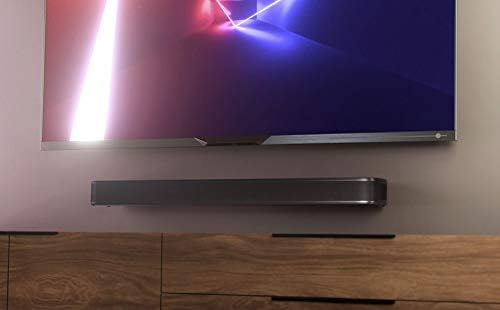
The JBL soundbar is neatly mounted on the wall directly below a large television screen, showcasing a clean and integrated home entertainment setup.
3.2 Connections
Follow these steps to connect your soundbar to your television and power source:
- Power Connection: Connect the supplied power cable to the soundbar's power input, then plug the other end into a working electrical outlet.
- HDMI eARC/ARC Connection (Recommended): For the best audio quality, including Dolby Atmos, connect the soundbar to your TV's HDMI eARC/ARC port using the provided HDMI cable. This single connection handles both audio and control signals.
- Other Connections (Optional): If your TV does not have an HDMI ARC/eARC port, you may use an optical audio cable (not included) to connect the soundbar to your TV's optical audio output.

The JBL soundbar is shown mounted beneath a large flat-screen television, which is displaying a vibrant football match. This setup demonstrates the soundbar's capability for built-in 4K video pass-through combined with HDMI eARC for high-quality audio and video integration.
3.3 Initial Setup and Room Calibration
After connecting, power on the soundbar and your TV. Ensure your TV's audio output is set to the HDMI ARC/eARC port or optical output, depending on your connection method. Refer to your TV's manual for specific audio settings.
Room Calibration: The JBL Bar 5.0 MultiBeam features an automatic room calibration function to optimize the sound for your specific listening environment. To initiate calibration, press and hold the CALIBRATION button on the remote control (or refer to the Quick Start Guide for button location). Follow any on-screen prompts or indicator lights on the soundbar. This process helps the MultiBeam technology accurately project sound for the best surround effect.
4. Operating Instructions
4.1 Basic Controls
The soundbar can be controlled using the included remote control or the touch-sensitive buttons located on the top panel of the soundbar.
- Power Button: Press to turn the soundbar on or off.
- Volume Up/Down (+/-): Adjusts the master volume level.
- Source Selection: Cycles through available input sources (HDMI, Bluetooth, Wi-Fi/Chromecast/AirPlay).
- Mute Button: Mutes or unmutes the sound.
4.2 Audio Modes and Features
Your JBL Bar 5.0 MultiBeam Soundbar incorporates advanced audio technologies for an enhanced listening experience:
- JBL MultiBeam Technology: This proprietary technology projects incredible sound to every corner of the room, creating a wide and immersive soundstage without the need for additional rear speakers. It uses digital signal processing to bounce sound off walls, simulating a surround sound environment.

An image depicting a modern living room setup with a television and the JBL soundbar. Orange sound waves emanate from the soundbar, illustrating the immersive 3D cinematic surround sound created by Virtual Dolby Atmos and JBL MultiBeam technology, filling the entire room.
- Virtual Dolby Atmos: Experience 3D spacious surround sound at home with built-in Virtual Dolby Atmos. This technology adds a height dimension to the audio, making sounds appear to come from above and around you, enhancing immersion in movies and games.
- Punchy Bass Performance: The soundbar is equipped with four passive radiators that deliver powerful, room-filling bass without the need for an external subwoofer, providing a rich low-frequency response.

A close-up view of the side of the JBL soundbar, with orange concentric circles illustrating the powerful, punchy bass produced by its four internal passive radiators, eliminating the need for a separate subwoofer.
4.3 Streaming and Connectivity
The JBL Bar 5.0 MultiBeam offers versatile options for streaming your favorite audio content:
- Bluetooth: Easily pair your smartphone, tablet, or other Bluetooth-enabled devices to stream audio wirelessly to the soundbar.
- Chromecast built-in: Stream music, podcasts, and more from hundreds of Chromecast-enabled apps directly to your soundbar over Wi-Fi.
- AirPlay: For Apple device users, AirPlay allows seamless audio streaming from your iPhone, iPad, or Mac to the soundbar over your Wi-Fi network.
- Alexa Multi-Room Music (MRM): Integrate the soundbar into your existing Alexa multi-room audio setup for synchronized music playback across multiple devices.

A smartphone is placed on top of the JBL soundbar, displaying a music player interface, indicating active streaming. Below the soundbar, logos for AirPlay, Amazon Alexa, Chromecast built-in, and Bluetooth are displayed, highlighting the soundbar's versatile streaming capabilities.

A graphic displaying the 'Works with Alexa' logo, indicating compatibility with Amazon Alexa voice control and multi-room music features.
5. Maintenance and Care
Proper care and maintenance will ensure the longevity and optimal performance of your JBL Bar 5.0 MultiBeam Soundbar:
- Cleaning: Use a soft, dry, lint-free cloth to gently wipe the surfaces of the soundbar. Do not use liquid cleaners, aerosol sprays, or abrasive materials, as these can damage the finish or internal components.
- Ventilation: Ensure that the soundbar has adequate ventilation. Do not block any ventilation openings, and avoid placing it in enclosed spaces that could restrict airflow.
- Storage: If you plan to store the soundbar for an extended period, disconnect it from the power outlet and store it in a cool, dry place, away from direct sunlight and extreme temperatures.
- Handling: Avoid dropping or subjecting the soundbar to strong impacts, which can cause internal damage.
6. Troubleshooting
If you encounter any issues with your JBL Bar 5.0 MultiBeam Soundbar, refer to the table below for common problems and their solutions. If the problem persists, contact customer support.
| Problem | Possible Cause | Solution |
|---|---|---|
| No Power | Power cable not securely connected; power outlet is not active. | Ensure the power cable is firmly plugged into both the soundbar and a working electrical outlet. Try a different outlet. |
| No Sound | Incorrect input source selected; TV audio output not configured correctly; soundbar or TV volume is too low or muted. | Press the Source button on the remote or soundbar to select the correct input (e.g., HDMI ARC). Check your TV's audio settings to ensure output is set to external speakers (HDMI ARC/eARC or Optical). Increase volume on both soundbar and TV. Check for mute status. |
| Bluetooth Pairing Issues | Bluetooth device not in pairing mode; soundbar not in Bluetooth pairing mode; too far from soundbar; interference. | Ensure both your device and the soundbar are in Bluetooth pairing mode. Move your device closer to the soundbar. Reduce interference from other wireless devices. Try resetting Bluetooth on your device. |
| Sound Distortion or Poor Quality | Volume too high; audio source quality is poor; incorrect audio settings. | Lower the volume. Try a different audio source to check if the issue persists. Ensure your TV's audio output format is compatible (e.g., PCM, Dolby Digital). |
| Remote Control Not Working | Batteries are dead or incorrectly inserted; obstruction between remote and soundbar; remote sensor blocked. | Replace the batteries in the remote control, ensuring correct polarity. Remove any obstructions between the remote and the soundbar. Ensure the soundbar's remote sensor is not blocked. |
For further assistance, please consult the full user manual available on the JBL website or contact JBL customer support.
7. Specifications
- Model Name: JBL BAR5.0
- Speaker Type: Soundbar
- Surround Sound Channel Configuration: 5.0
- Speaker Maximum Output Power: 180 Watts
- Connectivity Technology: Bluetooth, Wi-Fi, HDMI eARC
- Wireless Communication Technology: Bluetooth, Wi-Fi
- Control Method: Voice, Remote Control
- Compatible Devices: Laptop, Projector, Smartphone, Tablet, Television
- Product Dimensions (L x W x H): 38.03 x 6.34 x 5.08 inches (96.6 x 16.1 x 12.9 cm)
- Item Weight: 6.16 pounds (2.8 Kilograms)
- Included Components: JBL Bar 5.0 Soundbar, Quick Start Guide
- Power Source: Corded Electric
- Batteries: 2 AAA batteries required (for remote control)
- Manufacturer: JBL
- UPC: 656942575788
8. Warranty and Support
Your JBL Bar 5.0 MultiBeam Soundbar is covered by a limited warranty. For detailed information regarding warranty terms, conditions, and duration, please refer to the Quick Start Guide included with your product or visit the official JBL website.
For products purchased as "Amazon Renewed," additional replacement or refund options may be available under the Amazon Renewed Guarantee. Please refer to your purchase documentation or the Amazon Renewed program details for specific terms.
Contact Support:
- JBL Official Support: Visit the official JBL support website for frequently asked questions (FAQs), software updates, product registration, and direct contact information for technical support.
- Amazon Customer Service: For any issues related to your Amazon Renewed purchase, including returns or replacements, please contact Amazon customer service directly.
Related documentsJBL BAR5.0


Ask a question about this manual
Ask about setup, troubleshooting, compatibility, parts, safety, or missing instructions. Manuals+ will review the question and use this page’s manual context to help answer it.