
aurora OZ-DRL
Ozone Smart Rim Lock User Manual
Model: OZ-DRL
Brand: Ozone
Introduction
This manual provides comprehensive instructions for the installation, operation, and maintenance of your Ozone Smart Rim Lock, Model OZ-DRL. This advanced security device offers multiple access methods for enhanced convenience and protection.
Key Features
- Wi-Fi Connectivity for Smart Control
- Multiple Access Modes: Fingerprint, User Password, OzoLife Mobile App, RFID Card, Emergency Key
- High Fingerprint Capacity (100 fingerprints)
- Durable Stainless Steel and Alloy Steel Construction
- Easy Installation
Components Overview
The Ozone Smart Rim Lock system consists of the main lock unit and the external keypad/reader. Familiarize yourself with the key parts:
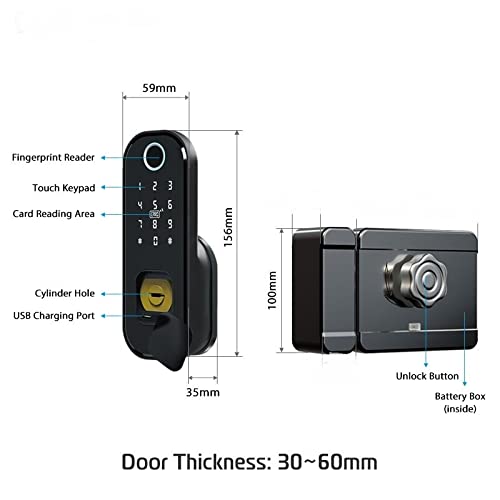
Figure 1: Smart Rim Lock Components and Dimensions
This diagram illustrates the main components of the lock. The external unit features a Fingerprint Reader, Touch Keypad, Card Reading Area, Cylinder Hole for emergency key access, and a USB Charging Port. The internal unit includes an Unlock Button and a Battery Box. The lock is designed for door thicknesses between 30mm and 60mm.
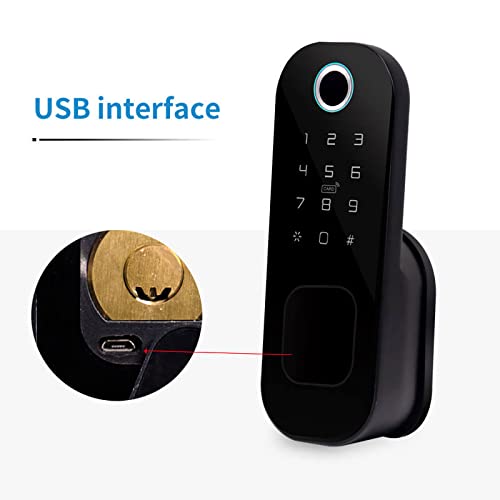
Figure 2: USB Charging Port Detail
A detailed view of the USB interface, located near the cylinder hole, used for emergency power or charging.
Package Contents
- Ozone Smart Rim Lock Unit (External and Internal)
- Mounting Hardware
- Emergency Keys
- RFID Cards (Quantity may vary)
- User Manual (This document)
Technical Specifications

Figure 3: Technical Parameters and Specifications
This image provides a comprehensive overview of the lock's technical parameters and detailed specifications.
| Feature | Detail |
|---|---|
| Model | OZ-DRL |
| Material | Stainless Steel, Alloy Steel |
| Color | Black |
| Dimensions (L x W x H) | 25.4 x 20.3 x 10.2 cm |
| Lock Type | Key Lock (with smart features) |
| Connectivity | Wi-Fi |
| Control Method | App, Fingerprint, Keypad, RFID Card, Emergency Key |
| Fingerprint Capacity | 100 |
| Password Length | 4-8 digits |
| Virtual Password | Up to 32 digits |
| Door Thickness | 30-60 mm |
| Power | DC 6V |
| Emergency Power | DC 5V (via Micro USB) |
| Operating Temperature | -25°C to 60°C |
| Working Relative Humidity | 20%-90%RH |
Installation Guide
The Ozone Smart Rim Lock is designed for easy installation, retrofitting with regular rim locks without additional cutouts.
Before Installation
- Ensure your door thickness is between 30mm and 60mm.
- Verify all components are present as listed in the "Package Contents" section.
- Prepare necessary tools (screwdriver, drill if required for new installations).
Installation Steps (General)
- Prepare the Door: Remove any existing rim lock. Ensure the door frame and door edge are clean and clear.
- Mount the External Unit: Position the external keypad/reader unit on the outside of the door. Secure it using the provided mounting hardware.
- Install the Internal Unit: Align the internal lock unit with the external unit, ensuring the spindle and wiring (if any) connect properly. Secure the internal unit to the door.
- Connect Power: Insert the required batteries into the battery box within the internal unit.
- Test Operation: After installation, test the mechanical lock function with the emergency key.
Note: For detailed, step-by-step installation instructions, please refer to the specific installation diagram or video provided with your product packaging, or consult a professional installer.
Operating Your Smart Rim Lock
Your Ozone Smart Rim Lock offers multiple convenient ways to unlock your door.
Initial Setup and Administrator
Upon first power-up, you will need to set up an administrator. This is typically the first fingerprint or password registered. Refer to the lock's voice prompts or the OzoLife App for guided setup.
Access Modes

Figure 4: Available Access Modes
This image highlights the five primary methods for unlocking the Ozone Smart Rim Lock.
1. Fingerprint Access
- Enrollment: As an administrator, follow the voice prompts or app instructions to enroll new fingerprints. Place the finger firmly on the fingerprint reader until successful registration is confirmed.
- Unlocking: Place your registered finger on the fingerprint reader. The lock will unlock if the fingerprint is recognized.
2. User Password Access
- Setting Passwords: Administrators can set or modify user passwords (4-8 digits) via the keypad or OzoLife App.
- Unlocking: Enter your registered password on the touch keypad, followed by the '#' key.
- Virtual Password: To prevent peeping, you can enter random digits before or after your actual password (e.g.,
XXXXpasswordYYYY).
3. OzoLife Mobile App Control
- Download & Connect: Download the "OzoLife" app from your smartphone's app store. Follow the in-app instructions to connect your lock to your home Wi-Fi network and pair it with the app.
- Remote Unlocking: Once connected, you can remotely unlock the door, manage users, view access logs, and receive notifications through the app.
4. RFID Card Access
- Enrollment: Register RFID cards through the administrator mode or OzoLife App.
- Unlocking: Present a registered RFID card to the card reading area on the external unit. The lock will unlock upon recognition.
5. Emergency Key Access
In case of battery depletion or electronic malfunction, the emergency key provides mechanical access.
- Insert the emergency key into the cylinder hole.
- Turn the key to unlock the door.
Battery Management
The lock will provide a low power warning when batteries are running low. Replace batteries promptly to ensure continuous operation. In an emergency, the USB charging port can be used for temporary power.
Maintenance
- Cleaning: Wipe the lock's surface with a soft, dry cloth. Avoid abrasive cleaners or solvents.
- Battery Replacement: Replace all batteries with new ones when the low power warning is activated. Use high-quality alkaline batteries.
- Fingerprint Sensor Care: Keep the fingerprint sensor clean and dry for optimal performance.
- Software Updates: Regularly check the OzoLife App for firmware updates to ensure your lock has the latest features and security enhancements.
Troubleshooting
If you encounter issues with your Ozone Smart Rim Lock, refer to the following common problems and solutions:
- Lock is not responding.
- Check battery levels and replace if necessary.
- Use the emergency key to open the door.
- Try connecting a power bank to the USB charging port for temporary power.
- Fingerprint not recognized.
- Ensure your finger is clean and dry.
- Place your finger firmly and completely on the sensor.
- Re-enroll your fingerprint if the issue persists.
- App connection issues.
- Ensure your Wi-Fi network is stable and the lock is within range.
- Restart your router and the lock.
- Re-pair the lock with the OzoLife App.
- Keypad not responding.
- Check for low battery warning.
- Ensure no foreign objects are obstructing the keypad.
Warranty Information
The Ozone Smart Rim Lock (Model OZ-DRL) comes with a 12-month warranty from the date of purchase. This warranty covers manufacturing defects and malfunctions under normal use.
The warranty does not cover:
- Damage caused by improper installation or unauthorized repairs.
- Damage due to misuse, abuse, or neglect.
- Normal wear and tear.
- Damage caused by natural disasters or accidents.
Please retain your purchase receipt as proof of purchase for warranty claims.
Customer Support
For further assistance, technical support, or warranty claims, please contact Ozone customer service:
- Phone: +91-9310012300
- Website: www.ozonesecutech.com
- Email: info@ozonesecutech.com
When contacting support, please have your product model (OZ-DRL) and purchase details ready.
Ask a question about this manual
Ask about setup, troubleshooting, compatibility, parts, safety, or missing instructions. Manuals+ will review the question and use this page’s manual context to help answer it.