
1. Introduction
Thank you for choosing the cimetech Wireless Keyboard and Mouse Combo. This product is designed to provide a comfortable and efficient typing and navigation experience for your computer. This manual will guide you through the setup, operation, and maintenance of your new wireless combo.

Figure 1: cimetech Wireless Keyboard and Mouse Combo (Dark Blue)
2. Key Features
- Slim and Ergonomic Design: The keyboard features a tilt angle for comfortable typing. The mouse has a contoured, sweat-resistant, skin-friendly finish for extended use.
- Full Size & Ultra-thin Keyboard: Measuring 14.5x5.8x0.2 inches with 99 keys, this ultra-thin keyboard is portable and suitable for various environments. It includes multi-media hotkeys for quick access to music, internet, email, and volume controls.
- Less Noise & Low Profile Keys: The keyboard's noise-reduced keys and the silent click of the mouse minimize disturbance. Both devices feature auto-sleeping mode and on/off switches to conserve battery life.
- Fast Operation 2.4G Wireless Plug and Play: Connect both the keyboard and mouse with a single USB receiver for a strong, reliable wireless connection up to 10 meters (33 ft) without delays or dropouts.
- Wide Compatibility: Works with PC, desktop computers, laptops, or notebooks running Windows XP / Vista / 7 / 8 / 10 operating systems.
3. Setup Guide
3.1. Battery Installation
The mouse requires one (1) AA battery, and the keyboard requires two (2) AA batteries (not included). Ensure correct polarity when inserting batteries.
- For the Mouse: Open the battery compartment cover on the underside of the mouse. Insert one AA battery, observing the polarity markings. Close the cover.
- For the Keyboard: Open the battery compartment cover on the underside of the keyboard. Insert two AA batteries, observing the polarity markings. Close the cover.
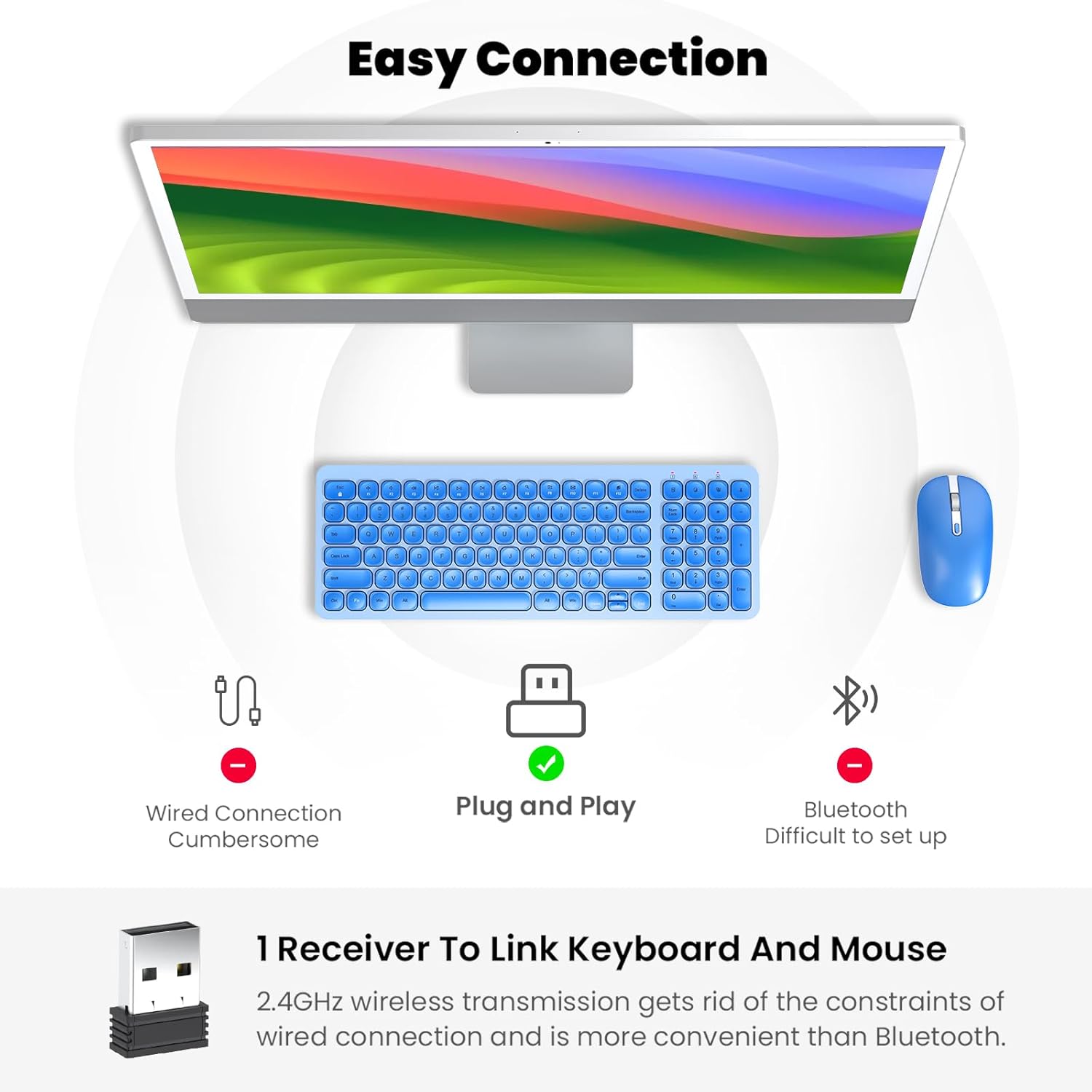
Figure 2: Mouse battery compartment showing AA battery insertion.

Figure 3: Keyboard battery compartment showing two AA batteries.
3.2. Connecting the USB Receiver
The 2.4G USB receiver is conveniently stored inside the mouse's battery compartment.
- Locate and remove the USB receiver from the mouse's battery compartment.
- Plug the USB receiver into an available USB port on your computer.
- Turn on the mouse using the ON/OFF switch located on its underside.
- Turn on the keyboard using the ON/OFF switch located on its underside.
- Your computer should automatically detect and install the necessary drivers. The keyboard and mouse are now ready for use.

Figure 4: USB receiver stored within the mouse battery compartment.
3.3. Setup Demonstration Video
Video 1: Demonstration of battery installation and USB receiver setup for the cimetech Wireless Keyboard.
Video 2: Detailed look at the cimetech Wireless Keyboard and Mouse Combo, including battery and dongle placement.
4. Operating Instructions
4.1. Keyboard Usage
- Typing: The low-profile scissor-switch keys provide a quiet and comfortable typing experience with uniform force distribution.
- Multimedia Hotkeys: Use the 'Fn' key in combination with the F1-F12 keys for quick access to various functions such as media control, volume adjustment, and internet browsing. Refer to the keycap icons for specific functions.
- Numeric Keypad: The full-size keyboard includes a dedicated numeric keypad for efficient data entry.

Figure 5: Close-up of the keyboard keys, highlighting the scissor-switch mechanism for comfortable typing.

Figure 6: The keyboard's quiet keys reduce typing noise, ideal for shared spaces.
4.2. Mouse Usage
- DPI Adjustment: The mouse features adjustable DPI settings (800/1200/1600) to customize cursor sensitivity. Press the DPI button (usually located near the scroll wheel) to cycle through settings.
- Silent Click: The mouse is designed with silent click buttons to minimize noise.
- Scroll Wheel: Use the metal scroll wheel for smooth vertical scrolling.
4.3. Power Saving Features
- Auto-Sleep Mode: The keyboard enters sleep mode after 10 minutes of inactivity, and the mouse after 15 minutes, to conserve battery. Press any key or click the mouse to wake them up.
- ON/OFF Switches: For extended periods of non-use, turn off the keyboard and mouse using their respective ON/OFF switches.
5. Maintenance
- Cleaning: Use a soft, dry cloth to clean the surfaces of the keyboard and mouse. Avoid using harsh chemicals or abrasive materials.
- Battery Replacement: Replace batteries when performance degrades. Always use new AA batteries and dispose of old batteries responsibly.
- Storage: When not in use for extended periods, store the USB receiver inside the mouse's battery compartment to prevent loss.
6. Troubleshooting
- No Response from Keyboard/Mouse:
- Ensure both devices are turned ON using their respective switches.
- Check if the batteries are correctly installed and have sufficient charge. Replace if necessary.
- Verify that the USB receiver is securely plugged into a working USB port on your computer. Try a different USB port.
- Restart your computer.
- Lagging or Intermittent Connection:
- Ensure the distance between the devices and the USB receiver is within 10 meters (33 ft).
- Avoid placing the receiver near strong electromagnetic interference sources (e.g., other wireless devices, large metal objects).
- Replace batteries if they are low.
- Mouse Cursor Movement is Erratic:
- Clean the optical sensor on the underside of the mouse.
- Ensure you are using the mouse on a suitable surface (not highly reflective or transparent).
- Adjust the DPI setting to a lower sensitivity if the cursor is too fast.
7. Specifications
| Feature | Detail |
|---|---|
| Product Dimensions | 14.57 x 5.31 x 1.97 inches |
| Item Weight | 1.21 pounds |
| Connectivity Technology | Radio Frequency, USB (2.4G Wireless) |
| Special Features | Ergonomic, Lightweight, Portable, Silent Keys, Auto-Sleep |
| Compatible Devices | Laptop, Personal Computer (Windows XP / Vista / 7 / 8 / 10) |
| Keyboard Battery | 2 x AA Batteries (not included) |
| Mouse Battery | 1 x AA Battery (not included) |
8. Warranty and Support
For information regarding product warranty, returns, or technical support, please refer to the retailer's policy or contact cimetech customer service directly. Optional protection plans may be available for purchase separately to extend coverage beyond the standard warranty period.
- Protection Plan Options:
- 3-Year Protection Plan
- 4-Year Protection Plan
- Complete Protect (monthly plan covering eligible past and future purchases)