
1. Introduction
This manual provides instructions for the GEEZER G100 Wireless Keyboard and Mouse Combo. This combo offers a full-sized keyboard with a wrist rest and a silent mouse, connecting wirelessly via a 2.4G USB nano dongle. It is designed for compatibility with various devices including laptops, desktops, PCs, and Macs running Windows operating systems.
2. What's in the Box
- Wireless Keyboard x1
- Wireless Mouse x1
- Wireless USB Nano Dongle x1
- User Manual x1
3. Setup Instructions
Follow these steps to set up your GEEZER G100 Wireless Keyboard and Mouse Combo:
- Install Batteries:
- For the keyboard: Open the battery compartment on the back of the keyboard. Insert one AAA battery (not included). Ensure correct polarity.
- For the mouse: Open the battery compartment on the bottom of the mouse. Insert one AA battery (not included). Ensure correct polarity.
- Connect USB Nano Dongle: Locate the USB nano dongle inside the mouse's battery compartment. Remove it and plug it into an available USB port on your computer (laptop, desktop, PC, or Mac).
- Power On Devices:
- For the keyboard: Locate the ON/OFF switch on the back of the keyboard and slide it to the 'ON' position.
- For the mouse: Locate the ON/OFF switch on the bottom of the mouse and slide it to the 'ON' position. A red light will illuminate on the mouse to indicate it is powered on.
- Automatic Connection: The keyboard and mouse should automatically connect to your computer. No additional drivers are typically required.
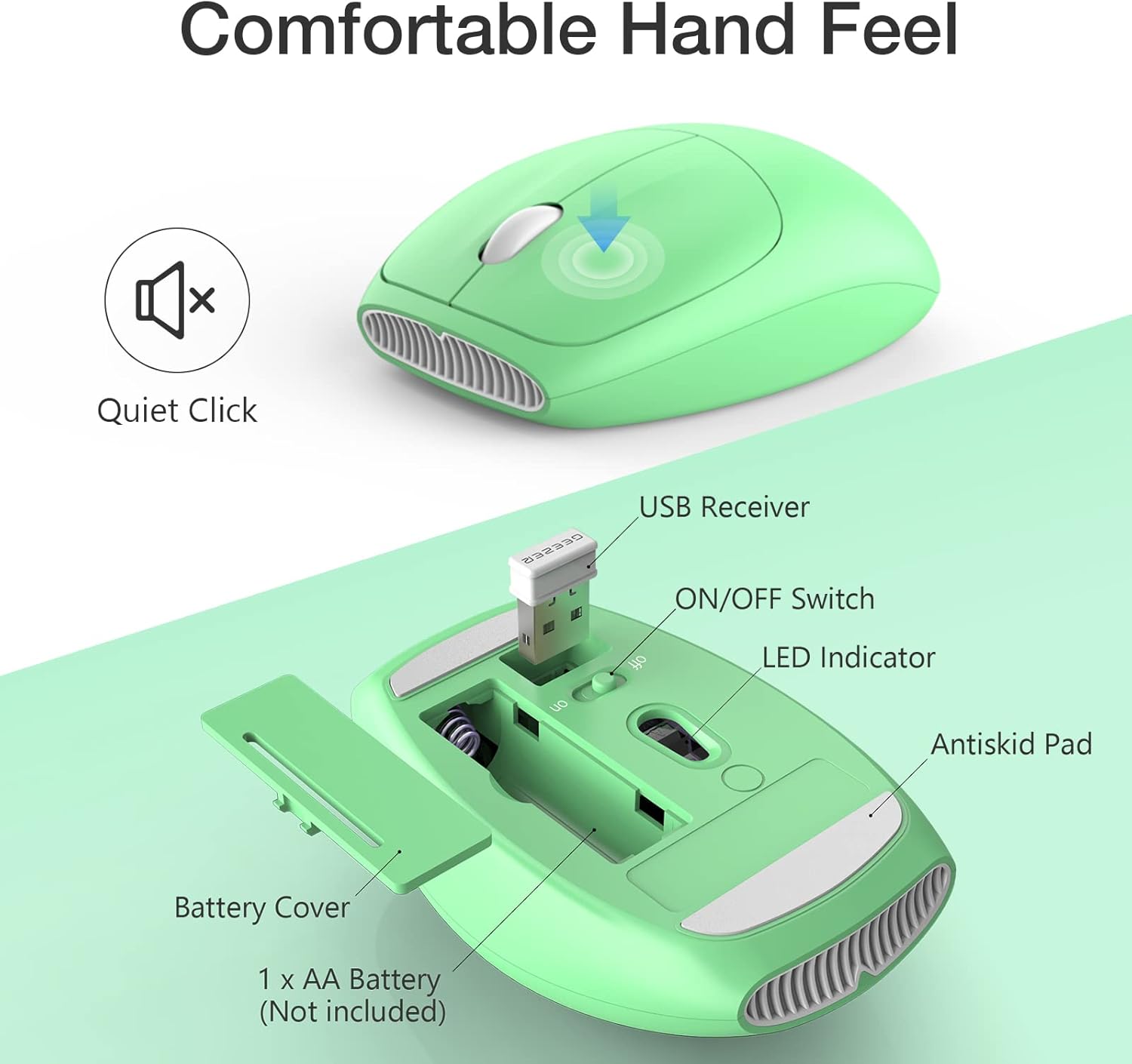
Figure 3.1: Mouse battery and USB receiver compartment. Insert one AA battery and remove the USB receiver to connect to your computer.

Figure 3.2: Keyboard back view. Insert one AAA battery and use the foldable stands for ergonomic typing.
Video 3.1: Unboxing and Setup Demonstration.
4. Operating Instructions
4.1 Keyboard Usage
The GEEZER G100 keyboard features a full-sized layout with a built-in wrist rest for comfortable typing. The keys are designed for a soft and quiet typing experience.
- Ergonomic Design: The keyboard includes a palm rest and adjustable stand feet to enhance typing comfort and reduce wrist strain.
- Function Keys (Fn Combinations): Utilize the 'Fn' key in combination with the F1-F12 keys for various multimedia and system functions. For example:
- Fn + Esc = Music Player
- Fn + F1 = Play/Pause
- Fn + F2 = Previous Song
- Fn + F3 = Next Song
- Fn + F4 = Volume Up (V+)
- Fn + F5 = Volume Down (V-)
- Fn + F6 = Mute
- Fn + F7 = Home Page
- Fn + F8 = Search
- Fn + F9 = Collection
- Fn + F10 = Email
- Fn + F11 = Keyboard Lock
- Fn + F12 = My Computer
- Automatic Sleep Function: To conserve battery life, the keyboard will enter sleep mode after a period of inactivity. Press any key to wake it up.

Figure 4.1: Keyboard FN Key Functions.

Figure 4.2: Automatic Sleep Function. Press any key to wake the keyboard.
Video 4.1: Keyboard Wrist Rest Feature.
4.2 Mouse Usage
The GEEZER G100 mouse is designed for quiet operation and comfortable hand feel.
- Silent Click: The mouse buttons are engineered to produce minimal noise, making it suitable for quiet environments.
- Automatic Sleep Function: Similar to the keyboard, the mouse will enter sleep mode after a period of inactivity to save battery. Move or click the mouse to wake it up.
5. Maintenance
- Cleaning: Use a soft, dry cloth to clean the keyboard and mouse. Avoid using harsh chemicals or abrasive materials.
- Battery Replacement: Replace batteries when performance degrades. Refer to Section 3.1 for battery type and installation.
- Storage: When not in use for extended periods, turn off both the keyboard and mouse to conserve battery life. Store the USB nano dongle in the mouse's battery compartment to prevent loss.
6. Troubleshooting
- No Connection:
- Ensure both keyboard and mouse are turned ON.
- Check if the USB nano dongle is securely plugged into a working USB port on your computer.
- Verify that the batteries in both devices are correctly installed and have sufficient charge. Replace if necessary.
- Try plugging the USB dongle into a different USB port.
- Lag or Intermittent Connection:
- Ensure there are no large metallic objects or other wireless devices interfering with the 2.4G signal between the dongle and the devices.
- Reduce the distance between the keyboard/mouse and the USB dongle. The effective range is up to 33 feet (10 meters).
- Keys Not Responding / Mouse Not Moving:
- Check battery levels and replace if low.
- Ensure the devices are not in sleep mode (press any key/move mouse to wake).
- Re-pair the devices by unplugging and re-plugging the USB dongle, then turning the devices off and on.
7. Specifications
| Feature | Specification |
|---|---|
| Brand | GEEZER |
| Model Number | G100 |
| Connectivity Technology | 2.4G USB Wireless |
| Special Feature | Ergonomic, Portable |
| Compatible Devices | Laptop, Mac, Personal Computer (Windows) |
| Keyboard Battery | 1 x AAA (not included) |
| Mouse Battery | 1 x AA (not included) |
| Item Weight | 1.85 pounds |
| Package Dimensions | 17.48 x 7.44 x 2.99 inches |

Figure 7.1: Product Dimensions and Ergonomic Tilt.
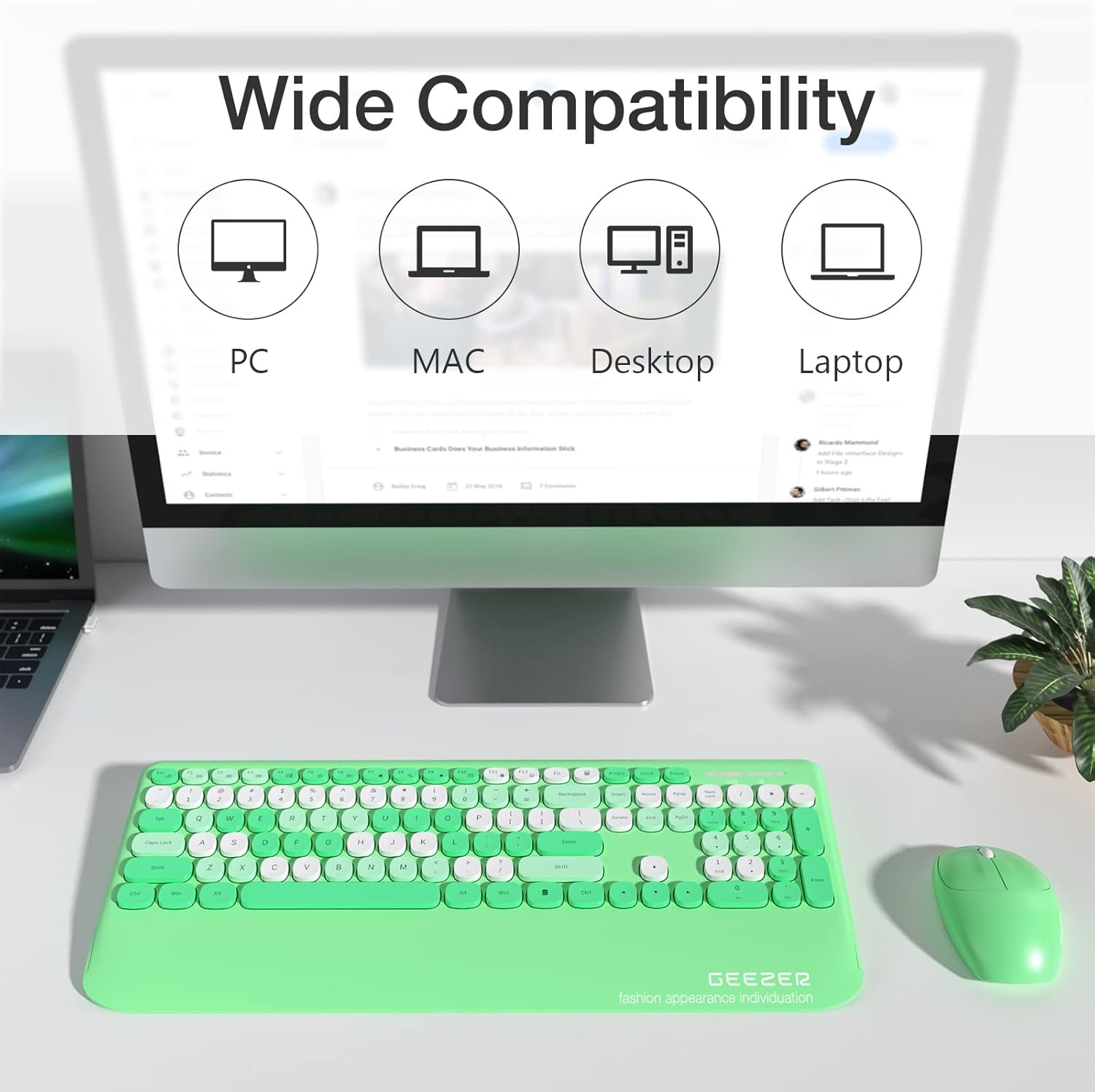
Figure 7.2: Wide Compatibility with various computer types.

Figure 7.3: 2.4G Wireless Technology and Connection Range.
8. Warranty and Support
For warranty information and customer support, please refer to the contact details provided on the product packaging or visit the official GEEZER website. Keep your purchase receipt for any warranty claims.


