
Introduction
Thank you for choosing the MageGee GT860 96-Key Wired RGB Backlit Gaming Keyboard. This keyboard is designed for both gaming and daily use, featuring a compact layout, ergonomic design, and customizable RGB backlighting. This manual will guide you through the setup, operation, and maintenance of your new keyboard to ensure optimal performance and user experience.
Package Contents
- MageGee GT860 96-Key Wired RGB Backlit Gaming Keyboard
- User Manual
Product Overview
Keyboard Layout
The MageGee GT860 features a 92% compact layout, retaining essential keys while offering a space-saving design. It includes a full numeric keypad and function keys.

Image: The MageGee GT860 keyboard showcasing its 96-key layout with RGB backlighting and black and yellow keycaps.

Image: A detailed view of the standard 96-key layout with full RGB backlighting, highlighting the compact yet functional design.
Key Features
- 92% Compact Layout: Offers a balance between full functionality and a space-saving design.
- Membrane with Mechanical Feel: Utilizes advanced imitation mechanical technology for a tactile typing experience.
- Ergonomic Design: Key layout is engineered for comfortable use during extended periods, reducing fatigue.
- RGB Backlighting: Features multiple lighting modes and colors, with adjustable brightness and breathing speed.
- Plug and Play: No drivers required for basic functionality.
- Wide Compatibility: Supports Windows 10, 8, 7, XP, VISTA, and Mac OS.
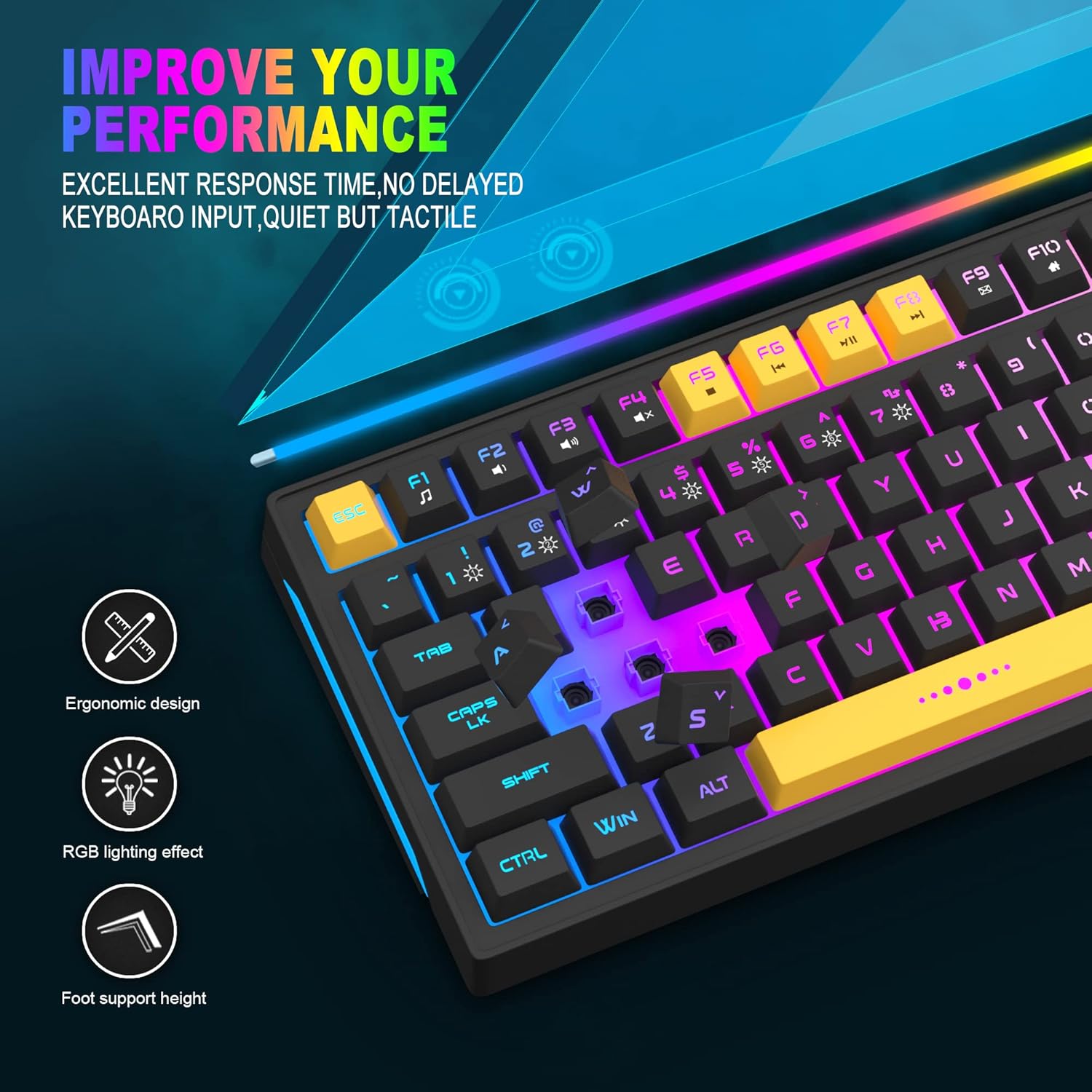
Image: Close-up showing the ergonomic design and RGB lighting effect of the keyboard, emphasizing comfort and visual appeal.

Image: A side view of the keyboard illustrating its thoughtful ergonomic design with a 7-degree tilt for improved typing posture.
Setup Instructions
- Unpack the keyboard and ensure all package contents are present.
- Connect the USB cable from the keyboard to an available USB port on your computer.
- The keyboard is plug-and-play and should be automatically recognized by your operating system (Windows, Mac OS). No additional drivers are typically required for basic functionality.
- Once connected, the RGB backlighting will illuminate, indicating the keyboard is powered on and ready for use.
Operating Instructions
RGB Backlight Control
The MageGee GT860 keyboard features customizable RGB backlighting with various modes and effects.
- Changing Lighting Modes: Press the FN key combined with keys 1 through 6 to cycle through different RGB lighting effects and colors.
- Adjusting Brightness: Use specific key combinations (refer to keyboard legends or experiment with FN + Arrow keys if not explicitly labeled) to increase or decrease backlight brightness.
- Adjusting Breathing Speed: Some modes allow adjustment of the breathing or animation speed.

Image: The keyboard displaying various RGB backlit lighting modes, illustrating the range of color options available.

Image: A dynamic view of the keyboard showcasing its 18 RGB LED light effects, highlighting the vibrant backlighting.
Multimedia and Function Keys
The keyboard includes dedicated function keys (F1-F12) that can be accessed by pressing the FN key simultaneously with the desired F-key.
| Key Combination | Function |
|---|---|
| FN + F1 | Media Player |
| FN + F2 | Volume Down |
| FN + F3 | Volume Up |
| FN + F4 | Mute |
| FN + F5 | Previous Track |
| FN + F6 | Next Track |
| FN + F7 | Play/Pause |
| FN + F8 | Stop |
| FN + F9 | |
| FN + F10 | Home Page |
| FN + F11 | Scroll Lock |
| FN + F12 | Calculator |

Image: Diagram illustrating the various multimedia and function key combinations using the FN key (FN + F1-F12).
Maintenance
To ensure the longevity and optimal performance of your MageGee GT860 keyboard, follow these maintenance guidelines:
- Cleaning: Regularly clean the keyboard with a soft, dry cloth. For deeper cleaning, use compressed air to remove dust and debris from between the keys. A slightly damp cloth (not wet) can be used for keycap surfaces.
- Avoid Liquids: Do not spill liquids on the keyboard. If a spill occurs, immediately disconnect the keyboard from your computer and allow it to dry completely before reconnecting.
- Storage: Store the keyboard in a cool, dry place away from direct sunlight and extreme temperatures when not in use for extended periods.
- Cable Care: Avoid bending or twisting the USB cable excessively to prevent internal damage.

Image: A close-up view of the keyboard with some keycaps removed, showing the underlying switches. This illustrates the internal structure for cleaning purposes.
Troubleshooting
If you encounter issues with your MageGee GT860 keyboard, please refer to the following common troubleshooting steps:
- Keyboard Not Responding:
- Ensure the USB cable is securely connected to both the keyboard and your computer's USB port.
- Try connecting the keyboard to a different USB port on your computer.
- Test the keyboard on another computer to determine if the issue is with the keyboard or your system.
- Backlighting Not Working or Incorrect:
- Verify that the keyboard is properly connected and receiving power.
- Cycle through the RGB lighting modes using FN + 1-6 to ensure a mode is selected.
- Adjust the brightness settings.
- Keys Not Registering:
- Clean the affected keys to remove any debris that might be obstructing the switch.
- Ensure no software conflicts are present (e.g., other keyboard drivers or gaming software).
- Unexpected Behavior:
- Restart your computer.
- If the issue persists, contact MageGee customer support for further assistance.
Specifications
| Feature | Detail |
|---|---|
| Brand | MageGee |
| Model | GT860 |
| Layout | 96 Keys (92% Compact) |
| Connectivity | Wired USB |
| Backlighting | RGB Backlit (Multiple modes) |
| Key Type | Membrane with Mechanical Feeling |
| Ergonomics | Ergonomic Design |
| Compatible OS | Windows 10, 8, 7, XP, VISTA, Mac OS |
| Product Dimensions | 35.56 x 10.16 x 5.08 cm (14 x 4 x 2 inches) |
| Weight | 744 g (1.64 lbs) |
| Voltage | 5 Volts |
| Color | Black Yellow |
Warranty and Support
For warranty information or technical support, please refer to the documentation provided with your purchase or contact MageGee customer service directly. Contact details can typically be found on the manufacturer's official website or on the product packaging.
Please retain your proof of purchase for any warranty claims.


