
MageGee GT860
MageGee GT860 Wired Keyboard User Manual
Model: GT860 | Brand: MageGee
1. Introduction
Thank you for choosing the MageGee GT860 Wired Keyboard. This manual provides detailed instructions for setting up, operating, and maintaining your new keyboard. The GT860 is a 96-key compact layout keyboard designed for gaming and daily use, featuring RGB backlighting and an ergonomic design.

Image: The MageGee GT860 wired keyboard showcasing its compact 96-key layout and vibrant RGB backlighting.
2. Features
- 92% Compact Minimalism Layout: Retains all commonly used keys in a space-saving design.
- Membrane with Mechanical Feeling: Utilizes advanced imitation mechanical technology for a tactile typing experience.
- Ergonomic Design: Key layout is engineered for comfortable use, reducing fatigue during long sessions.
- Upgrade RGB Backlit Lighting Effect: Features a variety of light colors and modes, with adjustable brightness and breathing speed. Letters on keys are illuminated.
- High Quality and Reliable Performance: Plug and play functionality, compatible with Windows 10/8/7/XP/VISTA and Mac OS.

Image: Visual representation of the keyboard's ergonomic design, RGB lighting effects, and adjustable foot support for improved performance.

Image: A close-up view of the keyboard with some keycaps removed, illustrating the underlying membrane switch mechanism that provides a mechanical-like feel.
3. Setup Guide
- Unpack the Keyboard: Carefully remove the keyboard from its packaging.
- Connect to Computer: Locate an available USB port on your computer. Insert the USB cable from the MageGee GT860 keyboard into the USB port.
- Driver Installation: The keyboard is plug-and-play. Your operating system (Windows, Mac OS) will automatically detect and install the necessary drivers. No additional software installation is required.
- Placement: Place the keyboard on a stable, flat surface. Adjust the integrated feet on the underside of the keyboard for your preferred typing angle.
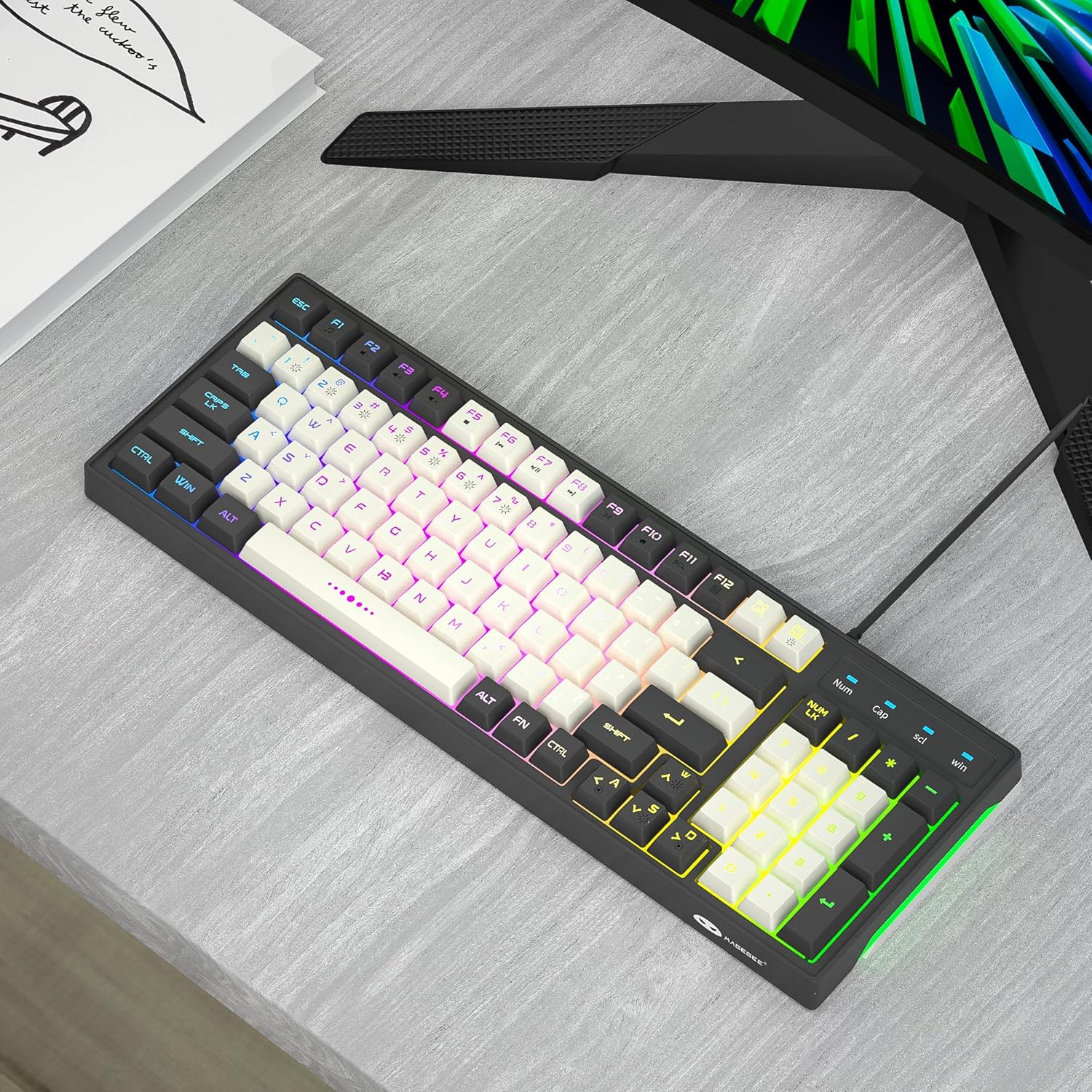
Image: The MageGee GT860 keyboard positioned on a desk, ready for use with a computer monitor, demonstrating a typical setup.
4. Operating Instructions
4.1 RGB Backlight Control
The MageGee GT860 keyboard features multiple RGB lighting modes. Use the Function (Fn) key in combination with other keys to control the backlight:
- Fn + Scroll Lock (SCL): Cycle through different RGB lighting modes.
- Fn + Page Up (PGUP): Increase backlight brightness.
- Fn + Page Down (PGDN): Decrease backlight brightness.
- Fn + Arrow Keys (Left/Right): Adjust lighting effect speed (for dynamic modes).

Image: The MageGee GT860 keyboard showcasing its 18 distinct RGB lighting modes, illustrating the variety of visual effects available.

Image: A detailed diagram illustrating the various Function (Fn) key combinations for controlling RGB backlight effects and accessing multimedia functions on the MageGee GT860 keyboard.
4.2 Multimedia Functions
Access multimedia controls by holding the Fn key and pressing the corresponding F-keys:
- Fn + F1: Media Player
- Fn + F2: Volume Down
- Fn + F3: Volume Up
- Fn + F4: Mute
- Fn + F5: Previous Track
- Fn + F6: Next Track
- Fn + F7: Play/Pause
- Fn + F8: Stop
- Fn + F9: Email
- Fn + F10: Home Page
- Fn + F11: Scroll Lock
- Fn + F12: Calculator
5. Maintenance
To ensure the longevity and optimal performance of your MageGee GT860 keyboard, follow these maintenance guidelines:
- Cleaning: Regularly clean the keyboard with a soft, dry cloth. For dust and debris between keys, use compressed air. For stubborn dirt, a slightly damp cloth with mild soap can be used, ensuring no liquid enters the keyboard.
- Avoid Liquids: Do not spill liquids on the keyboard. If a spill occurs, immediately disconnect the keyboard from your computer and allow it to dry completely before reconnecting.
- Storage: When not in use for extended periods, store the keyboard in a clean, dry environment away from direct sunlight and extreme temperatures.
- Handle with Care: Avoid dropping the keyboard or subjecting it to strong impacts.
6. Troubleshooting
If you encounter issues with your MageGee GT860 keyboard, refer to the following common problems and solutions:
| Problem | Possible Solution |
|---|---|
| Keyboard is not responding. |
|
| Backlight is not working or is dim. |
|
| Certain keys are not working. |
|
7. Specifications
| Feature | Detail |
|---|---|
| Model | GT860 |
| Connectivity Technology | USB Wired |
| Number of Keys | 96 |
| Keyboard Description | Gaming |
| Special Features | RGB Backlit, Ergonomic Design, Anti-Ghosting |
| Compatible Devices | PC, Gaming Console (via USB) |
| Operating System Compatibility | Windows 10, Windows 8, Windows 7, Windows XP, Windows VISTA, Mac OS |
| Product Dimensions | 14 x 6 x 2 inches (35.56 x 15.24 x 5.08 cm) |
| Item Weight | 1.63 pounds (0.74 kg) |
| Color | Grey White Keycaps |
8. Warranty and Support
MageGee products are designed for reliability and performance. For any product inquiries, technical support, or warranty claims, please refer to the contact information provided with your purchase or visit the official MageGee website. Please retain your proof of purchase for warranty purposes.
For further assistance, you may visit the MageGee store on Amazon: MageGee Amazon Store
Related documentsGT860


Ask a question about this manual
Ask about setup, troubleshooting, compatibility, parts, safety, or missing instructions. Manuals+ will review the question and use this page’s manual context to help answer it.