
Introduction
Thank you for choosing the Dracool Bluetooth Keyboard Case. This manual provides detailed instructions for setting up, operating, and maintaining your keyboard case. Please read it carefully before use to ensure optimal performance and longevity of your device.
Compatibility
This keyboard case is designed for specific iPad models. Please verify your iPad model number on the back of your device before use.
- iPad Air 4th Gen 2020 (10.9-inch)
- iPad Air 5th Gen 2022 (10.9-inch)
- iPad Air 11" (M2) 2024
- iPad Pro 11-inch 1st Gen 2018
- iPad Pro 11-inch 2nd Gen 2020
- iPad Pro 11-inch 3rd Gen 2021
- iPad Pro 11-inch 4th Gen 2022

Package Contents
Please check the package for the following items:
- 1 x Dracool Bluetooth Keyboard Case
- 1 x USB-C Charging Cable
- 1 x User Manual
Product Features
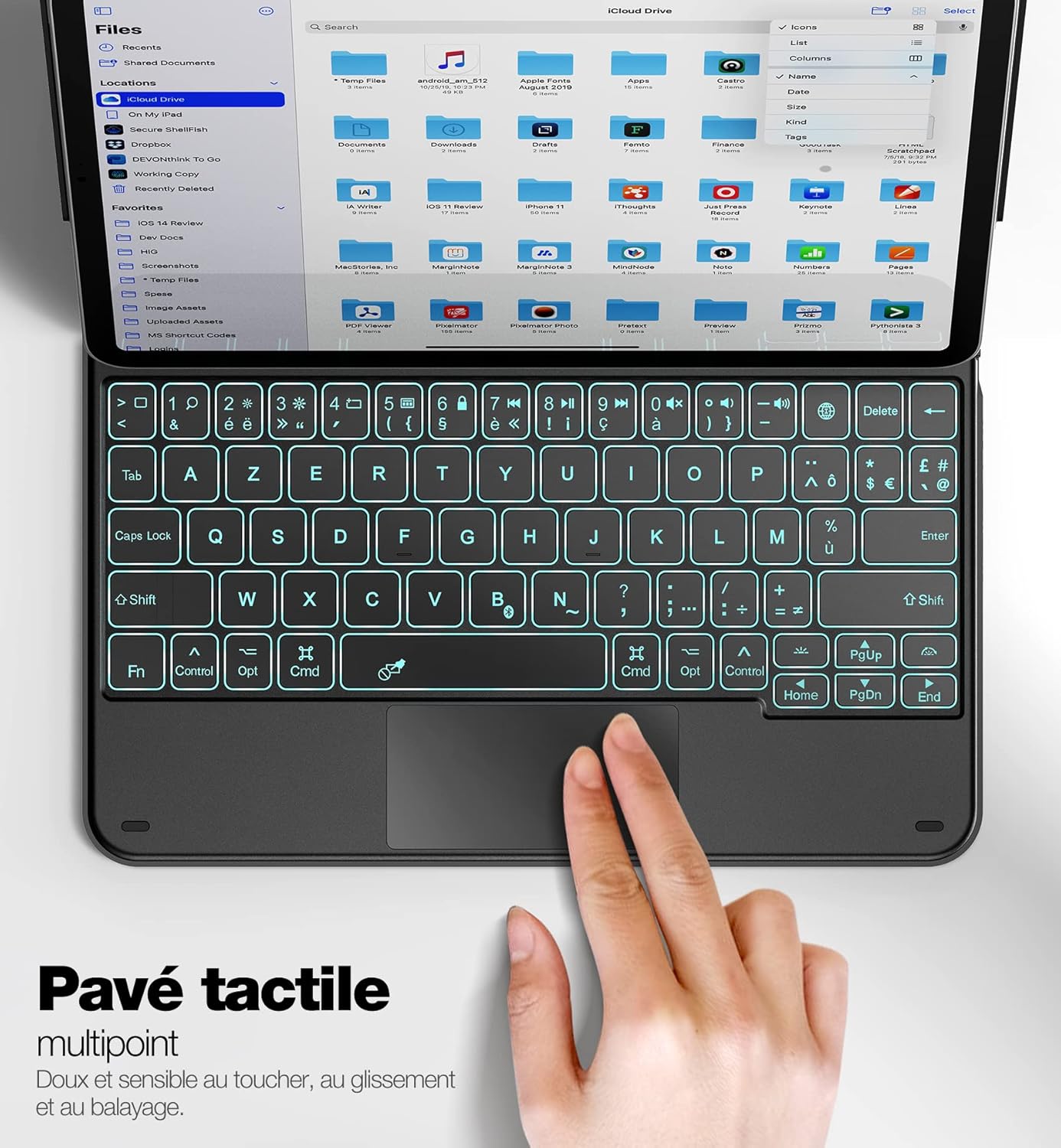
- Integrated Touchpad: Precise and reliable touchpad supporting multi-touch gestures for enhanced navigation.
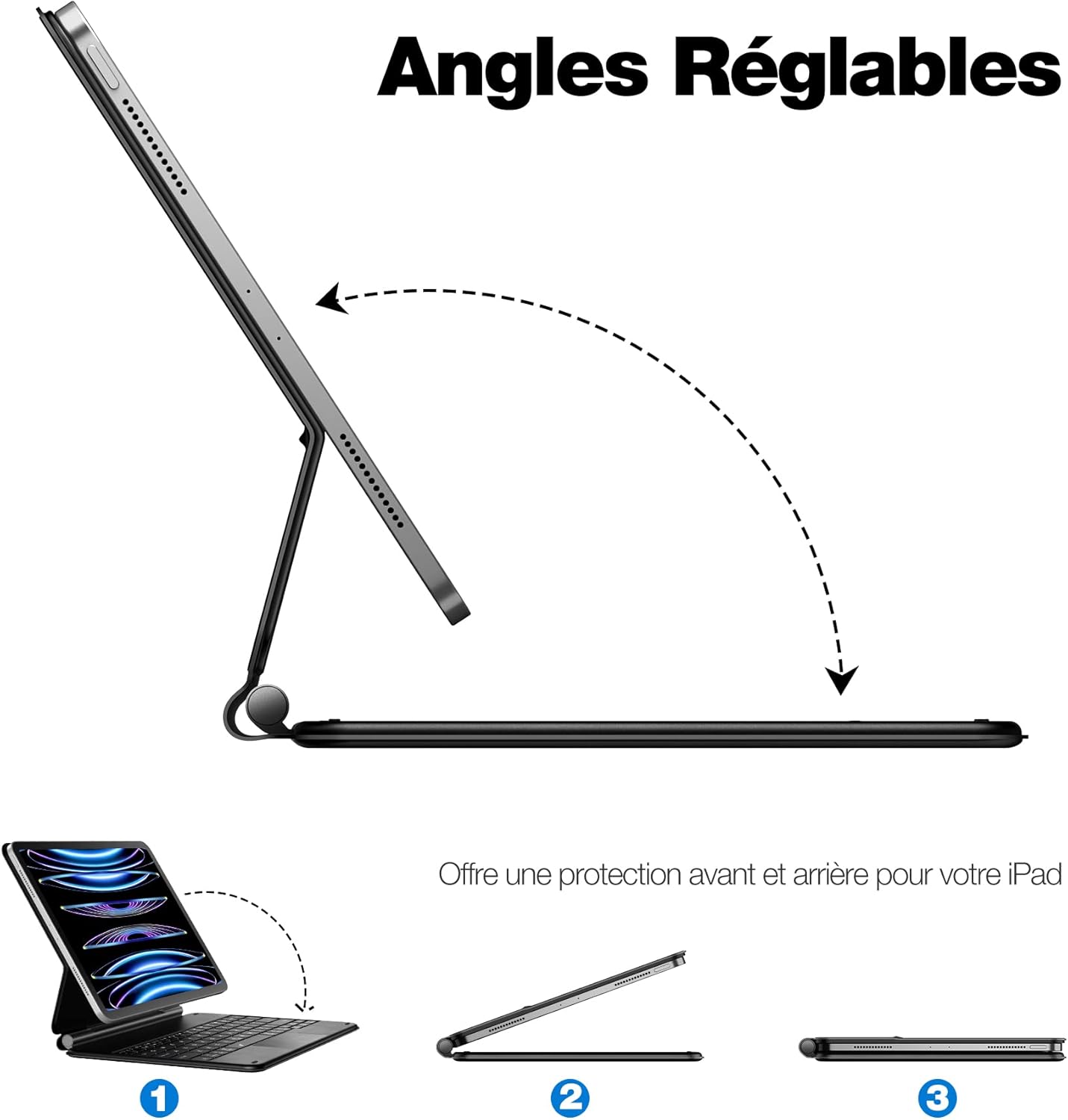
- Magnetic Floating Design: Securely holds your iPad and allows for continuous adjustment of the viewing angle.
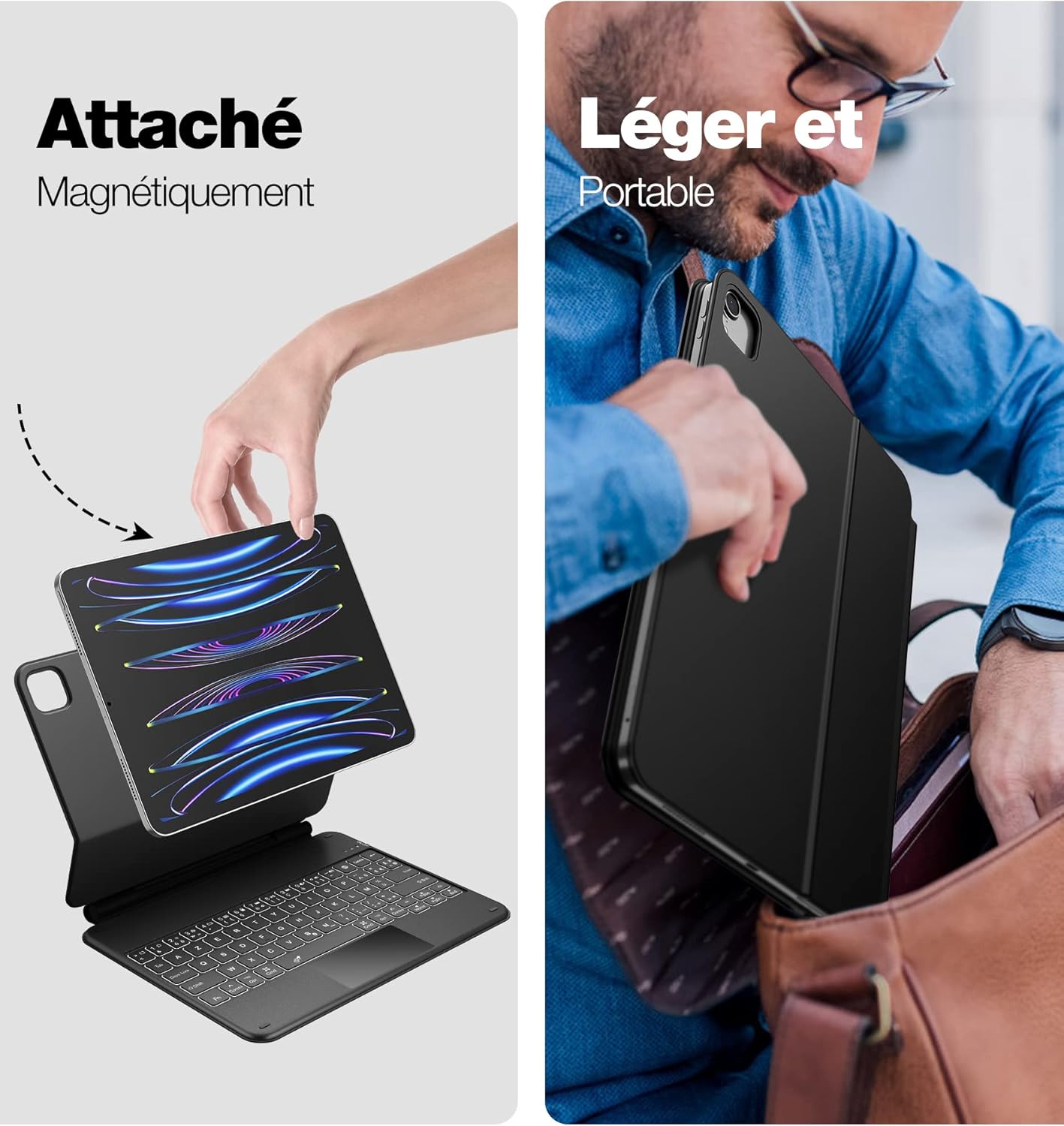
- Front and Back Protection: Durable molded cover provides comprehensive protection for your iPad.
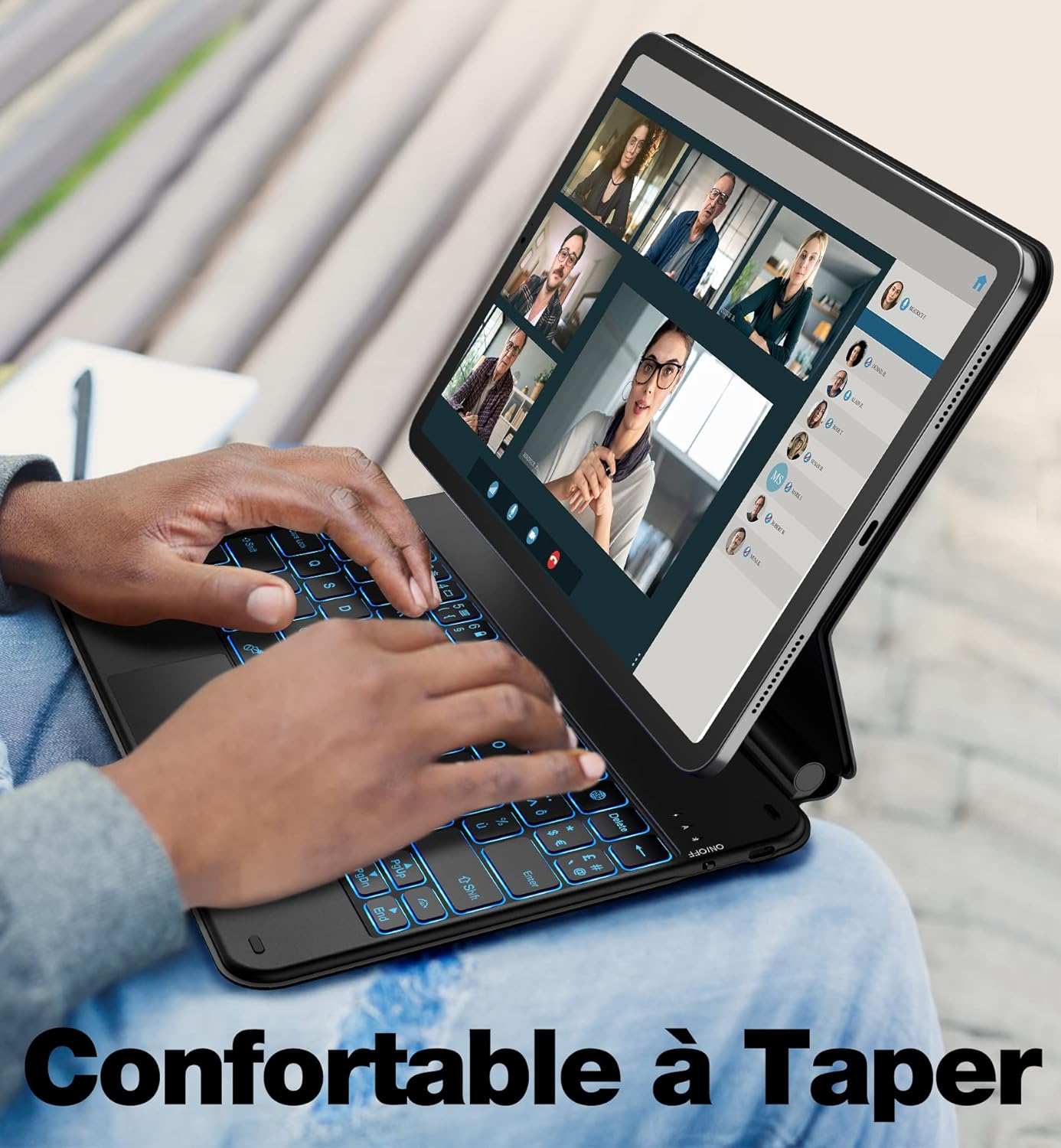
- 7-Color Backlit Keys: Adjustable backlighting with 7 colors and 3 brightness levels for comfortable typing in various lighting conditions.
- iPadOS Shortcut Keys: A full row of dedicated shortcut keys for quick access to media controls, volume, and more.
- Scissor-Switch Keys: Designed for improved tactile response and quieter typing.
- Bluetooth 5.1 Connectivity: Stable and efficient wireless connection with a range of up to 10 meters.
- Rechargeable Battery: Built-in 850 mAh battery offering extended usage time.
Setup Instructions
1. Charging the Keyboard
- Connect the provided USB-C charging cable to the charging port on the keyboard case.
- Connect the other end of the cable to a USB power adapter (not included) or a computer's USB port.
- The charging indicator light will illuminate. A full charge takes approximately 3 hours.
- Once fully charged, the indicator light will change or turn off.
2. Attaching Your iPad
- Align your iPad with the magnetic back panel of the keyboard case.
- The magnets will securely attach the iPad to the case. Ensure the camera cutout on the case aligns perfectly with your iPad's camera to maintain magnetic functionality.
- Adjust the viewing angle as desired.
3. Bluetooth Pairing
- Turn on the keyboard by sliding the power switch (usually located on the side or top edge of the keyboard). The indicator light will flash.
- On your iPad, go to Settings > Bluetooth.
- Turn on Bluetooth. Your iPad will search for available devices.
- Locate "Bluetooth Keyboard" or a similar name in the "Other Devices" list and tap it to connect.
- Once paired, the indicator light on the keyboard will stop flashing and remain solid for a moment, then turn off to save power. The keyboard will now be connected to your iPad.
Operating Instructions
Keyboard Functions
- Backlight Control: Press the Light bulb icon key (often Fn + Light bulb icon) to cycle through 7 backlight colors. Press the Brightness keys (often Fn + Up/Down arrow or dedicated keys) to adjust the 3 brightness levels (Brightest - Medium - Low - Off).
- iPadOS Shortcut Keys: The top row of keys provides quick access to various iPadOS functions, such as Home, Search, Brightness, Media Playback, Volume, and Lock. Refer to the keyboard layout for specific key functions.
- Typing: The AZERTY layout provides a familiar typing experience.
Touchpad Functions
The integrated touchpad supports multi-touch gestures, allowing you to navigate your iPad with precision. Common gestures include:
- Single Finger Tap: Left-click.
- Two Finger Tap: Right-click (context menu).
- Two Finger Scroll: Scroll up or down.
- Pinch to Zoom: Zoom in or out.
- Swipe with Three Fingers Up: Go to Home screen.
- Swipe with Three Fingers Left/Right: Switch between open applications.
For a complete list of iPadOS touchpad gestures, refer to your iPad's user guide or Apple's support documentation.
Maintenance
- Cleaning: Use a soft, damp cloth to wipe the surface of the keyboard case. Avoid using harsh chemicals or abrasive materials.
- Charging: Recharge the keyboard when the battery low indicator light appears or when you notice a delay in key response. Avoid fully depleting the battery frequently to prolong its lifespan.
- Storage: When not in use for extended periods, store the keyboard case in a cool, dry place. It is recommended to charge the keyboard at least once every three months to maintain battery health.
- Protection: Keep the keyboard away from liquids, extreme temperatures, and sharp objects.
Troubleshooting
Keyboard Not Connecting via Bluetooth
- Ensure the keyboard is turned on and fully charged.
- Make sure Bluetooth is enabled on your iPad.
- If the keyboard was previously paired, go to iPad's Bluetooth settings, forget the device, and then re-pair it.
- Restart both your iPad and the keyboard.
- Ensure the keyboard is within the 10-meter Bluetooth range of your iPad.
Keys Not Responding or Lagging
- Check the keyboard's battery level and charge it if necessary.
- Ensure the Bluetooth connection is stable.
- Clean any debris from around the keys.
Touchpad Not Working
- Ensure the keyboard is connected via Bluetooth.
- Check iPad settings for touchpad/mouse support (Settings > Accessibility > Touch > AssistiveTouch, ensure it's enabled if you rely on it, or check Pointer Control settings).
- Restart the keyboard and iPad.
Backlight Not Working
- Press the backlight control key (Light bulb icon or Fn + Light bulb icon) to turn it on or cycle through colors.
- Adjust brightness levels using the dedicated brightness keys or Fn + Up/Down arrow.
- Ensure the keyboard has sufficient battery charge.
Specifications
| Model Number | DRA27FR-MKJP11 |
| Connectivity Technology | Bluetooth 5.1, USB-C (for charging) |
| Operating Range | Up to 10 meters (33 feet) |
| Battery Capacity | 850 mAh Lithium Ion |
| Working Time (No Backlight) | Up to 300 hours |
| Working Time (Brightest Backlight) | Up to 7 hours |
| Charging Time | Approximately 3 hours |
| Keyboard Layout | AZERTY |
| Backlight Colors | 7 colors (RGB) |
| Brightness Levels | 3 levels |
| Product Dimensions (L x W x H) | 25 x 19.5 x 1.25 cm (9.84 x 7.68 x 0.49 inches) |
| Product Weight | 1.02 kg (2.25 lbs) |

