
Rokid RA101
Rokid Air AR Glasses User Manual
Model: RA101
Brand: Rokid
Setup and Initial Connection
This section guides you through the initial setup and connection of your Rokid Air AR Glasses to various devices.
Package Contents
Upon unboxing your Rokid Air AR Glasses, you should find the following items:
- Rokid Air AR Glasses
- Protective Carrying Case
- USB-C to USB-C Cable
- Cleaning Cloth
- User Manual (this document)

Image: Rokid Air AR Glasses and included accessories.
Connecting to Mac Computers
To connect your Rokid Air glasses to a Mac computer, ensure your Mac has a USB-C port that supports DisplayPort video output.
- Connect one end of the provided USB-C cable to the Rokid Air glasses.
- Connect the other end of the USB-C cable to a compatible USB-C port on your MacBook that supports video output.
- Wear the Rokid Air glasses. Your Mac desktop should now be visible through the glasses, indicating a successful connection in mirroring mode.
- For an extended display: Go to 'System Preferences' > 'Displays' > 'Arrangement'. Unselect 'Mirror Displays'. You will see two blue displays. Click and drag one of the blue displays (the one with a white stripe on top is the main display) to arrange them as desired for an extended desktop experience.
Video: This video demonstrates the process of connecting Rokid Air glasses to both Mac and Windows computers using a USB-C cable with DisplayPort support. It shows how to set up mirroring and extended display modes for an enhanced viewing experience.
Connecting to Windows Computers
For Windows laptops or desktop PCs, ensure your device has a USB-C port with DisplayPort support or an HDMI port (may require an adapter).
- Connect one end of the provided USB-C cable to the Rokid Air glasses.
- Connect the other end of the USB-C cable to a compatible USB-C port on your Windows laptop or the graphics card of your desktop computer.
- Wear the Rokid Air glasses. Initially, you may see a blank desktop as Windows identifies the glasses as another display.
- To configure display settings: Right-click on your desktop and select 'Display settings'.
- You will see the newly added display. Select the display and drag it to the desired location relative to your main screen.
- Under 'Multiple displays', select 'Duplicate these displays' for mirroring or 'Extend these displays' for a multi-screen experience. Click 'Keep Changes' to apply.
Video: This video demonstrates the process of connecting Rokid Air glasses to both Mac and Windows computers using a USB-C cable with DisplayPort support. It shows how to set up mirroring and extended display modes for an enhanced viewing experience.
Operating Your Rokid Air Glasses
Discover the various functionalities and modes of your Rokid Air AR Glasses.
Basic Operation (Android Devices)
For Android devices with DisplayPort (DP) support, you can leverage the Rokid Air app for an enhanced AR experience.
- Download and install the Rokid Air App (available for Android 10 and later version) on your compatible Android phone.
- Connect your Rokid Air glasses to your phone via the USB-C cable.
- Open the Rokid Air App and follow the prompts to connect your phone to the glasses.
- Once connected, you will see a large virtual screen. You can use touch gestures on your phone's screen to control the pointer: single finger to control, two fingers to scroll up/down, and three fingers to return to the Launcher.
- Utilize voice commands for hands-free control, such as "Open Cinema" or "Rokid play music."

Image: Rokid Air glasses with a smartphone displaying the Rokid AR app, illustrating AR mode control.
Video: This video provides a comprehensive user guide for Rokid Air glasses when connected to Android devices. It covers initial connection, adjusting for clear vision, using the Rokid Air app for AR mode, and navigating with touch gestures and voice commands for various applications like music, cinema, and gaming.
Myopia Correction
The Rokid Air glasses are designed to be myopia-friendly. You can adjust each lens to your prescription (0 to -5.00D) using the convenient knobs located on top of the glasses. This ensures a clear and comfortable viewing experience without needing to wear prescription glasses underneath.

Image: Rokid Air glasses highlighting myopia correction range (0.00 to -5.00D) and other display features.
Multi-Screen Experience
Leverage the extended display mode to expand your workspace or entertainment area. Drag programs and windows from your computer's main screen onto the virtual display provided by the Rokid Air glasses for a seamless multi-screen experience.
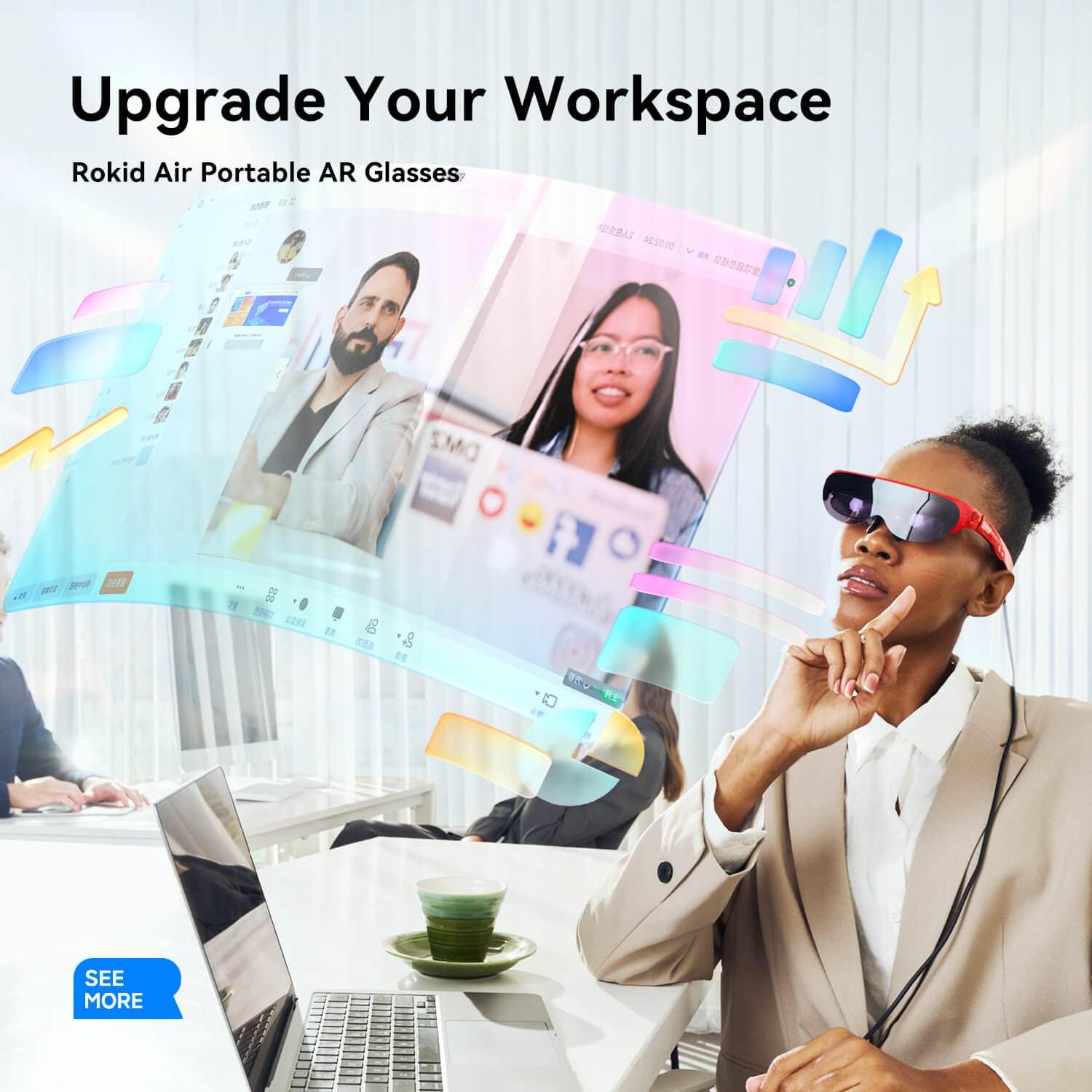
Image: Demonstrating the use of Rokid Air glasses to upgrade a workspace with virtual screens.

Image: A family enjoying a large virtual screen experience at home using Rokid Air glasses.
Audio Features
The Rokid Air glasses feature dual high-quality directional speakers, providing immersive surrounding sound effects for your content.
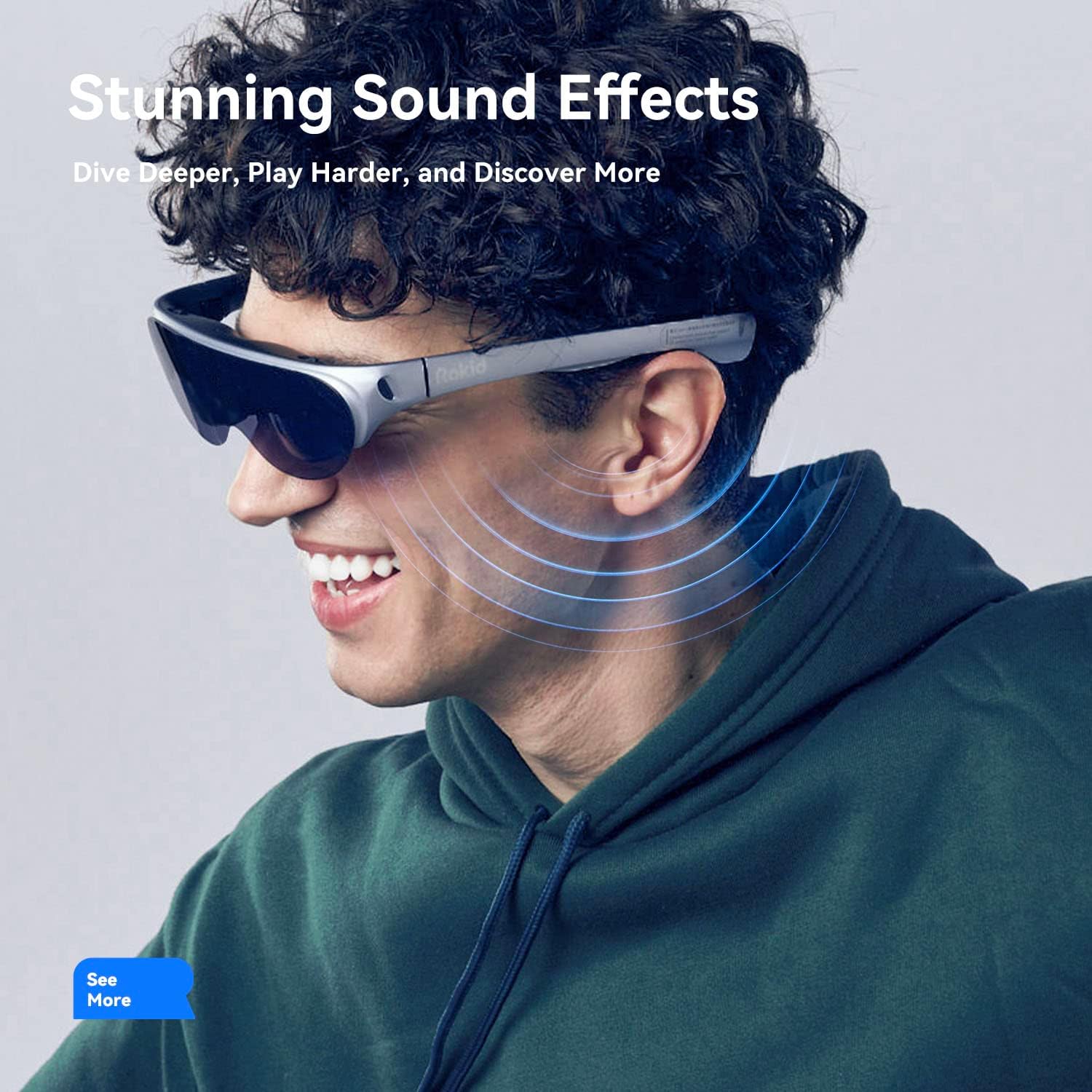
Image: Visual representation of stunning sound effects from the Rokid Air glasses.
Gaming and Entertainment
Experience games and media on a massive 120-inch virtual screen. The glasses offer a wide 43° Field of View (FoV) and 1080P OLED dual display for crisp details and vivid colors, enhancing your entertainment anywhere.

Image: A person immersed in a virtual gaming experience with Rokid Air glasses.
Care and Maintenance
Proper care will ensure the longevity and optimal performance of your Rokid Air AR Glasses.
- Cleaning: Use the provided cleaning cloth to gently wipe the lenses and frame. Avoid using abrasive materials or harsh chemicals.
- Storage: When not in use, store the glasses in their protective carrying case to prevent scratches and damage.
- Handling: Avoid dropping the glasses or exposing them to extreme temperatures or humidity. Do not apply excessive force to the frames or lenses.
- Cable Care: Handle the USB-C cable carefully. Avoid sharp bends or kinks that could damage the internal wires.
Troubleshooting Common Issues
If you encounter problems with your Rokid Air AR Glasses, refer to the solutions below.
Blurry Vision
If the display appears blurry, it might be due to improper fit or myopia adjustment.
- Adjust Nose Pad: Ensure the nose pad is adjusted to a comfortable position so that the display is fully visible and centered in your field of view.
- Myopia Adjustment: Use the adjustment knobs on top of the glasses to fine-tune the focus for each eye, matching your eyesight (0 to -5.00D). Turn the knob until the image becomes clear.
Connection Issues
If the glasses do not display content after connecting:
- Check Cable: Ensure the USB-C cable is securely connected to both the glasses and your device's compatible port.
- Port Compatibility: Verify that your device's USB-C port supports DisplayPort (DP) video output. Not all USB-C ports support video.
- Restart Devices: Try restarting your computer or phone and reconnecting the glasses.
- Display Settings: For computers, check your display settings (as described in the 'Connecting' sections) to ensure the Rokid Air glasses are recognized and configured correctly (mirroring or extended display).
- Software/Drivers: Ensure your operating system and any necessary drivers for your graphics card are up to date.
Technical Specifications
| Feature | Specification |
|---|---|
| Brand | Rokid |
| Manufacturer | Hangzhou Lingban Technology Co., Ltd |
| Model | RA101 |
| Model Name | Rokid Air |
| OS | Android |
| Scanner Resolution | 1920 × 1080 |
| Compatible Devices | PC, Tablet, Smartphone, Game Console |
| Special features | Foldable |
| Mounting Hardware | Cable |
| Display Technology | OLED |
| Standing screen display size | 120 |
| Display type | OLED |
| Wattage | 3 watts |
| Batteries included | No |
| Batteries Required | No |
| Battery Cell Composition | Lithium Ion |
| Wireless Standard | Bluetooth |
| Connector Type | Type C with DP |
| Human Interface Input | Buttons |
| Department | mens |
| Item model number | RA101 |
| Product Dimensions | 18.14 x 15.63 x 5.5 cm; 83 g |
| ASIN | B09P4VJ895 |
| Date First Available | March 5 2022 |
| Customer Reviews | 4.0 4.0 out of 5 stars 4 ratings 4.0 out of 5 stars |
| Operating system | Android |
| Special feature | Foldable |
| Connectivity technology | Type C with DP |
| Wireless communication standard | Bluetooth |
| Battery cell composition | Lithium Ion |
| GPS | No GPS |
| Shape | Rectangular |
| Screen size | 120 |
Warranty and Customer Support
For warranty information, technical support, or service inquiries, please refer to the official Rokid website or contact their customer service directly. Keep your proof of purchase for warranty claims.
For the most up-to-date information and additional resources, visit the official Rokid support page.
Related documentsRA101


Ask a question about this manual
Ask about setup, troubleshooting, compatibility, parts, safety, or missing instructions. Manuals+ will review the question and use this page’s manual context to help answer it.