
DEKCO DC5E-DE
DEKCO 2K HD Outdoor Security Camera User Manual
Model: DC5E-DE
1. Introduction
Thank you for choosing the DEKCO 2K HD Outdoor Security Camera. This manual provides detailed instructions for the installation, operation, and maintenance of your new security camera. Please read this manual thoroughly before use to ensure proper functionality and safety. Keep this manual for future reference.
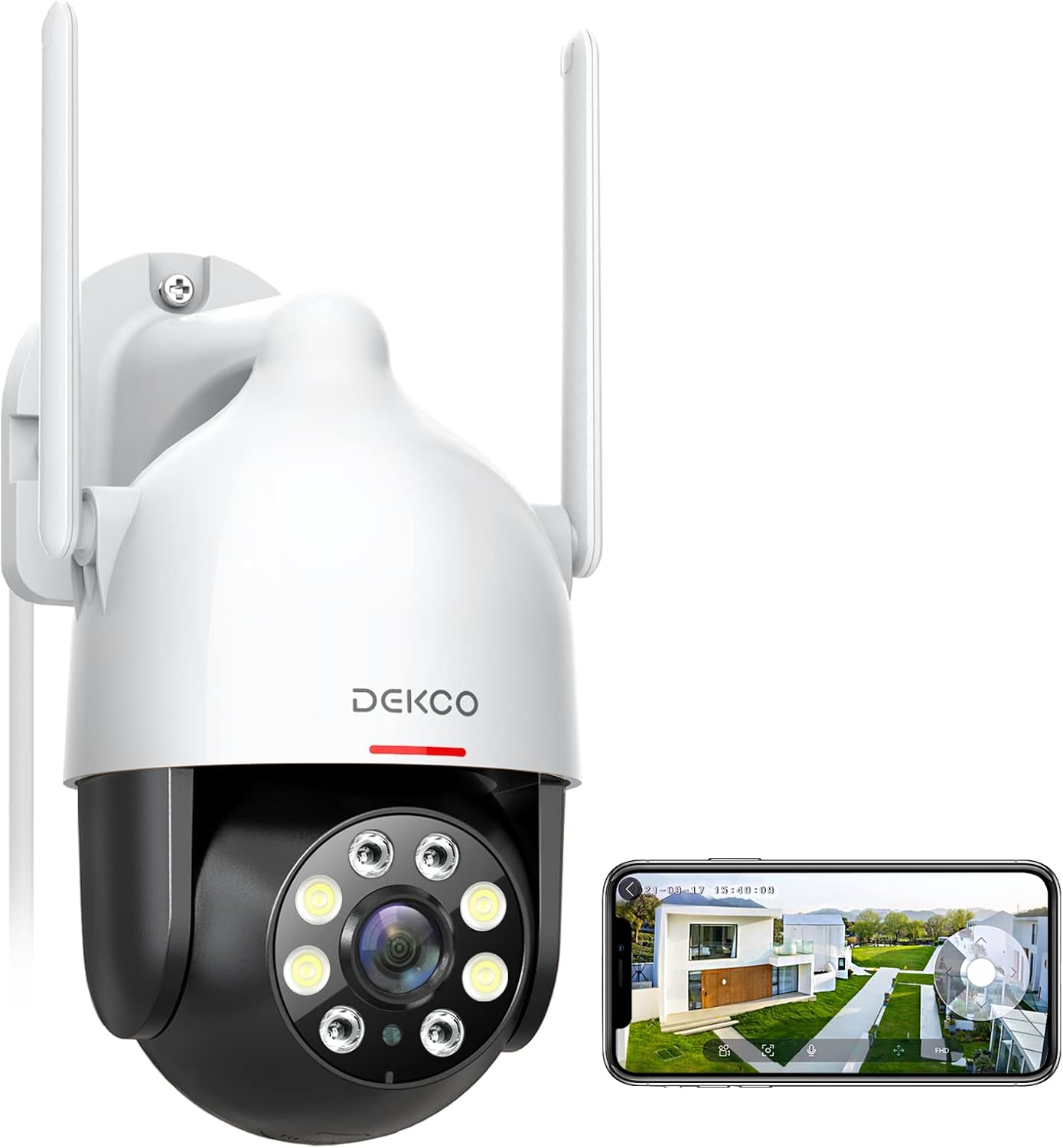
Image 1.1: DEKCO 2K HD Outdoor Security Camera with mobile app view.
2. Safety Information
- Ensure the camera is installed in a location where it is protected from direct impact and extreme weather conditions beyond its IP66 rating.
- Use only the provided power adapter. Using unauthorized power sources may damage the device and void the warranty.
- Do not attempt to disassemble or modify the camera. This may cause electric shock or damage the product.
- Keep the camera and its accessories out of reach of children.
- Ensure your Wi-Fi network is secure to prevent unauthorized access to your camera feed.
3. Package Contents
Verify that all items are present in your package:
- DEKCO 2K HD Outdoor Security Camera
- Power Adapter (Charger)
- Mounting Screws and Wall Plugs
- Mounting Template
- User Manual (this document)
4. Product Overview
Familiarize yourself with the main components of your DEKCO security camera.

Image 4.1: Overview of camera placement and 360-degree viewing capability.
The DEKCO camera features a durable, weather-resistant housing, dual antennas for stable Wi-Fi connection, a high-definition lens, infrared LEDs for night vision, and floodlights for full-color night vision. It also includes a microphone and speaker for two-way audio communication.
5. Setup
5.1 Physical Installation
- Choose a Location: Select an outdoor location with a strong 2.4GHz Wi-Fi signal and a nearby power outlet. The camera is IP66 waterproof, suitable for various weather conditions (rain, sun, snow).
- Mark Drilling Points: Use the provided mounting template to mark the screw holes on the wall.
- Drill Holes: Drill holes at the marked points and insert the wall plugs if mounting on masonry.
- Mount the Camera: Secure the camera base to the wall using the provided screws.

Image 5.1: The camera is designed to withstand rain, sun, and snow.
5.2 Power Connection
Connect the power adapter to the camera's power input port and then plug it into a power outlet. The camera will power on and initiate its startup sequence.
5.3 App Download and Account Creation
- Download the App: Search for "DEKCO" in your mobile app store (App Store for iOS or Google Play Store for Android) and download the official DEKCO app.
- Register Account: Open the app and follow the on-screen instructions to register a new account using your email address.
5.4 Wi-Fi Connection
The DEKCO camera supports 2.4GHz Wi-Fi networks only. 5GHz Wi-Fi is not supported.
- Add Device: In the DEKCO app, tap the "+" icon to add a new device.
- Select Camera Type: Choose the appropriate camera model from the list.
- Follow In-App Instructions: The app will guide you through connecting the camera to your 2.4GHz Wi-Fi network. This typically involves scanning a QR code displayed on your phone with the camera lens.

Image 5.2: The camera connects via 2.4GHz Wi-Fi for a faster and more stable connection.
6. Operating Instructions
6.1 Live View
Once connected, you can access the live video feed from your camera through the DEKCO app. The 2K QHD resolution provides clear details.

Image 6.1: Experience clear details with 2K QHD resolution.
6.2 Pan/Tilt Control
The camera features 350° horizontal pan and 90° vertical tilt rotation. Use the controls within the DEKCO app to remotely adjust the camera's viewing angle and cover a wider area.
6.3 Two-Way Audio
The built-in microphone and speaker allow for real-time two-way audio communication. Tap the microphone icon in the app to speak through the camera, and listen to audio from the camera's location.

Image 6.2: Two-way audio allows for communication through the camera.
6.4 Motion Detection & Tracking
Enable motion detection in the app to receive instant alerts when movement is detected. The camera can automatically track moving objects (humanoid tracking) within its field of view.

Image 6.3: The camera can track motion in real-time, focusing on key subjects.
6.5 Night Vision Modes
The camera offers multiple night vision modes:
- Infrared Night Vision: Provides clear black and white video in low light conditions.
- Full-Color Night Vision: Activates the built-in floodlights to provide full-color video even in complete darkness.
- Auto (Smart) Night Vision: The camera intelligently switches between infrared and full-color modes based on detected motion or light conditions.

Image 6.4: Comparison of Color Mode (Spotlight ON) and Infrared Mode (Spotlight OFF) at night.
6.6 Recording & Playback
The camera supports local storage via a Micro SD card (up to 128GB, not included) for 24/7 recording, or cloud storage (subscription may be required). You can review recorded footage through the app's timeline.

Image 6.5: The camera supports 24/7 recording to a local SD card for playback anytime.
6.7 Alarm Functions
When motion is detected, the camera can activate a loud siren and strobe lights to deter intruders. These functions can be customized or turned off in the app settings.

Image 6.6: The camera can scare off intruders with sound-light alarms and quick voice alerts.
6.8 Smart Home Integration
The DEKCO camera is compatible with popular smart home platforms like Amazon Alexa and Google Assistant, allowing for voice control and integration into your smart home ecosystem.

Image 6.7: The camera works with Amazon Alexa and Google Assistant for convenient voice control.
7. Maintenance
7.1 Cleaning
To maintain optimal performance, periodically clean the camera lens and housing with a soft, damp cloth. Do not use harsh chemicals or abrasive cleaners.
7.2 Firmware Updates
Regularly check the DEKCO app for available firmware updates. Keeping your camera's firmware up-to-date ensures the latest features, security patches, and performance improvements.
8. Troubleshooting
| Problem | Possible Cause | Solution |
|---|---|---|
| Camera offline | No power, weak Wi-Fi signal, Wi-Fi password changed. | Check power connection. Ensure camera is within Wi-Fi range. Reconfigure Wi-Fi settings in the app. |
| Cannot connect to Wi-Fi | Incorrect Wi-Fi password, 5GHz network used, camera too far from router. | Verify password. Ensure you are connecting to a 2.4GHz network. Move camera closer to router or use a Wi-Fi extender. |
| No recording to SD card | SD card full, faulty SD card, incorrect recording settings. | Format or replace SD card. Check recording settings in the app. |
| Motion alerts not received | Motion detection disabled, app notifications turned off, sensitivity too low. | Enable motion detection and push notifications in the app. Adjust detection sensitivity. |
9. Specifications
| Feature | Detail |
|---|---|
| Model Number | DC5E-DE |
| Video Resolution | 2K QHD (2304x1296p) |
| Pan/Tilt Range | Horizontal: 350°, Vertical: 90° |
| Night Vision | Infrared, Full-Color, Auto (Smart) |
| Connectivity | 2.4GHz Wi-Fi (IEEE 802.11b/g/n) |
| Storage | Micro SD Card (up to 128GB), Cloud Storage |
| Audio | Two-Way Audio (Built-in Mic & Speaker) |
| Weather Resistance | IP66 Waterproof |
| Power Supply | 12 Volts (DC) |
| Dimensions | 13 x 19 x 16 cm |
| Weight | 600 g |
| Compatible Devices | Smartphone, Tablet (iOS, Android) |
| Smart Home Integration | Amazon Alexa, Google Assistant |
10. Warranty and Support
DEKCO products come with a 1-year full machine warranty from the date of purchase. This warranty covers manufacturing defects and malfunctions under normal use.
For technical support, troubleshooting assistance, or warranty claims, please contact the "DekcoCare" Online Support Team. You can usually find contact information within the DEKCO app or on the official DEKCO website.
Please have your product model number (DC5E-DE) and purchase details ready when contacting support.
Related documentsDC5E-DE


Ask a question about this manual
Ask about setup, troubleshooting, compatibility, parts, safety, or missing instructions. Manuals+ will review the question and use this page’s manual context to help answer it.