
1. Introduction
Welcome to your new EDUPLINK M6PRO Bluetooth Speaker. This manual provides essential information for setting up, operating, and maintaining your device. Please read these instructions carefully before use.
2. Package Contents
Ensure all items are present in the package:
- EDUPLINK M6PRO Portable Speaker
- USB-C Charging Cable
- 3.5mm AUX Audio Cable
- User Manual
3. Product Overview
Familiarize yourself with the speaker's components and controls.
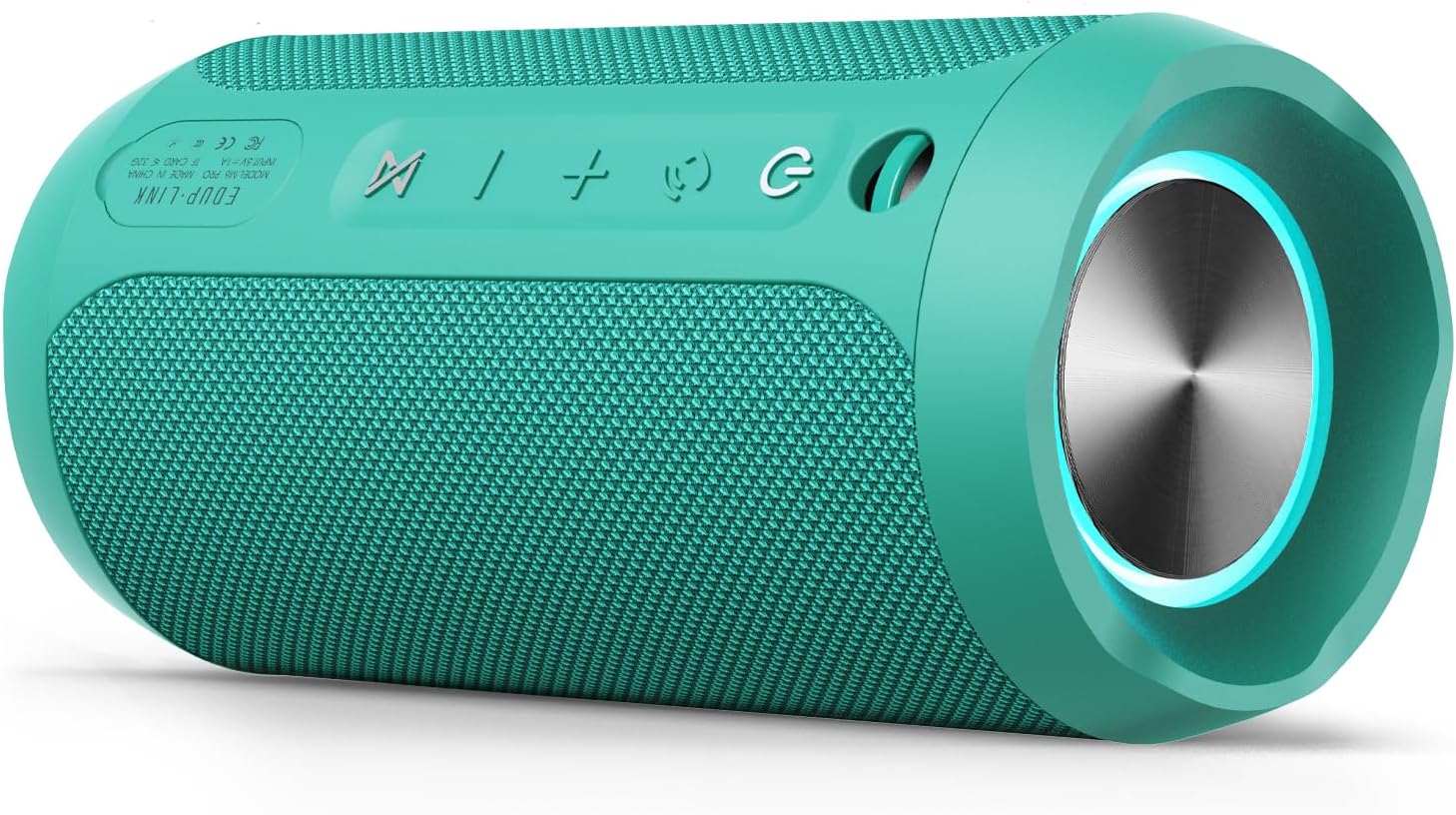
Figure 1: Front view of the EDUPLINK M6PRO Bluetooth Speaker in teal, highlighting its cylindrical design and the accessible control panel on the top surface.

Figure 2: Rear view of the EDUPLINK M6PRO speaker, illustrating the protective flap covering the USB-C charging port and the TF card slot.
Control Buttons and Ports:
- Power Button (⏻): Press and hold to power on/off.
- Mode Button (↻): Short press to switch between Bluetooth, TF Card, and AUX modes.
- Volume Up / Next Track Button (+): Short press for volume up; long press for next track.
- Volume Down / Previous Track Button (-): Short press for volume down; long press for previous track.
- Play/Pause / Call Button (⏸): Short press to play/pause music or answer/end calls; long press to reject calls.
- TWS Pairing Button (⚙): Press to initiate True Wireless Stereo pairing.
- USB-C Charging Port: For charging the speaker.
- TF Card Slot: For playing music directly from a MicroSD/TF card.
- AUX-in Port: For connecting external audio devices via 3.5mm audio cable.
4. Setup
4.1 Charging the Speaker
- Open the protective flap on the rear of the speaker.
- Connect the provided USB-C charging cable to the speaker's USB-C port and the other end to a 5V/1A USB power adapter (not included).
- The LED indicator will show charging status. A full charge takes approximately 3 hours and provides up to 20 hours of playtime.
- Ensure the protective flap is securely closed after charging to maintain water resistance.
4.2 Powering On/Off
- To Power On: Press and hold the Power button (⏻) for 2-3 seconds until you hear an audible prompt and the LED lights illuminate.
- To Power Off: Press and hold the Power button (⏻) for 2-3 seconds until you hear an audible prompt and the LED lights turn off.
4.3 Bluetooth Pairing
- Ensure the speaker is powered on and in Bluetooth mode (the LED indicator will flash blue, indicating it's ready for pairing). If not, short press the Mode button (↻) to switch to Bluetooth mode.
- Activate Bluetooth on your smartphone, tablet, or other Bluetooth-enabled device.
- Search for available devices and select "EDUPLINK M6PRO" from the list.
- Once connected, you will hear a confirmation tone, and the LED indicator will turn solid blue.
5. Operating Instructions

Figure 3: An infographic detailing the various playback modes and features of the EDUPLINK M6PRO speaker, including Bluetooth, TF card, and audio cable playback, along with 20-hour playtime, 360-degree stereo sound, IP67 rating, and RGB lighting.
5.1 Music Playback
- Play/Pause: Short press the Play/Pause button (⏸).
- Volume Up: Short press the Volume Up button (+).
- Volume Down: Short press the Volume Down button (-).
- Next Track: Long press the Volume Up button (+).
- Previous Track: Long press the Volume Down button (-).
5.2 Call Handling
With the built-in microphone, you can manage calls directly from the speaker when connected via Bluetooth.
- Answer/End Call: Short press the Play/Pause button (⏸).
- Reject Call: Long press the Play/Pause button (⏸).
5.3 True Wireless Stereo (TWS) Pairing
You can pair two EDUPLINK M6PRO speakers together for a true stereo sound experience.
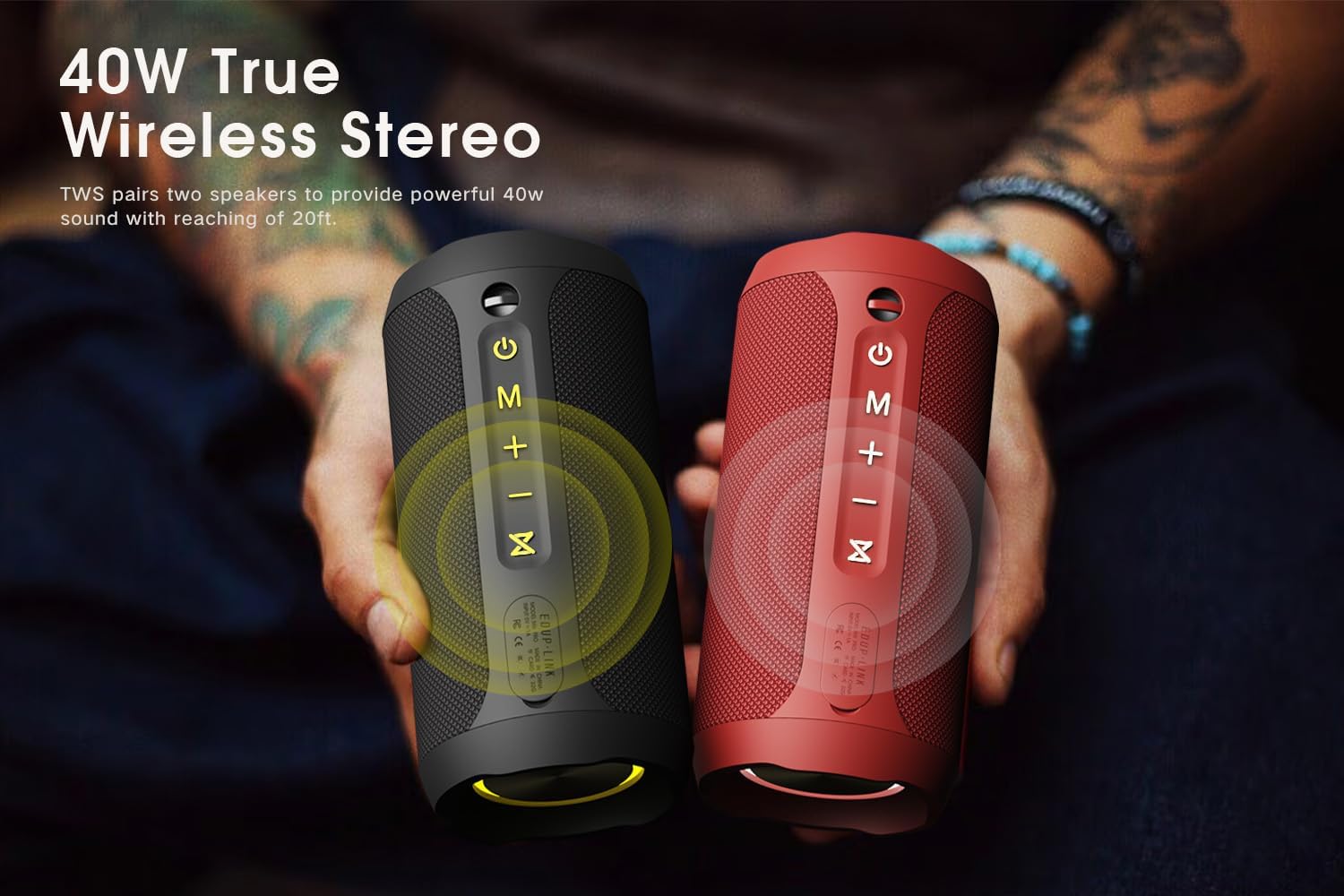
Figure 4: Two EDUPLINK M6PRO speakers, one black and one red, shown together to represent the True Wireless Stereo (TWS) pairing function for enhanced audio.
- Ensure both M6PRO speakers are powered on and not connected to any Bluetooth device.
- On one of the speakers (this will be the primary speaker), short press the TWS Pairing button (⚙). The speaker will emit a pairing tone.
- The two speakers will automatically connect to each other. You will hear a confirmation tone once TWS pairing is successful.
- Now, connect your Bluetooth device to the primary speaker as described in section 4.3. Both speakers will play audio in stereo.
5.4 RGB Lighting Modes
The speaker features dynamic RGB lights. Short press the TWS Pairing button (⚙) to cycle through different lighting modes or to turn the lights off.
5.5 TF Card Playback
- Open the protective flap on the rear of the speaker.
- Insert a MicroSD/TF card (up to 32GB, FAT32 format) with MP3 audio files into the TF card slot.
- The speaker will automatically switch to TF Card mode and begin playing music. If not, short press the Mode button (↻) to select TF Card mode.
- Ensure the protective flap is securely closed after inserting the card to maintain water resistance.
5.6 AUX Mode
- Open the protective flap on the rear of the speaker.
- Connect one end of the provided 3.5mm AUX audio cable to the speaker's AUX-in port and the other end to the audio output of your external device.
- The speaker will automatically switch to AUX mode. If not, short press the Mode button (↻) to select AUX mode.
- Ensure the protective flap is securely closed after connecting the cable to maintain water resistance.
6. Maintenance
6.1 Cleaning
- Wipe the speaker with a soft, damp cloth. Do not use abrasive cleaners or solvents.
- Ensure all ports are dry before charging or connecting cables.
6.2 Storage
- Store the speaker in a cool, dry place away from direct sunlight and extreme temperatures.
- If storing for an extended period, charge the battery periodically (e.g., every 3 months) to prolong its lifespan.
7. Troubleshooting

Figure 5: The EDUPLINK M6PRO speaker partially submerged in water, illustrating its IPX7 waterproof capability, suitable for use in wet environments.
| Problem | Possible Cause | Solution |
|---|---|---|
| Speaker does not power on | Low battery | Charge the speaker fully. |
| Cannot pair via Bluetooth | Speaker not in pairing mode; device Bluetooth off; too far apart | Ensure speaker is in Bluetooth pairing mode (flashing blue LED). Turn on Bluetooth on your device. Move speaker closer to your device (within 80 feet). Forget "EDUPLINK M6PRO" on your device and re-pair. |
| No sound during playback | Volume too low; incorrect mode; device not playing | Increase volume on both the speaker and your connected device. Ensure the speaker is in the correct mode (Bluetooth, TF Card, or AUX). Check if music is playing on your source device. |
| TWS pairing fails | Speakers already connected to other devices; too far apart | Ensure both speakers are disconnected from any Bluetooth devices. Place speakers close to each other. Repeat TWS pairing steps. |
| Water resistance issues | Protective flap not sealed | Always ensure the protective flap covering the charging and AUX ports is securely closed before exposing the speaker to water. |
8. Specifications
| Feature | Detail |
|---|---|
| Brand | EDUPLINK |
| Model | M6PRO |
| Connectivity Technology | Bluetooth |
| Wireless Communication Technology | Bluetooth |
| Speaker Maximum Output Power | 24 Watts |
| Battery | 2 Lithium Polymer batteries (included) |
| Playtime | Up to 20 hours |
| Water Resistance Level | IPX7 (Waterproof) |
| Product Dimensions | 2.76"D x 6.3"W x 2.76"H |
| Item Weight | 16 ounces (1 pound) |
| Maximum Range | 80 Feet (Bluetooth) |
| Special Features | Built-in Microphone, LED Light, Portable, Shockproof, Waterproof |
| Supported Internet Services | Youtube Music |
| Included Components | Portable speaker, charge cable, aux cord, user manual |
9. Warranty and Support
9.1 Warranty Information
The EDUPLINK M6PRO Bluetooth Speaker comes with a 24-month warranty from the date of purchase. This warranty covers manufacturing defects and workmanship under normal use. It does not cover damage caused by misuse, accidents, unauthorized modifications, or natural disasters.
9.2 Customer Support
For technical assistance, warranty claims, or any questions regarding your EDUPLINK M6PRO speaker, please contact EDUPLINK customer support through their official website or the retailer where the product was purchased. Please have your purchase receipt and product model number (M6PRO) ready when contacting support.