
1. Introduction
Thank you for purchasing the JIFAR H6 Native 1080P Projector. This projector is designed to deliver a high-quality visual experience with its native 1920x1080P resolution, 7500 Lumens brightness, and 10000:1 contrast ratio. It features advanced connectivity options including WiFi and Bluetooth 5.0, and an innovative 4-Point Keystone Correction for flexible setup.
This manual provides detailed instructions for setting up, operating, and maintaining your projector to ensure optimal performance and longevity.
1.1 What's in the Box
- JIFAR H6 Projector
- Remote Control
- HDMI Cable
- 3-in-1 AV Cable
- Power Cable
- Lens Cover
- User Manual
2. Safety Instructions
Please read all safety instructions carefully before using the projector. Improper use may result in fire, electric shock, or other hazards.
- Do not block the ventilation openings. Ensure adequate space around the projector for proper airflow.
- Use only the power adapter supplied with the projector.
- Do not expose the projector to rain or moisture to prevent electric shock.
- Avoid looking directly into the projector lens when the lamp is on, as the strong light may damage your eyes.
- Place the projector on a stable, level surface.
- Unplug the projector from the power outlet during lightning storms or when unused for long periods.
- Important Note on Wireless Projection: Due to HDCP copyright restrictions, wireless projection does not support streaming services like Netflix, Amazon Prime Video, and Hulu directly. For these services, please use an Amazon Fire Stick or similar streaming device connected via HDMI.
3. Product Overview and Components
Familiarize yourself with the projector's physical features and connection ports.

Figure 3.1: Front view of the JIFAR H6 Projector, showcasing its compact design and the projection lens. The image also illustrates potential streaming applications that can be displayed.
3.1 Input/Output Ports
- HDMI: Connect to laptops, gaming consoles, streaming devices.
- VGA: Connect to older computers.
- USB: Connect USB drives for media playback.
- SD Card Slot: For media playback from SD cards.
- AV: Connect to DVD players or older video sources using the 3-in-1 AV cable.
- Headphone (Audio Out): Connect external speakers or headphones.

Figure 3.2: Illustration of the projector's versatile connectivity options, demonstrating connections with smartphones, tablets, and laptops.
4. Initial Setup
4.1 Placement
Place the projector on a stable surface or mount it to the ceiling. Ensure the projection surface (screen or wall) is flat and clean. For optimal viewing, a dark environment is recommended.

Figure 4.1: The projector can create a large display, up to 400 inches, providing an immersive viewing experience suitable for various settings.
4.2 Power Connection
- Connect the power cable to the projector's power input.
- Plug the other end of the power cable into a power outlet.
- Press the power button on the projector or remote control to turn it on.
4.3 Focus and Keystone Correction
After powering on, adjust the focus ring on the projector lens until the image is clear. If the image appears trapezoidal, use the 4-Point Keystone Correction function to adjust the image shape. This feature allows for precise adjustment of each corner of the projected image, ensuring a perfectly rectangular display even when the projector is not perfectly aligned with the screen.

Figure 4.2: The JIFAR H6 projector offers 7500 Lux brightness, providing a significantly clearer and more vibrant image compared to projectors with lower brightness levels.
5. Basic Operation
5.1 Remote Control Navigation
Use the supplied remote control to navigate the projector's menu and settings. The remote allows you to select input sources, adjust volume, access settings, and control media playback.
5.2 Input Source Selection
Press the 'Source' button on the remote or projector to cycle through available input options: HDMI, VGA, USB, SD, AV, etc. Select the appropriate input for your connected device.
5.3 Image and Audio Settings
- Brightness/Contrast: Adjust these settings in the 'Picture' menu to optimize image quality for your viewing environment.
- Aspect Ratio: Select between 4:3, 16:9, or Auto to match your content.
- Zoom Function: The projector supports a zoom function from 100% down to 50%, allowing you to adjust the image size without moving the projector.
- Audio: Adjust volume using the remote. The projector has built-in 5W*2 speakers for stereo sound.
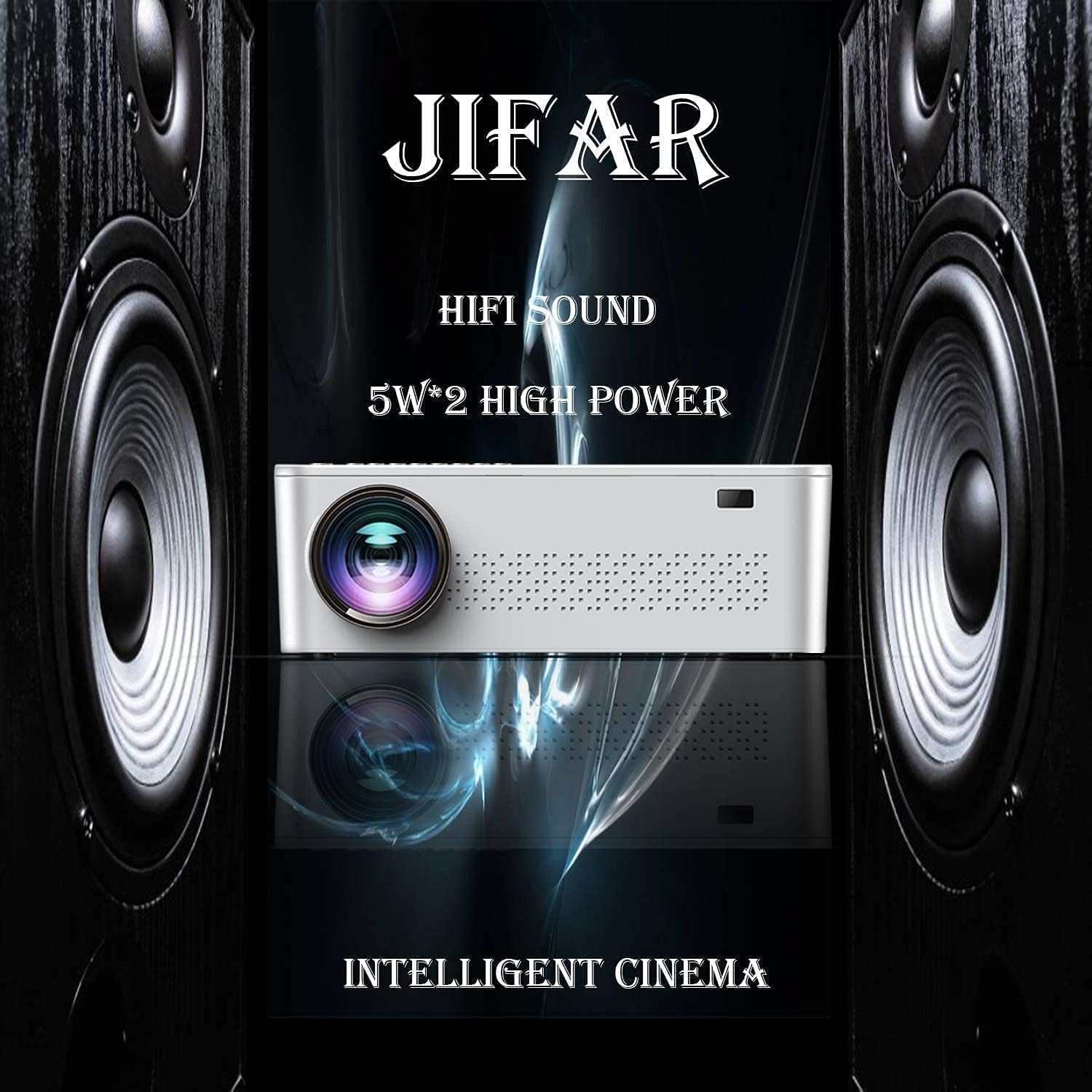
Figure 5.1: The JIFAR H6 projector is equipped with 5W*2 high-power speakers, delivering robust Hi-Fi stereo sound for an enhanced audio experience.
6. Advanced Connectivity
6.1 WiFi Connection (Wireless Mirroring)
The JIFAR H6 supports wireless mirroring from compatible smartphones and tablets. Refer to page 12 of the original manual for detailed instructions on setting up the wireless mirroring function.
Note: Due to HDCP copyright, certain streaming services (e.g., Netflix, Amazon Prime, Hulu) may not be supported via direct wireless projection. For these services, consider using a streaming stick connected via HDMI.
6.2 Bluetooth 5.0 Connection
The projector features a built-in Bluetooth 5.0 chip, allowing you to connect external Bluetooth audio devices such as speakers, earphones, or headphones wirelessly. This is an output-only function, meaning the projector can send audio to Bluetooth devices.
6.3 Wired Connections (HDMI, VGA, USB, AV)
Connect various devices using the appropriate cables:
- HDMI: For high-definition video and audio from laptops, Blu-ray players, game consoles (PS3/PS4, Xbox), and TV sticks.
- VGA: For connecting to older desktop computers.
- USB/SD: Insert a USB drive or SD card into the respective port to play media files (photos, videos, music) directly from the storage device.
- AV: Use the 3-in-1 AV cable to connect to devices with composite video and stereo audio outputs (e.g., older DVD players).
7. Maintenance
7.1 Cleaning the Lens
Use a soft, lint-free cloth specifically designed for optical lenses. Do not use abrasive cleaners or cloths that could scratch the lens surface.
7.2 Cleaning the Projector Body
Wipe the projector's exterior with a soft, dry cloth. For stubborn marks, a slightly damp cloth can be used, but ensure no liquid enters the ventilation openings.
7.3 Storage
When not in use, store the projector in a cool, dry place, away from direct sunlight and excessive dust. Use the lens cover to protect the lens from dust and scratches.
8. Troubleshooting
This section addresses common issues you might encounter with your JIFAR H6 projector.
| Problem | Possible Cause | Solution |
|---|---|---|
| No image on screen | Power cable disconnected; Incorrect input source; Source device not powered on. | Check power connection; Select correct input source; Ensure source device is on. |
| Blurry image | Out of focus; Incorrect keystone adjustment. | Adjust focus ring; Use 4-Point Keystone Correction. |
| No sound | Volume too low; Muted; Incorrect audio output selected; External speaker issue. | Increase volume; Unmute; Check audio settings; Verify external speaker connection. |
| Remote control not working | Batteries low/dead; Obstruction between remote and projector; Remote sensor blocked. | Replace batteries; Remove obstructions; Ensure clear line of sight to IR sensor. |
| Image appears dull or washed out | High ambient light; Brightness/contrast settings. | Reduce ambient light; Adjust brightness and contrast settings. |
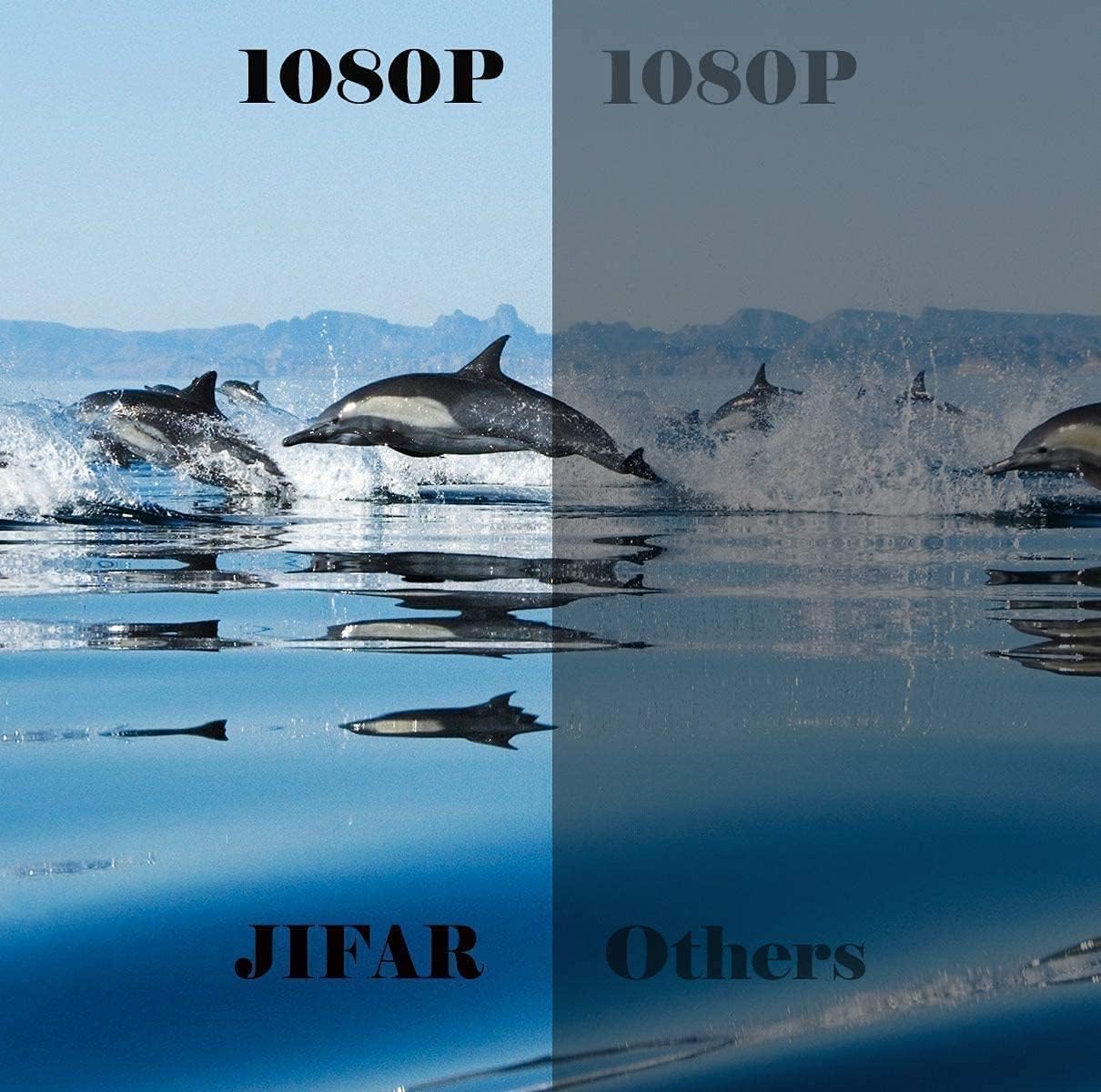
Figure 8.1: Visual comparison highlighting the superior 1080P image quality of the JIFAR projector, demonstrating richer colors and better clarity.
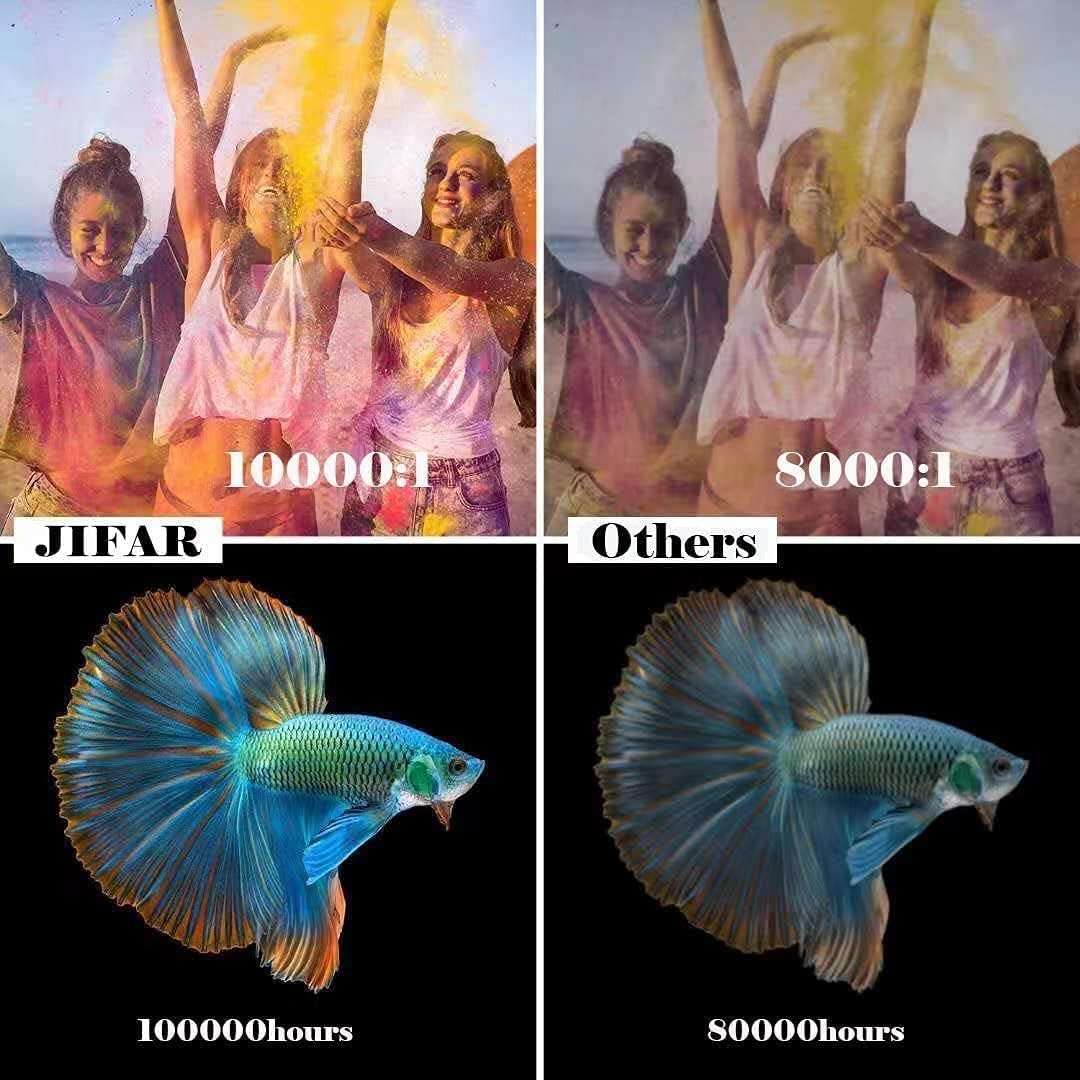
Figure 8.2: This image illustrates the JIFAR projector's high contrast ratio of 10000:1 and an extended LED lamp life of 100,000 hours, contributing to a superior and long-lasting viewing experience.
9. Technical Specifications
| Feature | Specification |
|---|---|
| Model | H6 |
| Native Resolution | 1920 x 1080 Pixels (Full HD) |
| Brightness | 7500 Lumens |
| Contrast Ratio | 10000:1 |
| Display Technology | LCD |
| Aspect Ratio | 4:3 / 16:9 |
| Projection Size | 45-300 inches (Optimum 120 inches) |
| Zoom Function | 100% - 50% (Reduced) |
| Keystone Correction | 4-Point Keystone Correction (±50°) |
| Lamp Life | Up to 100,000 hours |
| Connectivity | HDMI, VGA, USB, SD, AV, Headphone, Wi-Fi, Bluetooth 5.0 |
| Built-in Speakers | 2 x 5 Watt Stereo Speakers |
| Power Source | Corded Electric (65 KW) |
| Product Dimensions | 23.52 x 13.97 x 7.62 cm |
| Item Weight | 4.11 kg |
10. Warranty and Support
The JIFAR H6 Projector comes with a 3-year warranty. For any questions, technical support, or assistance with installation or operation, please do not hesitate to contact our customer service team. We are committed to providing long-term customer service and technical support to ensure your satisfaction.
Please refer to the contact information provided with your purchase or on the official JIFAR website for support channels.