
1. Product Overview
The UeeVii CPE451 is a 5.8G outdoor wireless bridge designed for long-range point-to-point or point-to-multipoint network extension. It features a 12dBi high-gain antenna and supports a wireless transmission rate of up to 300Mbps, with a 100Mbps RJ45 LAN port for wired connections. This device is ideal for extending network coverage to remote locations such as barns, garages, shops, or other buildings up to 2KM away.

Figure 1: UeeVii CPE451 Wireless Bridges in operation.

Figure 2: Wireless Transmission Rate and Frequency.
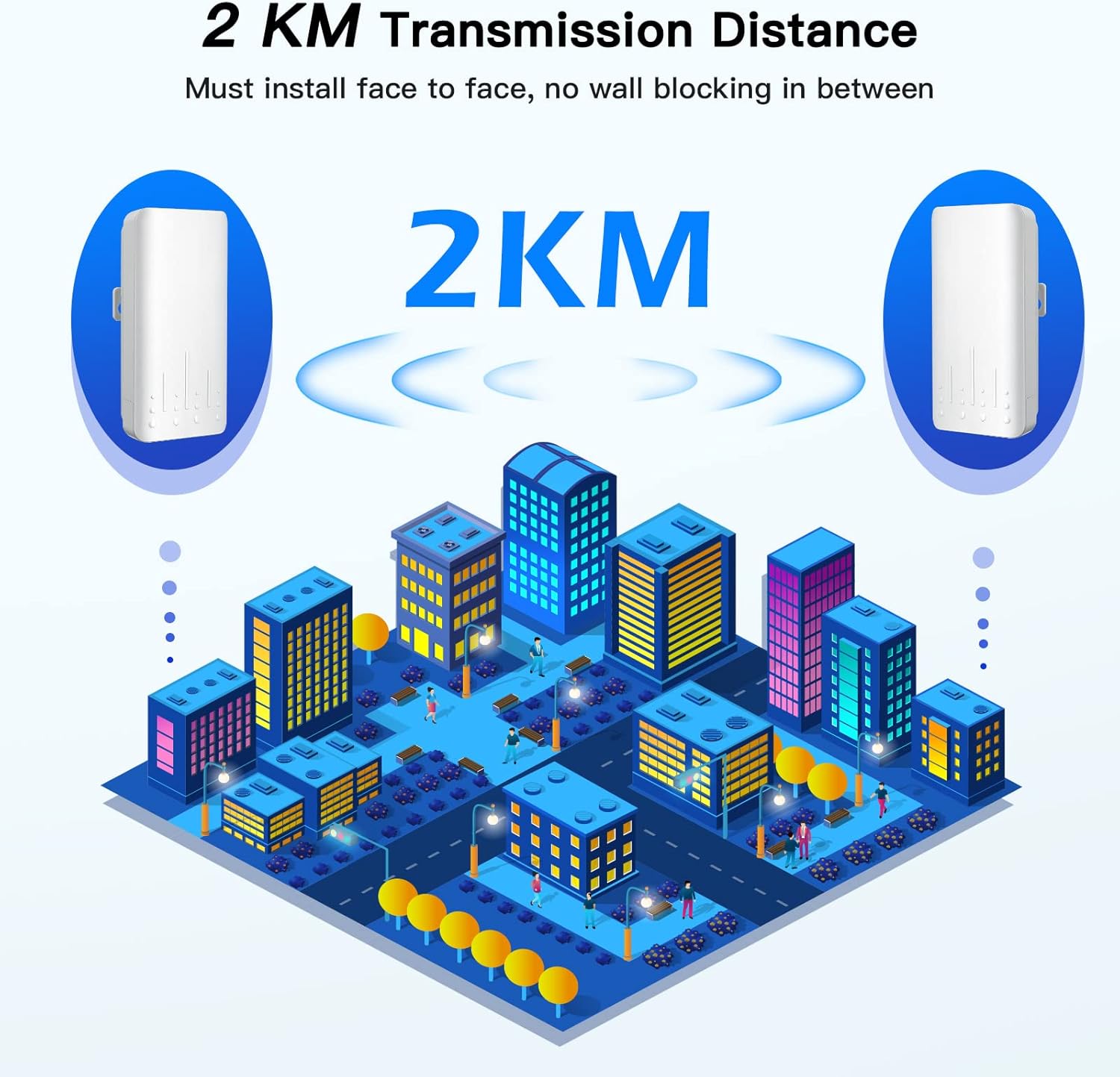
Figure 3: 2KM Transmission Distance capability.
2. Setup Guide
2.1 Unboxing and Package Contents
Before beginning installation, please verify all components are present in the package.
Video 1: Unboxing the CPE451 Wireless Bridge.
The package typically includes:
- 2 x UeeVii CPE451 Wireless Bridges
- 2 x PoE Adapters (for power supply)
- 2 x Network Cables
- 2 x Metal Ties (for mounting)
- 1 x User Manual

Figure 4: Package Contents.
2.2 Powering On and Initial Connection
Connect the PoE adapter to the wireless bridge using a network cable. The network cable serves as both data and power transmission. Plug the PoE adapter into a power outlet.
Video 2: Quick Pairing and Powering On.
2.3 Master/Slave Configuration and Pairing
The CPE451 units need to be configured as a Master Bridge (Transmitter) and a Slave Bridge (Receiver) for point-to-point communication. Each unit has a switch to select its role (A for Master, B for Slave) and a digital display to show the channel number.
- Set Master Bridge: Move the switch on one unit to 'A'.
- Set Slave Bridge: Move the switch on the second unit to 'B'.
- Set Same Channel: Press the 'RST' button on both units within one minute to set them to the same channel number. The pairing process should complete within 2 minutes.

Figure 5: Easy Pairing Process.
2.4 Mounting the Devices
The CPE451 units are designed for outdoor installation and can be mounted on poles using the provided metal ties. Ensure a clear line of sight between the Master and Slave units for optimal performance.

Figure 6: Example of pole mounting for the CPE451.
3. Operating Instructions
3.1 Connection Topology
The UeeVii CPE451 can be configured in various ways to extend your network:
- Point-to-Point: Connect one Master Bridge to your main router and one Slave Bridge to a device (e.g., PC) or a switch in a remote location.
- Point-to-Multipoint: One Master Bridge can connect to multiple Slave Bridges, extending the network to several remote points.

Figure 7: Connection Topology Examples.
Video 3: Wireless Bridge Special Point - illustrating network extension.
3.2 Extending Network Coverage
The 12dBi high-gain antenna ensures robust signal transmission, allowing you to extend your network to various outdoor and remote environments. Common applications include:
- Extending home network to a barn or garage.
- Providing Wi-Fi to a remote shop or warehouse.
- Connecting surveillance cameras over long distances.

Figure 8: Applications of 12dBi Antenna & WiFi Coverage.

Figure 9: Network extension to an RV garage.


Figure 10: Diverse application scenarios for the CPE451.
3.3 Web Interface Access
To access the device's web interface for advanced configuration, connect a computer directly to the LAN port of the Master or Slave unit (or connect wirelessly if configured). Open a web browser and enter the default IP address (refer to the user manual for the specific IP). The default login credentials are typically Username: admin and Password: admin. It is recommended to change these default credentials for security purposes.
4. Maintenance
To ensure optimal performance and longevity of your UeeVii CPE451 wireless bridge, follow these maintenance guidelines:
- Regular Cleaning: Periodically clean the exterior of the units to remove dust, dirt, and debris. Use a soft, dry cloth. Avoid harsh chemicals or abrasive cleaners.
- Inspect Cables and Connections: Regularly check all network cables and power connections for any signs of wear, damage, or loose connections. Ensure they are securely fastened and protected from environmental elements.
- Firmware Updates: Check the UeeVii official website periodically for firmware updates. Keeping the firmware updated can improve performance, stability, and security.
- Environmental Protection: Although the devices are IP66 waterproof and designed for outdoor use, ensure they are mounted in locations that minimize direct exposure to extreme weather conditions where possible, such as heavy snow accumulation or prolonged direct sunlight in very hot climates.
5. Troubleshooting
If you encounter issues with your UeeVii CPE451, refer to the following troubleshooting steps:
- No Connection/Poor Signal:
- Ensure both Master and Slave units are powered on and their status LEDs are active.
- Verify that the Master and Slave units are configured to the same channel number.
- Check for clear line of sight between the two units. Obstructions like trees, buildings, or hills can significantly degrade signal quality.
- Re-align the units to ensure they are pointing directly at each other.
- Check all Ethernet cable connections.
- Slow Network Speed:
- Confirm that there are no physical obstructions between the units.
- Reduce the distance between the units if possible, or adjust their height for better line of sight.
- Check for potential interference from other 5.8Ghz devices in the area. Try changing the channel number.
- Ensure your connected devices (e.g., router, PC) are capable of 100Mbps speeds to match the CPE451's LAN port.
- Cannot Access Web Interface:
- Verify your computer's IP address is in the same subnet as the CPE451 (e.g., if CPE is 192.168.1.1, set your computer to 192.168.1.X).
- Ensure you are using the correct default IP address and login credentials (admin/admin).
- Try a different web browser.
- Device Not Powering On:
- Check the power outlet and the PoE adapter.
- Ensure the Ethernet cable connecting the PoE adapter to the CPE unit is not damaged and is properly seated.
6. Specifications
| Feature | Specification |
|---|---|
| Brand | UeeVii |
| Model Number | CPE451 |
| Wireless Communication Standard | Radio Frequency (5.8G) |
| Wireless Transmission Rate | 300Mbps |
| LAN Port Speed | 100Mbps RJ45 |
| Antenna Gain | 12dBi High Gain |
| Transmission Distance | Up to 2KM (with clear line of sight) |
| Power Supply | 24V PoE Adapter |
| Weatherproof Rating | IP66 Waterproof |
| Special Features | WPS, High-temperature resistance, Lightning Protection, Freeze-Proofing |
| Product Dimensions | 8.11 x 2.6 x 11.26 inches |
| Item Weight | 1.72 pounds |
| Operating System | RouterOS |
| Control Method | App |
7. Warranty & Support
For any product-related inquiries, technical support, or warranty claims, please contact UeeVii customer service. You can typically find support contact information, including email, on the official UeeVii website or within the product packaging.
Customer Service Email: support@ueevii.com
Please retain your proof of purchase for warranty purposes.


