
Satechi ST-UCPHMIM
Contents
Satechi USB C Hub Multiport Adapter Pro Hub Mini
Model: ST-UCPHMIM
User Instruction Manual
Introduction
The Satechi USB C Hub Multiport Adapter Pro Hub Mini is designed to expand the connectivity options of your MacBook Pro or MacBook Air. This compact and versatile adapter provides essential ports for data transfer, network connectivity, display output, and audio, enhancing your productivity and streamlining your workspace.
Product Overview
The Pro Hub Mini features a range of ports to connect various peripherals to your compatible MacBook. Below is an illustration of the device and a description of each port's function.

Image: The Satechi USB C Hub Multiport Adapter Pro Hub Mini, showcasing its sleek Space Gray design and compact form factor.
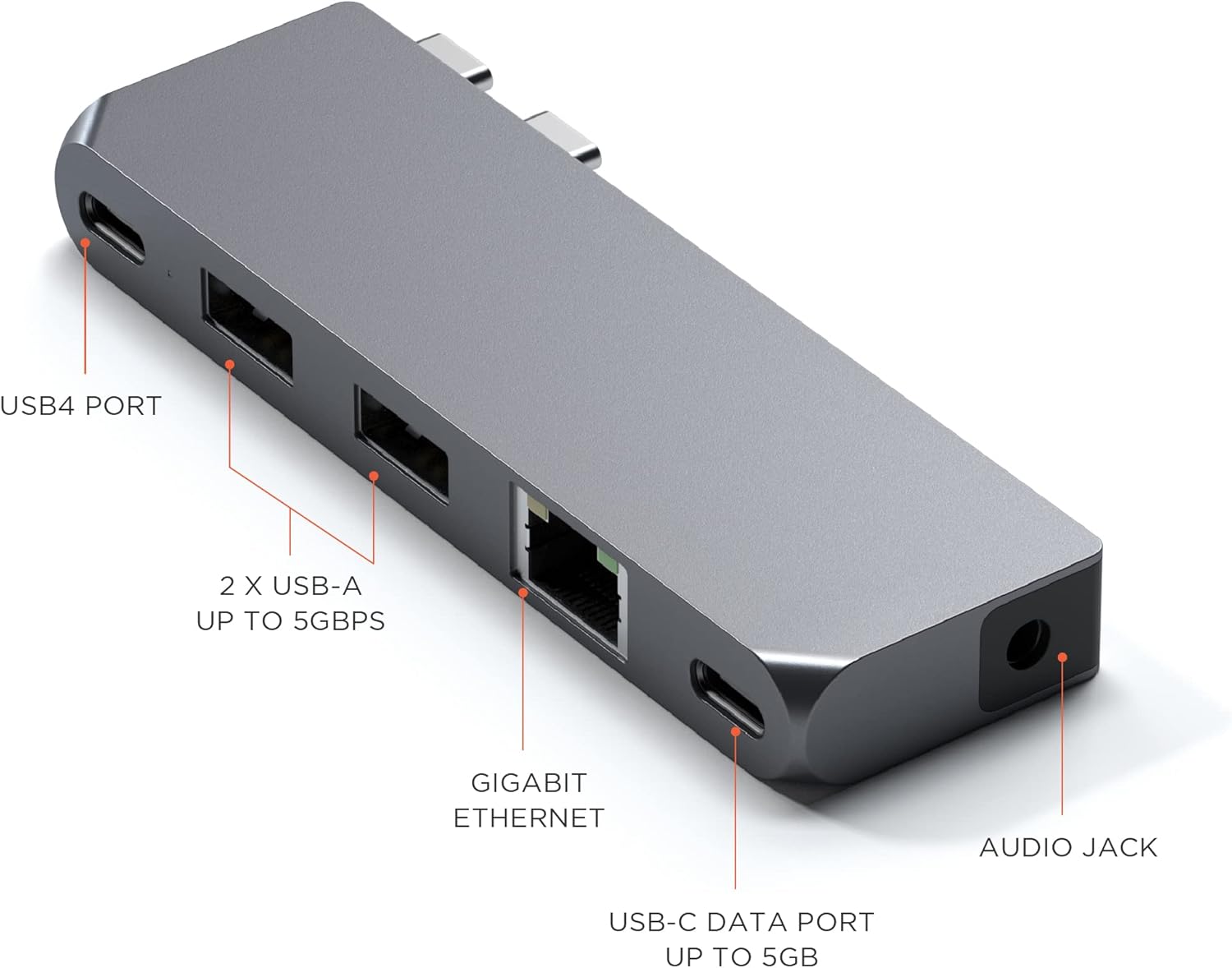
Image: A detailed view of the Satechi Pro Hub Mini, with labels indicating each port: USB4 Port, 2x USB-A Data Ports, Gigabit Ethernet, USB-C Data Port, and Audio Jack.
Port Descriptions:
- USB4 Port: Supports up to 100W power delivery for charging, 5K @ 60Hz display output, and data transfer speeds of up to 40Gbps. This port is designed for high-performance connectivity.
- 2 x USB-A Data Ports: Provides data transfer speeds of up to 5Gbps. These ports are suitable for connecting standard USB-A peripherals such as keyboards, mice, and external storage devices. Note: These USB-A ports do not support charging or CD drives.
- Gigabit Ethernet Port: Enables a stable and fast wired network connection, supporting speeds up to 1000 Mbps.
- USB-C Data Port: Offers data transfer speeds of up to 5Gbps, ideal for connecting USB-C peripherals for data exchange.
- 3.5mm Audio Jack: Allows connection of headphones or speakers for audio output. An included audio jack port clip helps secure the hub to your MacBook Pro 14 & 16-inch (2021) models.
Setup
Follow these steps to set up your Satechi USB C Hub Multiport Adapter Pro Hub Mini:
- Identify Compatible Ports: The Pro Hub Mini is designed to connect to the Thunderbolt ports on the left side of your MacBook Pro 14-inch or 16-inch (2021 models).
- Connect the Hub: Align the two USB-C connectors on the hub with the corresponding Thunderbolt ports on your MacBook. Gently push the hub until it is securely seated.
- Attach Audio Jack Clip (Optional): For MacBook Pro 14 & 16-inch (2021) models, use the provided audio jack port clip to further secure the hub and ensure a flush fit.
- Power Connection: Your MacBook can be charged via its MagSafe 3 port or through the hub's USB4 port (up to 100W). For faster charging on MacBook Pro (16-inch, M1 Pro/Max, 2021) models, use the MagSafe 3 port directly as it supports 140W, while the hub's USB4 port supports 100W.

Image: The Satechi Pro Hub Mini connected to a MacBook Pro, illustrating how the hub allows for charging while expanding connectivity.

Image: A close-up view of the Satechi Pro Hub Mini securely attached to a MacBook Pro, highlighting the integrated audio jack and its accompanying clip for a seamless fit.
Operating Instructions
Once the Satechi Pro Hub Mini is connected, you can begin using its various ports:
- Connecting USB Devices: Insert your USB-A or USB-C peripherals (e.g., flash drives, external hard drives, keyboards, mice) into the corresponding data ports.
- Network Connection: Connect an Ethernet cable from your router or modem to the Gigabit Ethernet port on the hub for a stable wired internet connection.
- Display Output: To connect an external display, use a compatible Thunderbolt cable with the USB4 port. Ensure your monitor supports 5K @ 60Hz for optimal performance.
- Audio Output: Plug your 3.5mm headphones or speakers into the audio jack for sound output. Ensure your MacBook's audio settings are configured to output sound through the hub if necessary.

Image: A MacBook Pro connected to an external monitor, demonstrating the display output capability through the Satechi Pro Hub Mini's USB4 port.
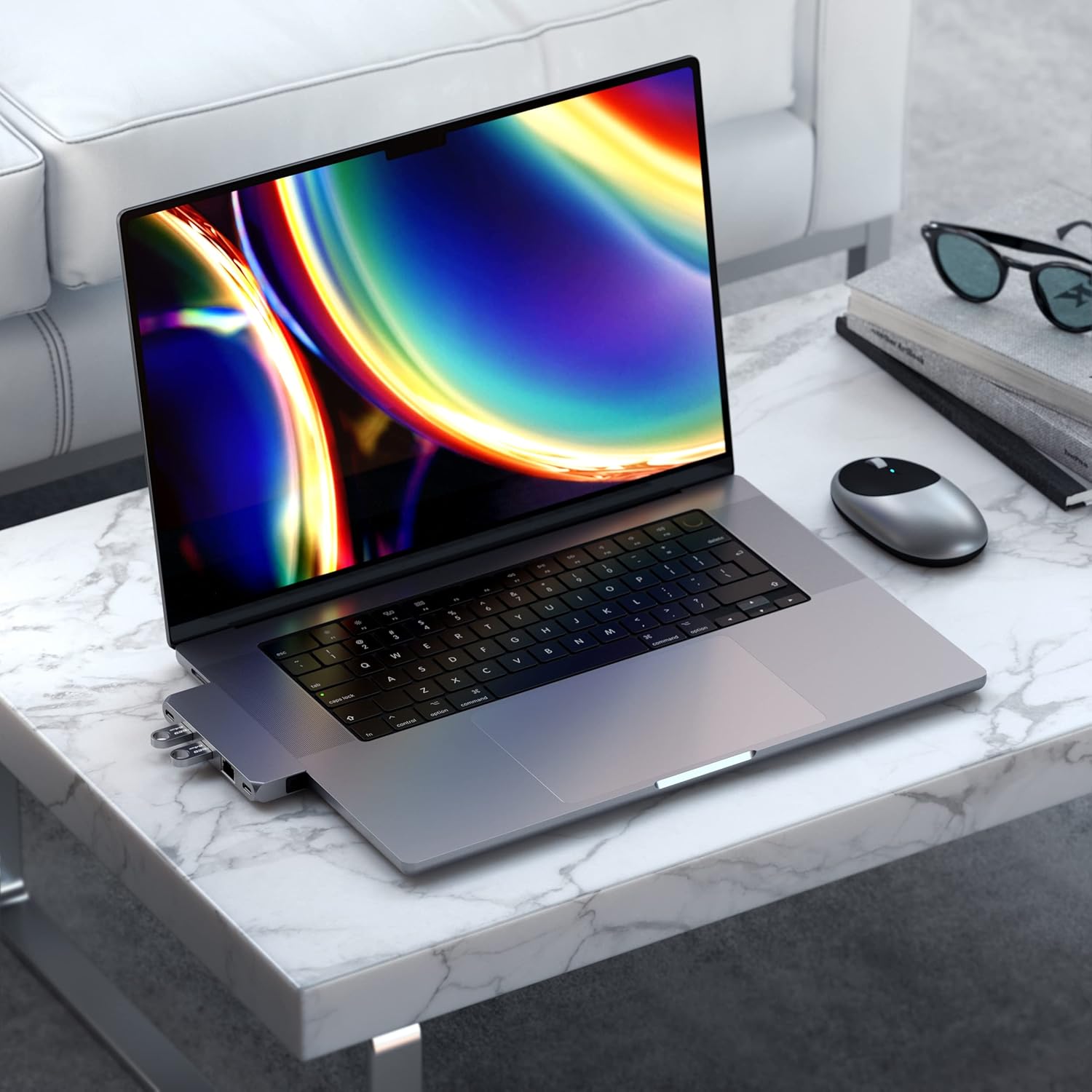
Image: The Satechi Pro Hub Mini integrated into a desktop environment with a MacBook Pro, illustrating its compact design and how it blends with the laptop.
Maintenance
To ensure the longevity and optimal performance of your Satechi Pro Hub Mini, follow these maintenance guidelines:
- Cleaning: Use a soft, dry, lint-free cloth to clean the exterior of the hub. Avoid using harsh chemicals, cleaning solvents, or strong detergents.
- Storage: When not in use, store the hub in a cool, dry place away from direct sunlight and extreme temperatures.
- Handling: Handle the hub with care. Avoid dropping it or subjecting it to strong impacts, which can damage internal components.
- Port Care: Ensure that no dust or debris accumulates in the ports. Use compressed air if necessary to clear any obstructions.
Troubleshooting
If you encounter issues with your Satechi Pro Hub Mini, refer to the following common problems and solutions:
| Problem | Possible Cause / Solution |
|---|---|
| No display output or flickering display. | Ensure the USB4 port is used with a compatible Thunderbolt cable and monitor. Dual display is not supported on Apple 2020 M1 Macs. Check monitor input settings. |
| USB-A devices not working or not charging. | The USB-A ports are for data transfer only and do not support charging or CD drives. Ensure the device is a data-only peripheral. If using high-bandwidth devices like webcams or capture cards, try connecting only one at a time as bandwidth limitations may occur. |
| Hub is blocking MagSafe 3 port. | On some MacBook Pro Max 16-inch models, the hub may block the MagSafe 3 port. This is by design. You can still charge via the hub's USB4 port (up to 100W) or use the MagSafe 3 port directly when the hub is disconnected. |
| Audio jack not functioning. | Verify that the audio jack is fully inserted. Check your MacBook's Sound Preferences to ensure the correct output device is selected (e.g., 'Satechi Hub Audio' or similar). Sometimes, switching audio outputs in system settings can cause an auto-mute that needs to be manually unmuted. |
| Input lag with connected peripherals (e.g., mouse). | Ensure the hub is securely connected to the MacBook. Try connecting the peripheral directly to the MacBook if possible to isolate the issue. Some wireless receivers may experience interference or bandwidth issues when connected through a hub. |
| iPhone 15 not recognized or not charging. | iPhone 15 models are not supported by this hub. |
Specifications
Key technical specifications for the Satechi USB C Hub Multiport Adapter Pro Hub Mini:
- Model Number: ST-UCPHMIM
- Color: Space Gray
- Item Weight: 1.47 ounces
- Product Dimensions (LxWxH): 3.96 x 0.46 x 1.22 inches
- Hardware Interface: USB Type C
- Operating System Compatibility: macOS
- Compatible Devices: MacBook Pro, MacBook Air (including models with M1, M2, and M3 chips)
- USB4 Port: Up to 100W Power Delivery, 5K @ 60Hz Display Output, 40Gbps Data Transfer
- USB-A Data Ports: 2 ports, up to 5Gbps data transfer (no charging/CD drives)
- USB-C Data Port: 1 port, up to 5Gbps data transfer
- Ethernet: Gigabit Ethernet (10/100/1000 Mbps)
- Audio: 3.5mm Audio Jack
Warranty and Support
Satechi products are designed for reliability and performance. Your Satechi USB C Hub Multiport Adapter Pro Hub Mini is covered by a 2-year limited warranty against defects in materials and workmanship under normal use.
For customer support, technical assistance, or warranty claims, please visit the official Satechi website or contact their customer service department. Keep your purchase receipt as proof of purchase for warranty purposes.
For more information, you may visit the Satechi Store on Amazon.
Ask a question about this manual
Ask about setup, troubleshooting, compatibility, parts, safety, or missing instructions. Manuals+ will review the question and use this page’s manual context to help answer it.