1. Product Overview
The Newgoal 2-Channel WiFi Wireless Smart Switch is a versatile relay module designed for smart home automation. It supports both momentary (inching) and self-locking work modes, allowing remote control of connected home appliances or power circuits via the Tuya/Smart Life mobile application. This module also features 433MHz RF remote control compatibility, providing flexible control options. It is compatible with popular voice assistants like Amazon Alexa and Google Home.
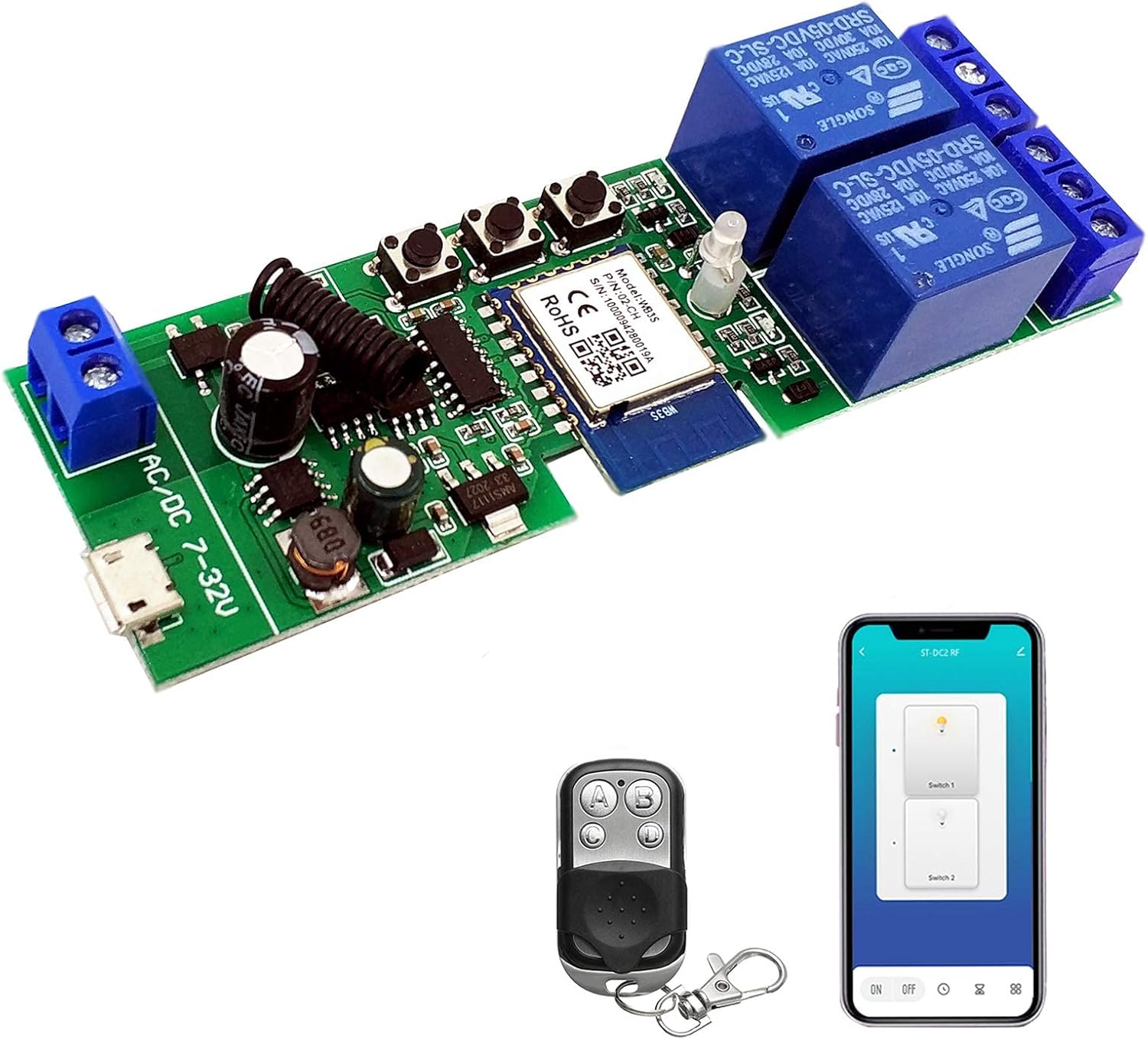
Figure 1: Newgoal 2-Channel WiFi Wireless Smart Switch module, accompanied by its 433MHz RF remote control and a smartphone displaying the Tuya/Smart Life app interface.
2. Product Features
- Dual Control: Control devices remotely via Tuya/Smart Life APP (Android/iOS) and locally with a 433MHz RF remote control.
- Voice Control: Compatible with Amazon Alexa and Google Home for convenient voice commands.
- Multiple Operating Modes: Supports Momentary (Inching), Self-locking, and Interlock modes for diverse applications.
- Smart Home Integration: DIY smart lighting, fans, garage doors, humidifiers, thermostats, and more.
- App Functions: Schedule timing, device sharing, and group management available through the Tuya/Smart Life app.
- Flexible Power Input: Can be powered by USB 5V or AC/DC 7-32V.
- 2.4GHz Wi-Fi Support: Connects to your existing 2.4G Wi-Fi network (5G Wi-Fi and Mesh Wi-Fi systems are not supported).

Figure 2: Overview of key features including momentary button, three working modes, smart timer, share control, Google Home/Amazon Alexa compatibility, 433RF control, and WiFi control.
3. Package Contents
Upon opening the package, verify that all the following items are included:
- 1 x WiFi Relay Module (2-channel)
- 1 x 433 MHz RF Remote Control
- 1 x User Manual

Figure 3: The Newgoal Smart Switch module, its 433MHz RF remote control, and the included user guide, as typically found in the product packaging.
4. Specifications
| Attribute | Value |
|---|---|
| Brand | Newgoal |
| Model Number | NG8000005ty-RF |
| ASIN | B09P1BFGLR |
| UPC | 735372698196 |
| Power Input | USB 5V or AC/DC 7-32V |
| Maximum Switching Voltage | 32 Volts |
| Contact Type | Normally Open |
| Contact Material | Silver |
| Operation Mode | Automatic |
| Operating Time | 1 Seconds (Inching mode default) |
| Wireless Connectivity | 2.4GHz Wi-Fi, 433MHz RF |
| Dimensions (L x W x H) | 67mm x 41mm x 20mm (approx.) |
| Item Weight | 10.2 ounces |
5. Setup Guide
5.1 Component Identification

Figure 4: Detailed view of the Newgoal Smart Switch module, highlighting key components such as relays, LEDs, Wi-Fi antenna, 433RF receiver, input terminals, and control buttons.
- Power Input (Input1 Micro USB 5V/500mA or Input2 AC/DC 7-32V/500mA): Connect your power supply here.
- Relay Outputs (NC, COM, NO): Connect your devices to be controlled. NC (Normally Closed), COM (Common), NO (Normally Open).
- CH1 ON-OFF LED / CH2 ON-OFF LED: Indicate the status of each relay.
- WiFi LED: Indicates Wi-Fi connection status.
- RF Pairing Button 1 / Manual Switch 1 / Setting Button: Used for RF pairing and manual control of Channel 1.
- RF Pairing Button 2 / Manual Switch 2 / Setting Button: Used for RF pairing and manual control of Channel 2.
- Momentary/Self-lock/Interlock Modes Toggle Button: Press to cycle through the operating modes.
5.2 Wiring Instructions
Important: Ensure power is disconnected before performing any wiring. Incorrect wiring can damage the device or connected appliances.
- The relay outputs (NC, COM, NO) act as switches and do not provide power output. The power supply input (AC/DC) is solely for powering the module's PCBA.
- Connect the power supply (5V USB or 7-32V AC/DC) to the appropriate input terminals.
- Connect the device you wish to control to the relay terminals. For example, to control a light, connect one wire from the light to the COM terminal and the other wire to either NO (Normally Open) or NC (Normally Closed) depending on your desired default state.
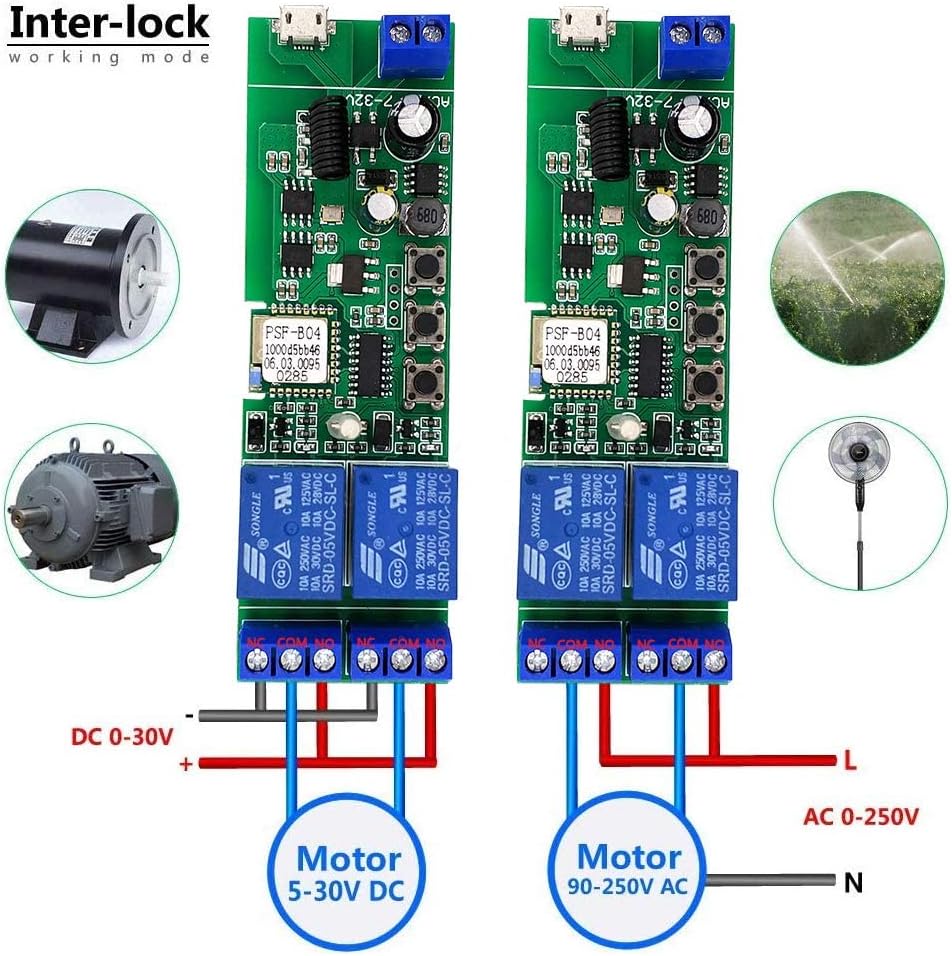
Figure 5: Example wiring diagrams for the interlock working mode, demonstrating connections for both DC motors (5-30V DC) and AC motors (90-250V AC).
5.3 App Download and Wi-Fi Pairing
- Download App: Search for "Tuya Smart" or "Smart Life" in your mobile app store (Google Play for Android, App Store for iOS) and install it.
- Register/Login: Open the app and register a new account or log in if you already have one.
- Power On Device: Connect the Newgoal Smart Switch to a power source. The Wi-Fi LED should start blinking. If not, press and hold the "Momentary/Self-lock/Interlock Modes Toggle Button" for approximately 5 seconds until the Wi-Fi LED blinks rapidly.
- Add Device: In the Tuya/Smart Life app, tap the "+" icon in the top right corner to add a device. Select "Auto Scan" or manually add the device under "Electrical" -> "Switch (Wi-Fi)".
- Connect to 2.4GHz Wi-Fi: Ensure your smartphone is connected to a 2.4GHz Wi-Fi network. The device does not support 5GHz Wi-Fi or Mesh Wi-Fi systems. Enter your Wi-Fi password in the app.
- Pairing: Follow the on-screen instructions in the app. Keep the device close to your Wi-Fi router during the pairing process. Once successfully paired, the Wi-Fi LED will stop blinking and remain solid.
- Rename Device: After successful pairing, you can rename the device and individual channels within the app for easier identification.
6. Operating Modes
The module supports three distinct operating modes. You can switch between these modes by pressing the "Momentary/Self-lock/Interlock Modes Toggle Button" on the board.
6.1 Momentary (Inching) Mode
- In this mode, the relay will turn on for a brief period (default 1 second) and then automatically turn off.
- Ideal for applications like garage door openers or electric gate controls where a short pulse is required.
- You can configure the inching time within the Tuya/Smart Life app.
6.2 Self-locking Mode
- In self-locking mode, pressing the button (either on the app or the manual button on the board) will toggle the relay's state.
- If the relay is off, pressing the button turns it on, and it stays on until the button is pressed again.
- Suitable for controlling lights or other devices that need to remain on or off until manually changed.
6.3 Interlock Mode
- This mode is typically supported by 2-gang and 4-gang modules (this is a 2-gang module).
- When one relay is turned on, all other relays in the group are automatically turned off.
- Primarily used for controlling AC/DC motors, ensuring only one direction of movement is active at a time.
7. RF Remote Control Pairing
The module can learn up to 14 different 433MHz fixed/learning codes per channel. It does not support encrypted or rolling codes.
- To Pair: Press and hold the desired "RF Pairing Button / Manual Switch" (Button 1 for Channel 1, Button 2 for Channel 2) on the module for approximately 3 seconds. The corresponding LED will blink, indicating it's in pairing mode. Then, press a button on your 433MHz RF remote control. The LED on the module will stop blinking, confirming successful pairing.
- To Clear RF Codes: Press and hold the desired "RF Pairing Button / Manual Switch" on the module for approximately 15 seconds. The corresponding LED will blink rapidly and then turn off, indicating all learned RF codes for that channel have been cleared.
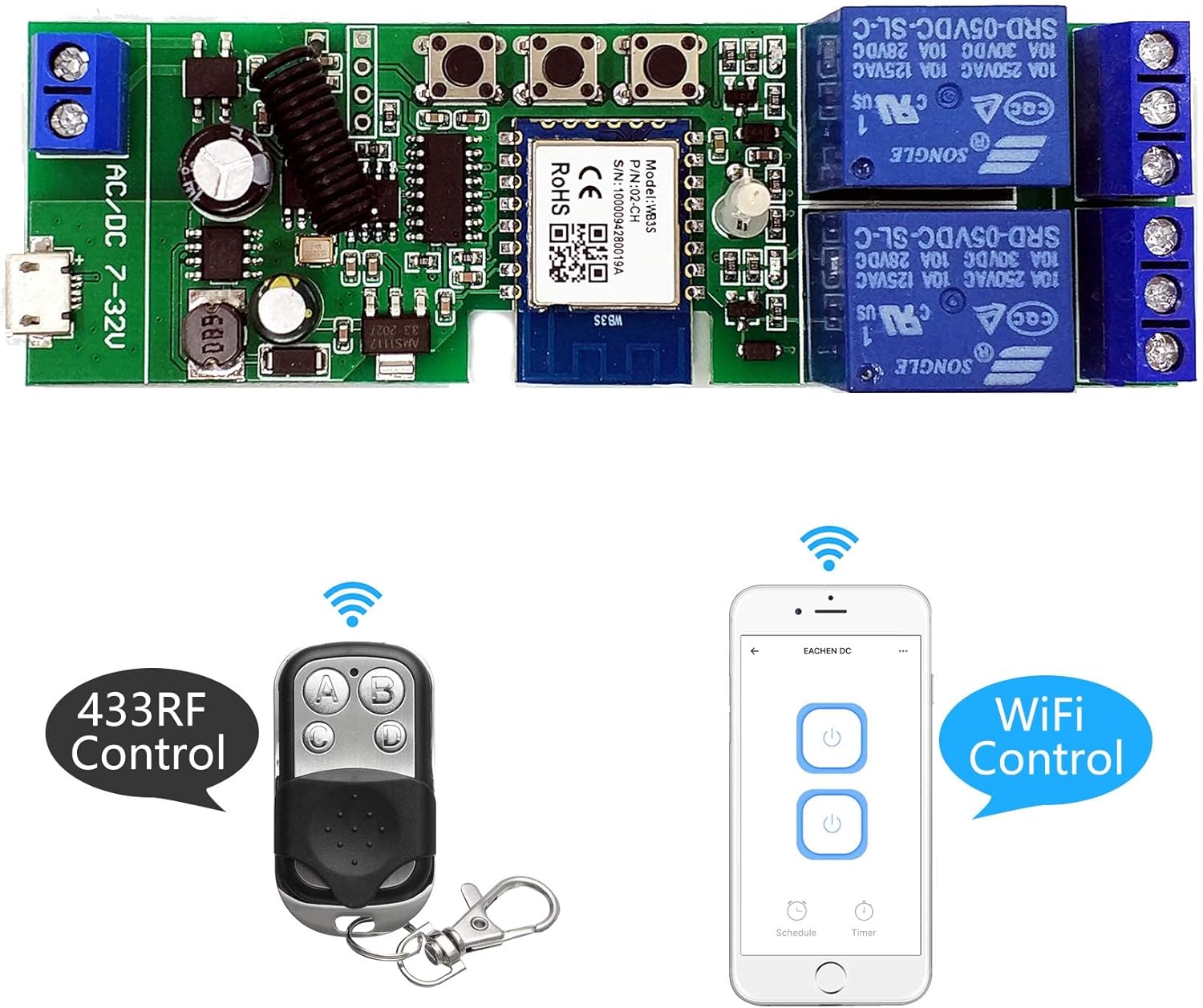
Figure 6: The Newgoal Smart Switch module demonstrating both 433MHz RF remote control and Wi-Fi app control capabilities.
8. Maintenance
- Keep the device in a dry environment, away from moisture and extreme temperatures.
- Avoid exposing the module to direct sunlight or corrosive substances.
- Regularly check wiring connections to ensure they are secure.
- Clean the device with a soft, dry cloth. Do not use liquid cleaners.
- Ensure firmware is updated via the Tuya/Smart Life app for optimal performance and security.
9. Troubleshooting
| Problem | Possible Cause / Solution |
|---|---|
| Device cannot connect to Wi-Fi. |
|
| RF remote control not working. |
|
| Device is unresponsive in the app. |
|
| Relay does not switch. |
|
10. Warranty and Support
This product comes with a standard return policy allowing for refund or replacement within 30 days of purchase, as per Amazon's policy. For technical support, troubleshooting assistance beyond this manual, or warranty claims, please contact the seller directly through your Amazon order history. Provide your order number and a detailed description of the issue for prompt assistance.
Seller: Newgoal-US
For further information or updates, please refer to the product page on Amazon or the official Newgoal website.


