
1. Product Overview
The NETUM C850 is a versatile 3-in-1 mini wireless barcode scanner designed for efficient and precise scanning of both 1D and 2D barcodes, including QR codes. Its compact and portable design makes it ideal for various applications in retail, transportation, education, and medical sectors. This manual provides detailed instructions for setting up, operating, maintaining, and troubleshooting your C850 scanner.

Figure 1: NETUM C850 Barcode Scanner - Front View
The image displays the sleek, white and blue NETUM C850 barcode scanner, highlighting its compact form factor and scanning window. This device is designed for ease of use and portability.

Figure 2: Applications of NETUM C850 Barcode Scanner
This image illustrates the diverse environments where the NETUM C850 scanner can be utilized, including retail stores, transportation hubs, educational institutions, and medical facilities, demonstrating its wide applicability.
2. Setup and Connection
The NETUM C850 offers flexible connectivity options to suit various operating environments.
2.1 Charging the Scanner
Before initial use, fully charge the scanner. The built-in 1200mAh battery provides approximately 20 hours of continuous scanning and takes 3-4 hours to fully charge.

Figure 3: Battery Specifications
The image details the 1200mAh battery capacity, offering 20 hours of continuous scanning, 3-4 hours charging time, and 100 days standby time, ensuring long-lasting performance.
2.2 Connection Methods
The C850 supports three primary connection modes:
- Bluetooth Connection: Connects wirelessly to laptops, PCs, mobile phones, tablets (iOS, Android), and POS systems. Effective transmission distance is approximately 10m (33ft) in obstacle-free environments.
- 2.4G Wireless Connection: Utilizes a USB dongle for wireless connection to Windows XP/7/8/10, Mac OS, and Linux devices. Transmission range can reach up to 100m (330ft) without obstacles.
- Wired Connection (USB): Connects directly to your device via the USB cable. This mode allows for barcode scanning while simultaneously charging the device.

Figure 4: Three Connection Methods
This image visually demonstrates the three versatile connection options for the NETUM C850 scanner: Bluetooth, 2.4GHz Wireless via adapter, and direct USB cable connection, illustrating its adaptability to various devices.
2.3 Powering On/Off
The scanner features a physical power switch to conserve energy and prevent accidental operation. Locate the switch on the device and slide it to the 'ON' or 'OFF' position as needed.

Figure 5: Physical Power Switch and Portability
The image highlights the compact, pocket-sized design of the NETUM C850 scanner, showing it easily fitting into a pocket. An inset diagram points out the physical power switch and USB Type-C port, emphasizing its user-friendly features.
3. Operating the Scanner
The C850 is designed for intuitive and efficient barcode scanning.
3.1 Supported Barcode Symbologies
The 2D scanning engine provides decoding capabilities for a wide range of 1D and 2D barcodes.
- 1D Symbologies: UPC / EAN (UPCA / UPCE / EAN-8 / EAN-13, ISBN), Code 39, Code 32 (Italian Pharmacode), Code 128, Code 93, Codabar, Interleaved 2 of 5, Standard 2 of 5, Industrial 2 of 5, Matrix 2 of 5 (Japanese), Code 11, Telepen, Pharmacode, Chinese post code, MSI Plessey, GS1 DataBar.
- 2D Symbologies: QR Code, Micro QR Code, DataMatrix, MaxiCode, Aztec, PDF417, MicroPDF417, PostNet, PLANET, Australia Post, Royal Post, CODABLOC F Composite Codes (CC-A, CC-B, CC-C).
Note: GS1 is not supported.

Figure 6: 1D and 2D Barcode Compatibility
This image illustrates the NETUM C850's capability to read various 1D and 2D barcodes, including QR Code, Data Matrix, Aztec Code, Inverted Barcode, PDF417, and Colorful Barcode, showcasing its broad scanning versatility.
3.2 Scanning Modes
The C850 supports multiple scanning modes for different operational needs:
- Manual Scan: Press the trigger button to scan each barcode individually.
- Auto-sensing Scan: The scanner automatically detects and scans barcodes when they are presented within its scanning range.
- Continuous Scan: The scanner continuously emits a scan beam, allowing for rapid, successive scanning without repeatedly pressing the trigger.
The device also features vibrating notifications to indicate successful scans.

Figure 7: Vibrating Notification Feature
This image highlights the vibrating notification feature of the NETUM C850 scanner, which provides tactile feedback to indicate successful scans, improving user experience in noisy environments or when visual confirmation is difficult.
3.3 Reading Barcodes on Screen
The C850 is capable of reading barcodes directly from digital screens, such as mobile phones or computer monitors, expanding its utility.
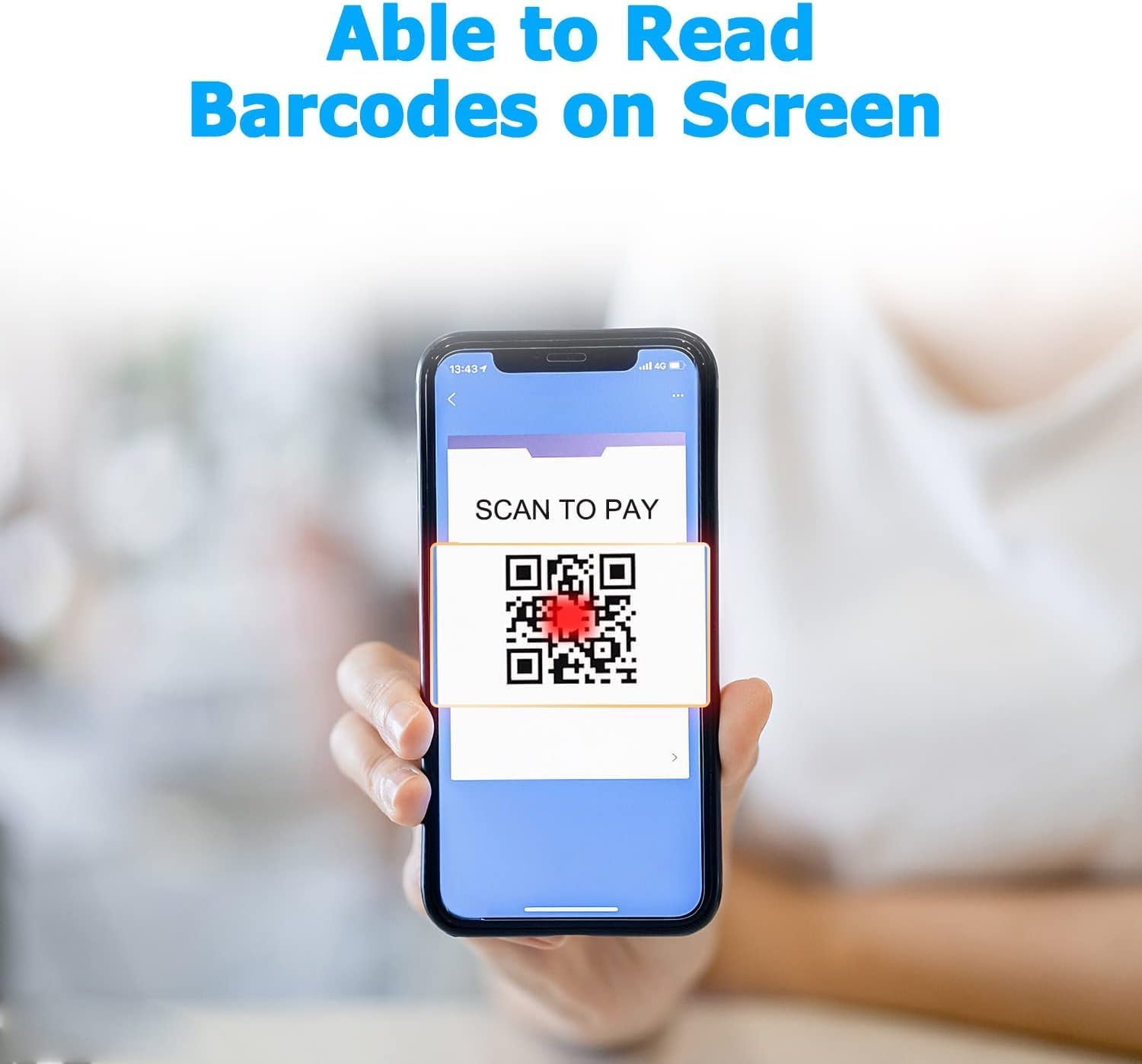
Figure 8: On-Screen Barcode Reading
The image demonstrates the NETUM C850's ability to accurately scan QR codes displayed on a smartphone screen, showcasing its versatility for digital barcode applications.
3.4 Data Upload Modes
The scanner supports two data upload modes:
- Storage Mode: Scanned data is stored internally in the scanner's memory and can be uploaded later.
- Instant Upload Mode: Scanned data is immediately transmitted to the connected device.
3.5 Adding Prefix/Suffix
The scanner can be configured to add custom prefixes or suffixes to scanned data, which is useful for data organization and integration with various software systems.
3.6 Official Product Video
Video 1: NETUM C850 Scanner Features Overview
This official video from NETUM demonstrates the key features of the C850 scanner, including its 3-in-1 wireless capabilities, various scanning modes (manual, auto-sensing, continuous), and its compact, portable design. It provides a visual guide to the scanner's operation and versatility.
4. Maintenance
Proper maintenance ensures the longevity and optimal performance of your NETUM C850 scanner.
- Cleaning: Use a soft, dry, lint-free cloth to clean the scanner's exterior. For the scanning window, use a lens cleaning cloth and a mild, non-abrasive cleaning solution if necessary. Avoid harsh chemicals or abrasive materials that could scratch the lens or damage the casing.
- Storage: Store the scanner in a cool, dry place away from direct sunlight, extreme temperatures, and high humidity.
- Battery Care: To prolong battery life, avoid fully discharging the battery frequently. If storing for an extended period, charge the battery to about 50% and recharge every few months.
- Physical Protection: While designed to be durable, avoid dropping the scanner or subjecting it to strong impacts.
5. Troubleshooting
If you encounter issues with your NETUM C850 scanner, refer to the following common troubleshooting steps:
| Problem | Possible Cause | Solution |
|---|---|---|
| Scanner not turning on. | Low battery; Power switch off. | Charge the scanner fully. Ensure the physical power switch is in the 'ON' position. |
| Cannot connect via Bluetooth/2.4G. | Out of range; Incorrect pairing; Interference. | Ensure scanner is within range. Re-pair the device following the instructions in your device's manual. Minimize interference from other wireless devices. |
| Scanner not reading barcodes. | Barcode damaged/unreadable; Incorrect scanning mode; Dirty scanning window. | Try scanning a different, known-good barcode. Ensure the correct scanning mode (Manual, Auto-sensing, Continuous) is selected. Clean the scanning window with a soft cloth. |
| Scanned data is incorrect or incomplete. | Incorrect data format settings; Software compatibility issue. | Refer to the scanner's programming guide for data format settings. Ensure your receiving software is compatible and configured correctly. |
| Slow scanning response. | Distance from receiver; Environmental interference. | Reduce the distance between the scanner and the receiver. Avoid environments with strong electromagnetic interference. |
6. Specifications
Key technical specifications for the NETUM C850 barcode scanner:
- Product Dimensions: 4.72 x 1.57 x 1.18 inches
- Item Weight: 7.1 ounces
- Model Number: 2D-C850
- Batteries: 1 Lithium Metal battery required (included)
- Manufacturer: NETUM
- Compatible Devices: Laptop, Desktop, Tablet, Smartphone
- Power Source: Battery Powered
- Connectivity Technology: Bluetooth, 2.4G Wireless, Wired (USB)
- First Available Date: December 22, 2021

Figure 9: Product Dimensions
The image provides precise measurements of the NETUM C850 scanner, showing its length (124mm) and width (41mm), along with the scanning head depth (25mm), illustrating its compact and ergonomic design.
7. Warranty and Support
NETUM products are designed for reliability and performance. For warranty information, technical support, or service inquiries, please refer to the contact details provided with your product packaging or visit the official NETUM website. Please have your product model number (C850) and purchase details ready when contacting support.


