
1. Introduction
Thank you for choosing the Gammeefy Wireless Pro Controller. This controller is designed to enhance your gaming experience across multiple platforms, including Nintendo Switch, Switch Lite, Switch OLED, iOS MFi games, Android HID models, and Windows 7/8/10 (PC wired connection only). Please read this manual carefully before use to ensure proper operation and to maximize your enjoyment of the product.
2. Package Contents
- 1 x Gammeefy Wireless Pro Controller
- 1 x USB-C Charging Cable
- 1 x User Manual
3. Controller Layout

Figure 1: Front view of the Gammeefy Wireless Pro Controller, showing buttons and joysticks.
- Left Joystick: Directional input.
- D-Pad: Directional input.
- HOME Button: Power on/off, return to home screen.
- TURBO Button: Activates/deactivates Turbo function.
- Screenshot Button: Captures screenshots.
- Right Joystick: Directional input.
- A/B/X/Y Buttons: Action buttons.
- +/- Buttons: Menu navigation.
- L/R Buttons: Shoulder buttons.
- ZL/ZR Buttons: Trigger buttons.
- LED Indicator Lights: Display connection status and battery level.
4. Setup Instructions
4.1 Connecting to Nintendo Switch/Lite/OLED
- On your Nintendo Switch console, go to the HOME Menu.
- Select "Controllers" > "Change Grip/Order".
- Press and hold the HOME button on your Gammeefy controller for 3-5 seconds until the LED indicator lights start flashing rapidly.
- Once the controller is successfully paired, the LED indicator lights will remain solid.
- To reconnect, simply press the HOME button. The controller supports wake-up function for the console.

Figure 2: Gammeefy controller connected wirelessly to a Nintendo Switch console.
4.2 Connecting to PC (Wired Only)
- Connect the controller to your PC using the provided USB-C cable.
- The controller will be recognized as a standard gamepad.
- Ensure your PC operating system is Windows 7/8/10 or newer.

Figure 3: Gammeefy controller connected to a PC via USB-C cable for wired gameplay.
4.3 Connecting to iOS/Android Devices
- Enable Bluetooth on your iOS or Android device.
- Press and hold the HOME button on your Gammeefy controller until the LED indicators flash.
- On your device, search for Bluetooth devices and select the Gammeefy controller to pair.
- The controller supports iOS MFi games and Android HID models.
5. Operating Instructions
5.1 LED Lighting Modes
The controller features an embedded LED strip with 10 colors and 3 different light modes. Use the dedicated lighting button (often located near the HOME button or a specific combination) to cycle through modes:
- Mode 1: Breathing/Cycling colors.
- Mode 2: Solid color (press to select desired color).
- Mode 3: Lights off.
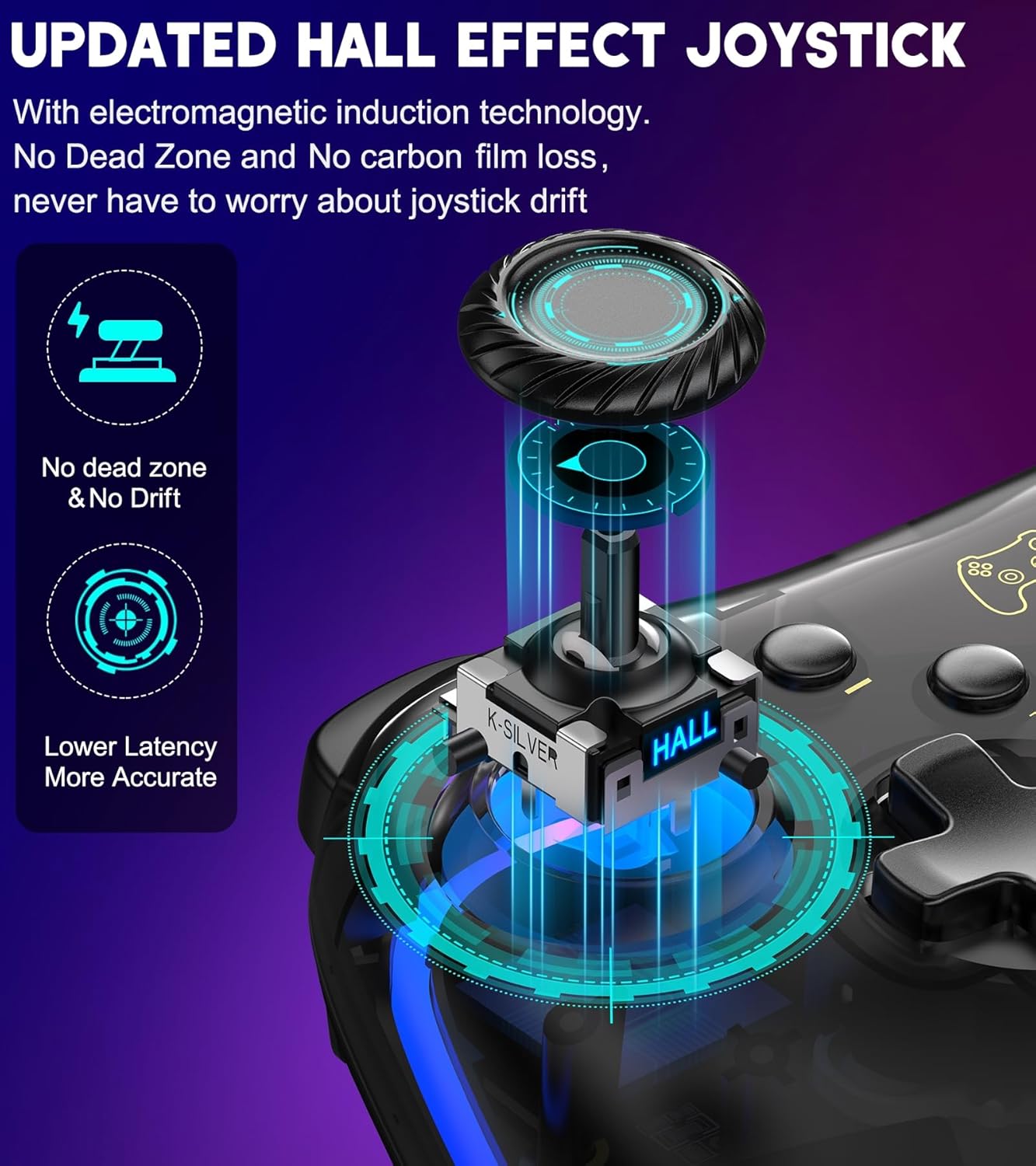
Figure 4: The controller showcasing its RGB breathing light feature.
5.2 Turbo Function
The Turbo function allows for rapid, repeated input of a button press. It can be set to auto or manual mode with adjustable speeds.
- Activate Manual Turbo: Press and hold the TURBO button, then press the desired action button (A/B/X/Y/L/R/ZL/ZR). Release both buttons. Now, holding the action button will trigger rapid presses.
- Activate Auto Turbo: Repeat the above step. Now, a single press of the action button will trigger rapid presses automatically until pressed again.
- Adjust Turbo Speed: Press and hold the TURBO button, then move the Right Joystick Up or Down to cycle through 3 speeds: 5 shots/s, 12 shots/s, or 20 shots/s.
- Deactivate Turbo: Press and hold the TURBO button, then press the action button twice.

Figure 5: Visual representation of the Auto & Manual Turbo function and speed adjustments.
5.3 Vibration Function
The controller features dual vibration motors with 4 adjustable levels:
- None
- Weak
- Medium
- Strong
Refer to the controller's specific button combinations (usually a combination of a function button and a directional input) to adjust vibration intensity.

Figure 6: The controller's physical feedback features, including 6-axis gyro and 4-level vibration.
5.4 KeyLinker App Customization
The KeyLinker app allows for advanced customization of your controller:
- Button Remapping: Change the function of any button (e.g., A to B).
- Joystick Sensitivity: Adjust joystick dead zone to 0 for reduced delay and customize sensitivity.
- Firmware Updates: Upgrade the controller's firmware directly through the app without needing to download separate packages.
Download the KeyLinker app from your device's app store and follow the in-app instructions to connect and customize your controller.

Figure 7: The KeyLinker app interface showing joystick dead zone adjustment options.
6. Battery and Charging
The controller is equipped with an 800 mAh battery, providing extended gameplay. Use the included USB-C cable to charge the controller. Connect the USB-C end to the controller and the USB-A end to a power source (e.g., console, PC, USB wall adapter).
- Charging Time: Approximately 3 hours.
- Battery Life: Up to 12 hours of gameplay on a full charge.
7. Maintenance
- Keep the controller dry and away from moisture.
- Avoid exposing the controller to extreme temperatures.
- Clean the controller with a soft, dry cloth. Do not use harsh chemicals or abrasive materials.
- Store the controller in a safe place when not in use to prevent damage.
8. Troubleshooting
| Problem | Possible Solution |
|---|---|
| Controller does not power on. | Ensure the controller is charged. Connect it to a power source using the USB-C cable. |
| Controller does not connect to Switch. | Ensure the Switch is in "Change Grip/Order" mode. Try restarting both the Switch and the controller. Ensure the controller is within range. |
| Joystick drift or unresponsiveness. | Calibrate the joysticks via the Switch system settings or use the KeyLinker app to adjust the dead zone to 0. |
| LED lights not working. | Check the lighting mode settings using the dedicated button. Ensure the controller is charged. |
| Turbo function not activating. | Ensure you are following the correct button combination for manual or auto Turbo activation. |
9. Specifications
- Brand: Gammeefy
- Model: B09NVRC8H
- Compatible Devices: Nintendo Switch, Switch Lite, Switch OLED, iOS (MFi), Android (HID), Windows PC (wired)
- Connectivity: Wireless (Bluetooth), Wired (USB-C)
- Battery: 800 mAh, rechargeable via USB-C
- Features: 10-color LED lighting (3 modes), Adjustable Turbo (3 speeds), Dual Vibration (4 levels), 6-axis Gyro Sensor, Customizable buttons via KeyLinker App, Adjustable joystick sensitivity/dead zone via KeyLinker App, Wake-up function.
- Item Weight: 0.3 Kilograms
- UPC: 721618322581
10. Warranty and Support
Gammeefy is committed to providing high-quality products and excellent customer service. Your Gammeefy Wireless Pro Controller comes with:
- 30-Day Free Return: If you are not satisfied with your purchase, you may return it within 30 days for a full refund.
- One-Year Repair Warranty: The product is covered by a one-year warranty for repairs against manufacturing defects.
For any post-purchase questions, concerns, product troubleshooting, returns, or exchanges, please contact our professional After-Sales team. We aim to reply within 24 hours on working days.
For more information, visit the Gammeefy Store on Amazon.
11. Product Videos
11.1 Transparent RGB Controller Overview
Video 1: A detailed look at the transparent design and RGB lighting features of the Gammeefy controller.
11.2 The Clear Choice for Switch Gamers
Video 2: Demonstrates the controller's functionality and appeal for Nintendo Switch users.